
Managing Sourcing Events Pipeline
Streamline RFX management through this centralized pipeline. Use integrated search and filters to instantly track events by category, user, type, or date.
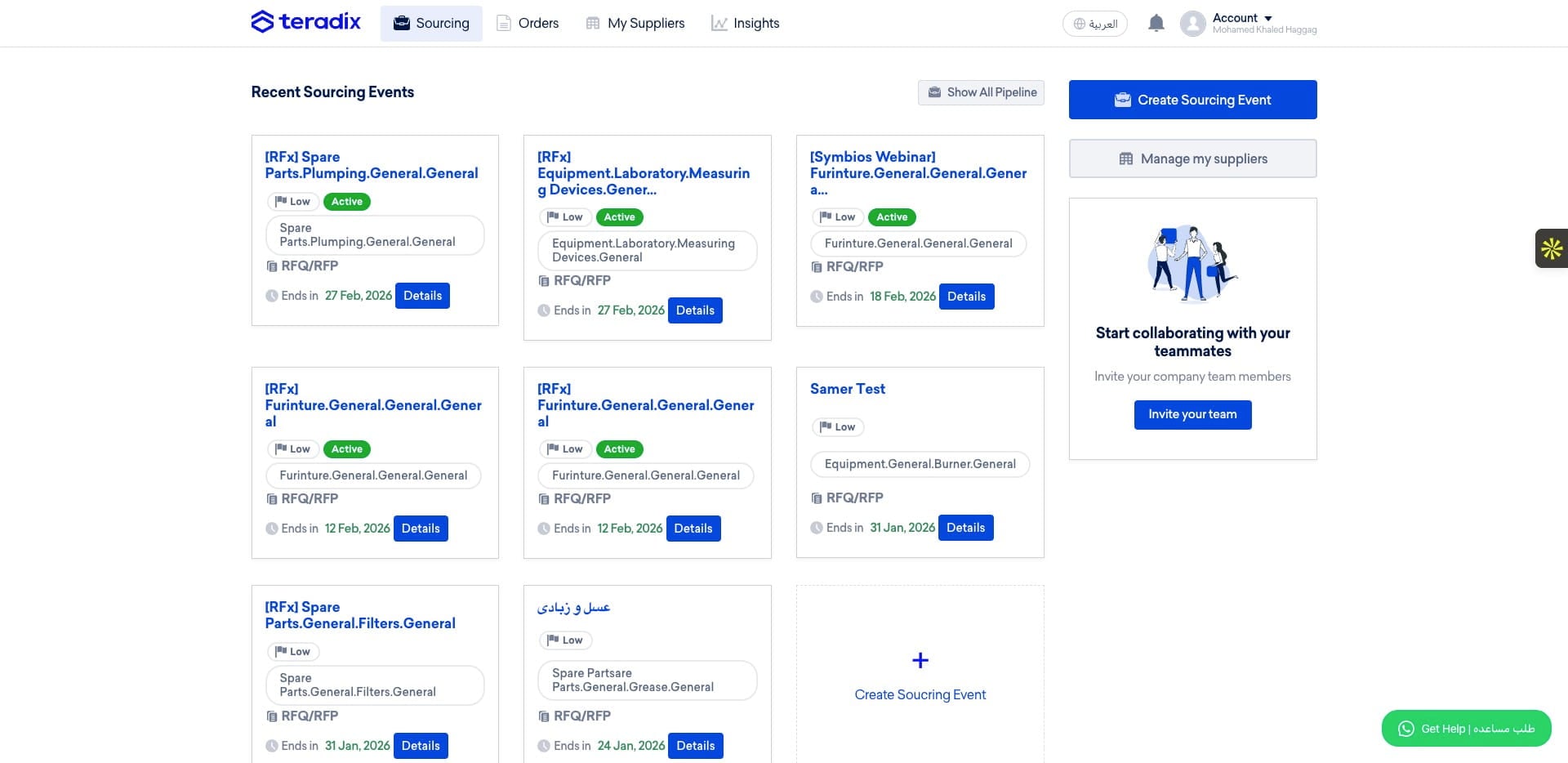
Step 1: Access the Sourcing Pipeline by Navigating to https://app.teradix.com/customer-dashboard
The Sourcing Events Pipeline
It is the central hub for all your sourcing events. It provides quick access to your events and offers options to filter, sort, handle different RFXs, or search by event titles, PR numbers, or other details within your RFx. It’s intuitive and dynamic, designed to maximize your access to sourcing events, help you prioritize activities, and allow you to reach all your events in just a few clicks.
Step 1: Access the Sourcing Pipeline
Click on the "Sourcing" menu item to open the list of all different types of RFx
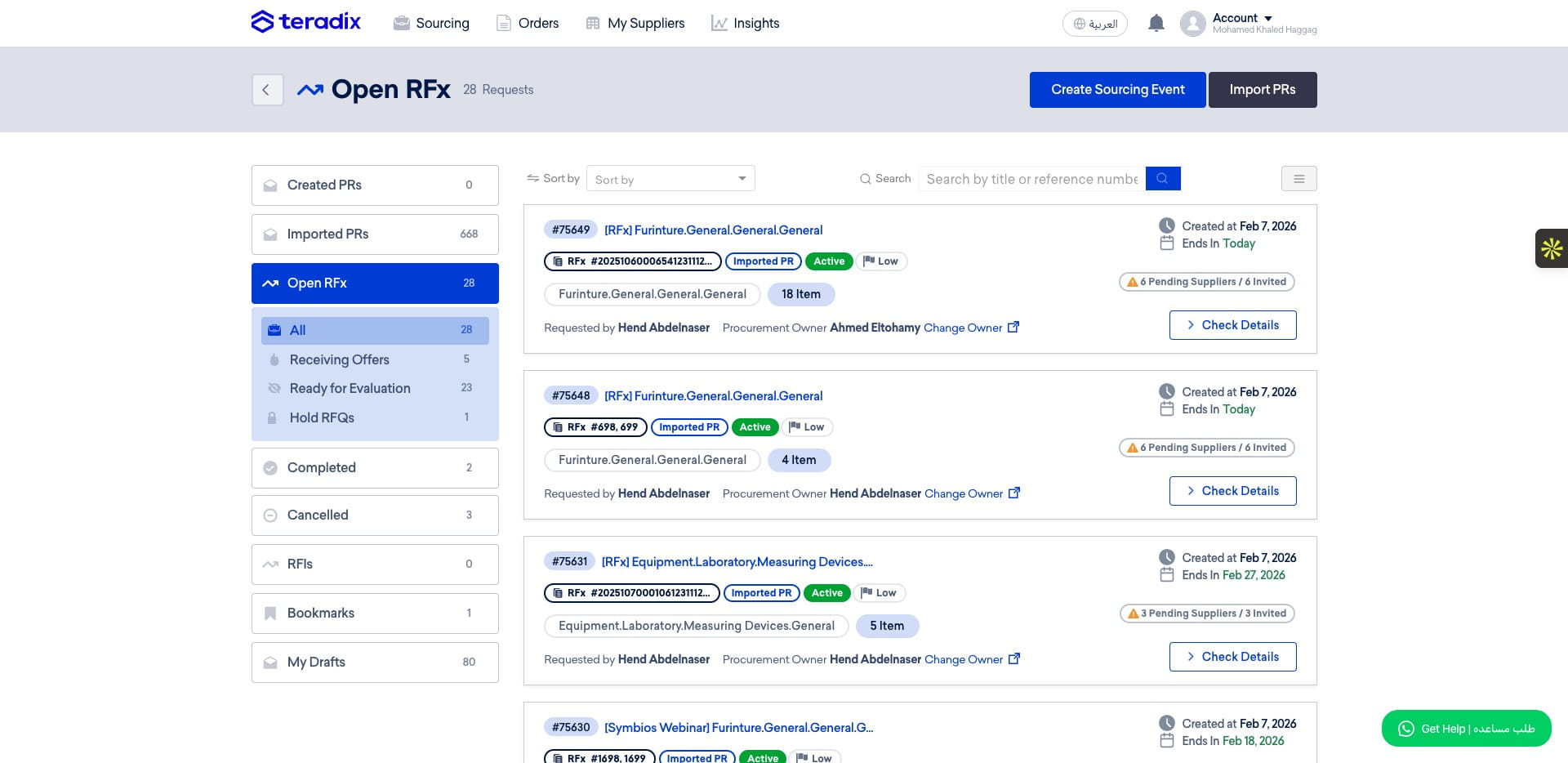
Step 2: Use the side menu and filters to quickly locate your events.
Here where all PRs, RFQs, RFIs, RFPs in all different status are stored and listed, in the left side pane there are multiple tabs for different RFx statuses.
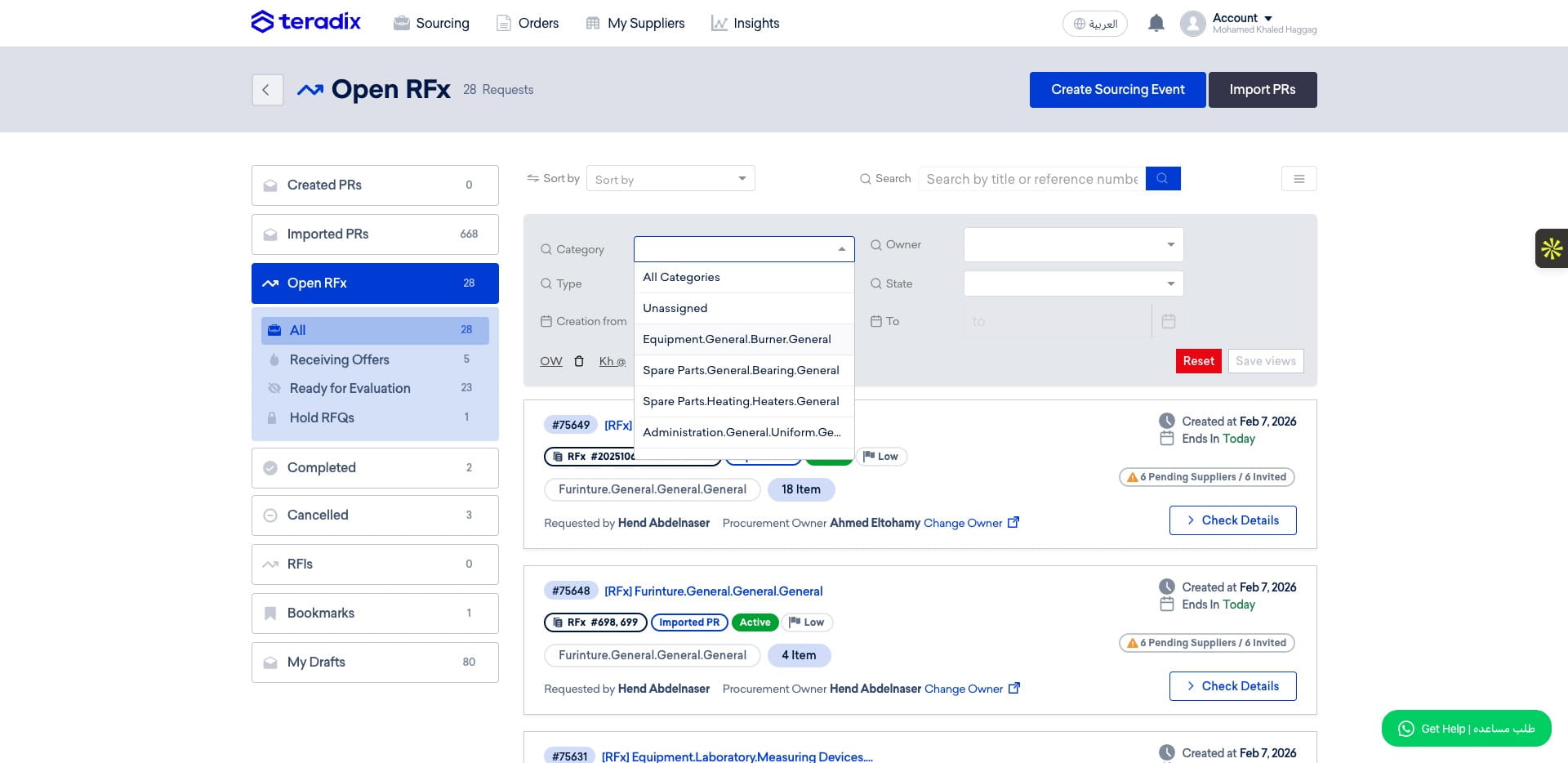
Click on "Options or the 3 bars" to start using the filters to have more targeted view about your RFx.
You can filter RFx per Category.
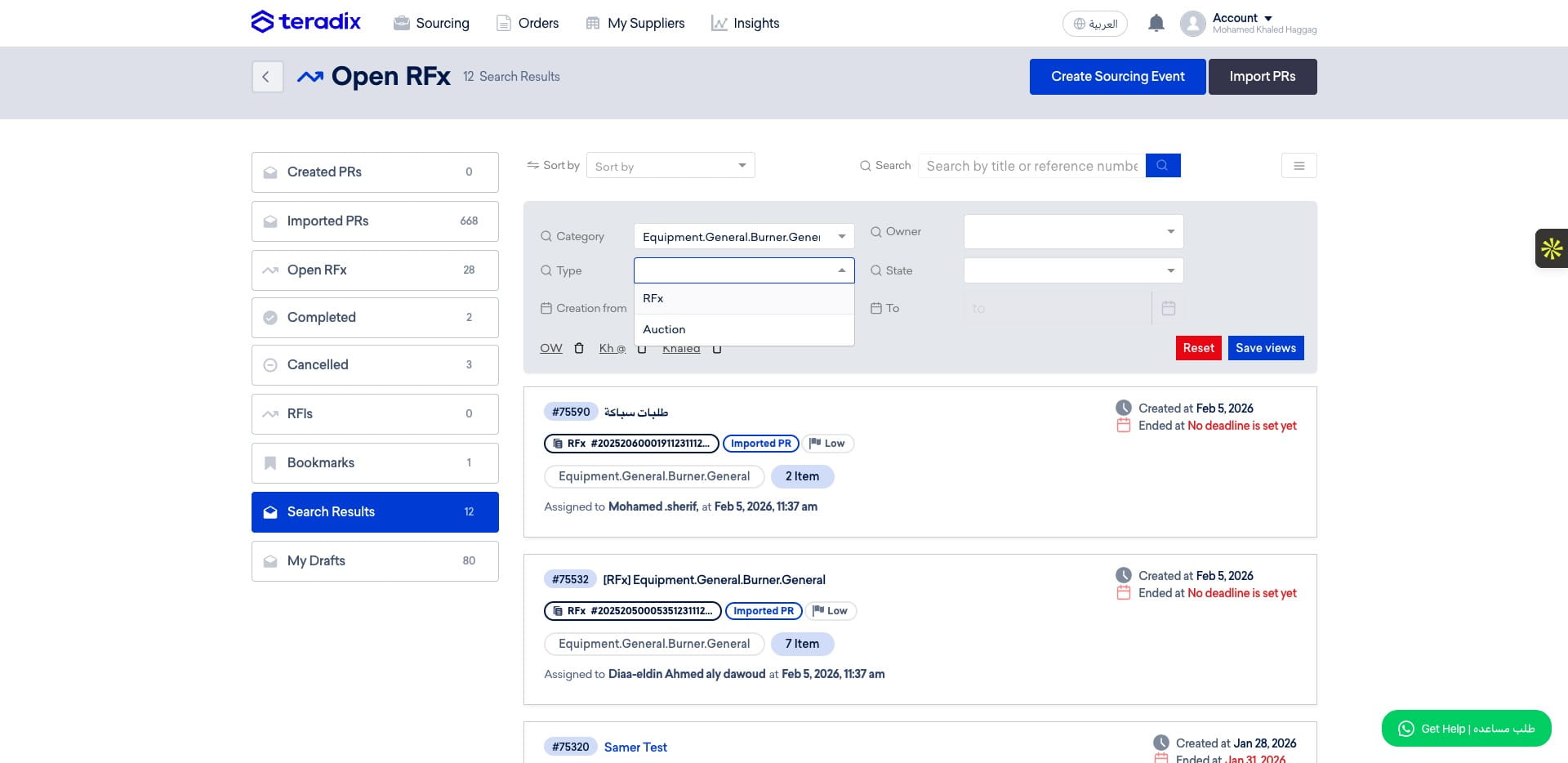
You can filter RFx by Type.
You can filter RFx by who created it.
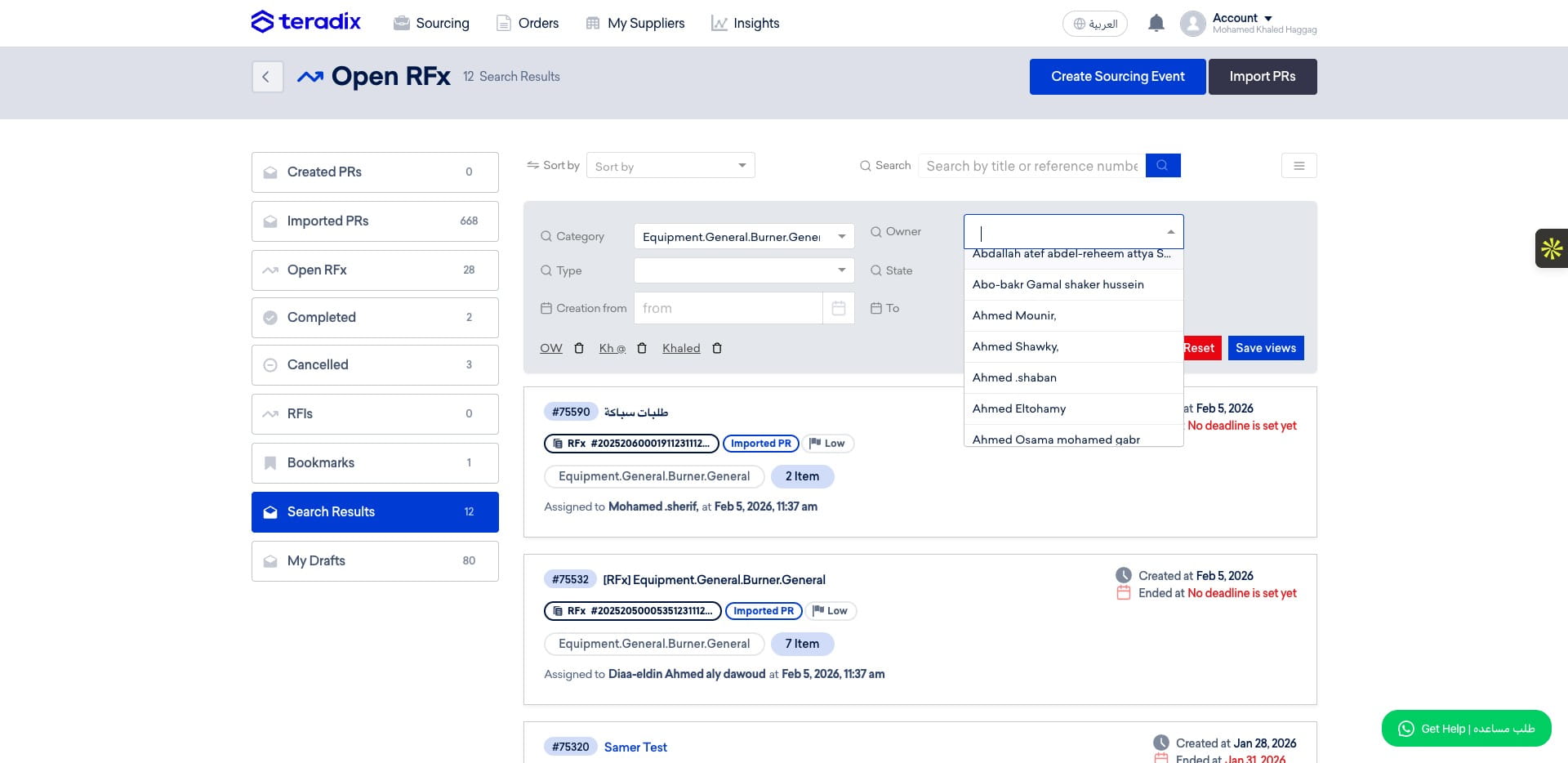
You can filter RFx which on a specific state or specific creation date.
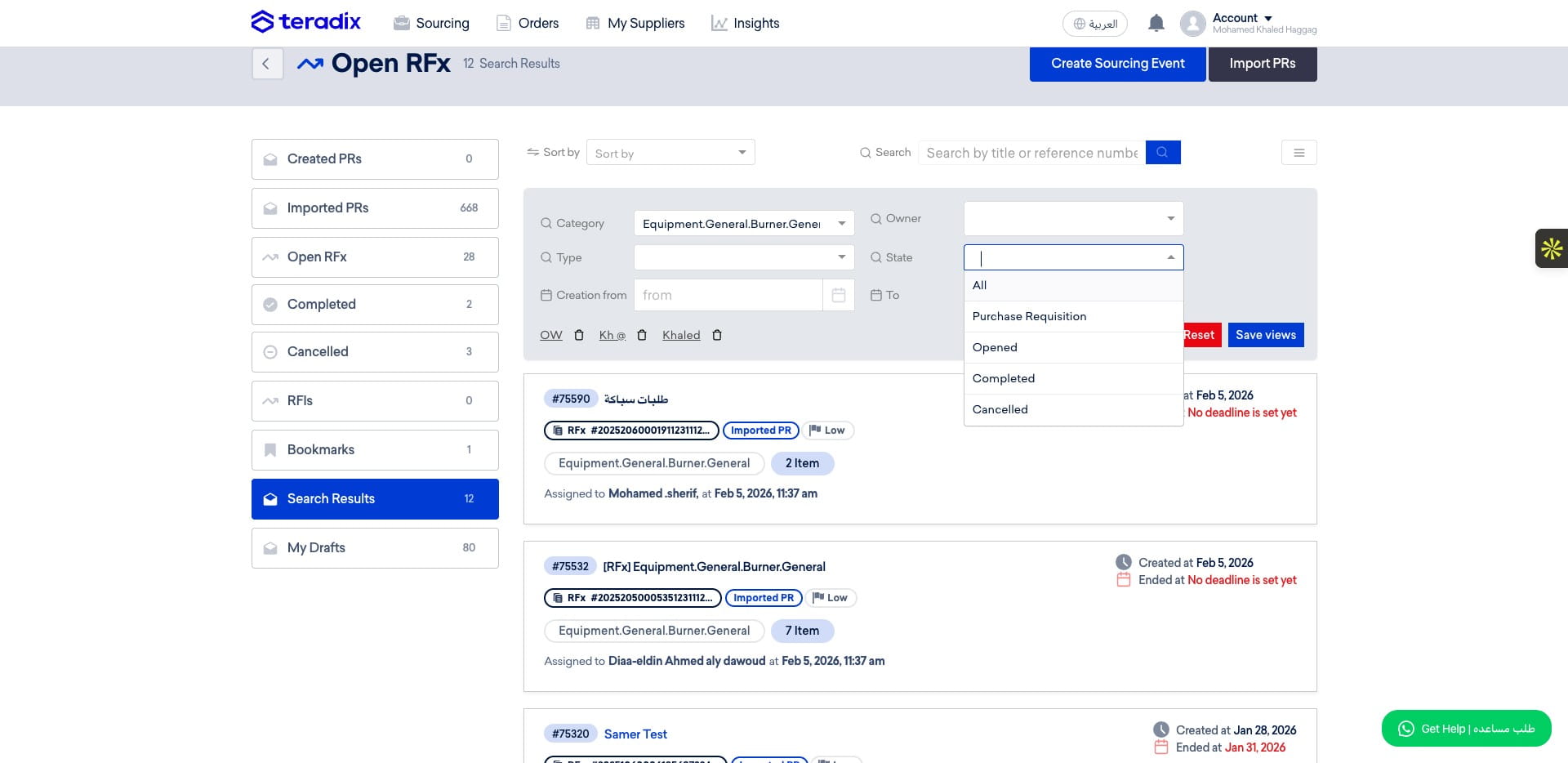
Step 3: Navigate the Left menu for different types and statuses of RFx
You can access the imported PRs by clicking on "Imported PRs" tab.
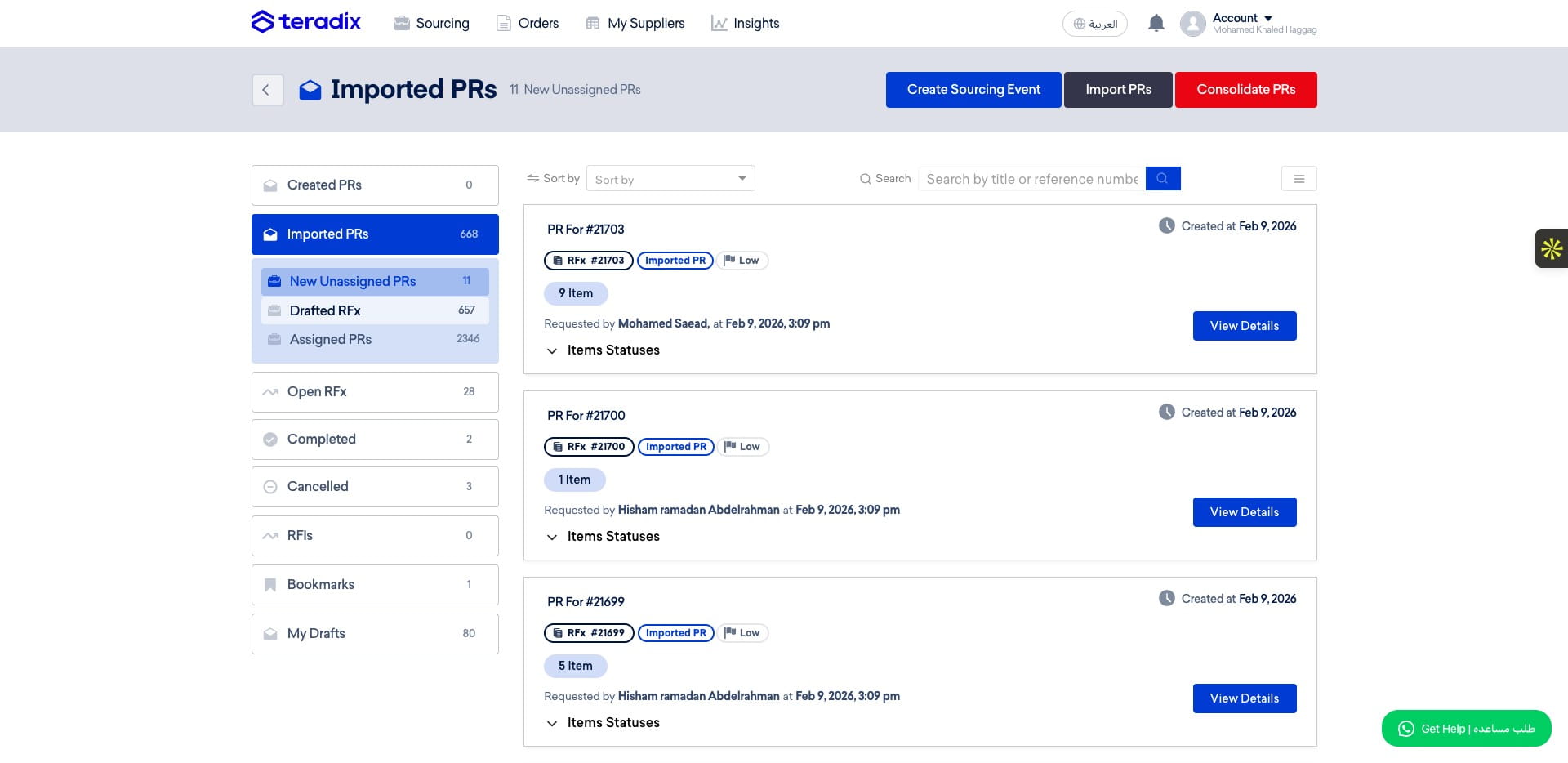
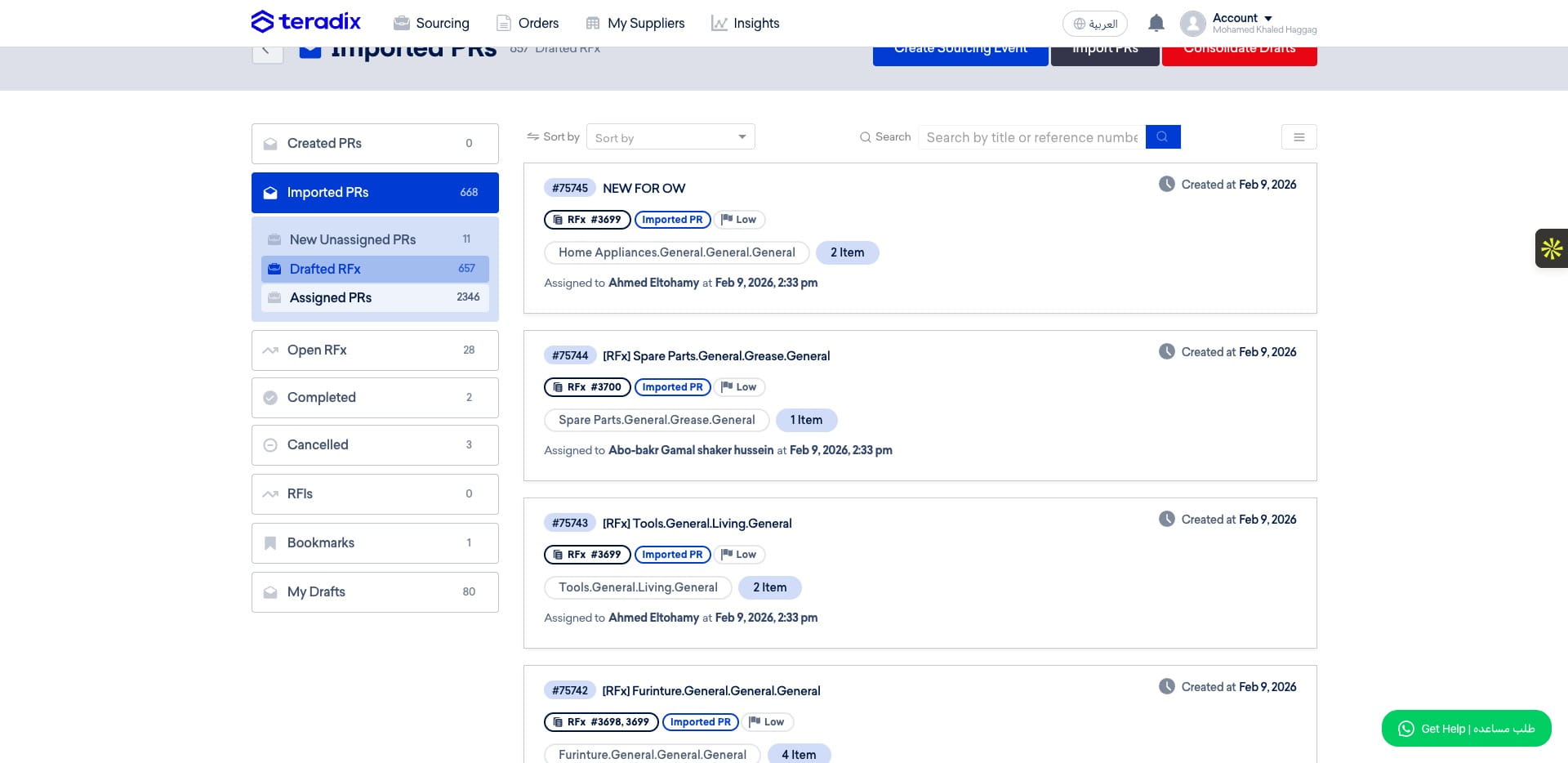
Inside the Imported PRs tab, you will find Unassigned PRs, or the Drafted RFx created by Consolidation Engine.
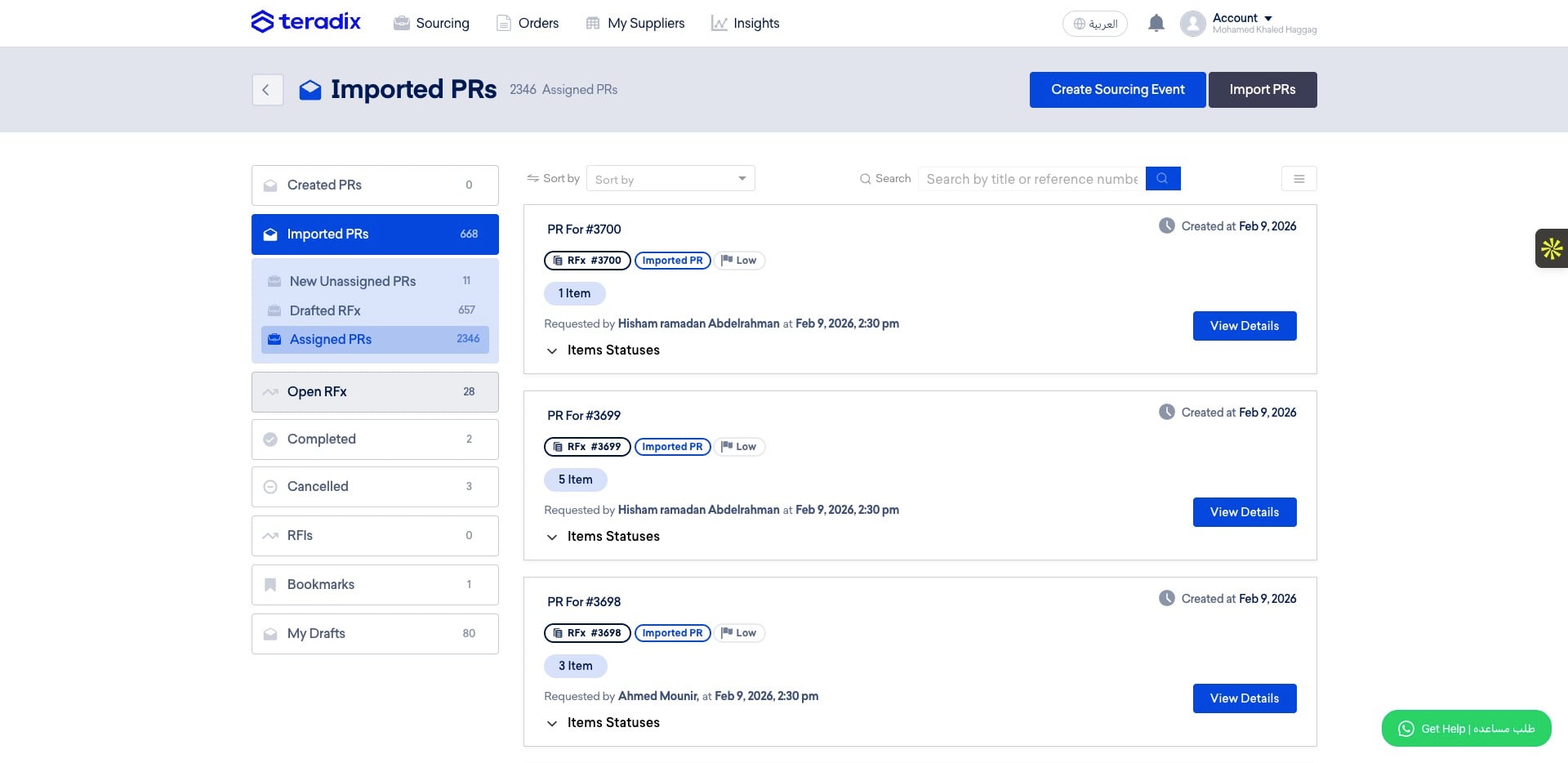
Inside the Imported PRs tab, you will find also theAssigned PR's to you as a Buyer, this view will allow you to see the status of each PR Item (Assigned, Drafted inside RFQ or not, Published or not, part of PO or not and Delivered or not)
To view all pulished and live RFx, click on Open RFx
Inside the Open RFx, you will see the RFx published and still receiving offers.
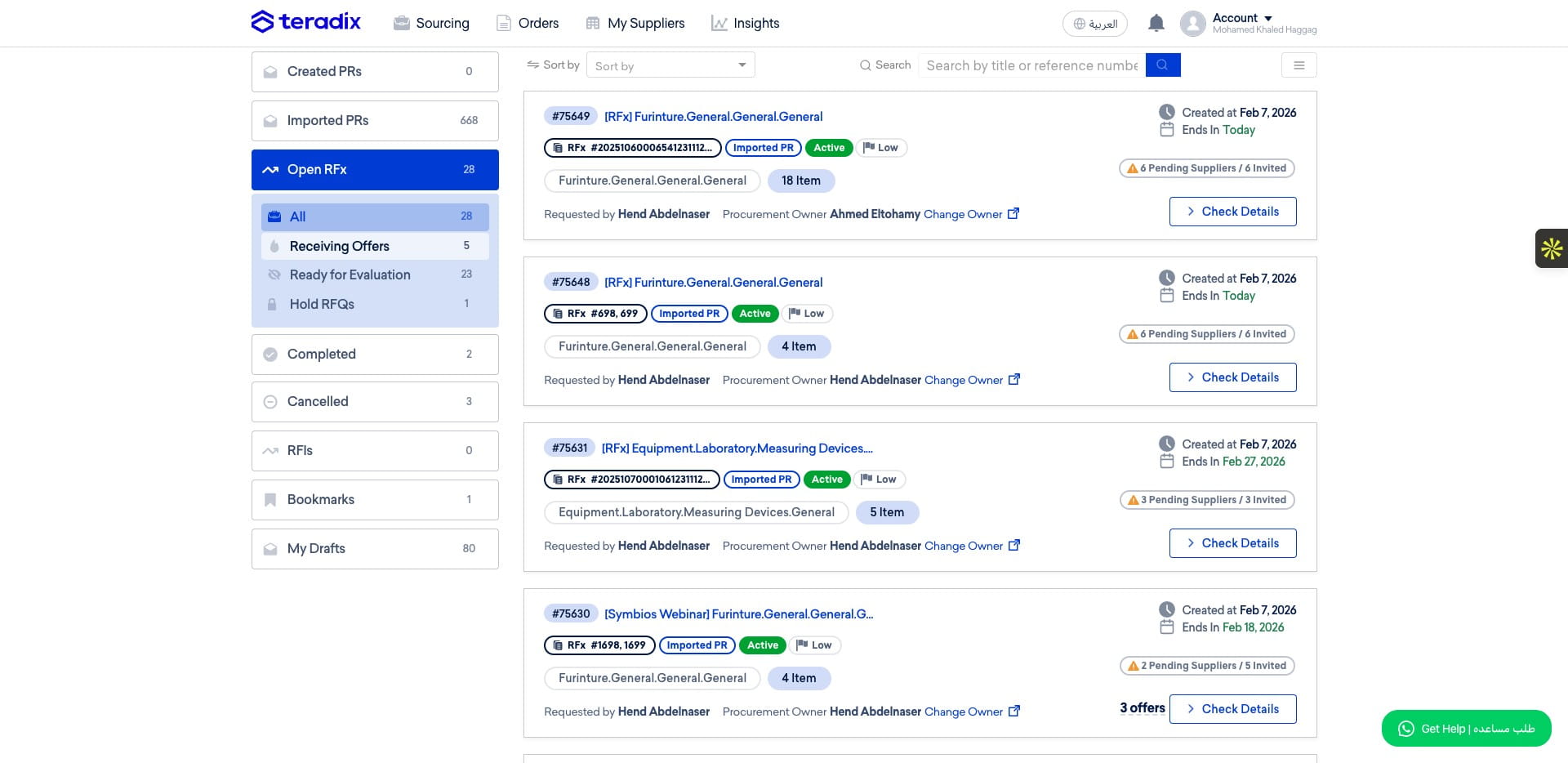
Inside the Open RFx, you will see also the RFx which their deadline came and they ready for technical evaluation in ready for Evaluation, and if you had any RFQs on hold you will find them in Hold RFQs
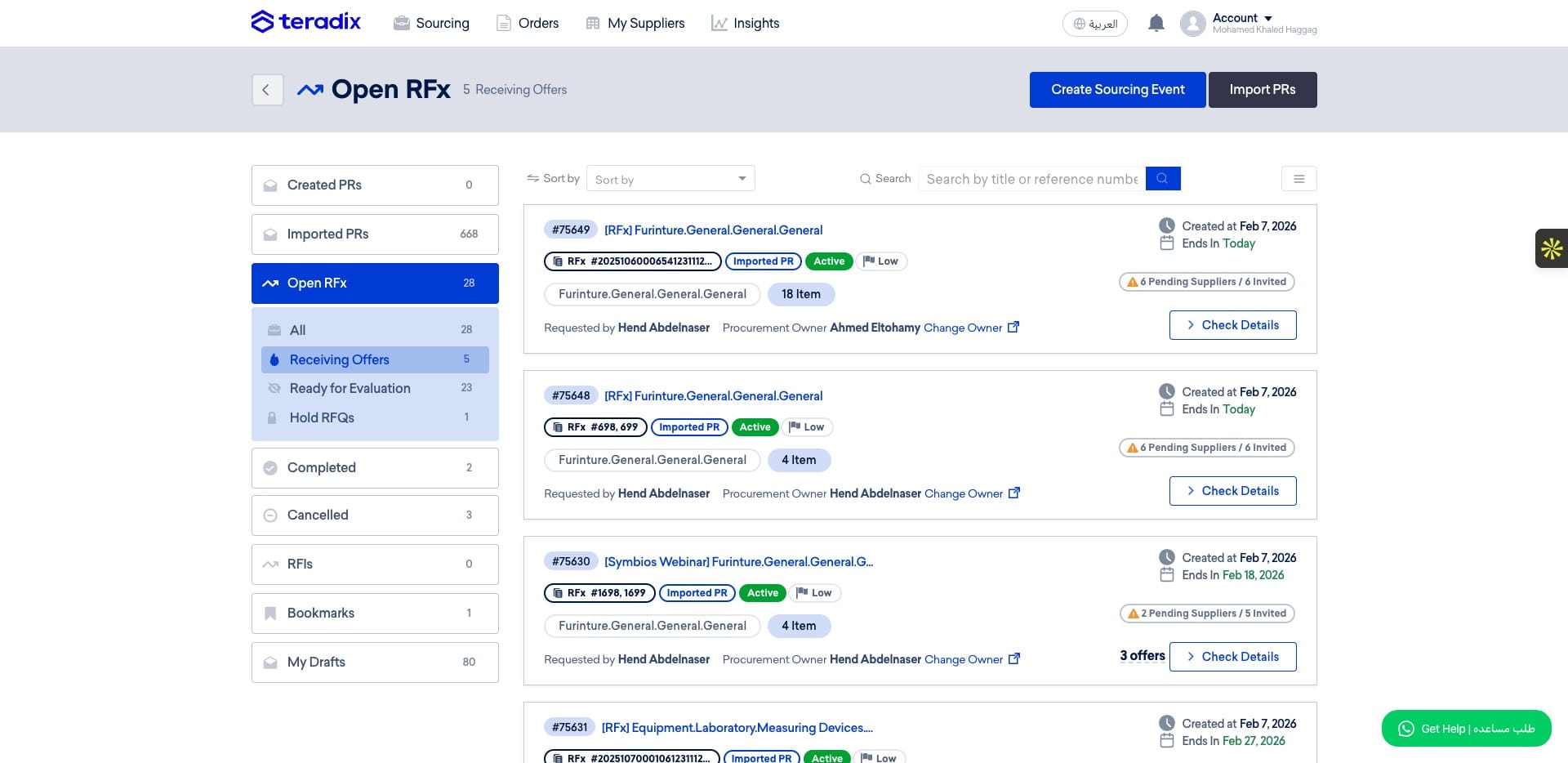
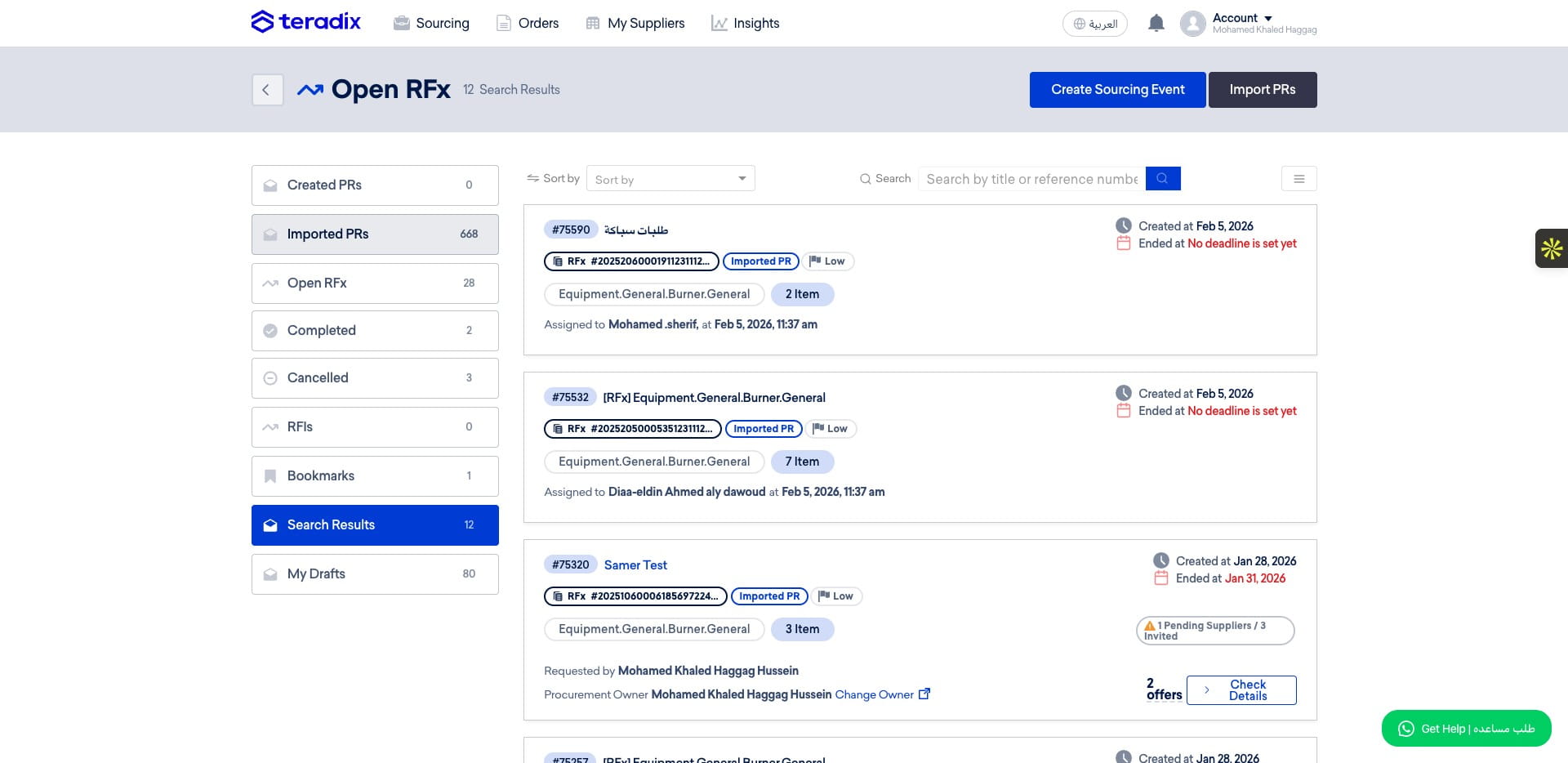
Inside the RFQ card you will find a lot of quick information about this RFQ (RFQ#, Name, Active or not, Priority, Category, HOw many Items insde it, when it had been created, when it will end, , who mainly requested it, which buyer is owning this RFQ, and supplier response insights,
Frequently Asked Questions
- How do I access the Sourcing Pipeline?
Go to https://app.teradix.com/customer-dashboard and click the "Sourcing" menu item to open the list of all different types of RFx. The Sourcing Events Pipeline is the central hub for all your sourcing events.
- How can I quickly find a specific RFx or PR?
Use the search and the side menu with filters. You can search by event title, PR number, or other RFx details. Click "Options" or the 3-bar icon to open filters and narrow results by Category, Type, creator, state, or creation date.
- What is shown in the Imported PRs tab and how is it different from Open RFx?
Imported PRs contains Unassigned PRs and Drafted RFx created by the Consilidation Engine, as well as Assigned PRs to you as a Buyer (showing item-level status such as Assigned, Drafted inside RFQ or not, Published or not, part of PO or not, and Delivered or not). Open RFx shows RFx that are published and still receiving offers; it also contains RFx whose deadlines passed but are "ready for Evaluation" and RFQs that are on "Hold RFQs."
- What details will I see on an RFQ card?
An RFQ card displays quick information including RFQ#, Name, whether it is Active, Priority, Category, how many items are inside, creation date, end date, who requested it, which buyer owns the RFQ, and supplier response insights.
- I can't find an event I expect to see. What should I check?
First open the left side pane where multiple tabs list RFx by status. Use the Options/3-bar filters to make your view more targeted (Category, Type, creator, state, creation date). Search by title or PR number. Check the Imported PRs tab for unassigned or assigned PRs and the Open RFx tab for published/live RFx or those "ready for Evaluation" or on hold.