Re-Consolidate Assigned Draft RFQs
Navigate to https://app.teradix.com/customer-dashboard
Access Assigned Draft RFQs
Click on Sourcing menu item
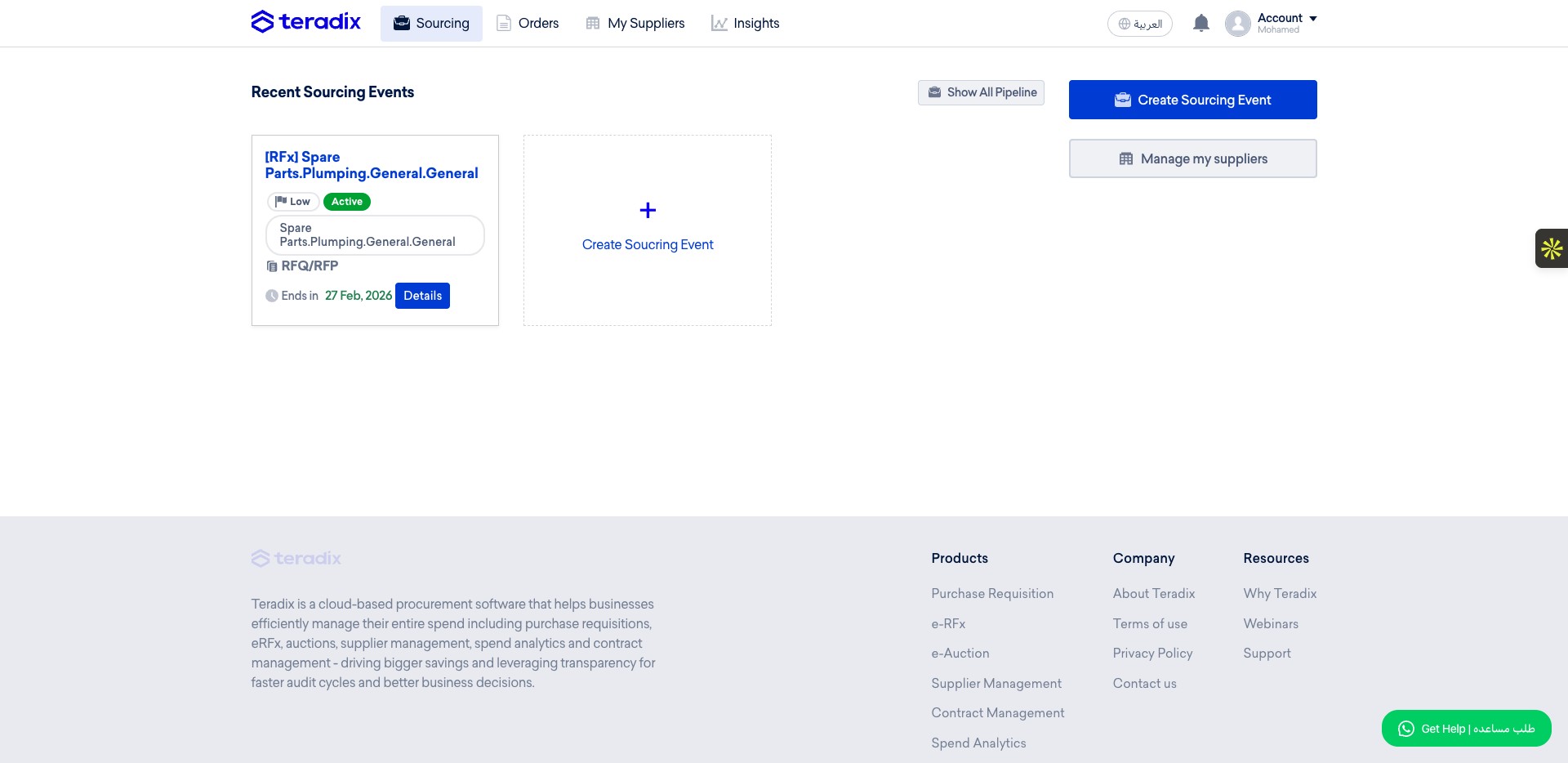
Click on *Imported PRs *
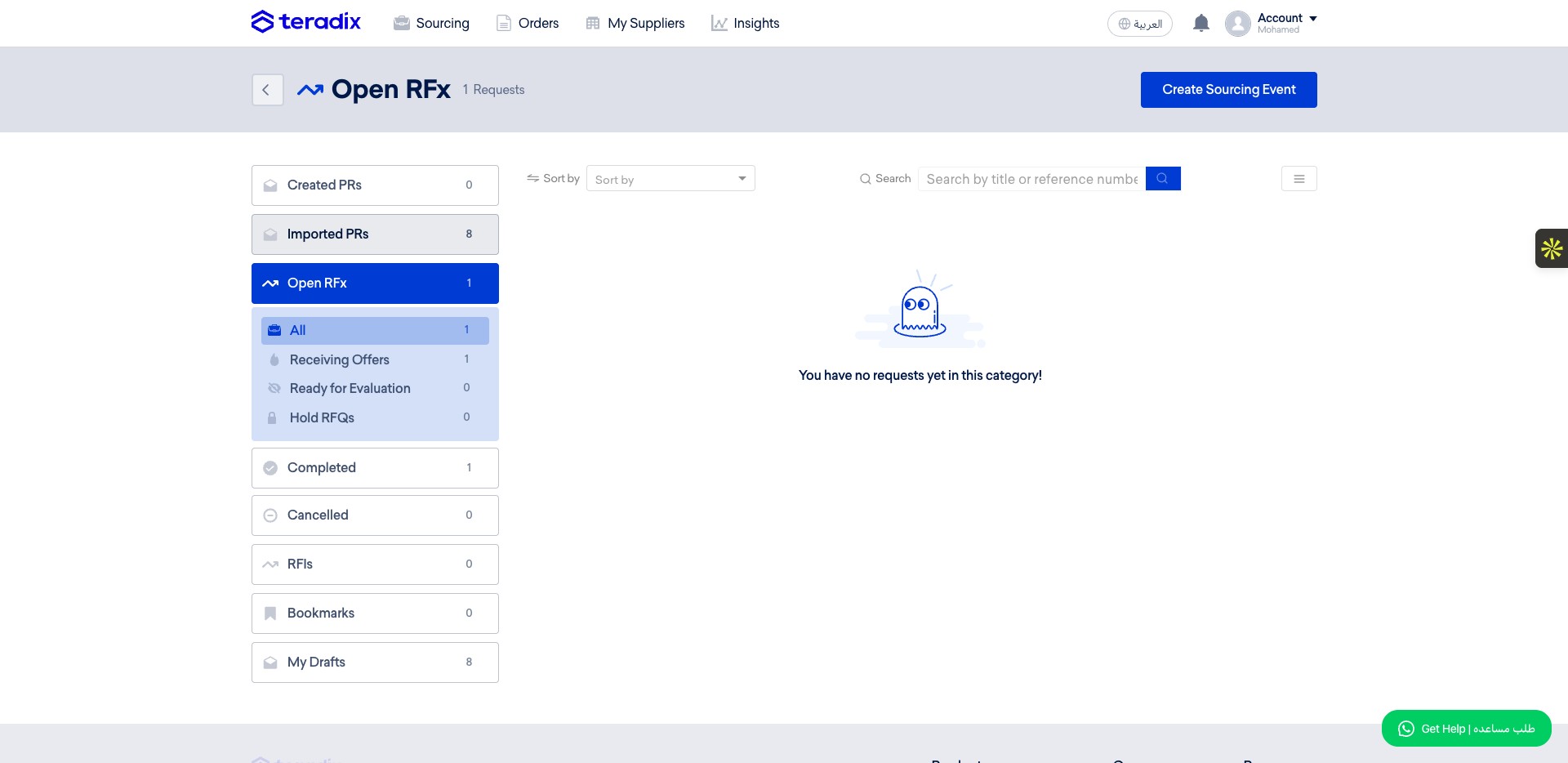
Click on *Drafted RFx *
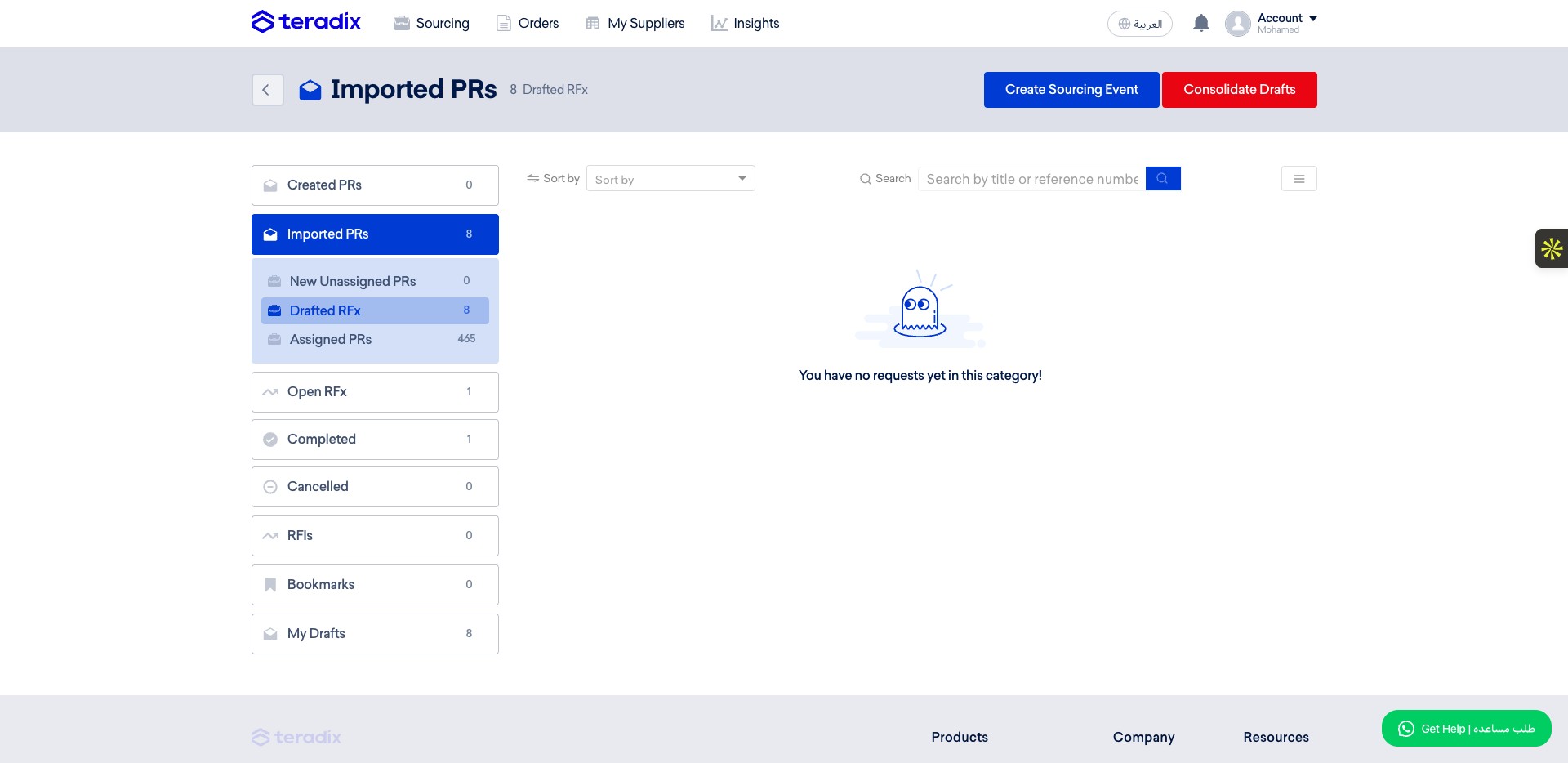
Initiate RFQ Consolidation Engine if you want to organize your work
Click on "Consolidate Drafts" button
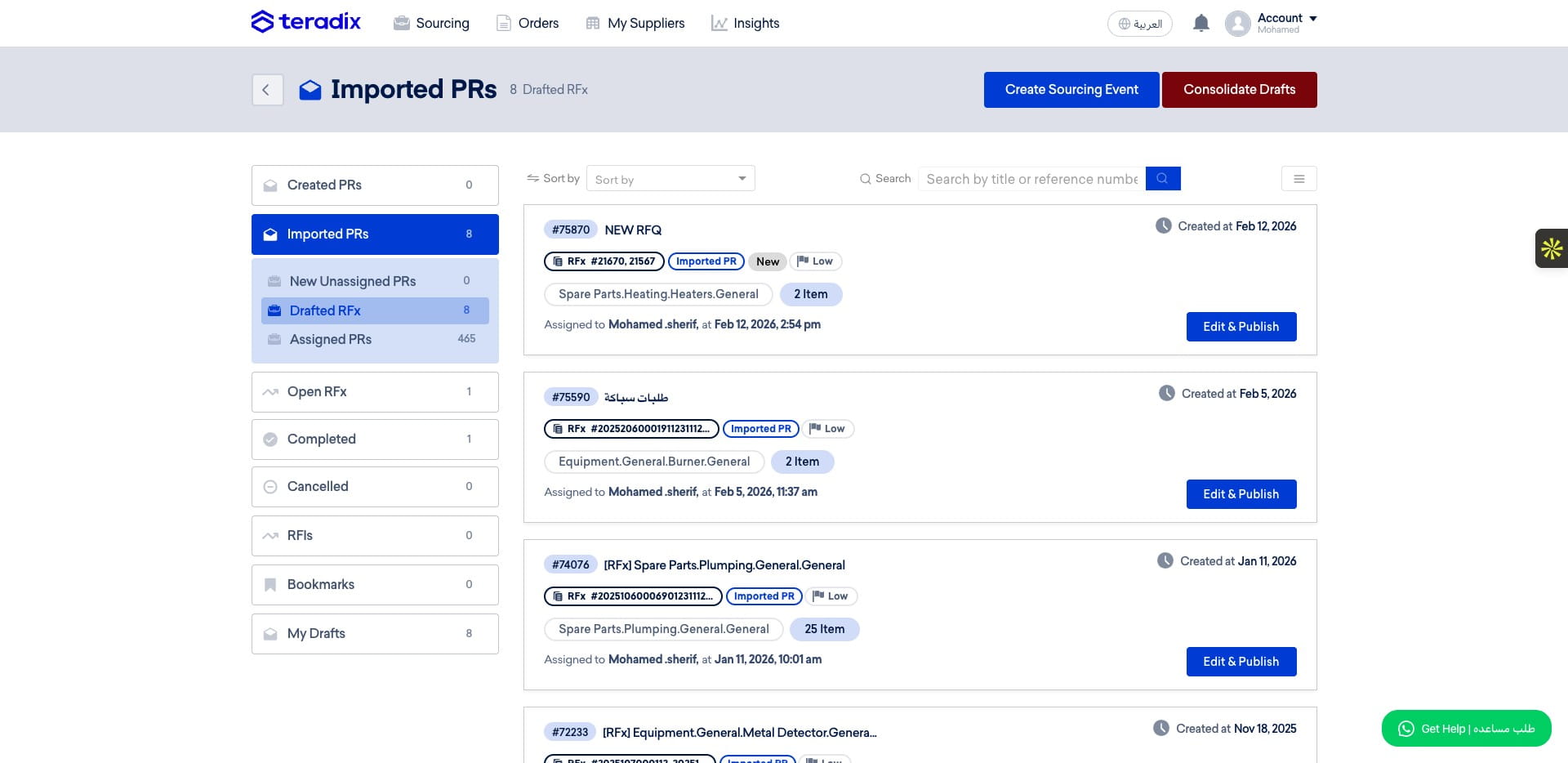
Option 1: Re-assign line items from PR to another draft RFQ
To start moving the item between Drafts, or select multiple items to add them to a new RFQ draft, select the items from teh different PRs
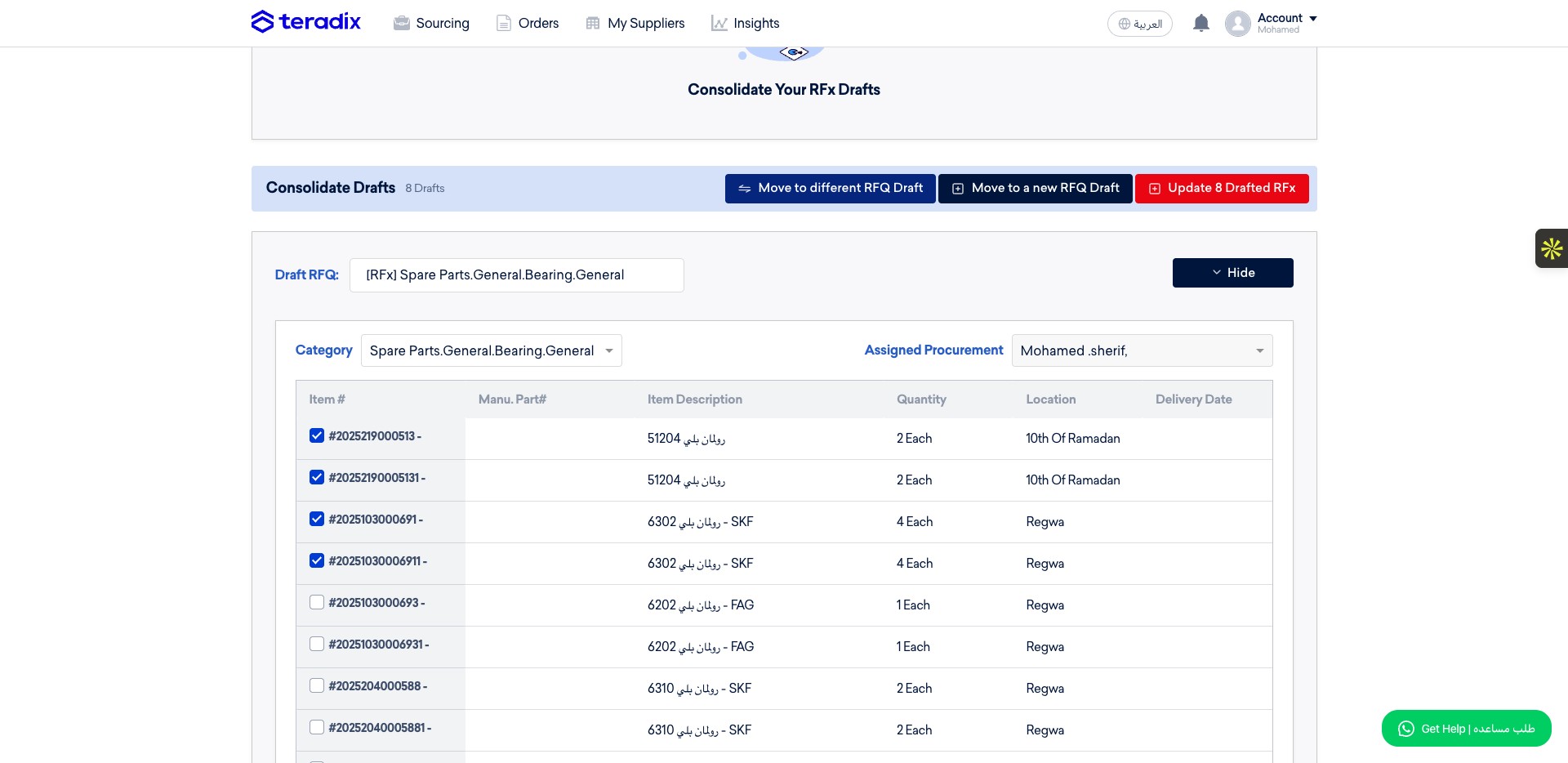
After selecting the item, click on Move to different RFQ draft
Click on the other Draft RFQ from the dropdown or write down its name to select it
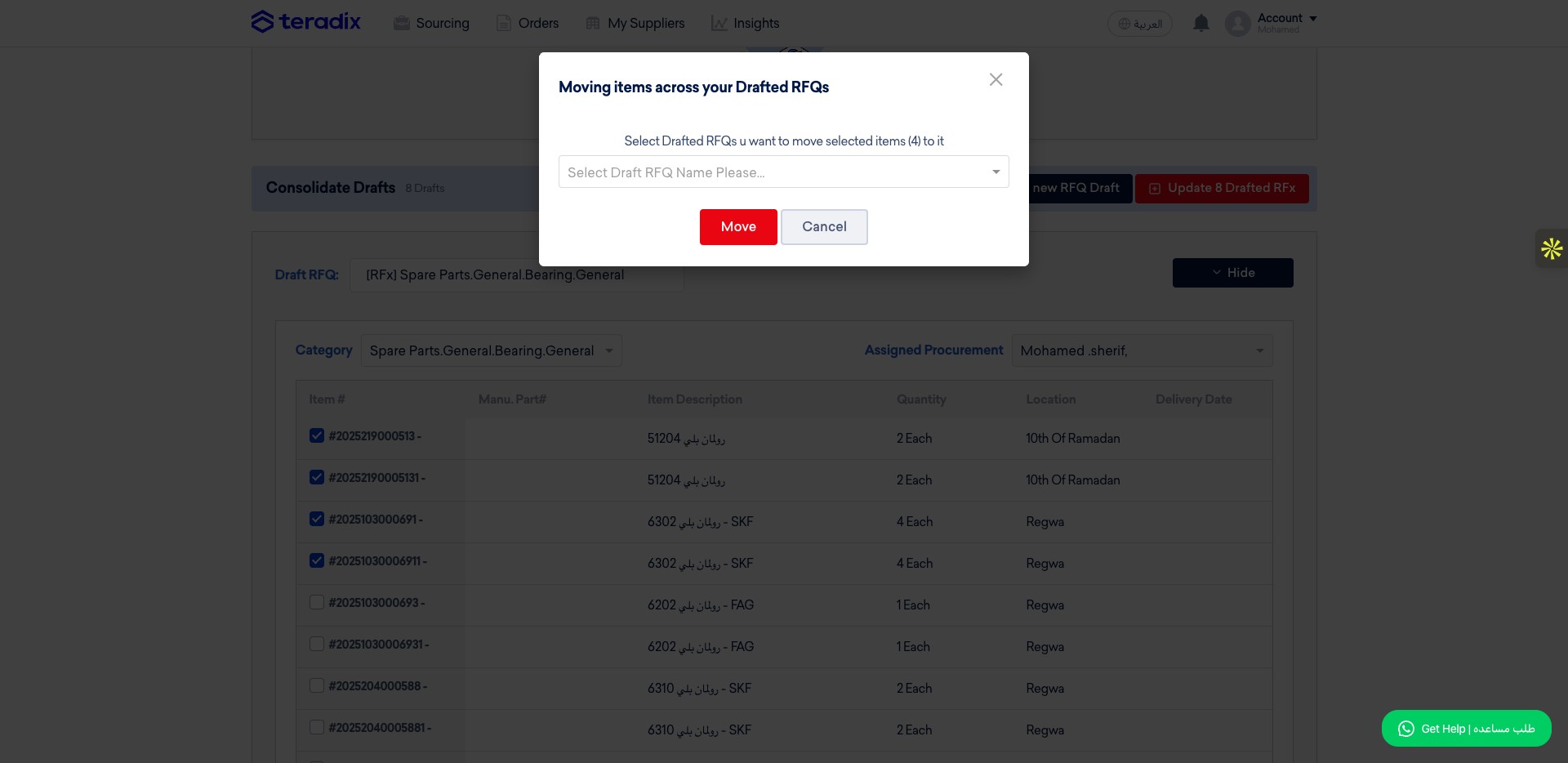
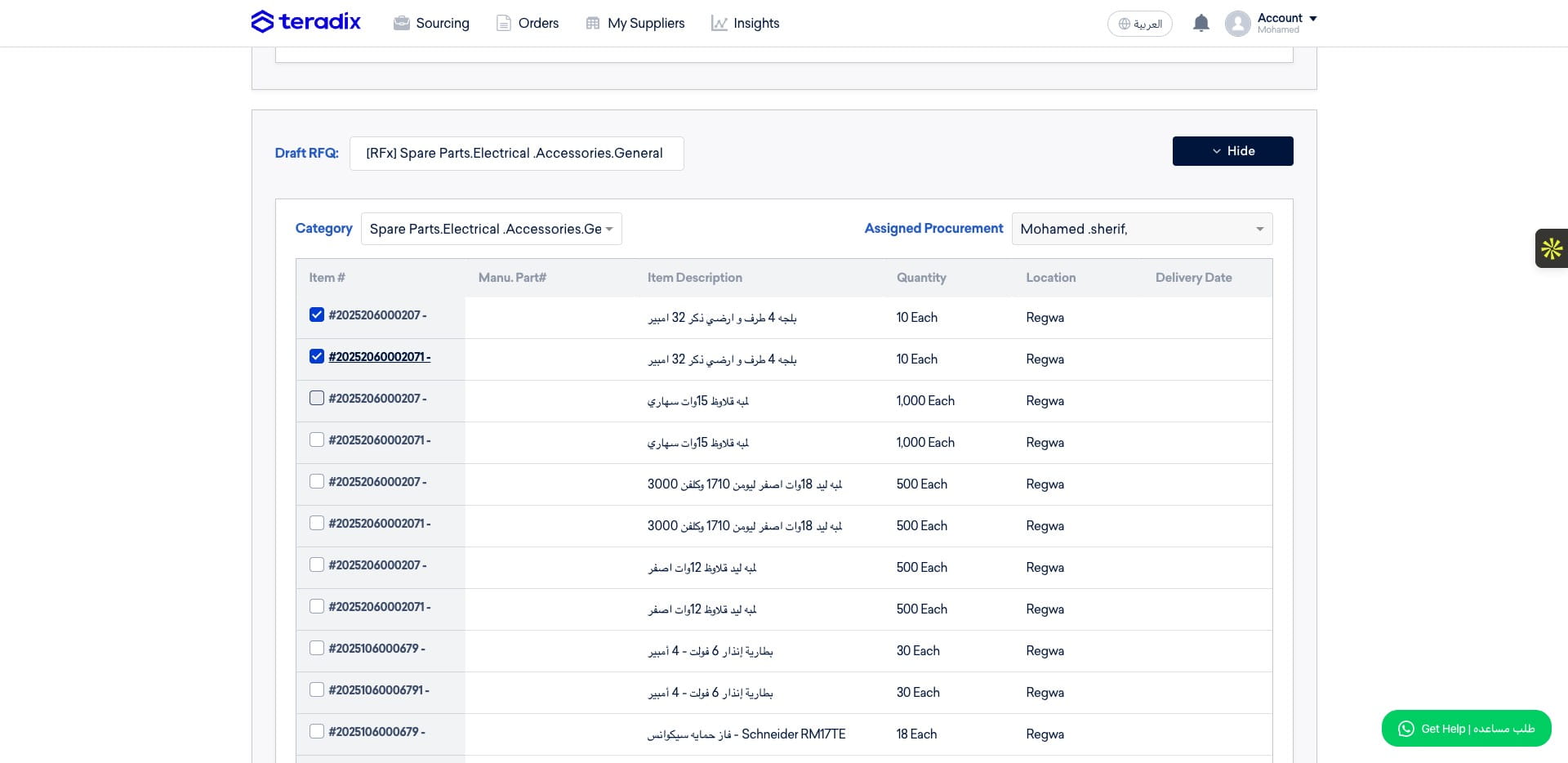
Click on "[RFx] Spare Parts.Electrical .Accessories.General" for example
![Click on "[RFx] Spare Parts.Electrical .Accessories.General" for example](https://assets.guidejar.com/uploads/a3ee4fa9-71de-4cc7-95d6-334dd982fa3f/ZZwVPqzidJfhhUhtLo7Wz0iJgRm2/3315f50b-6c82-4f8b-bc51-dad7ce66ff83/1770902211545.jpeg)
Click on "Move"
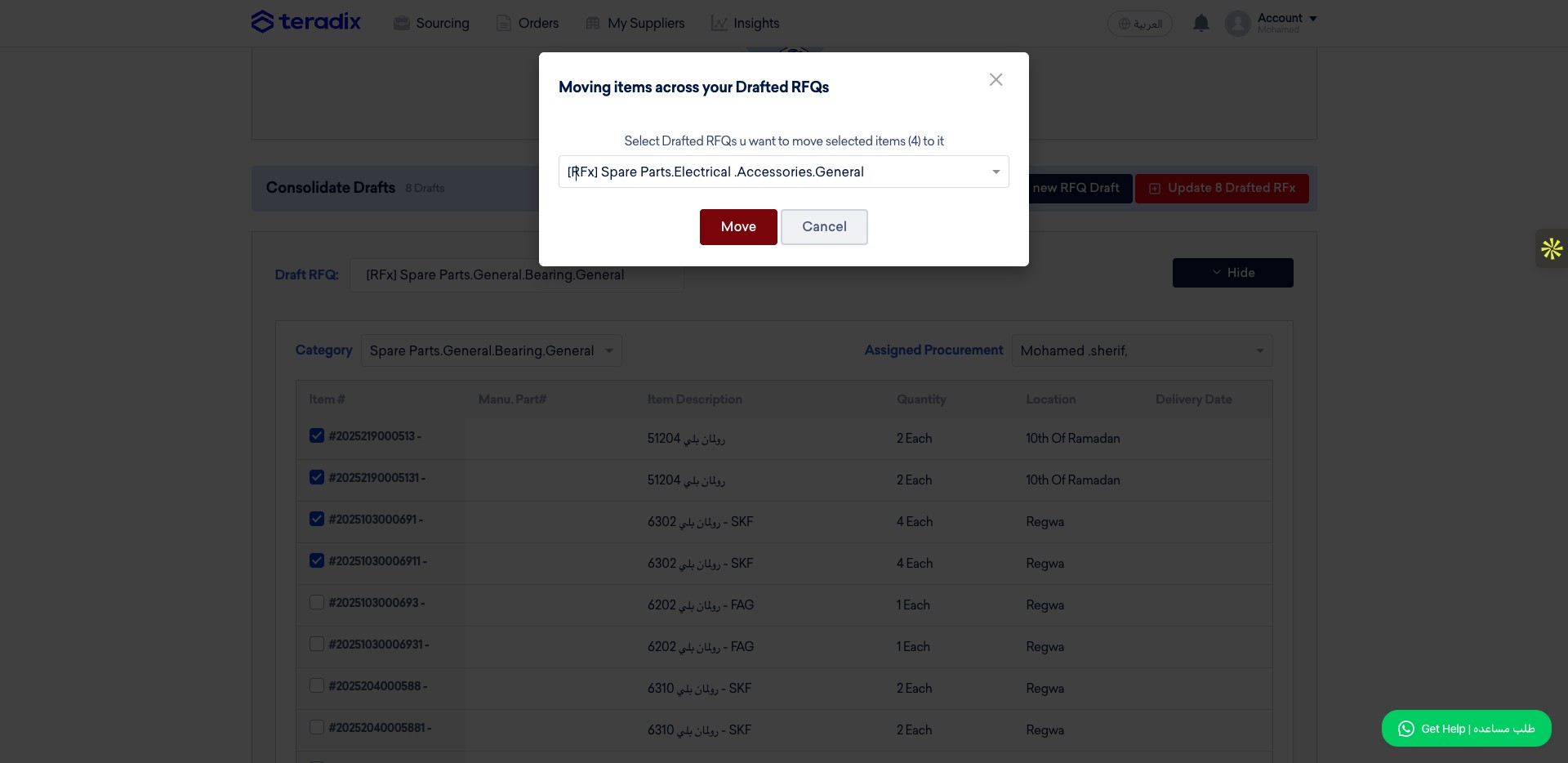
Option 2: Create a new draft RFQ from different PR line items.
Select the items from teh different PRs
Click this icon
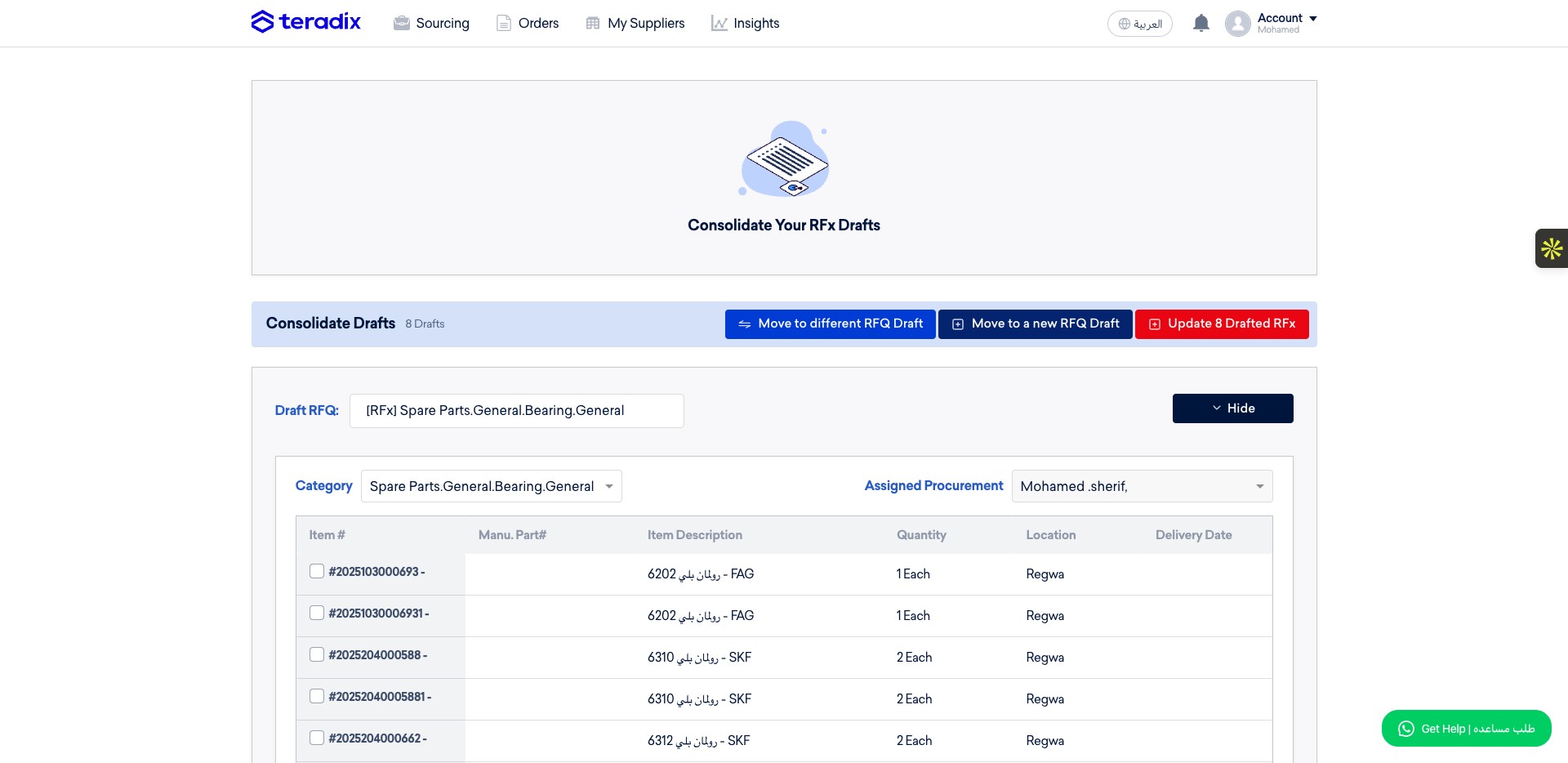
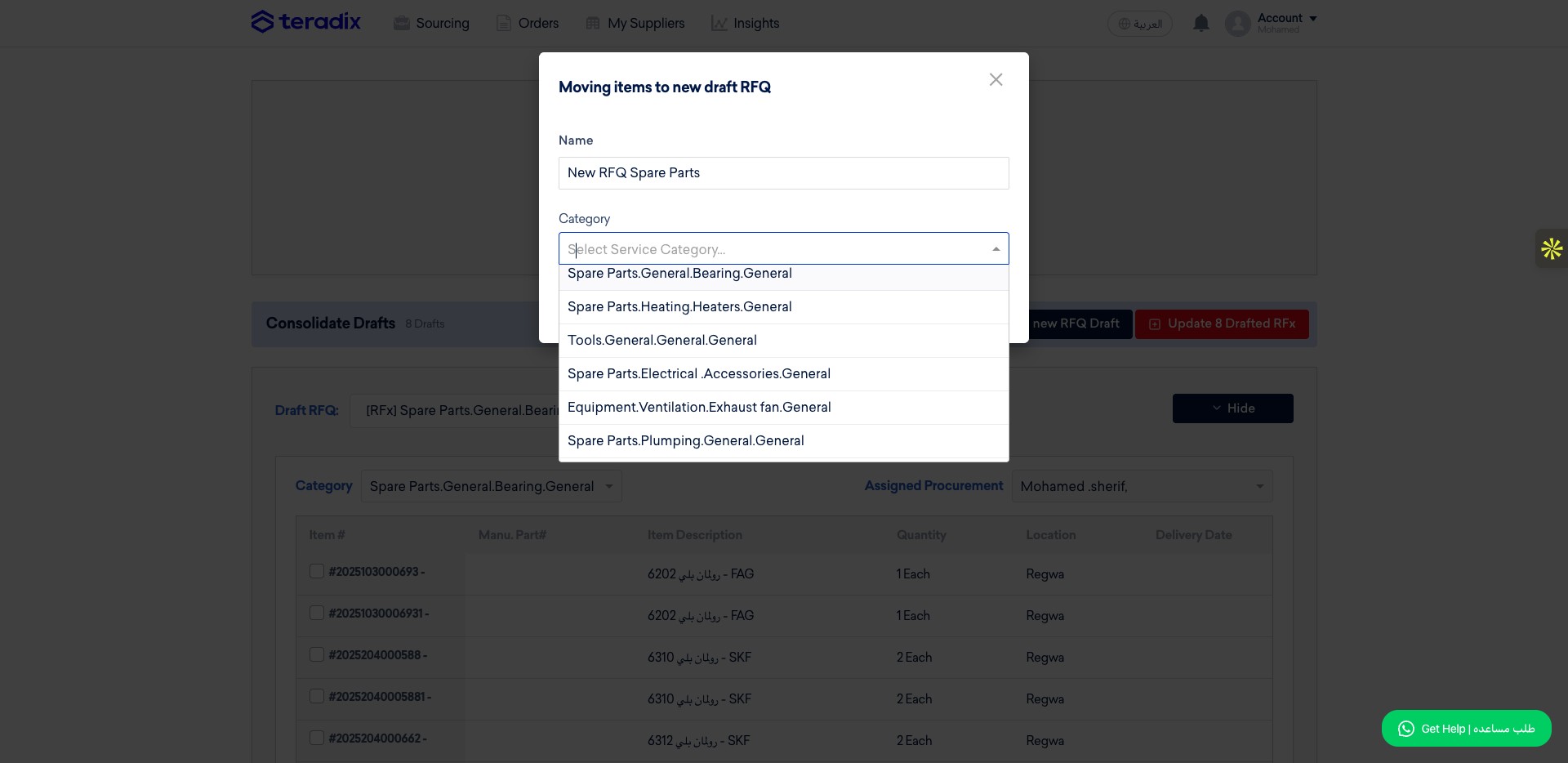
Type the Draft RFQ name
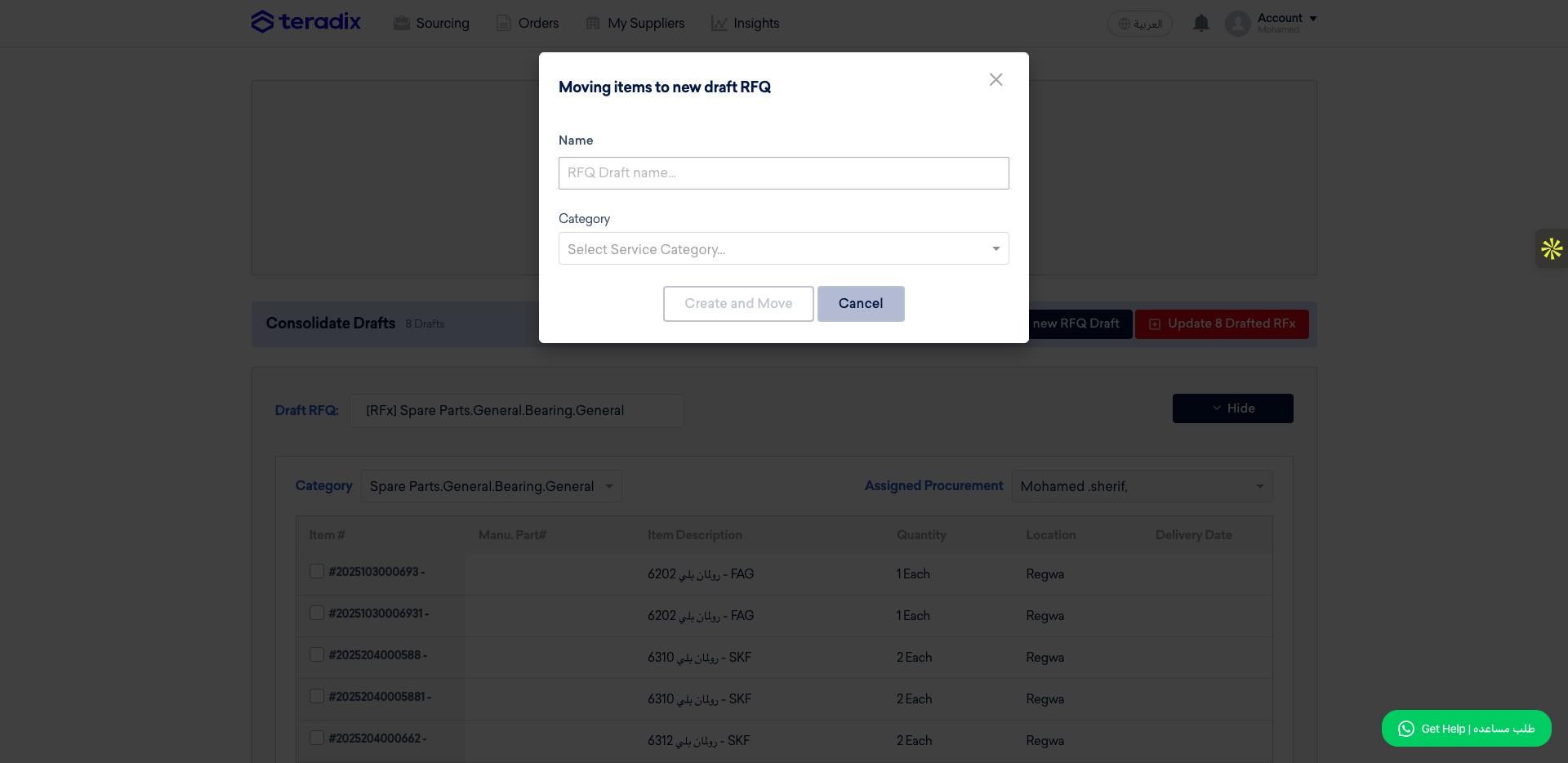
Select the items category from dropdown menu.
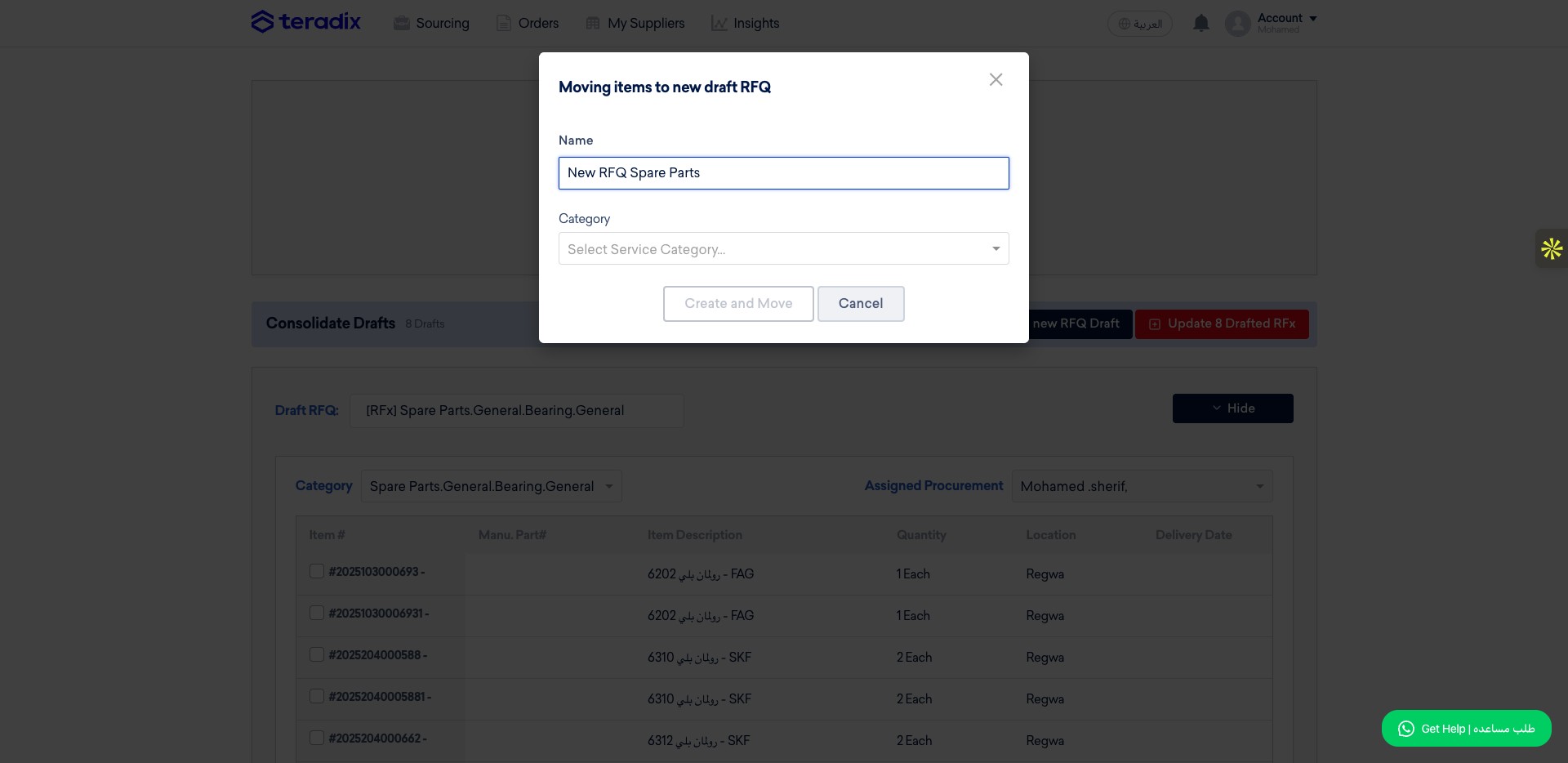
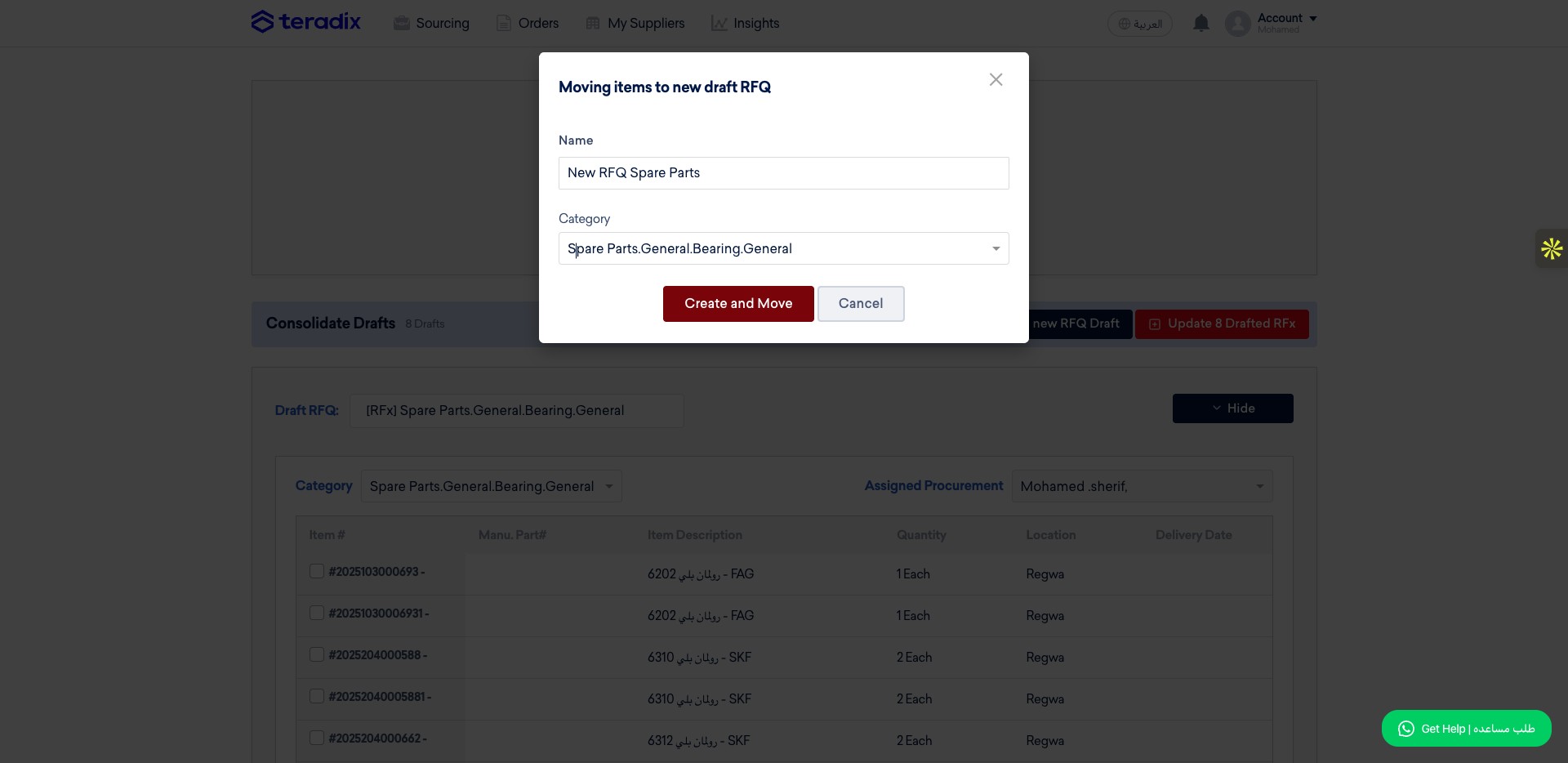
Click on "Spare Parts.General.Bearing.General" for example
Click on "Create and Move"
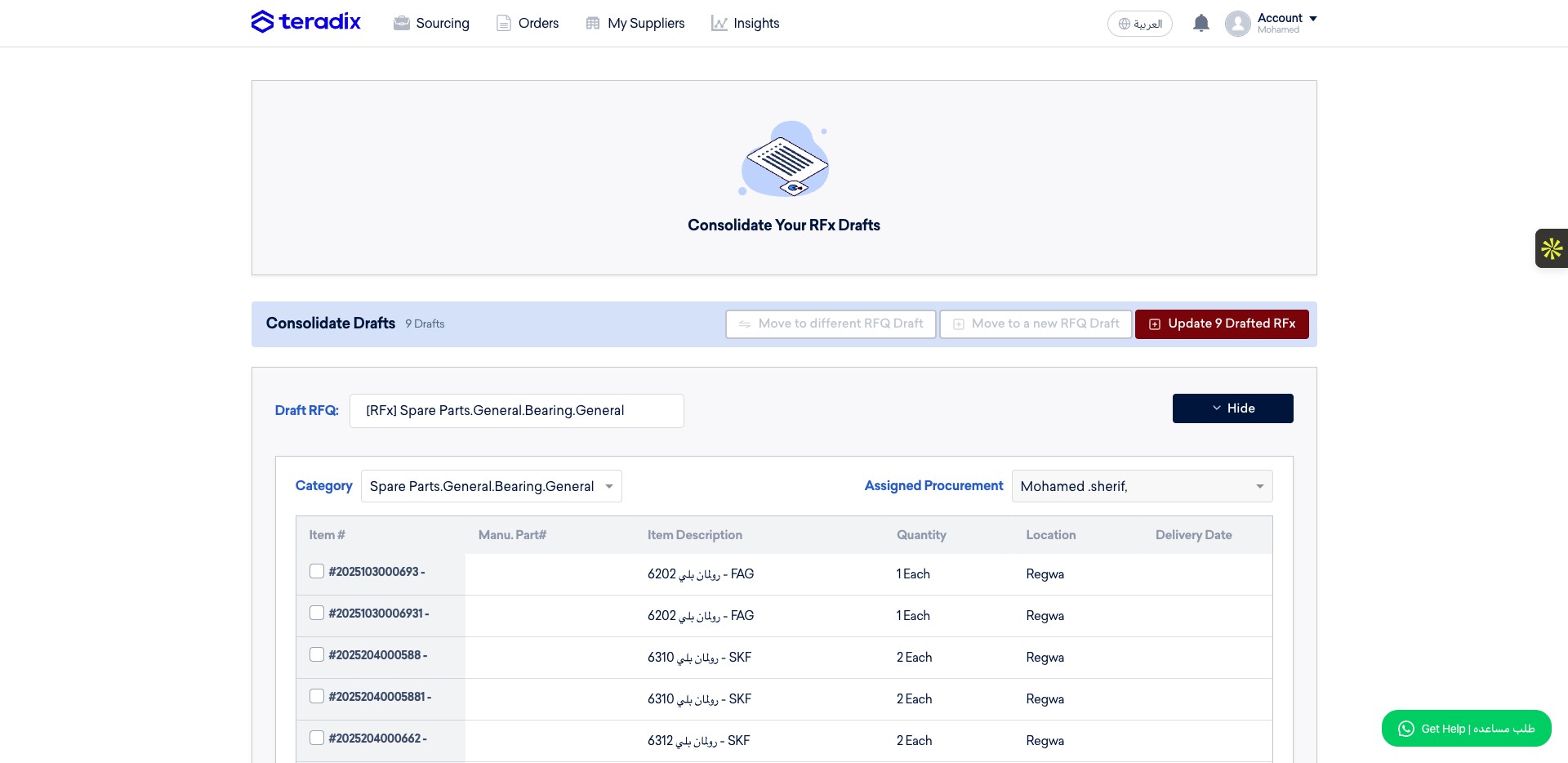
Final Step: Update final draft RFQs before publishing them
Click on Update 9 Drafted RFx
To see the RFx drafts, click on Import PRs then *Drafted RFx *
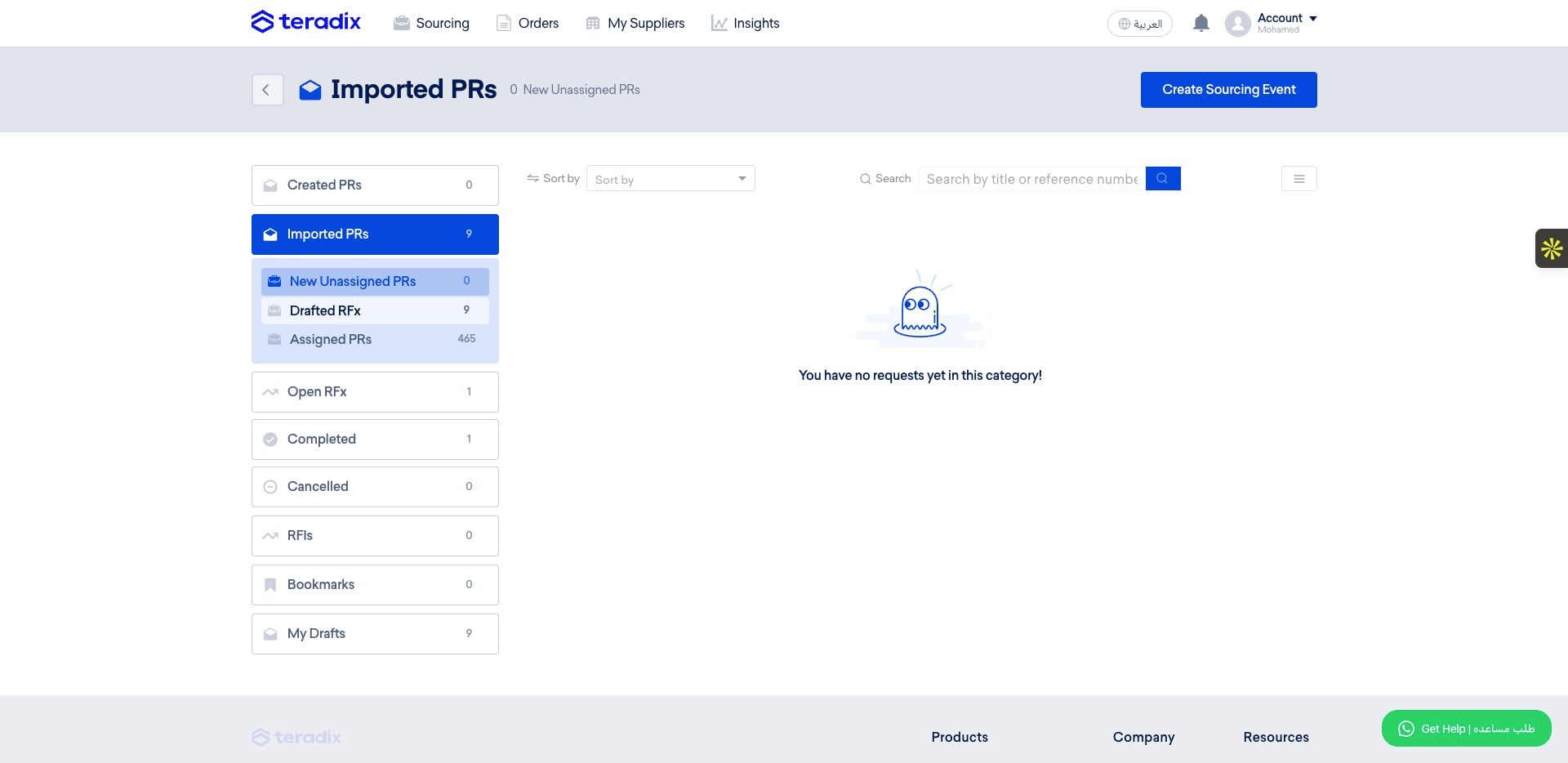
Done 🚀