
Assigning Imported PRs & Initial Draft RFQs Consolidation
 0
0Frequently Asked Questions
- What is the first thing I should do to start consolidating imported PRs?
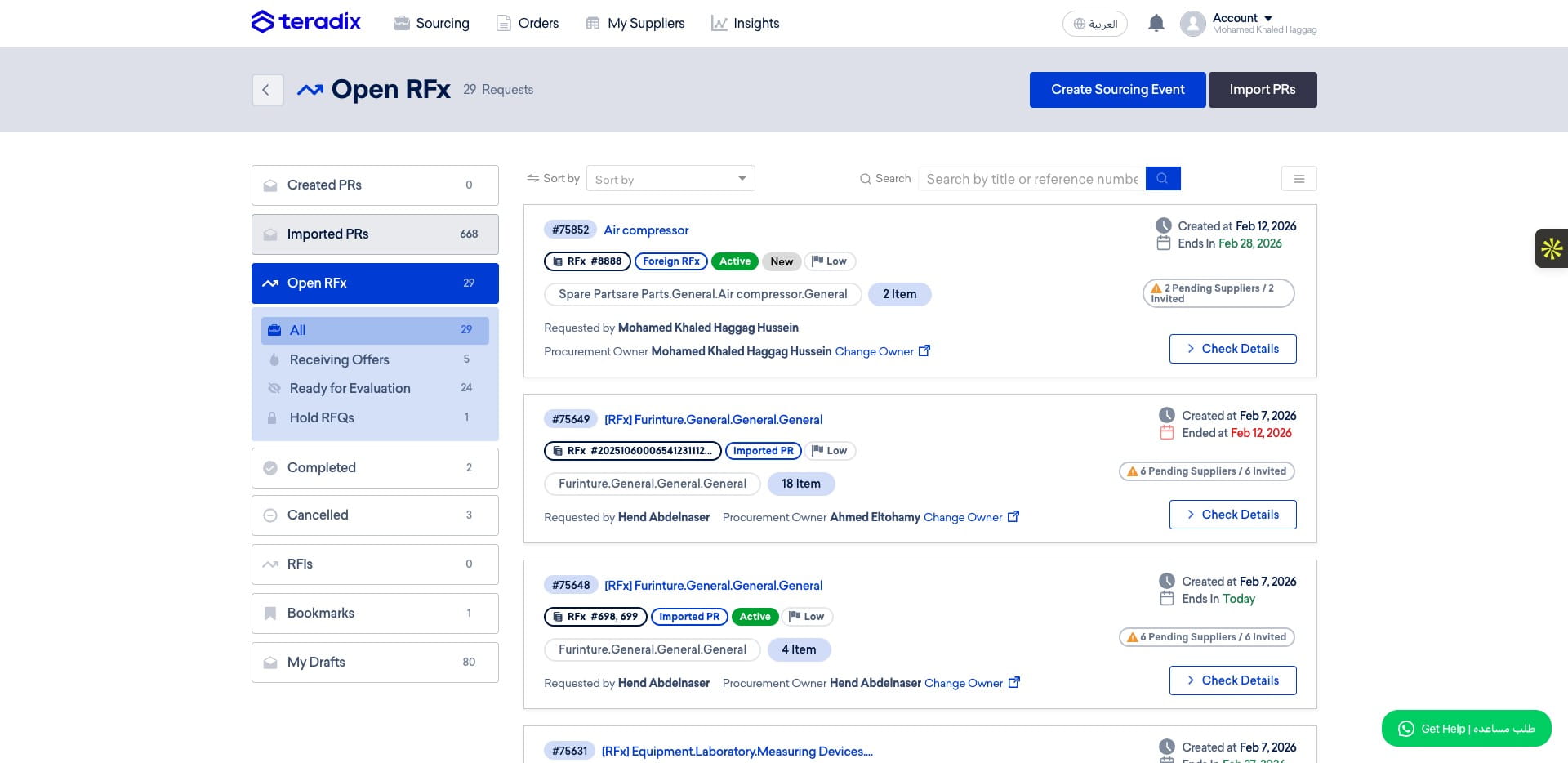
Open the Teradix project list at https://app.teradix.com/customer/projects/all, click on the project labeled "668", then click "Consolidate PRs" to begin the consolidation workflow.
- What are PR Categories and is there any prerequisite before consolidation?
PR Consolidation uses PR Categories to group and route line items. Categories must be created properly in the settings beforehand — if the needed categories do not exist you will not be able to consolidate or move items into them.
- How do I move line items from a draft RFQ to another or to a new draft RFQ?
Select the line item(s) in the draft RFQ, open the move action (via the shown icon), choose the target category/path (examples in the guide include "[RFx] Administration.General.Prints.Prints" or "Spare Parts.Heating.Heaters.General"), then click "Move" or "Create and Move" to place the items into the selected or newly created draft RFQ.
- How do I assign buyers to the moved/created RFQ and notify them?
After creating or moving line items into the draft RFQ, select an assignee (the guide shows choosing "Mohamed .sherif,") to assign the buyer. The process includes an "Email Notification to Every Assigned Buyers" step so assigned buyers will receive email notifications once they are designated.
- What should I check if consolidation or moves don’t work as expected?
Confirm you are in the correct project ("668") and that you initiated "Consolidate PRs." Verify that the required PR Categories have been created in settings and that you selected the correct target category/path before clicking "Move" or "Create and Move." Also ensure the intended buyer is assigned so notifications and routing occur as expected.