
Converting assigned Draft RFQ into a published RFQ
Step 1: Finding the right draft RFQ and start editing it
In the tab of Drafted RFx, you will find a list of all drafted RFx, on the Draft you want review, edit and publish, Click on "Edit & Publish" button
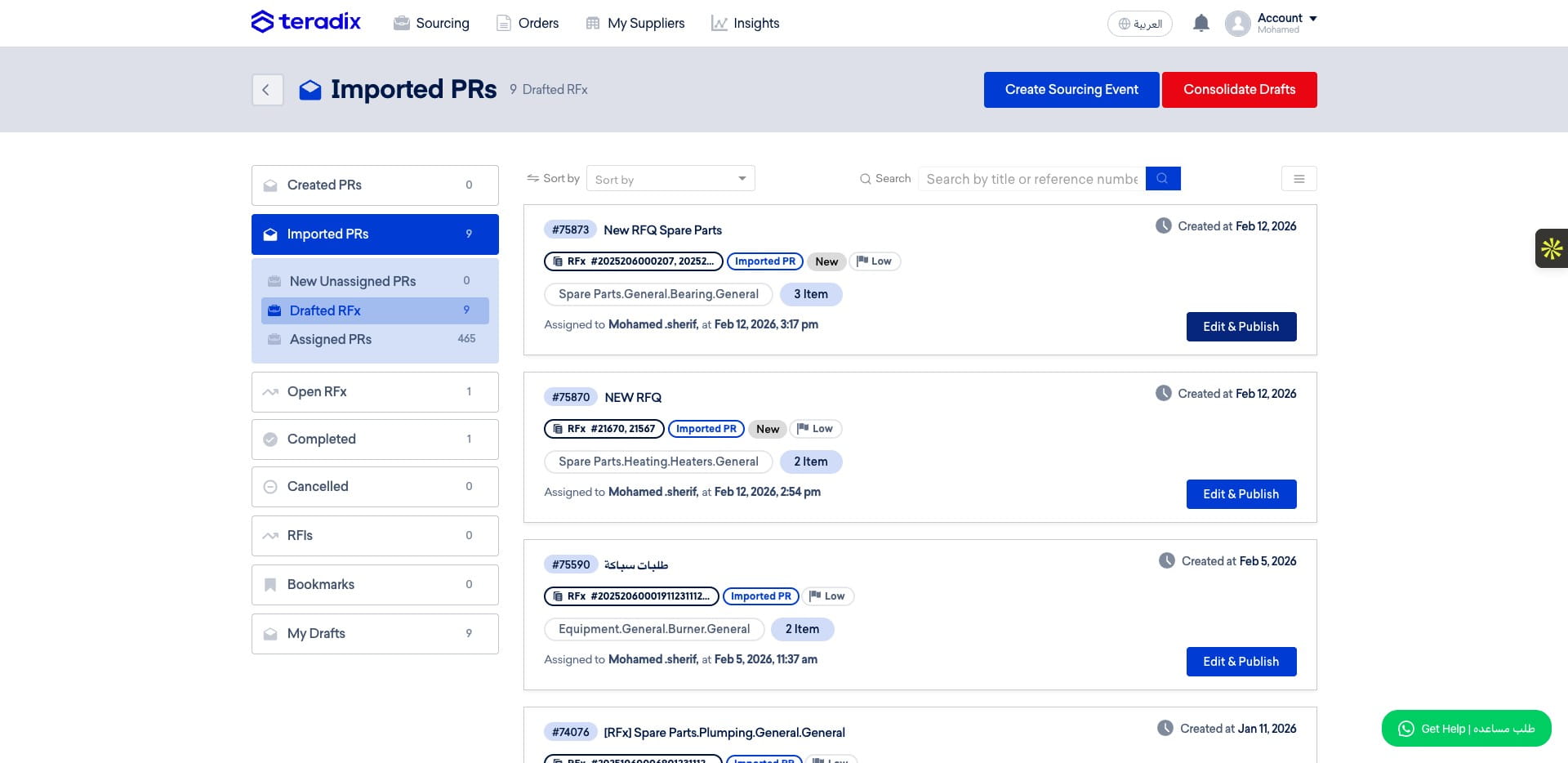
Select the RFx type (RFQ, Sealed RFQ, RFP, or RFI)
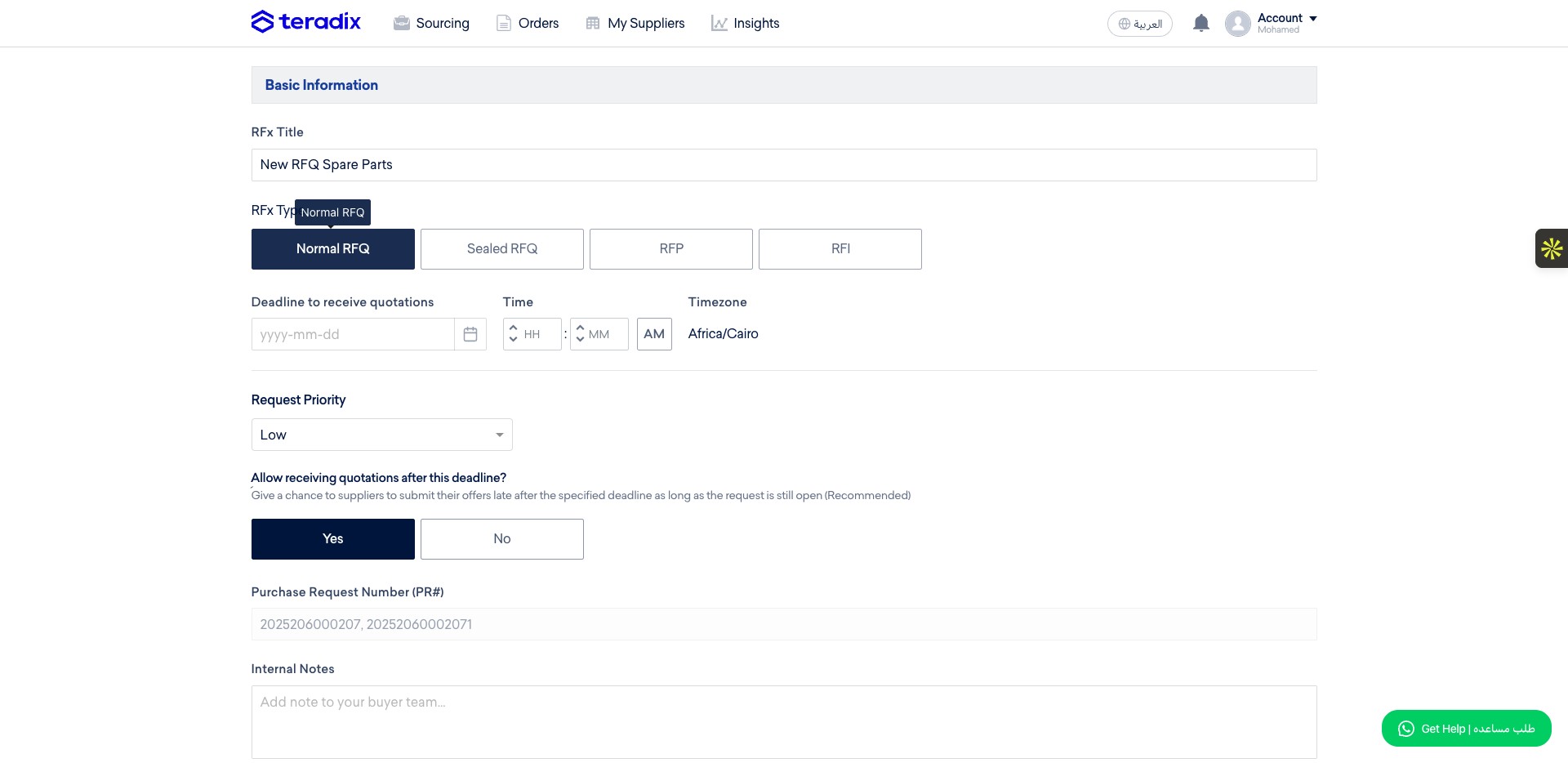
Here to define the deadline of receiving quotations/offers from suppliers who will be invited to this RFQ.
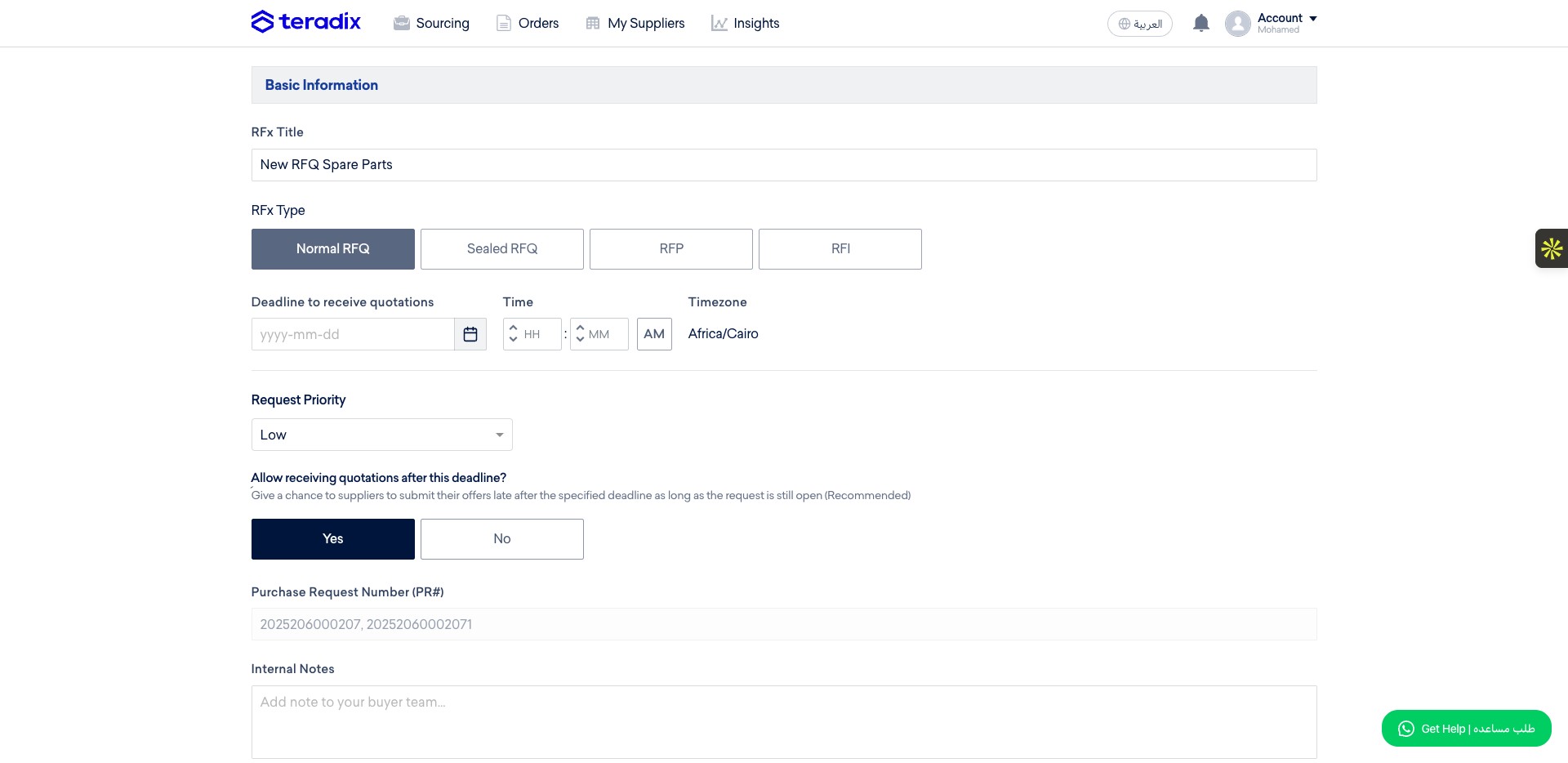
Pick the date you want to be selected as teh deadline of the RFQ
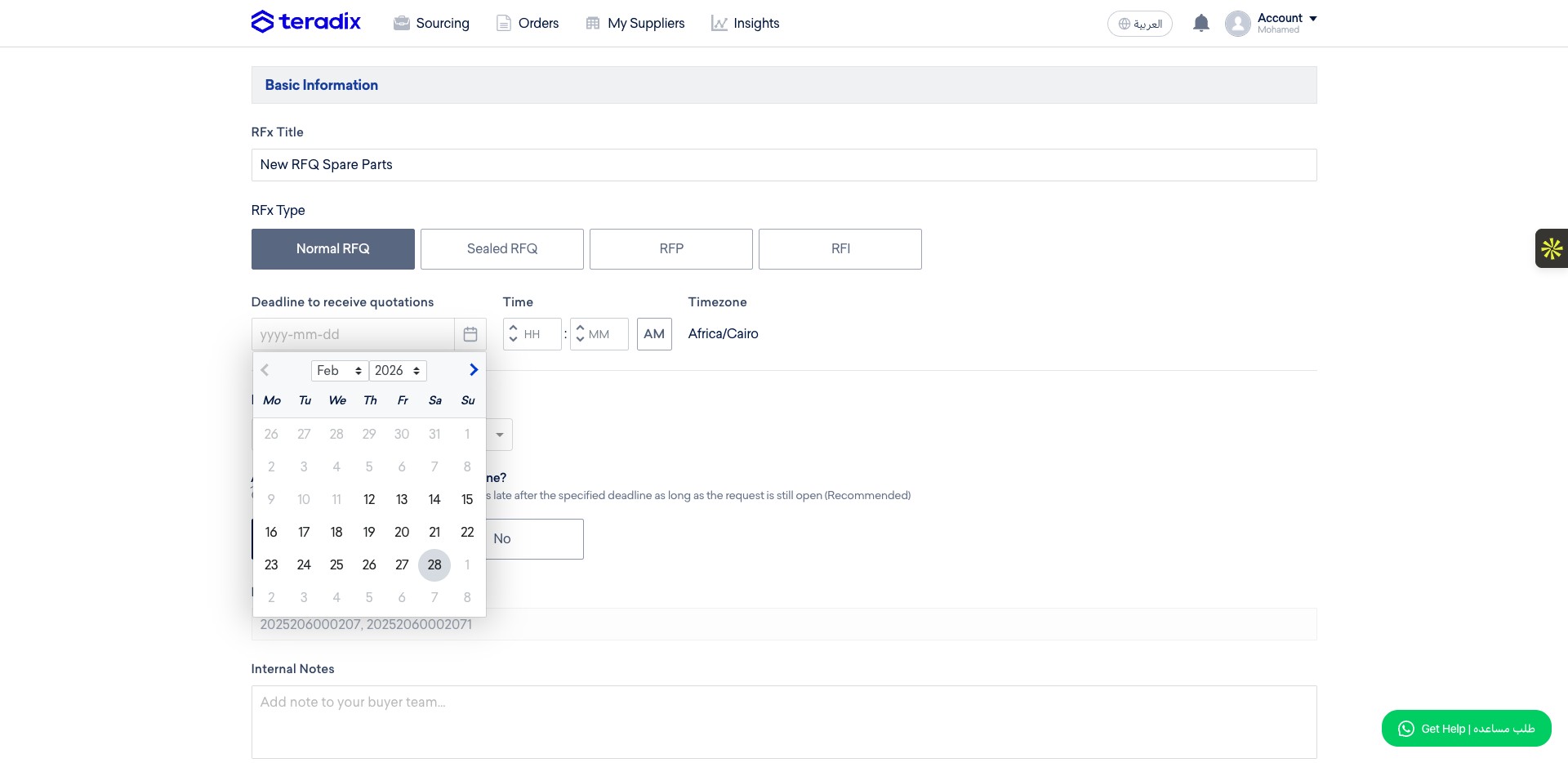
Define which time exactly you want to stop receiving quotations/offers after.
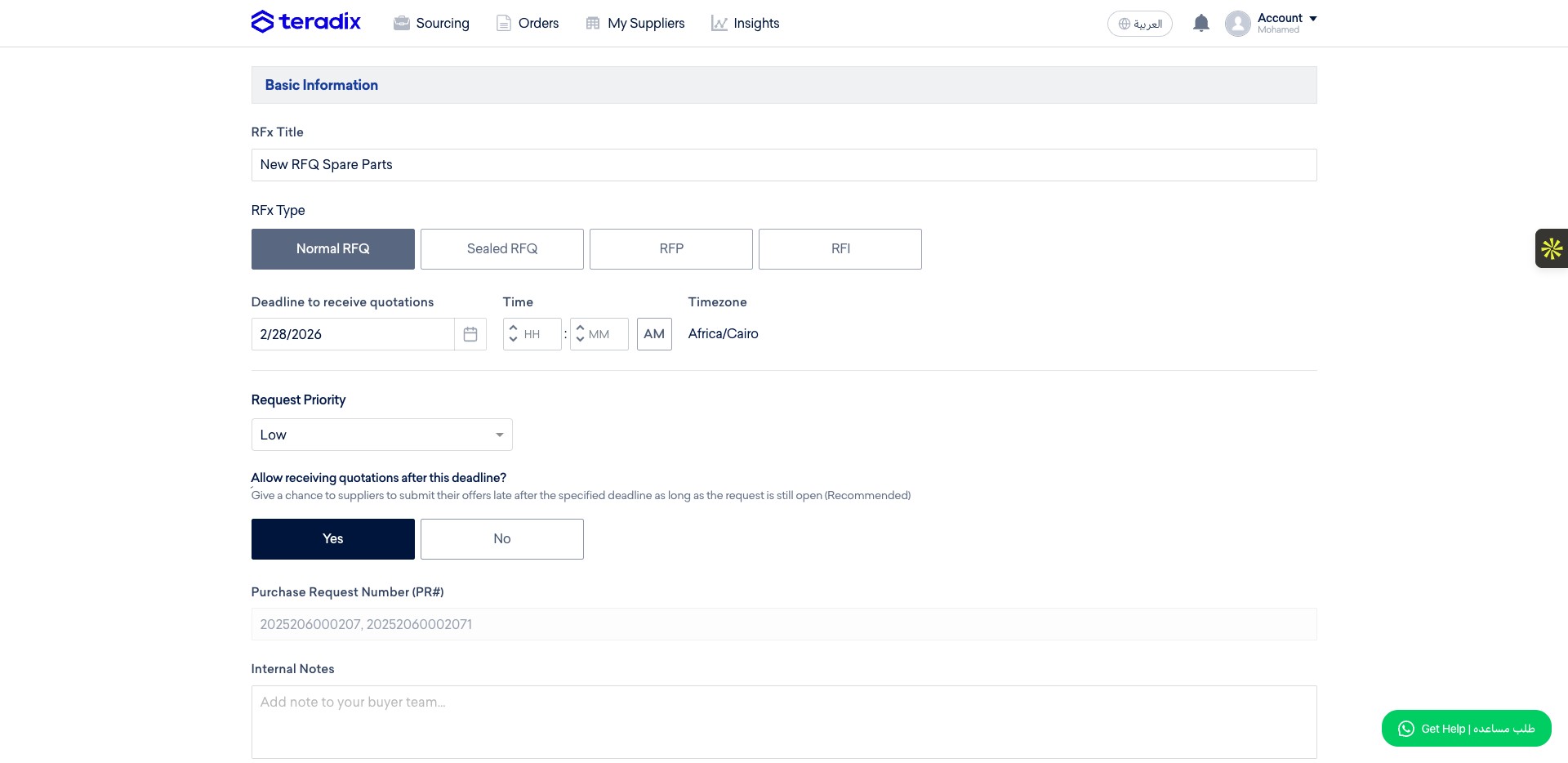
Define the RFQ priority (Low, Medium, Important, and Critical).
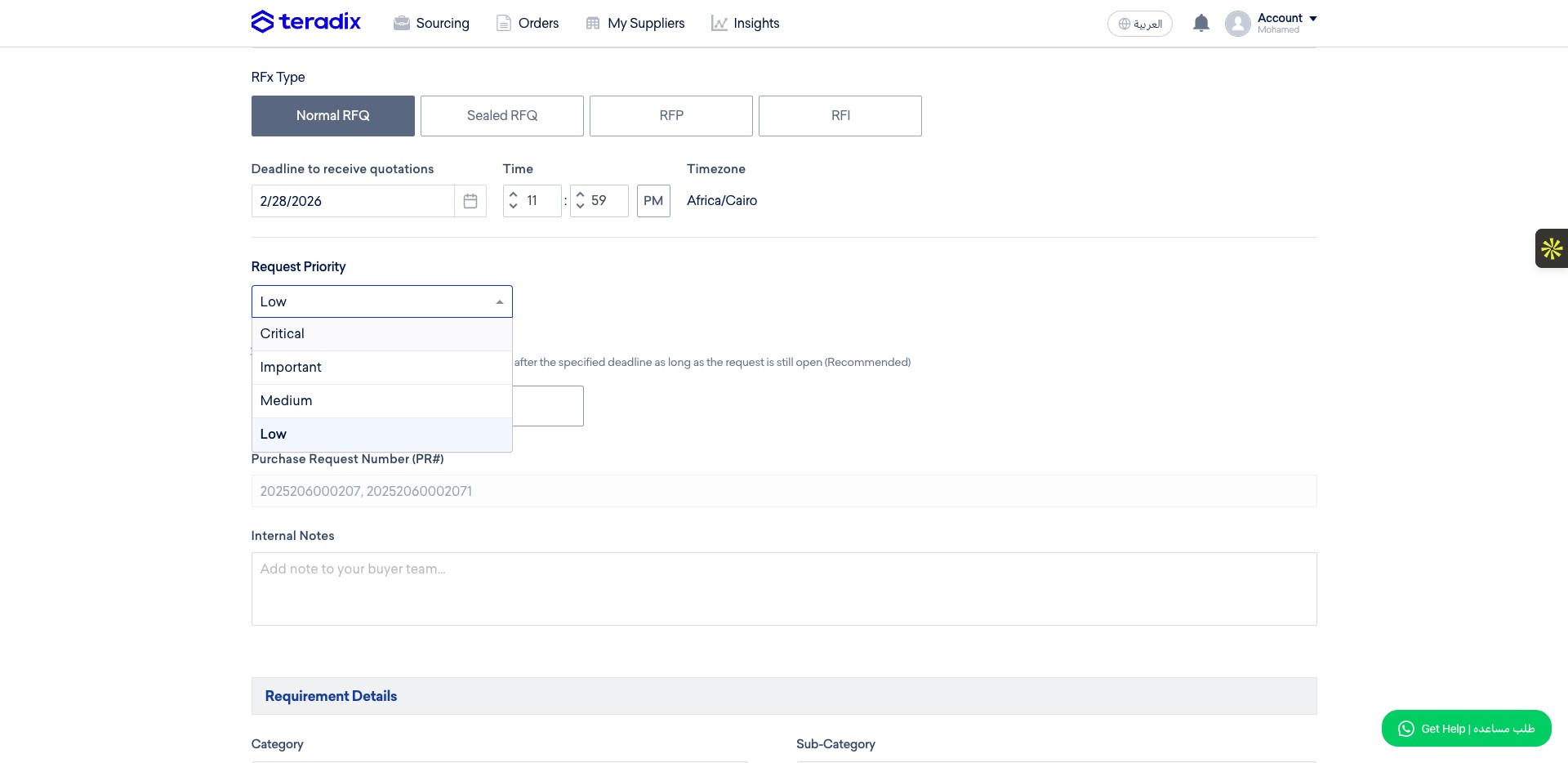
Some times you may need to allow receiving quotations/offers after deadline specified earlier, if so select Yes.
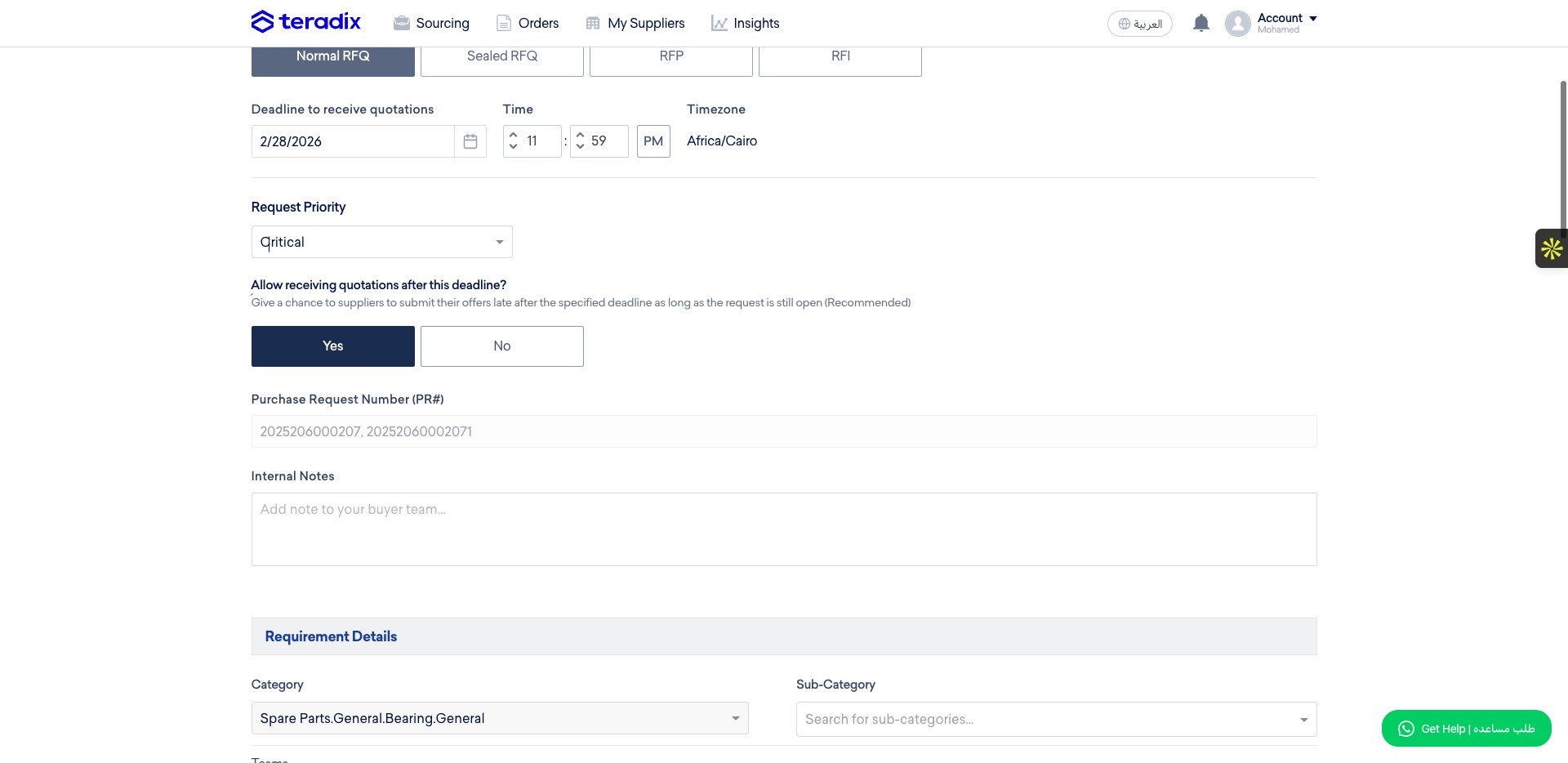
Write down any internal note to yourself, or to anyone will have an acess to the RFQ from your company.
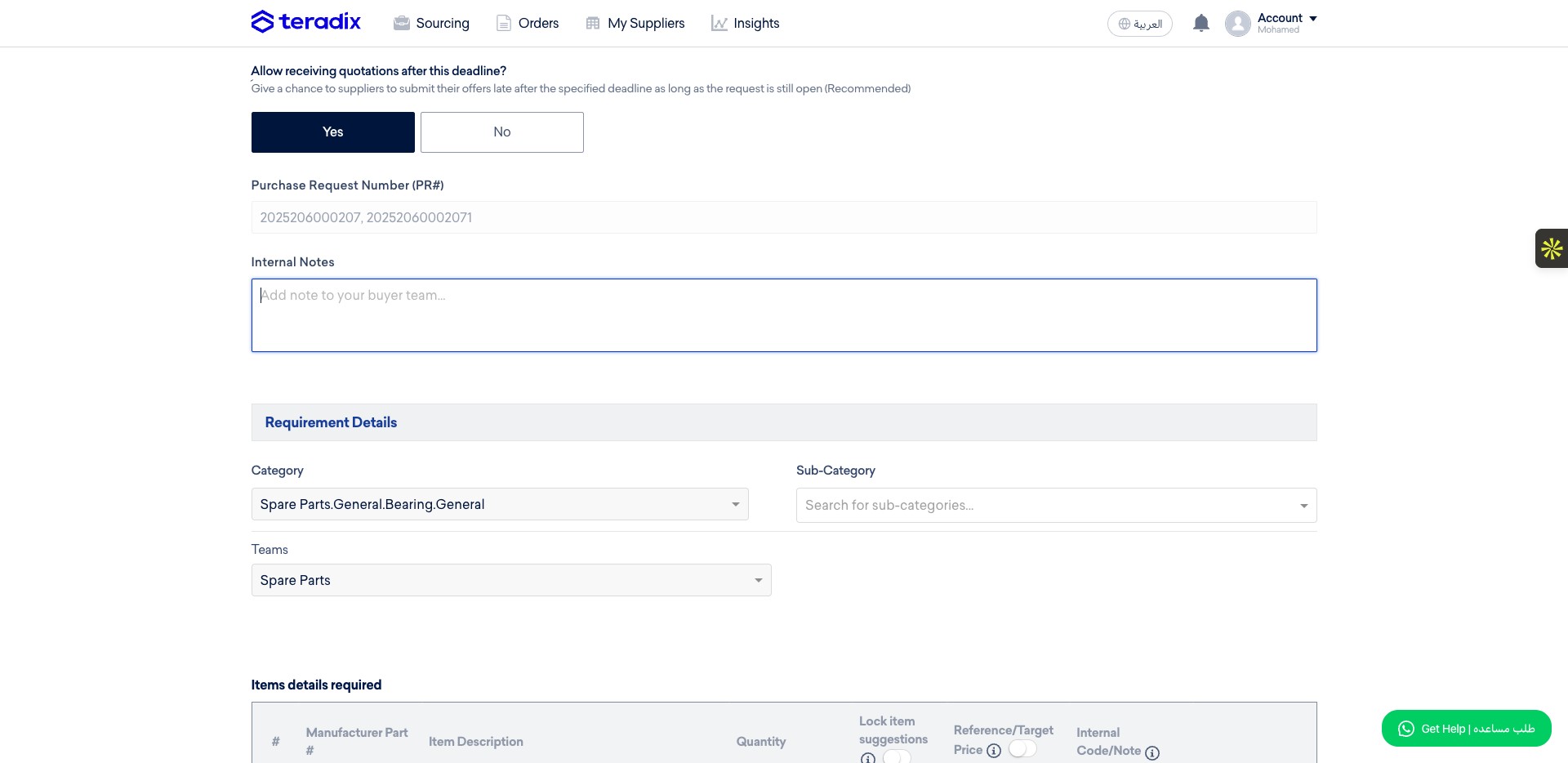
This internal note will not be seen by the suppliers or anyone who has not access to the RFQ
The category will be preselected (as imported from the ERP), select the sub-category from the dropdown menu.
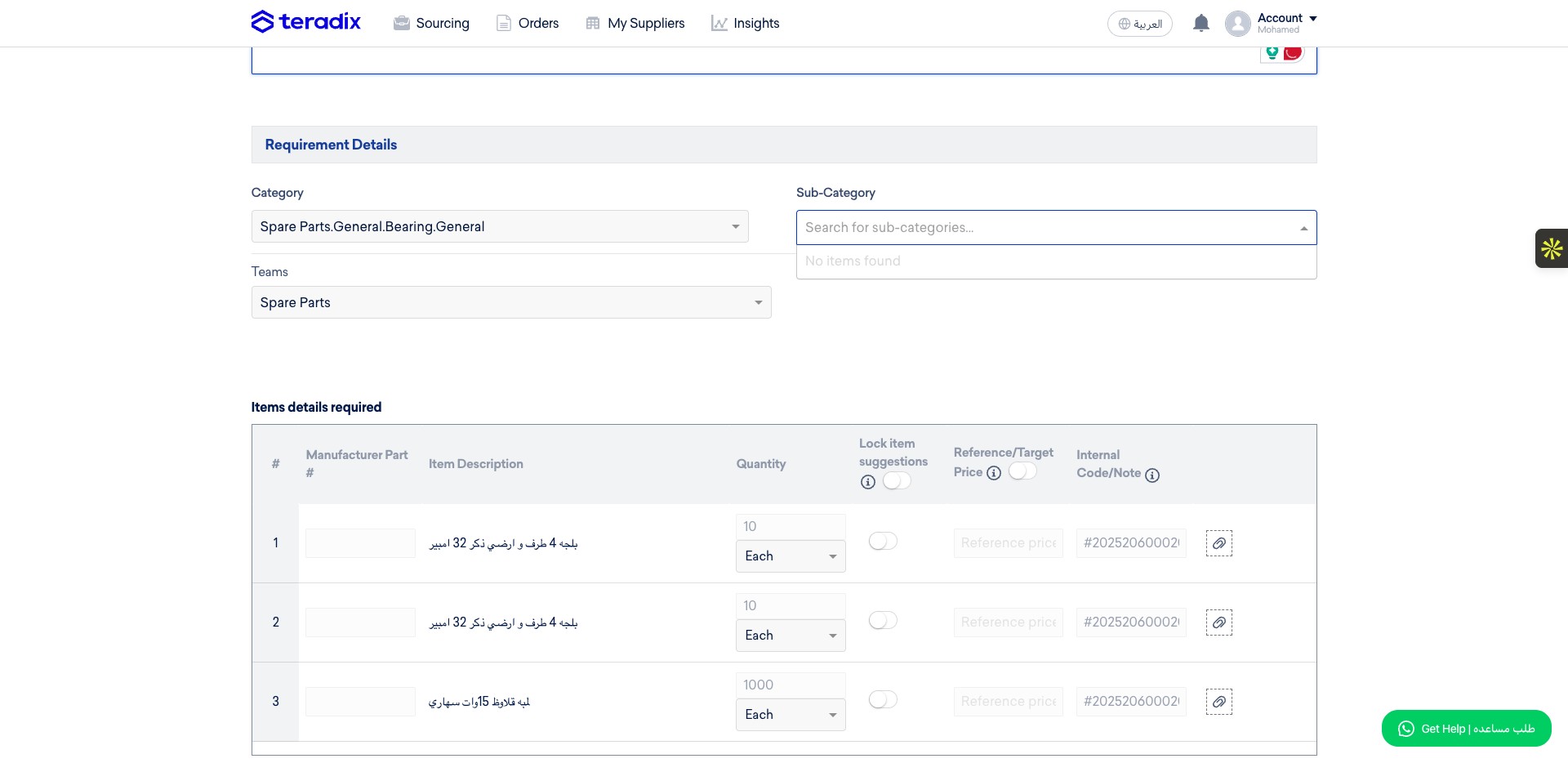
Teams will be assigned based on the configurations in the account settings.
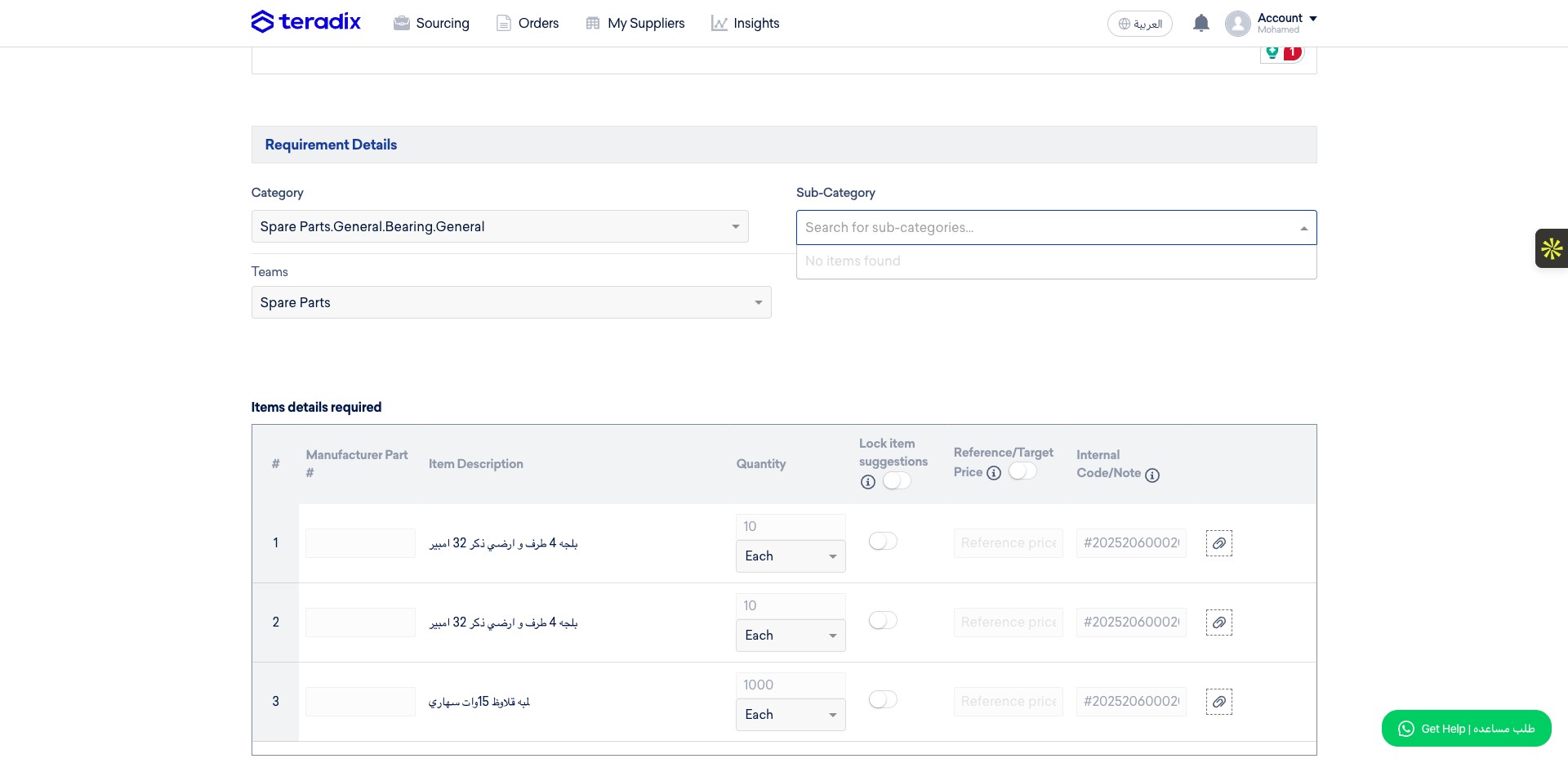
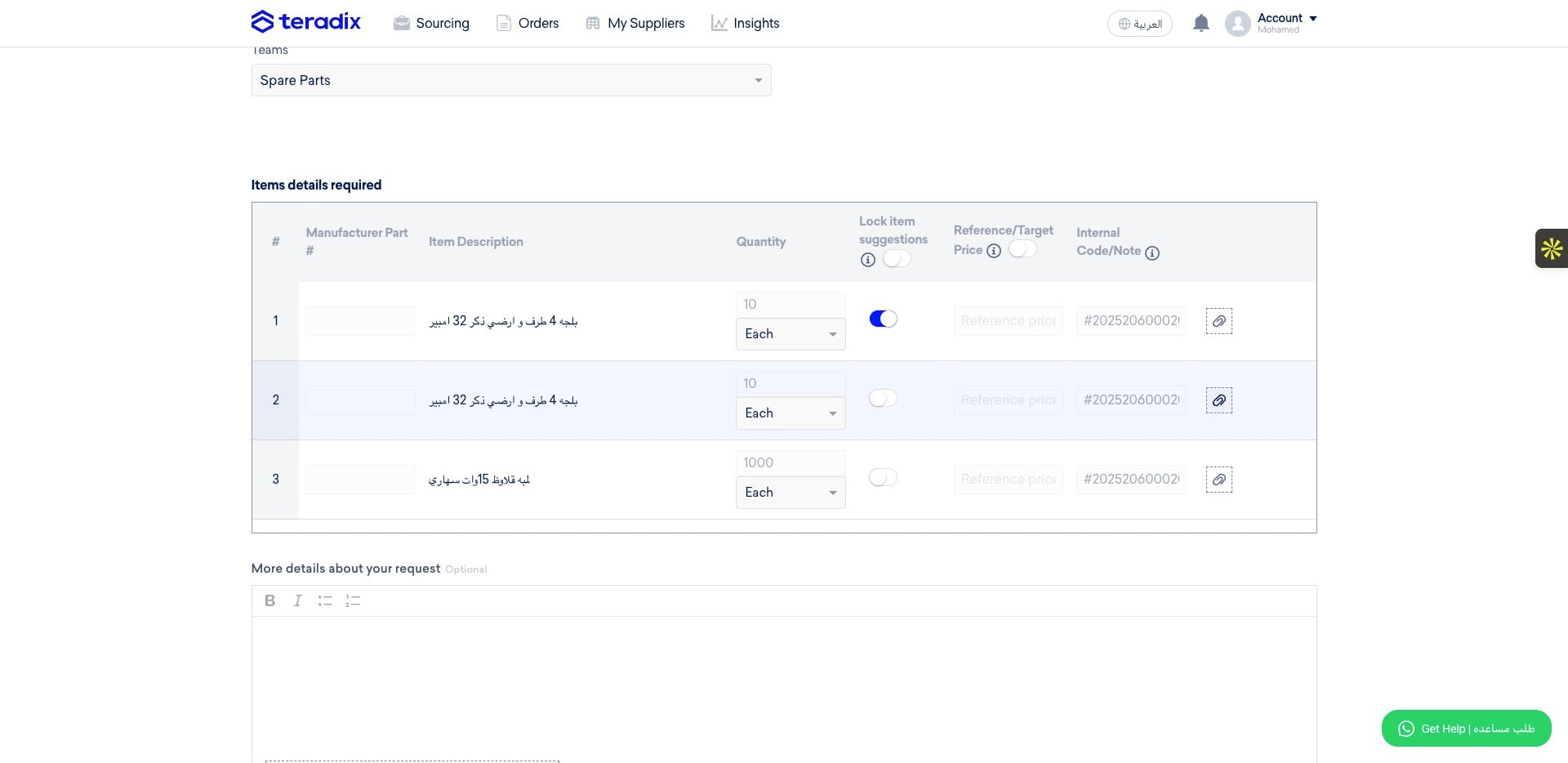
You can allow/disallow the suppliers to offer an alternative item to the one requested, by enabling this either per item or at the RFQ level.
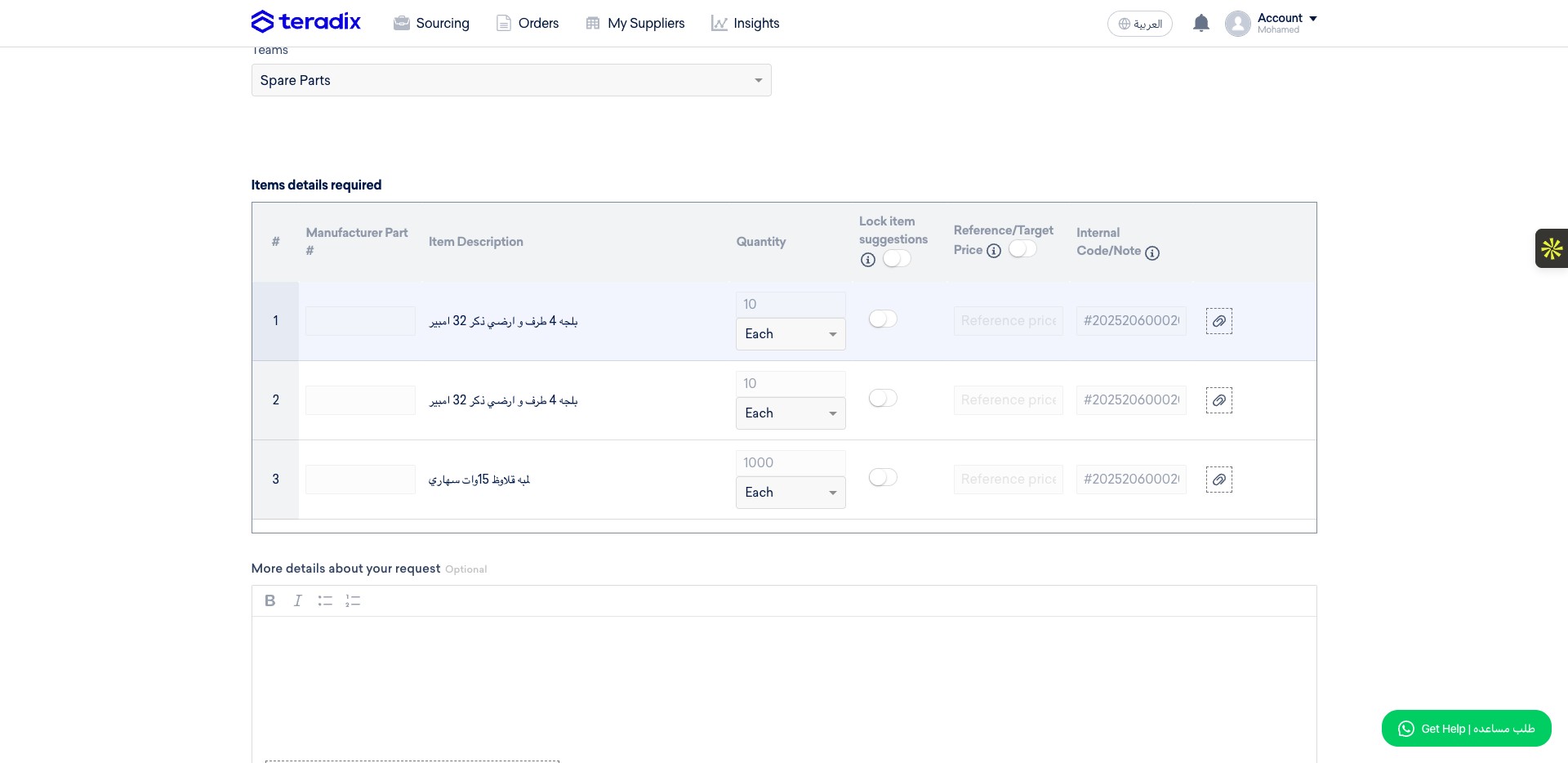
if you want to upload an attachement for this item as a reference for the suppliers, click on the attachement icon
if you want you can add a general description or upload any document about this RFQ to the reqeust for your supplier to see and review.
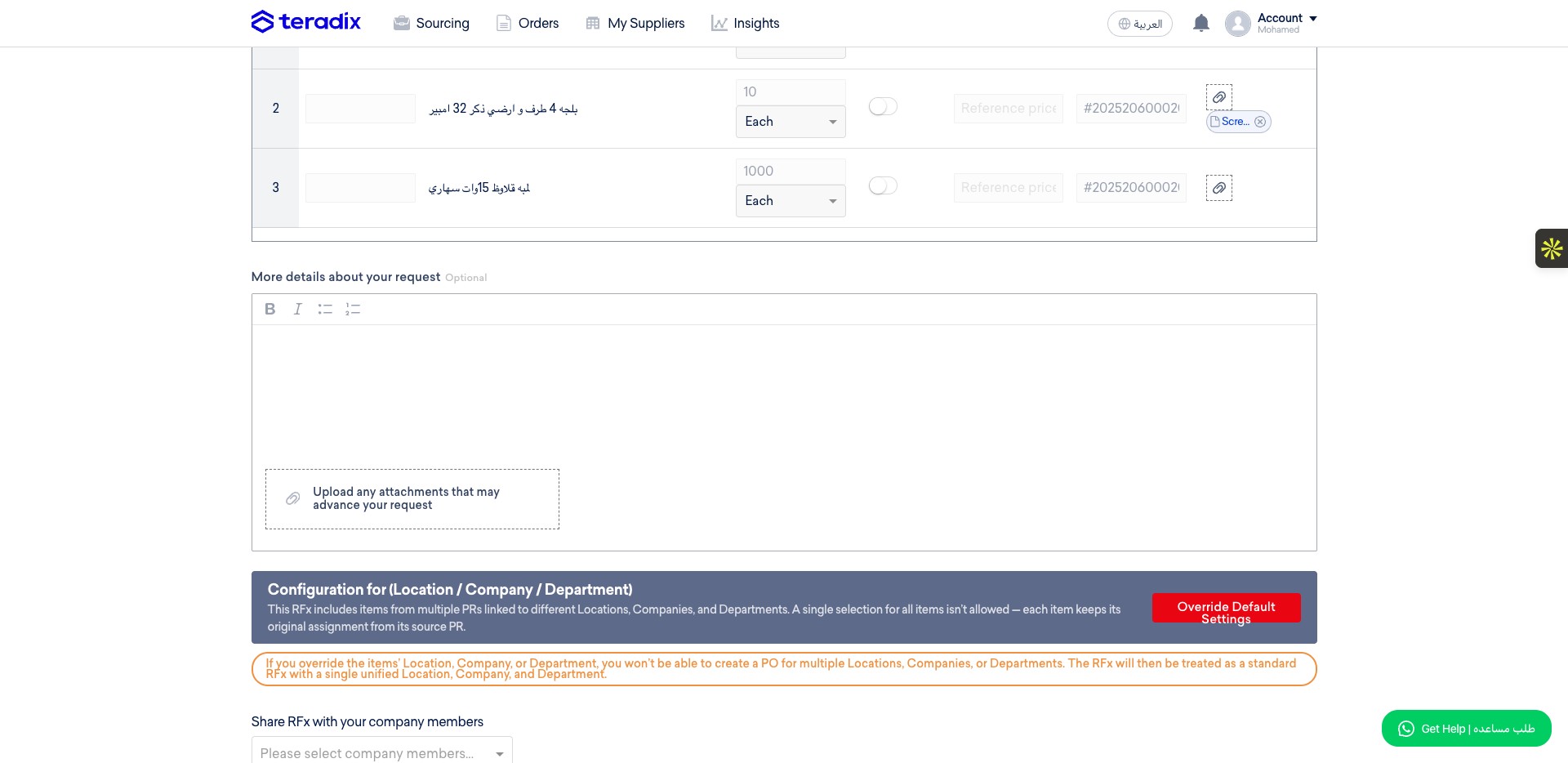
Here you can select which evaluation criteria will be used in this RFQ comparison report, all the criteria should have been configured in the account setup prior to this step.
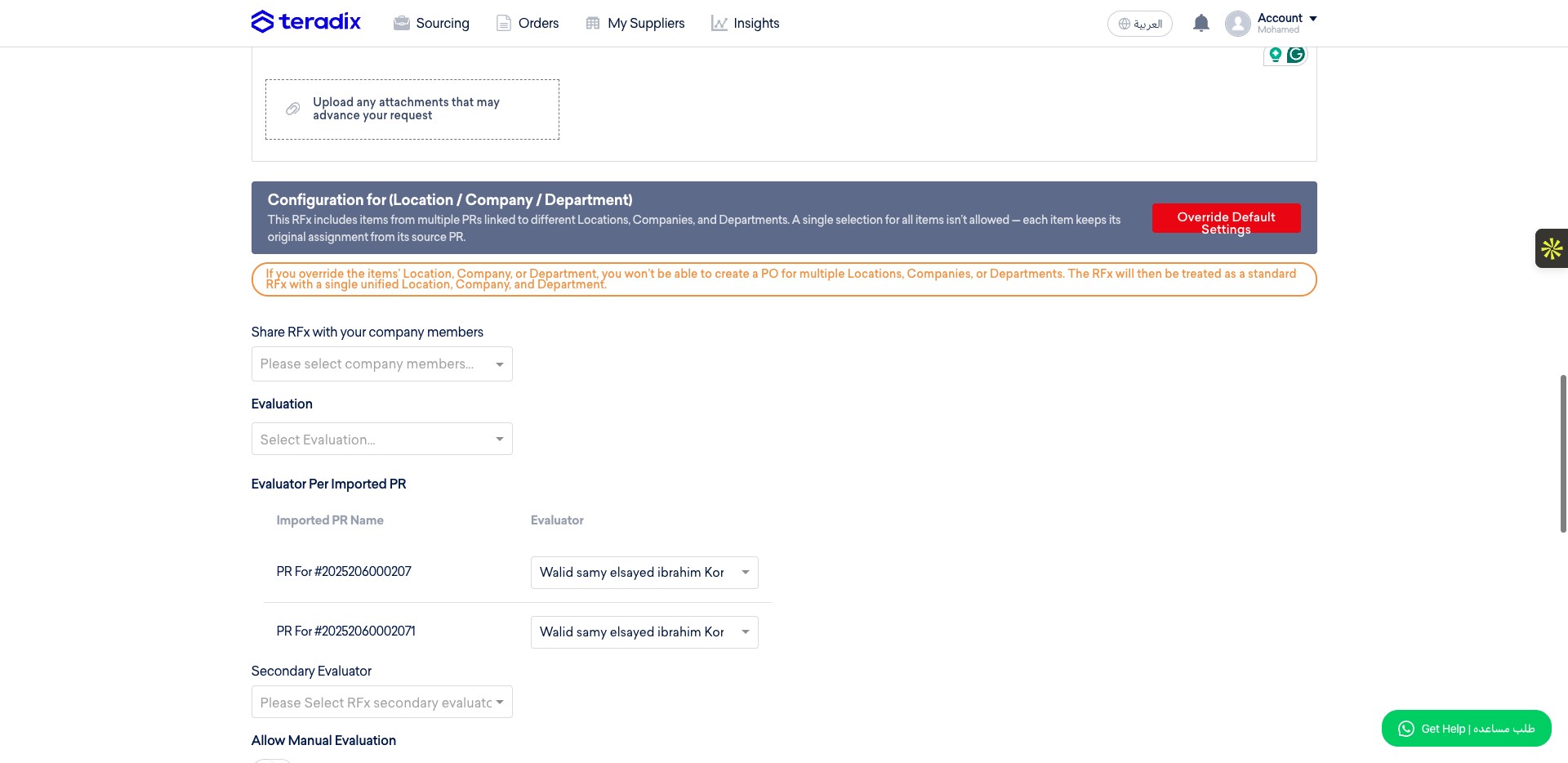
Click on "Price Only" from example
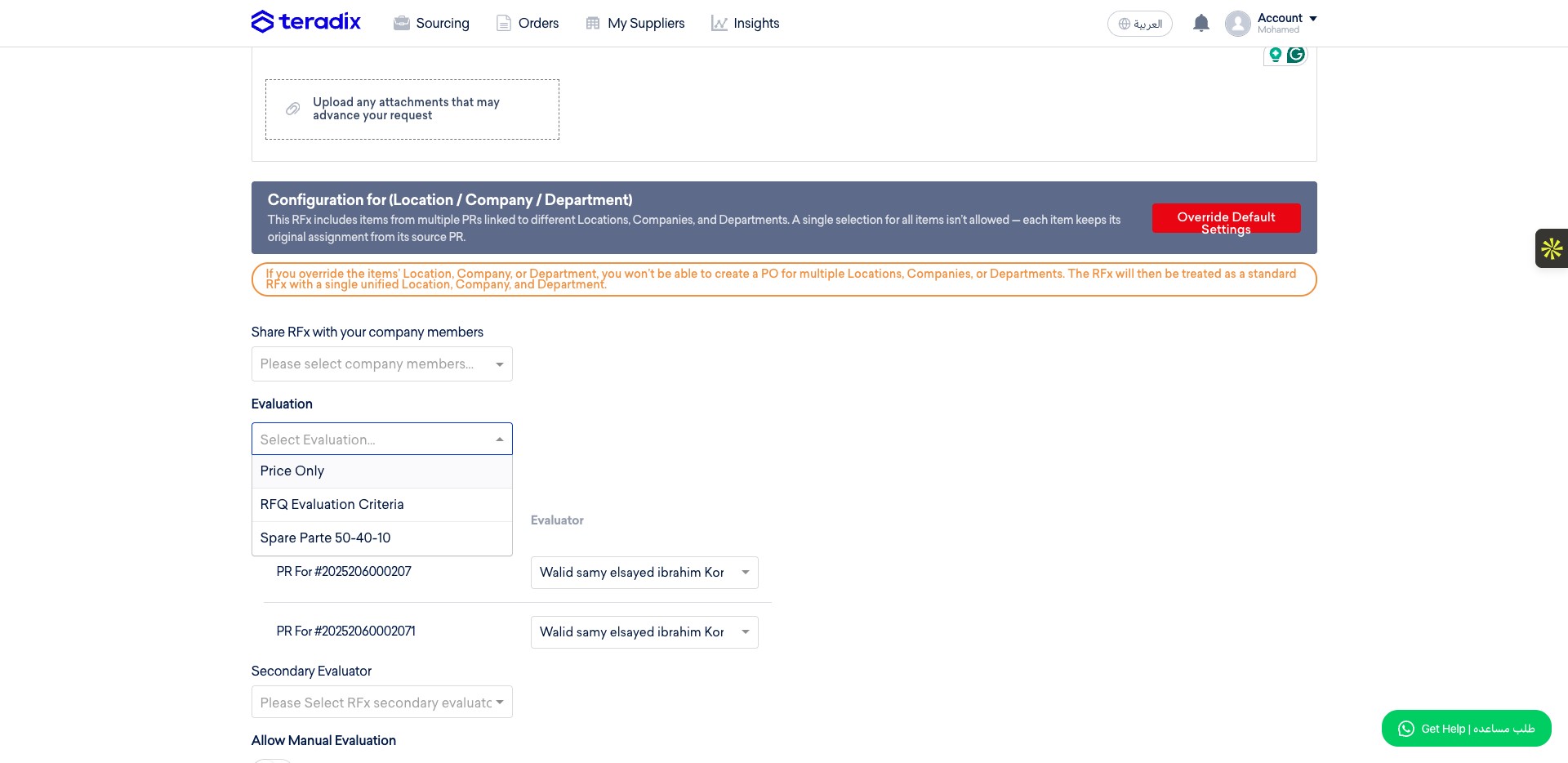
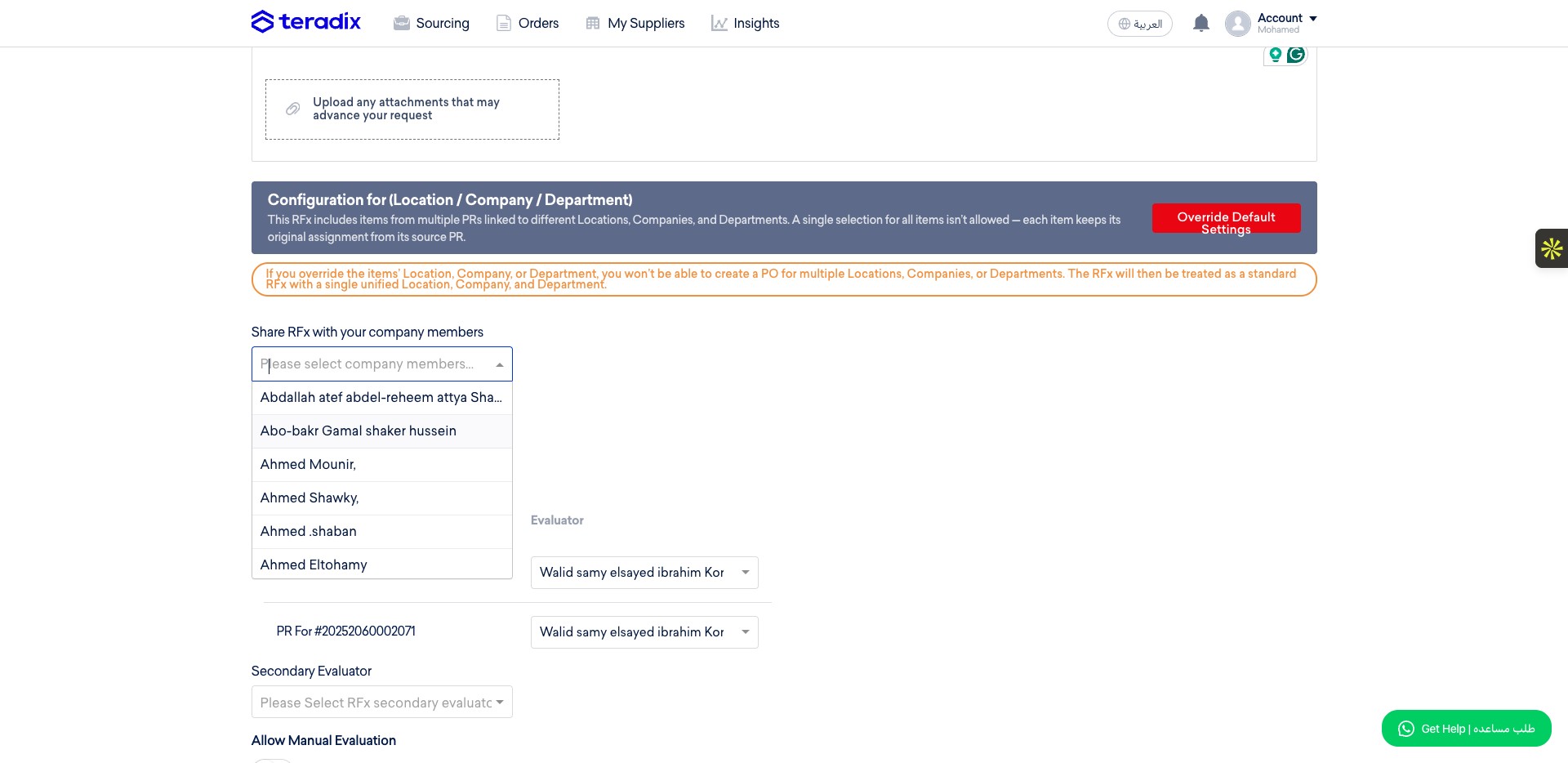
if you want to allow access to this RFQ to other users from your company, you can select them from this dropdown menu.
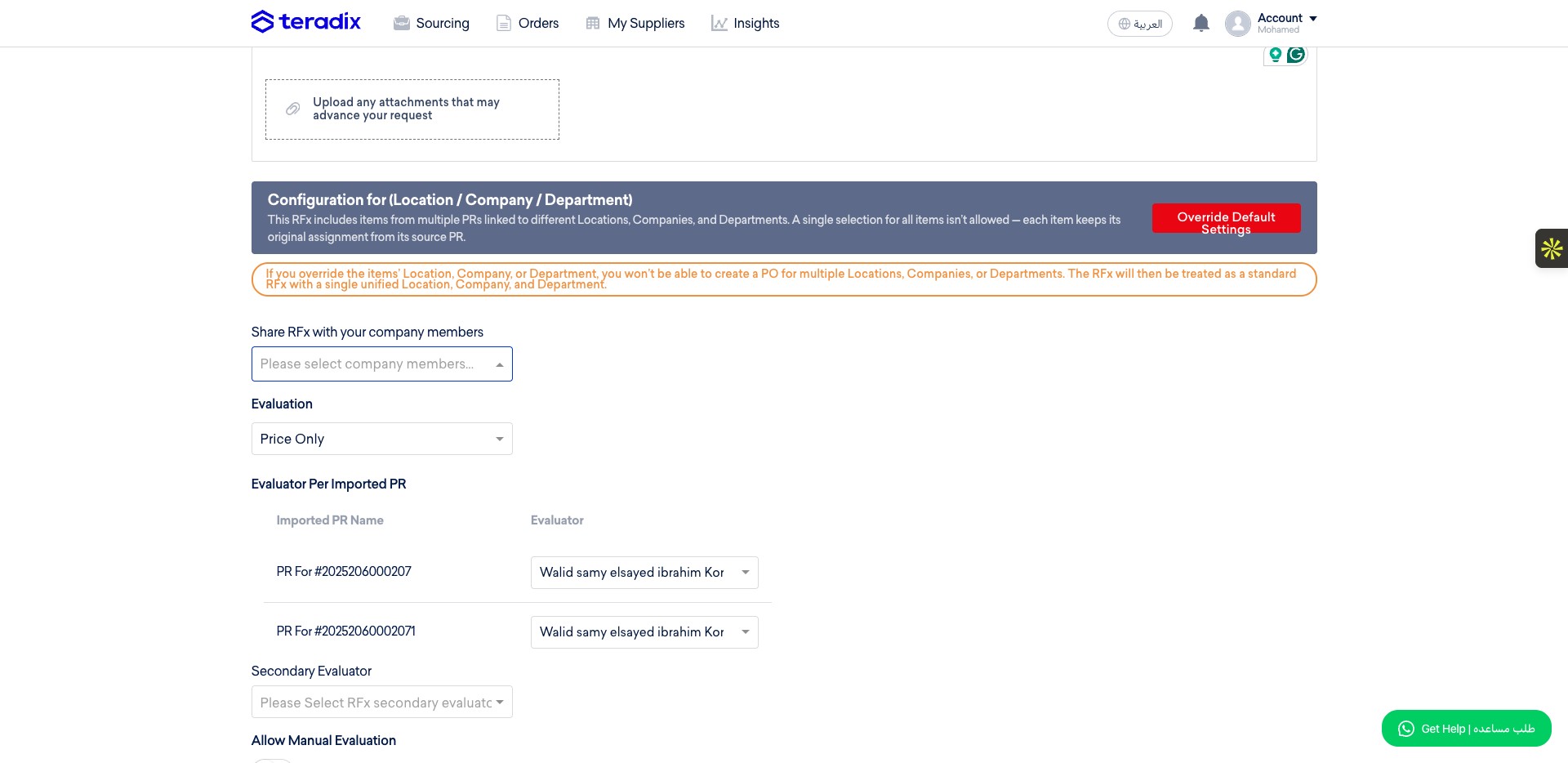
Click on "Abo-bakr Gamal shaker hussein" for example
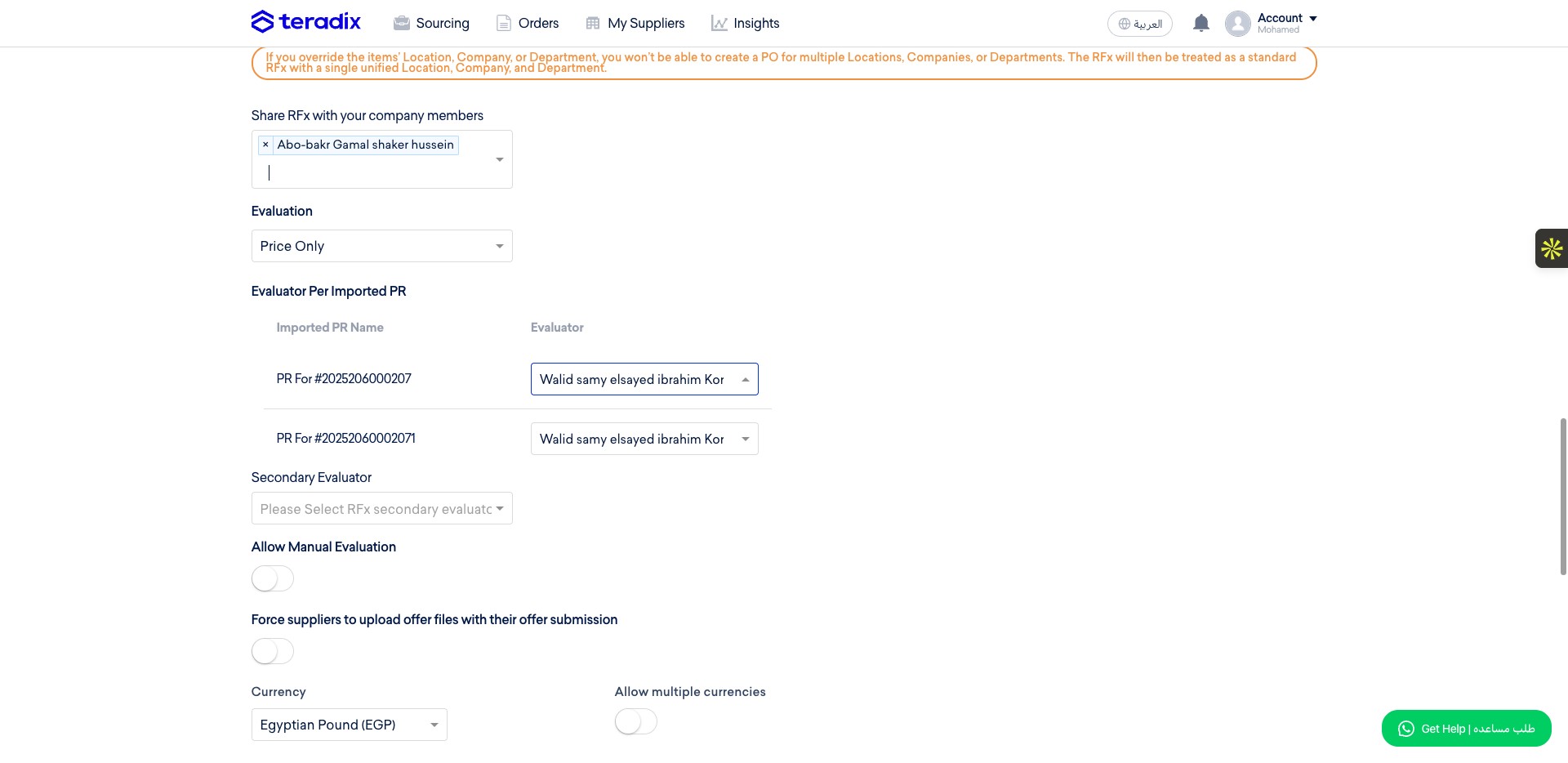
Each RFQ has techncial evaluators, primary which will mainly the requester of the PR item (you can override it and select another evaluator)
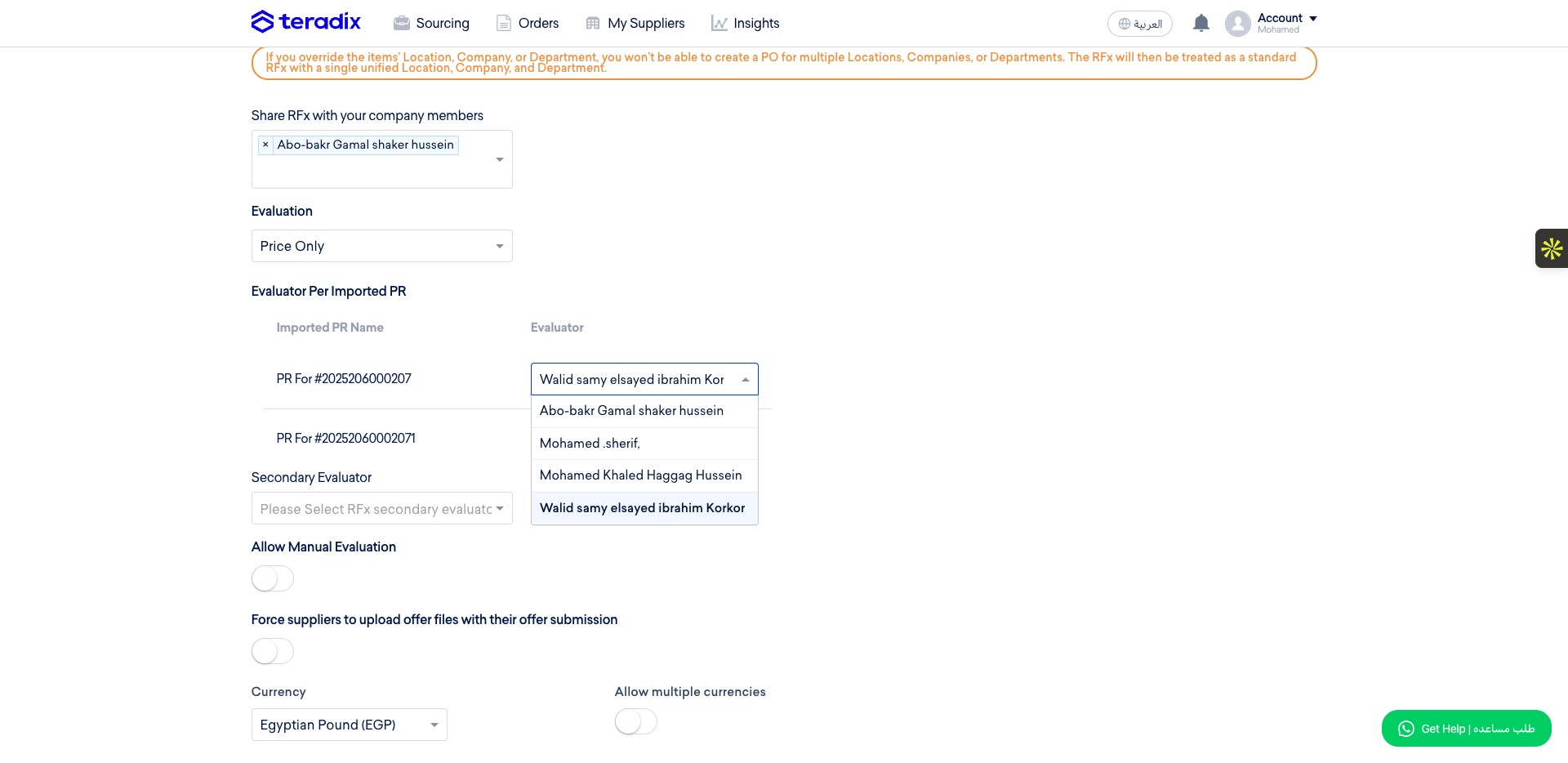
Click on "Walid samy elsayed ibrahim Korkor" for example
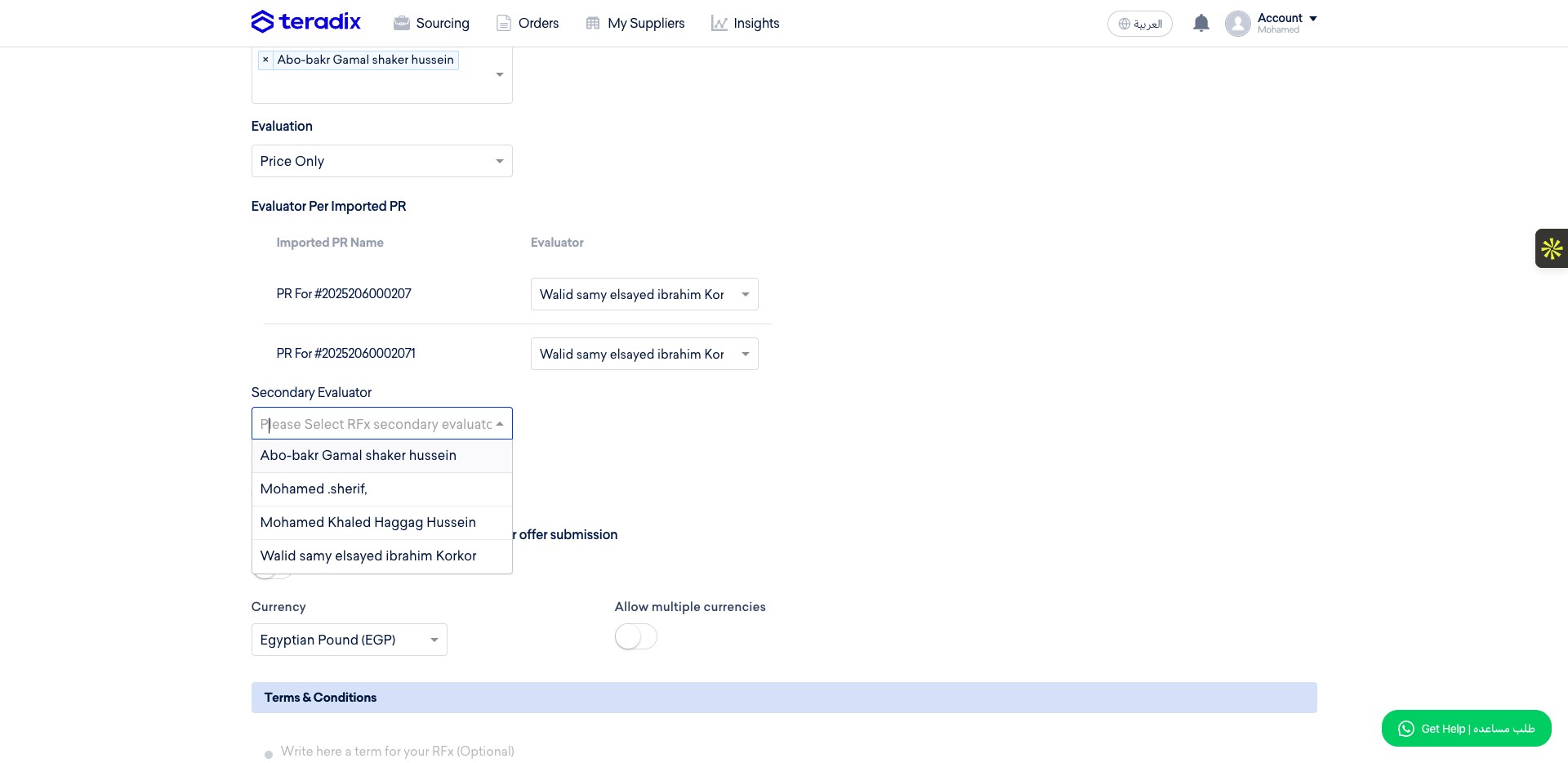
The secondary evalutor will reviwe the first evaluator scoring and either confirm, or override some item scores, you can select it from this dropdown menu.
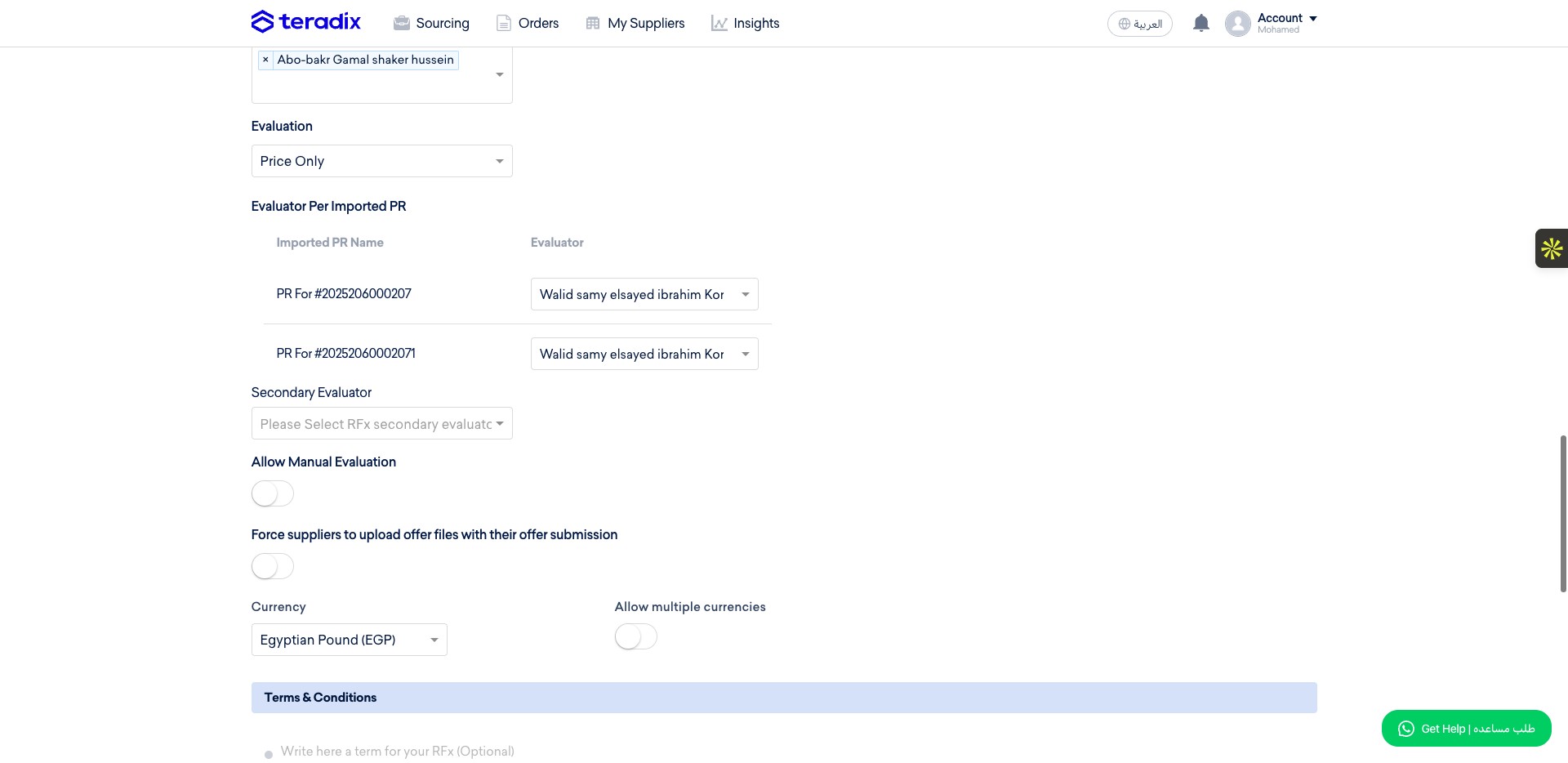
Click on "Abo-bakr Gamal shaker hussein" for exmaple
Click here
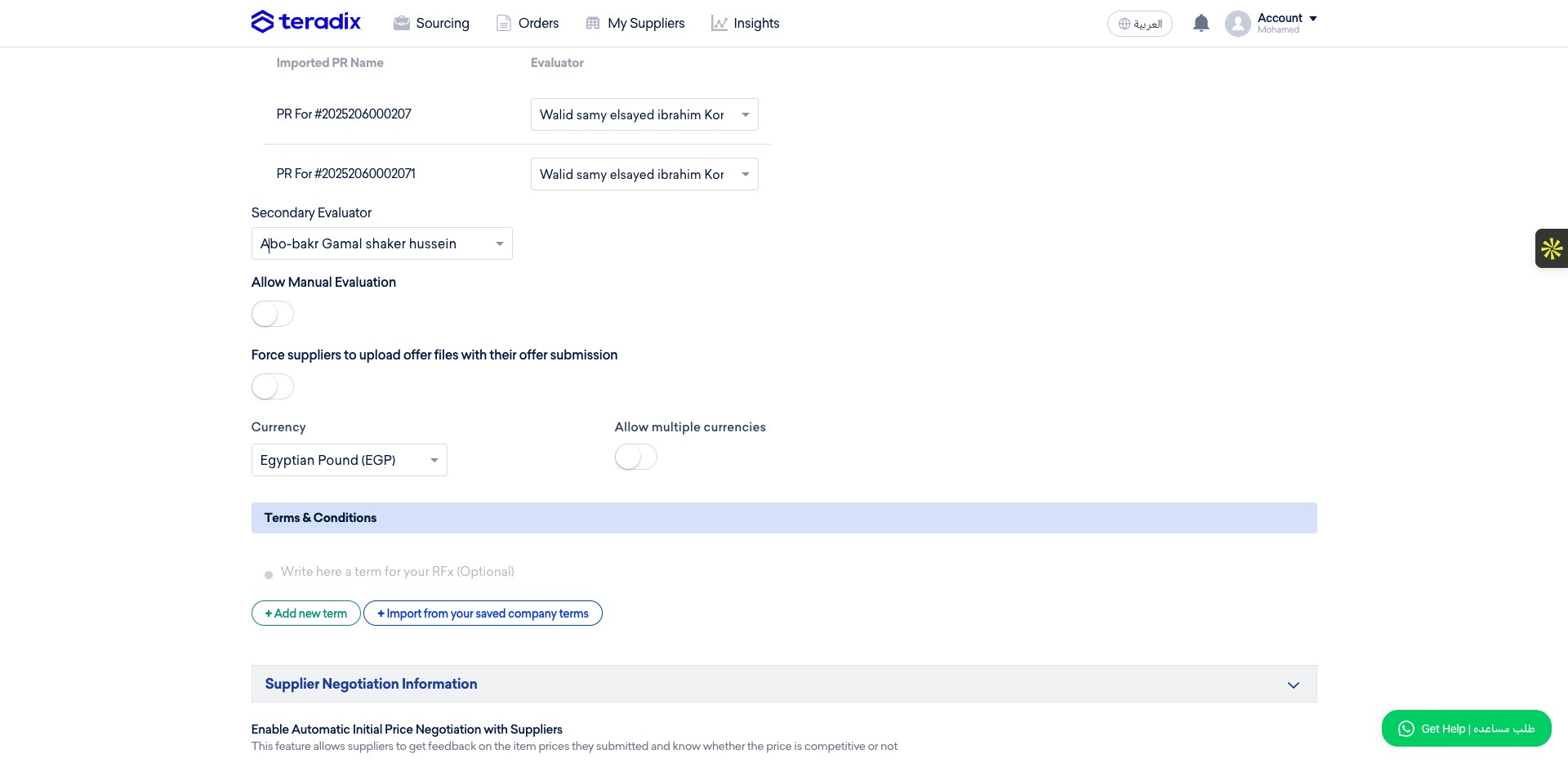
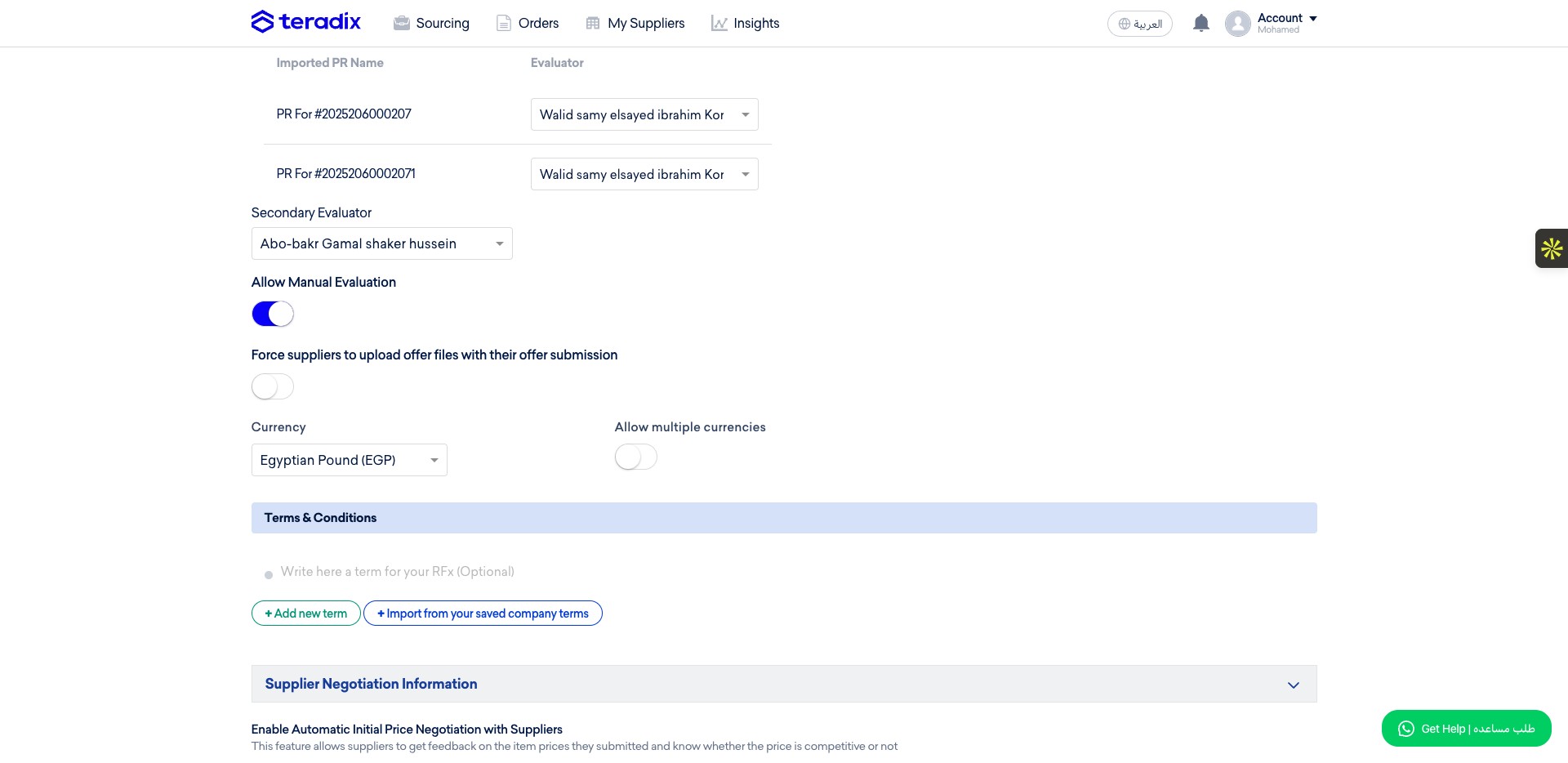
in some companies, the suppliers has to submit also a pdf version of their offer, here you can either enable/disable that.
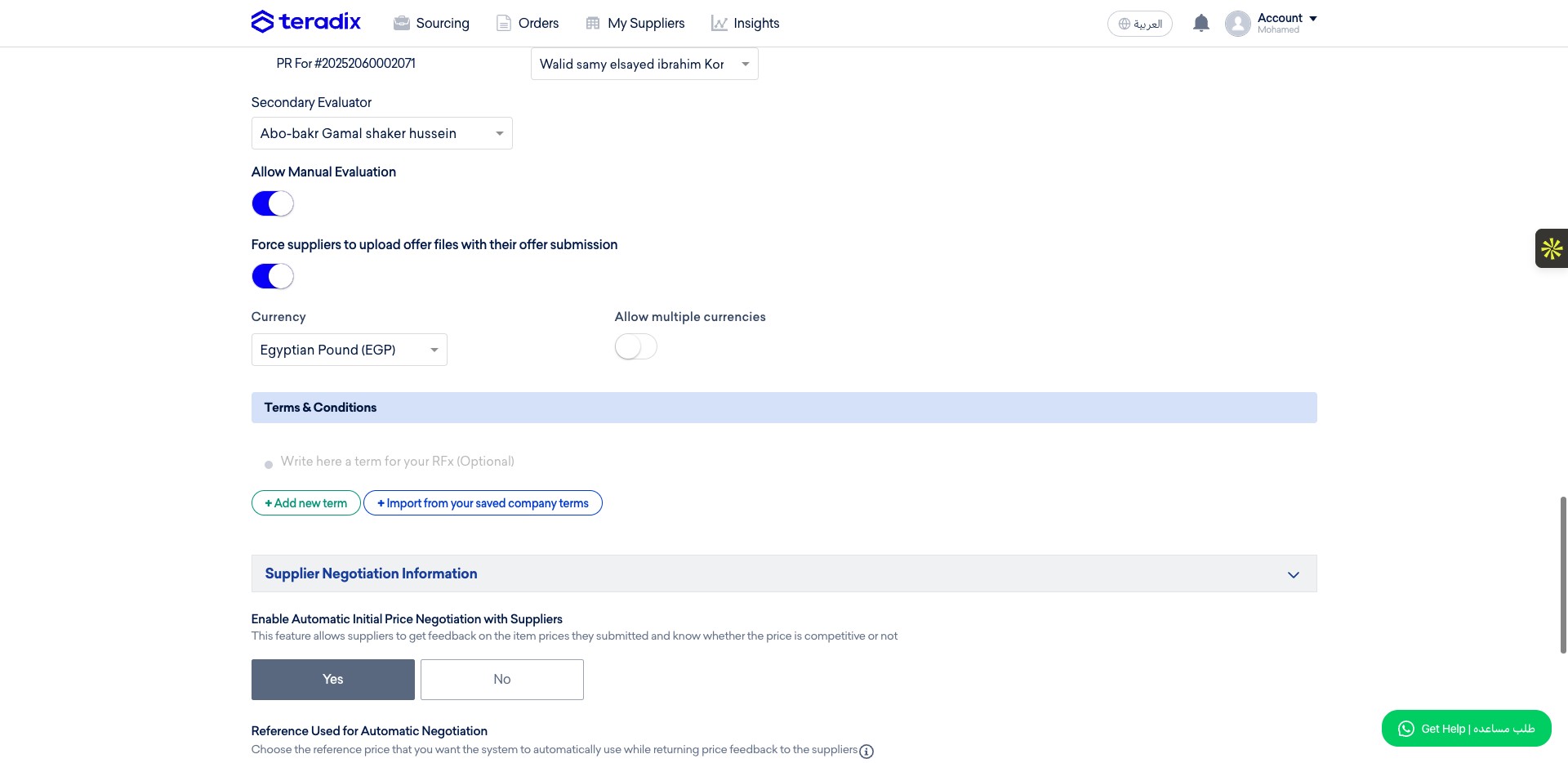
if your RFQ may receive quotation with a different currency than your main currency, allow the suppliers to submit quotations/offers with the currency you want.
Click on "+" Add More Currencies
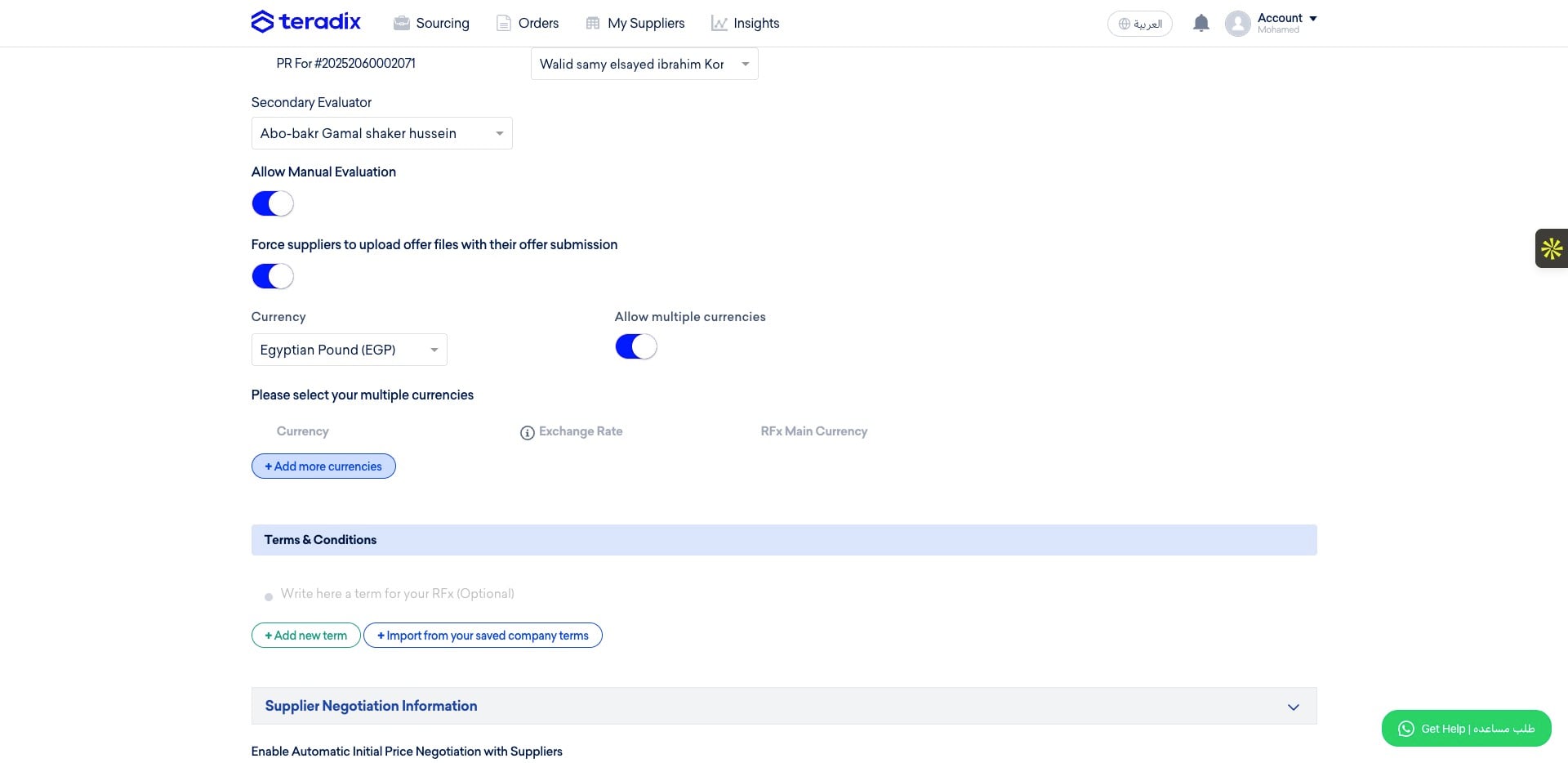
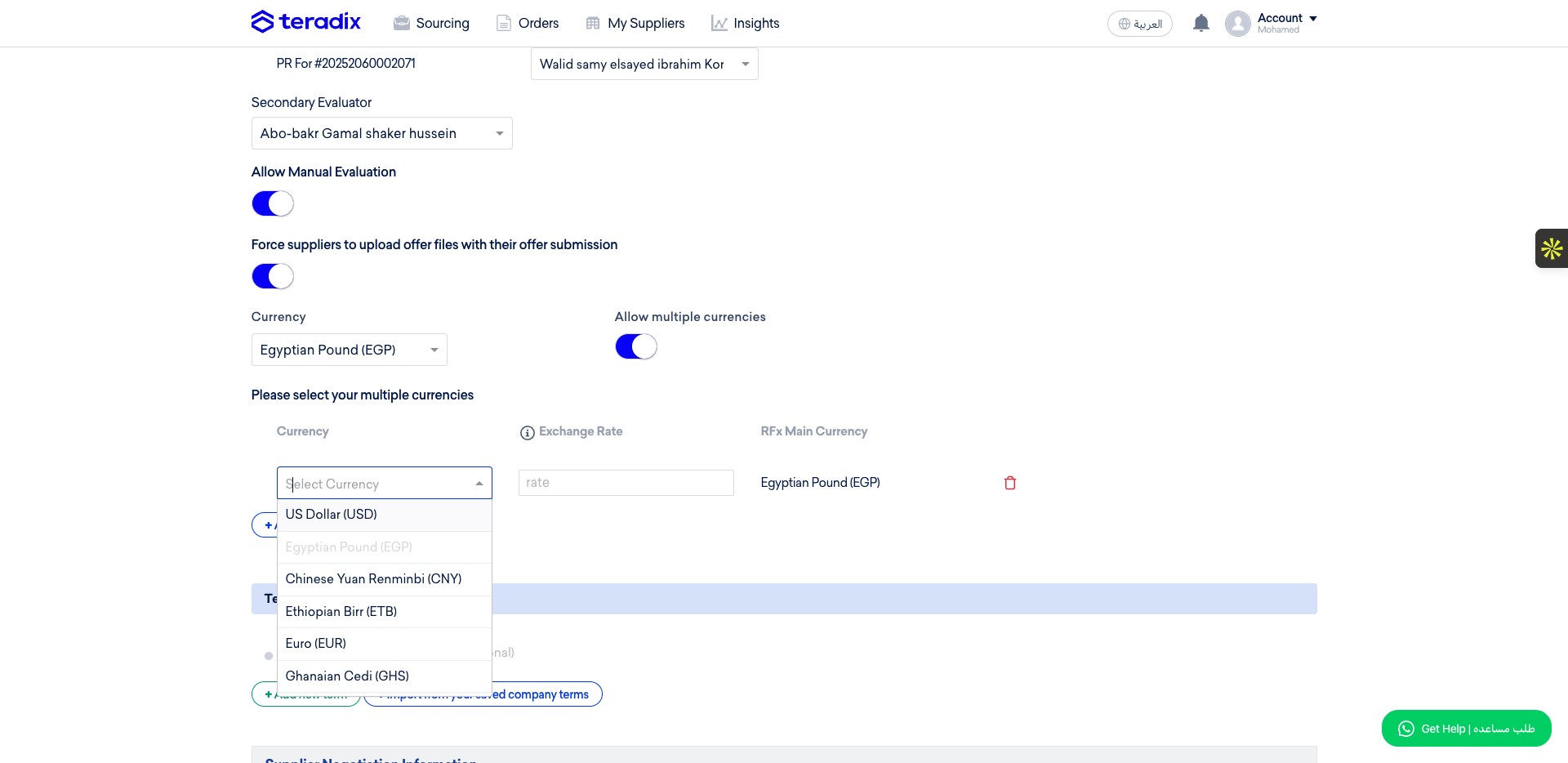
Select he currency you want from the drpdown list, define its exchange rate to your main currency
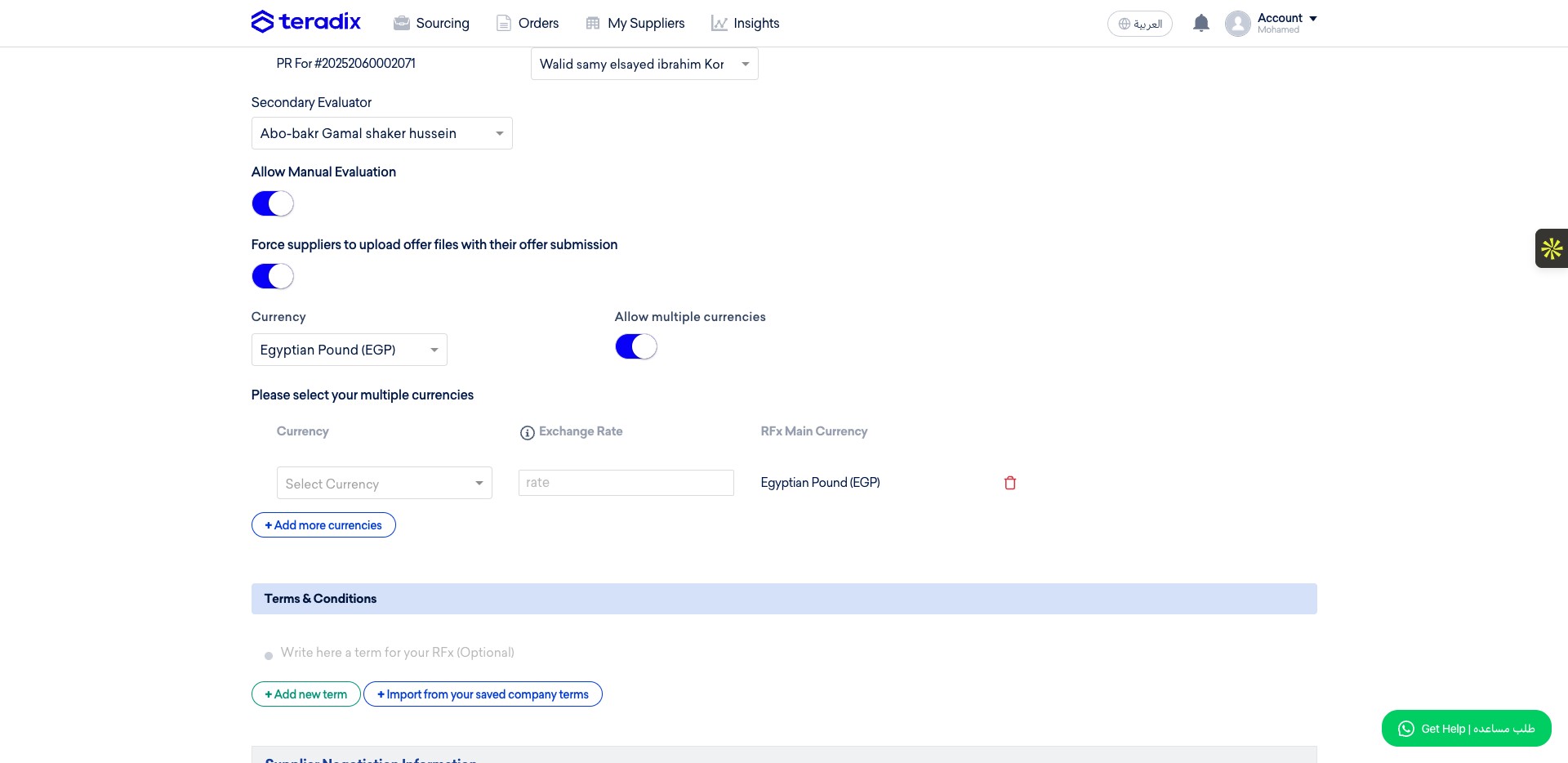
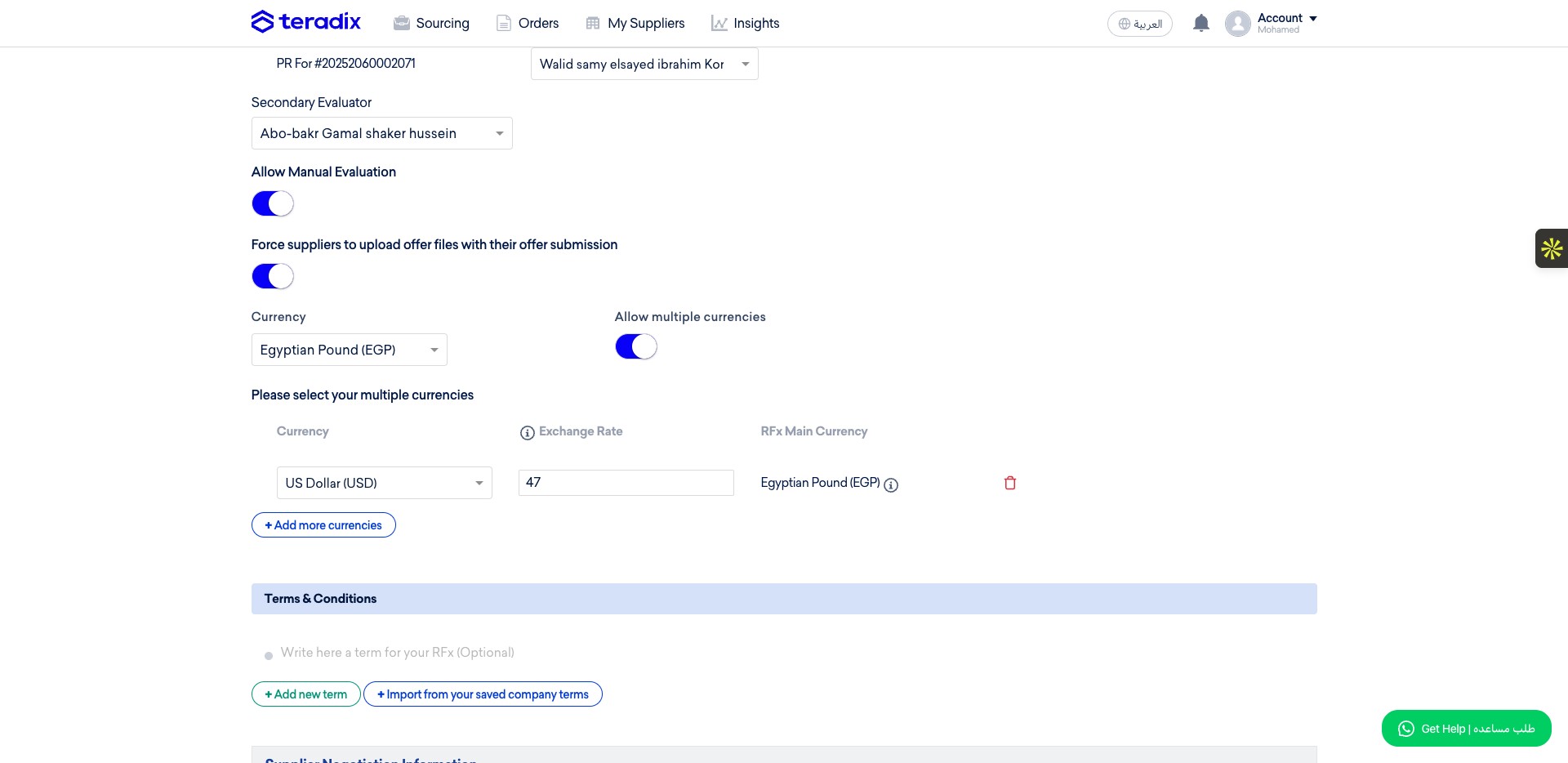
When selecting multiple currencies, Teradix will use the excahnge rate defined here to unify the view for this RFQ comaprison using your main currency without removing or overriding the original submitted quotations/offers by the suppliers.
Click on "US Dollar (USD)" for example
Add the official exchange rate
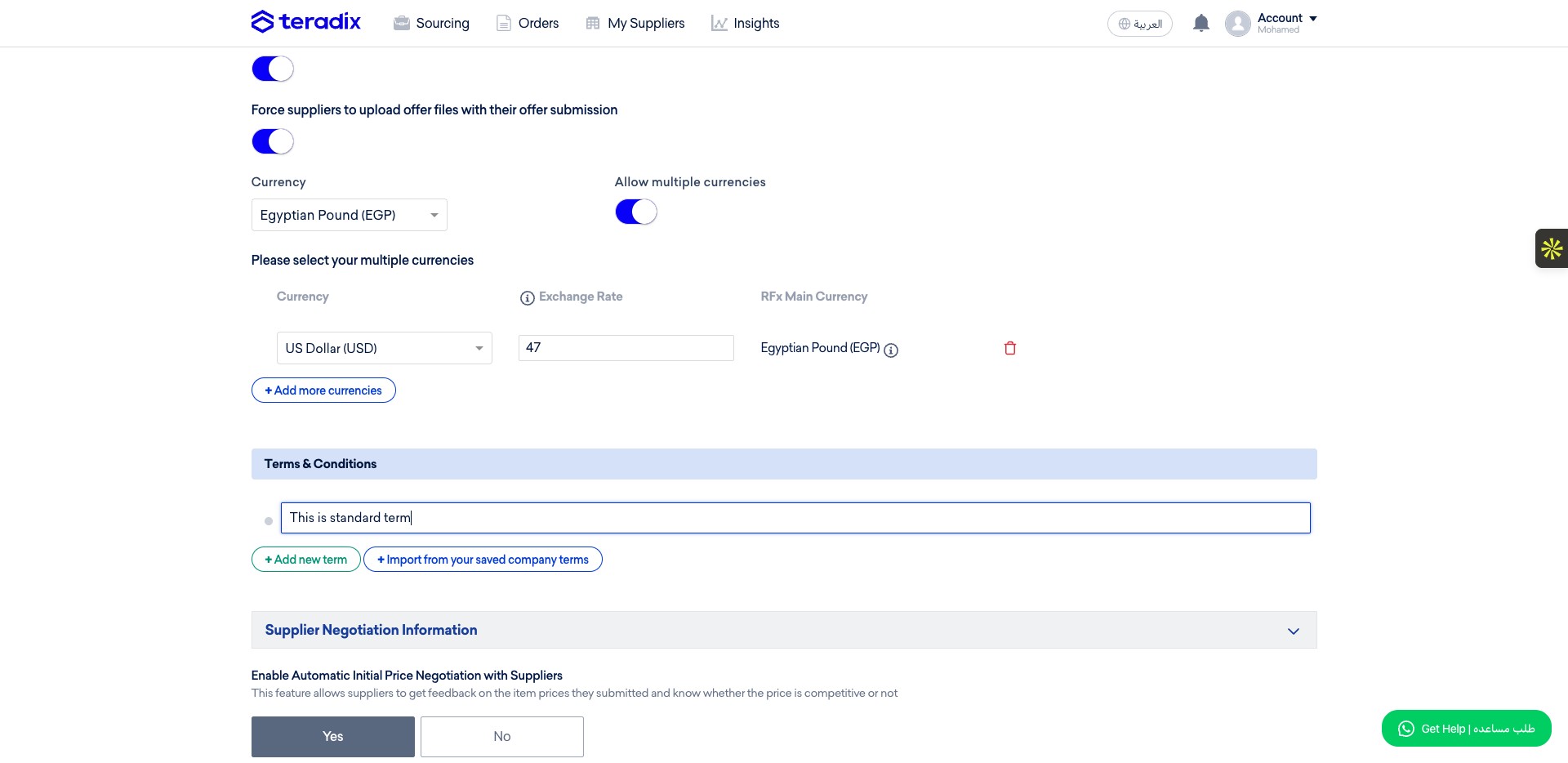
You can add Terms for this RFQ by writing them here in different lines
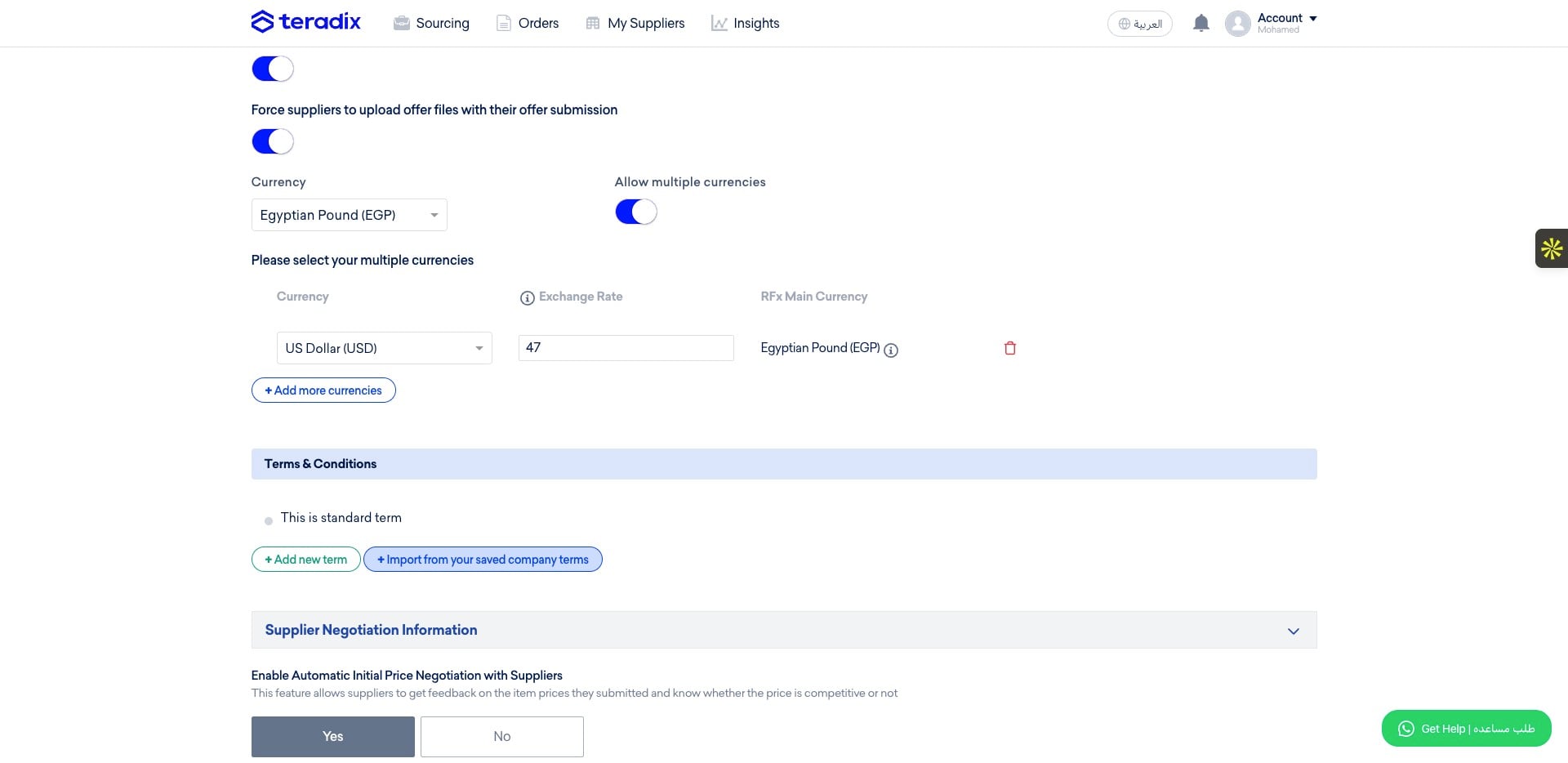
Or you can add them from a predefined terms from your company settings
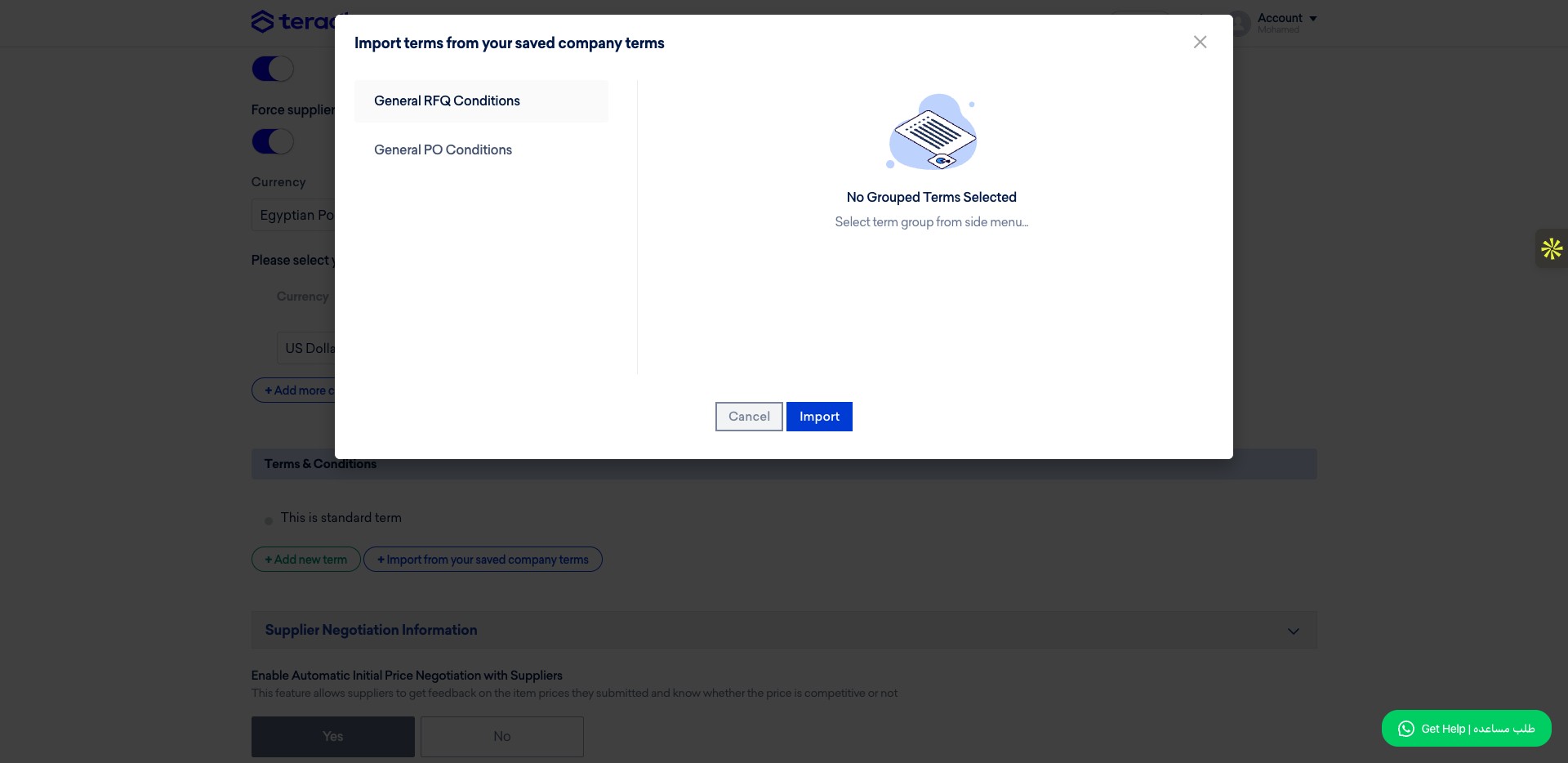
Click on "General RFQ Conditions"
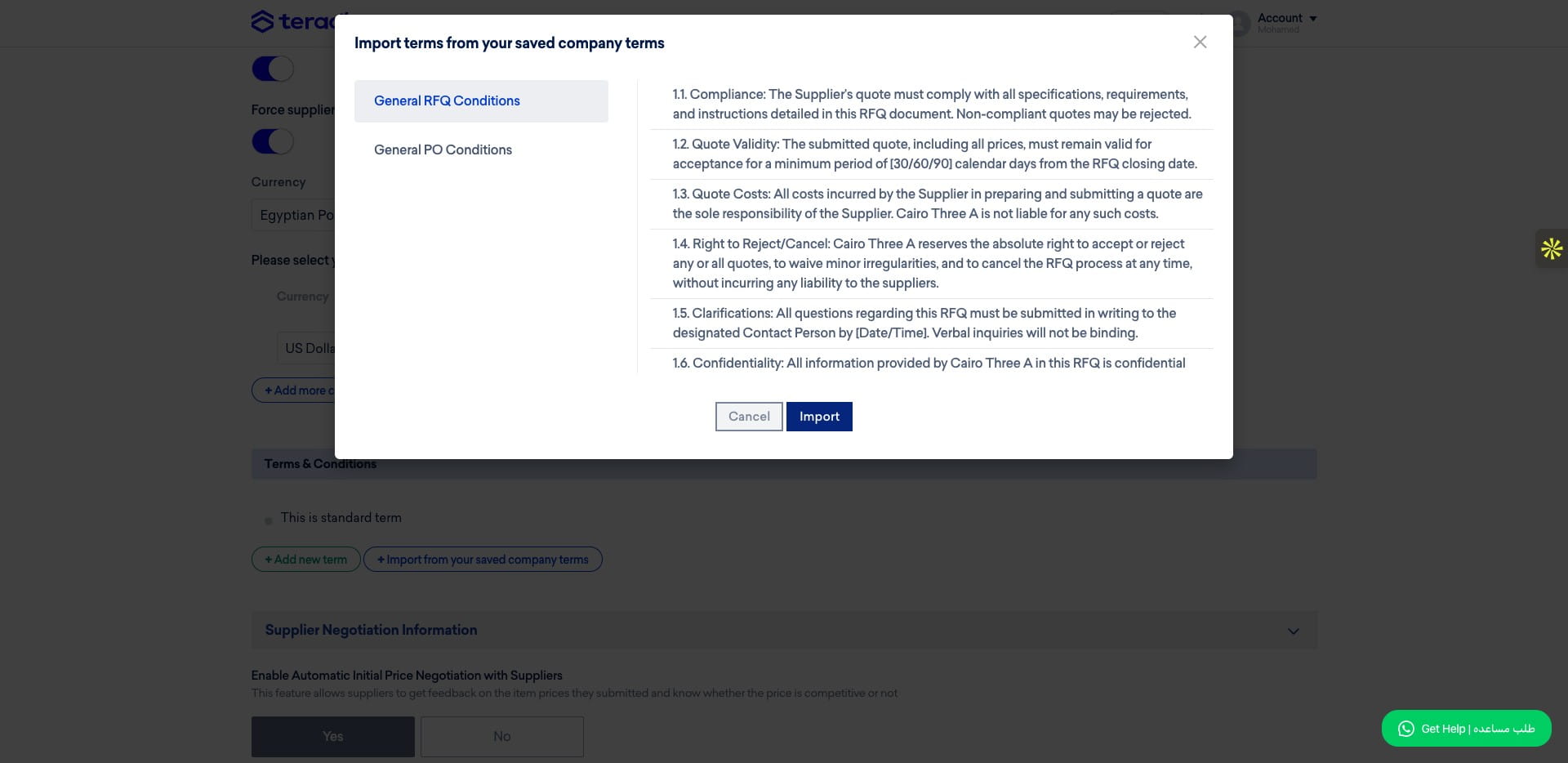
Review the terms then click Import
If you want to allow our Automated Negotitaion Engine to do the negotiation for you click *Yes *
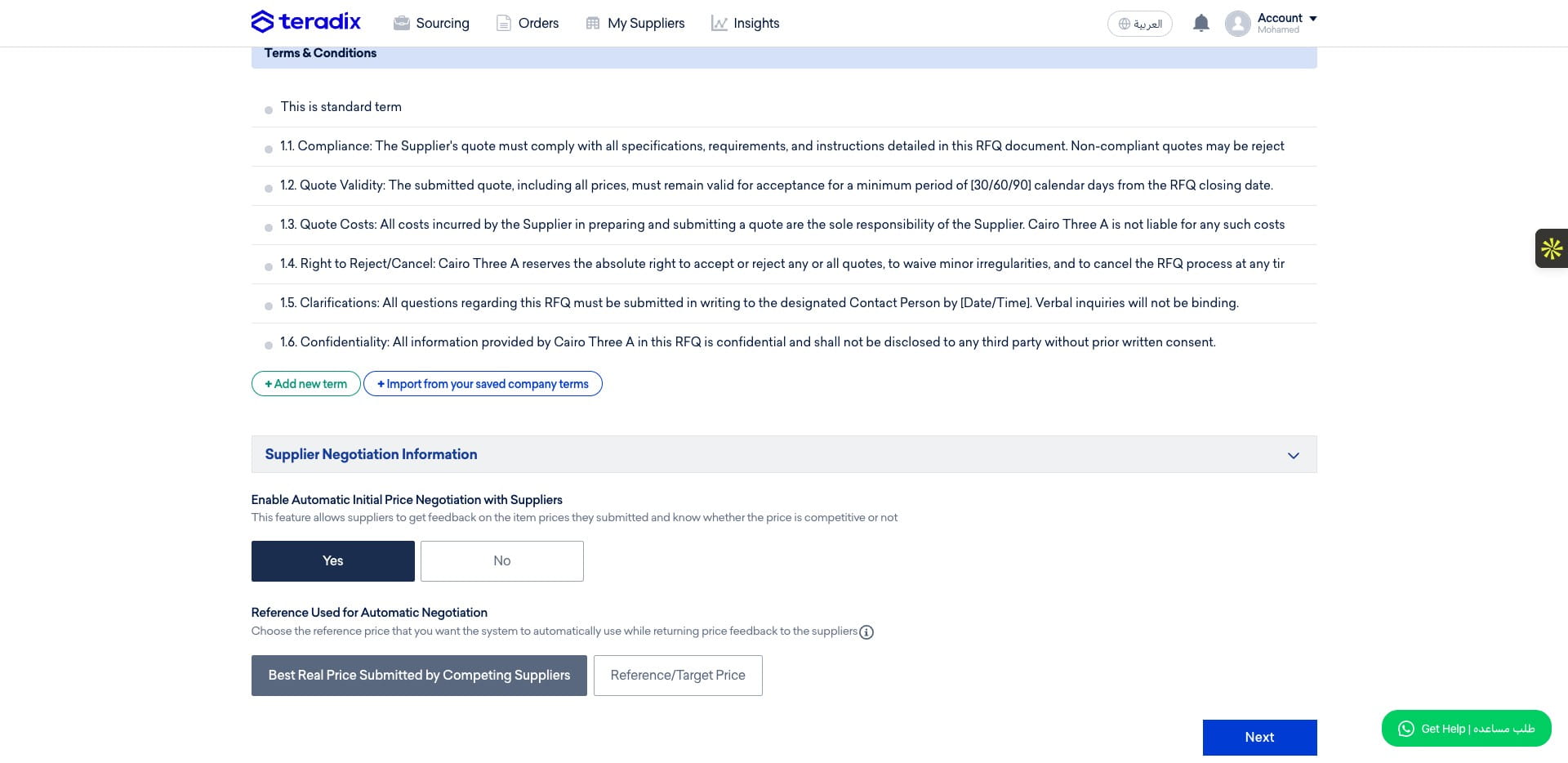
By using our Automated Negotitaion Engine, once the supplier submit quotation/offer for an item he will receive a price feedback to push them to submit a better price (you can select the feedback types from the company settings)
During the automatic negotiation, you can select the way the engine will use to determine the comparing price (either a taregt price per item which you can add in the items table earlier, or vs another competing supplier submitted offer)
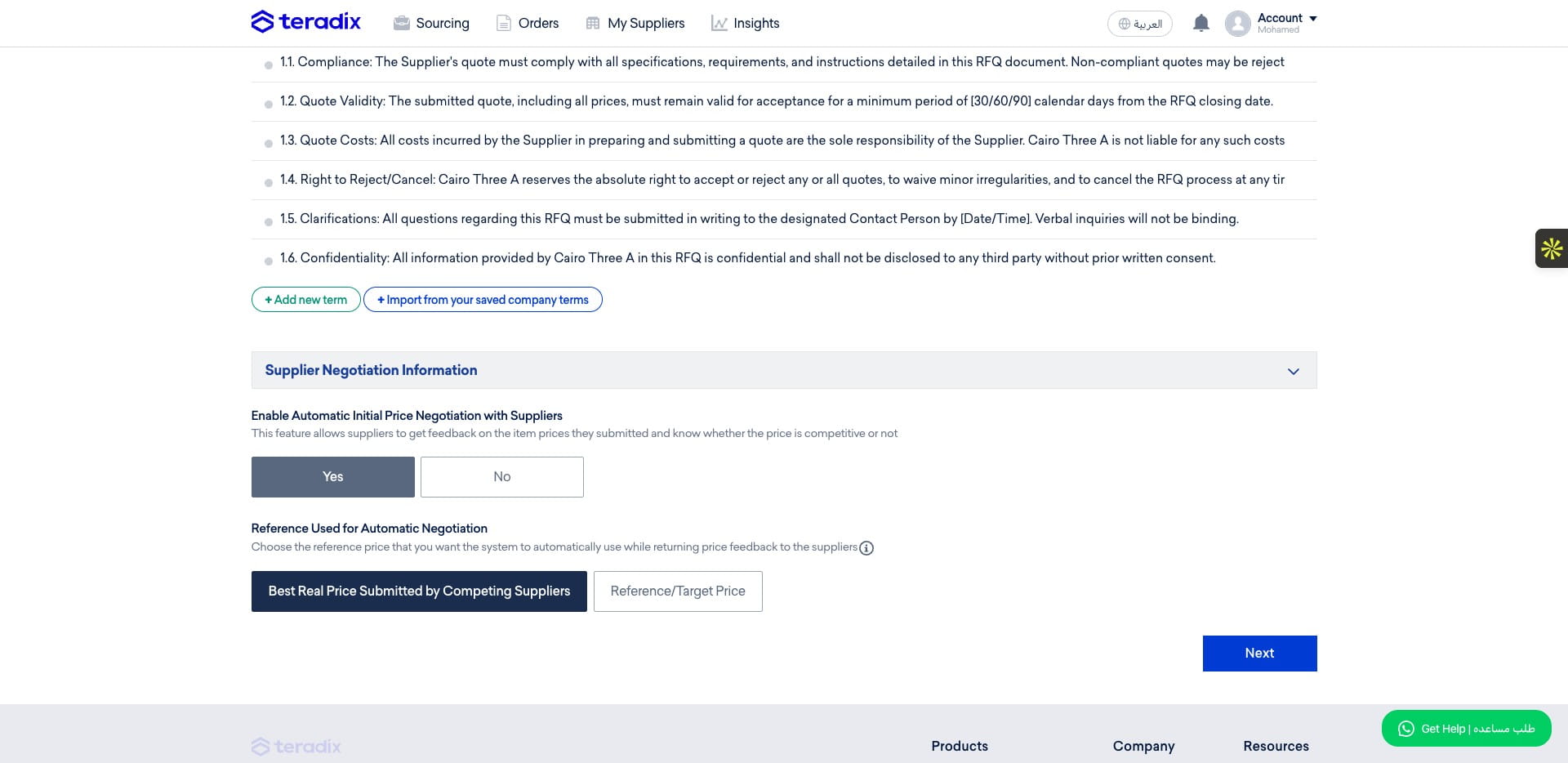
Click on "Next" to move to step 2
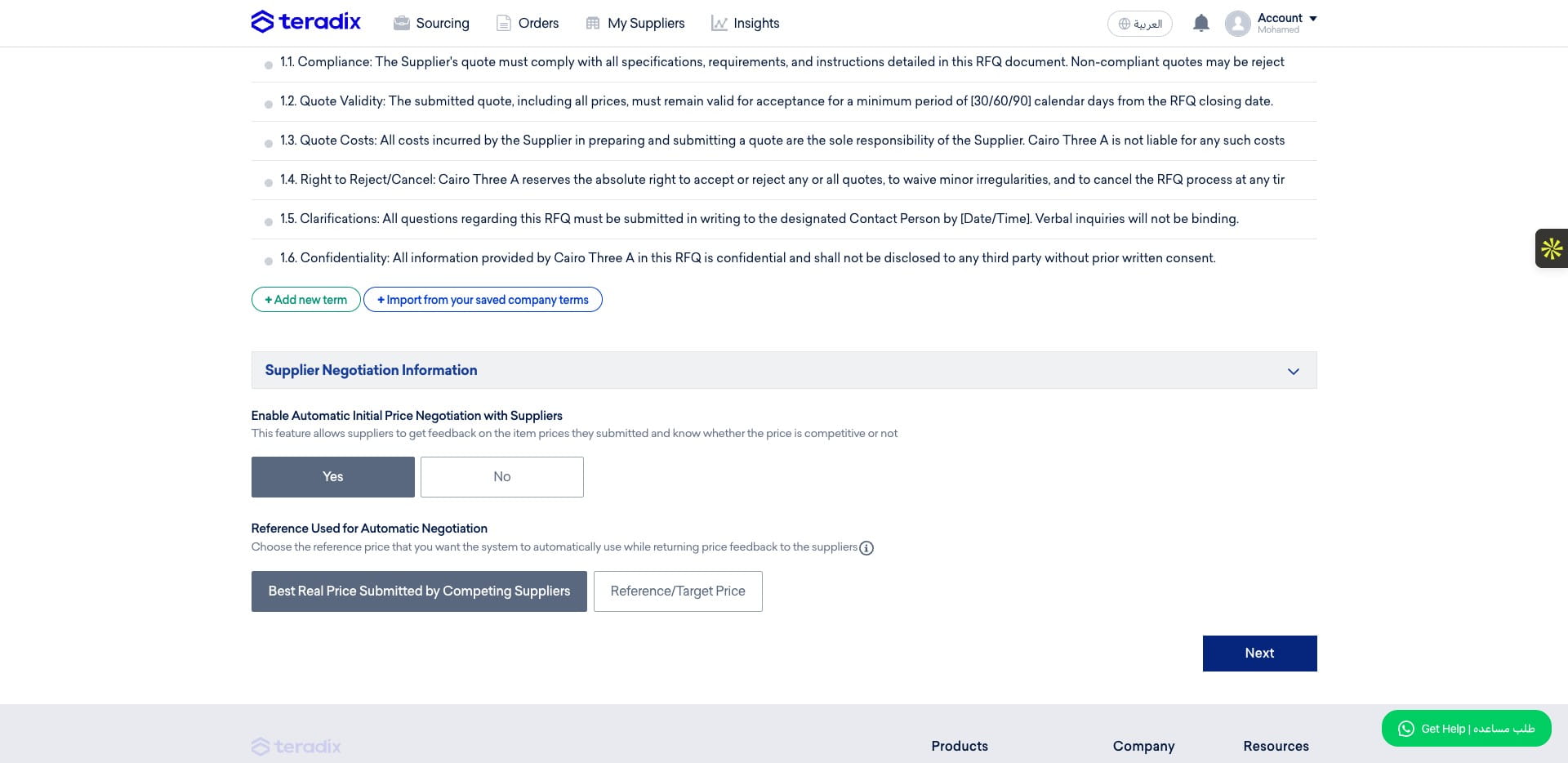
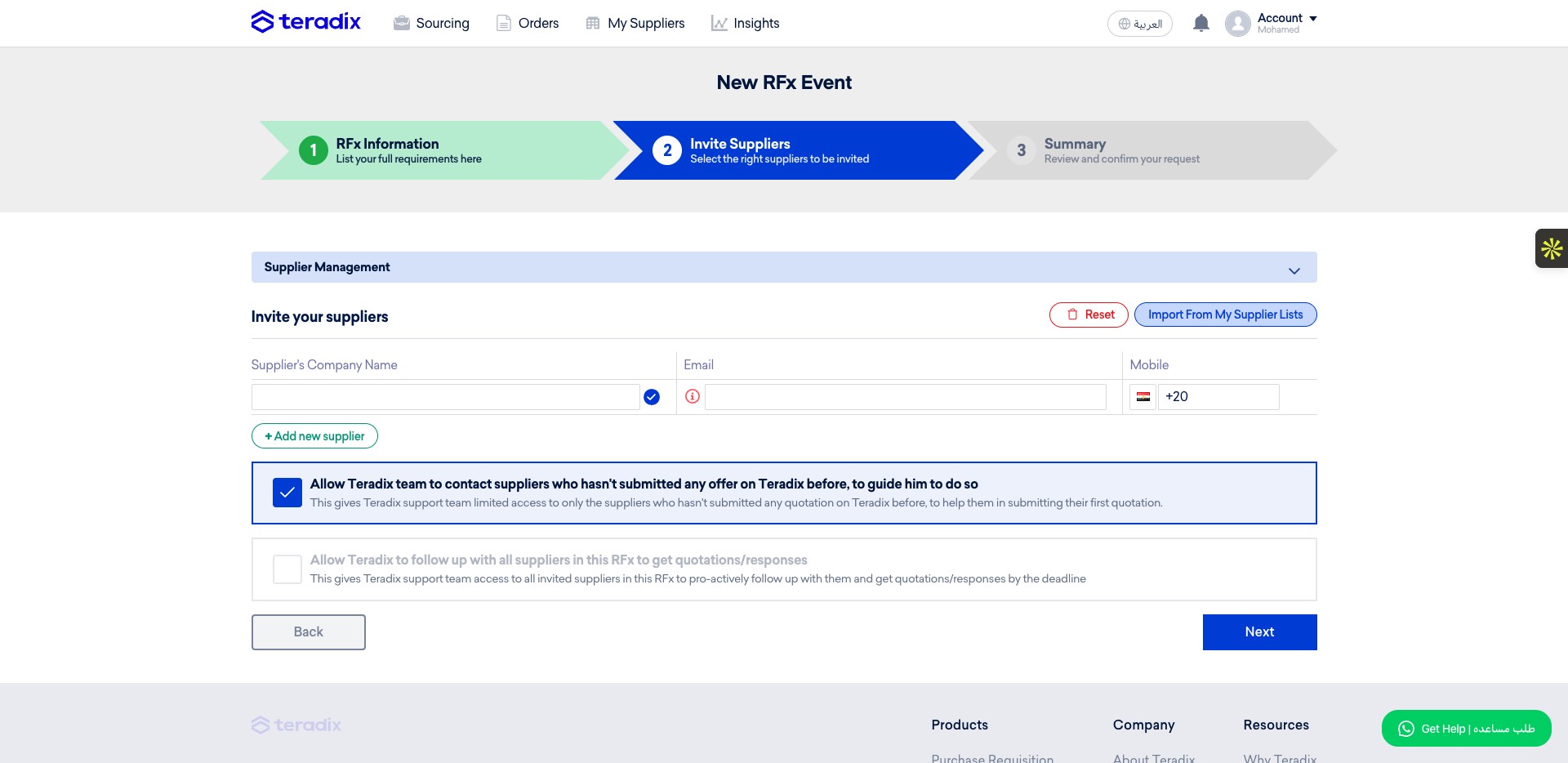
Here you can add the suppliers to this RFQ, Click on "Import From My Supplier Lists"
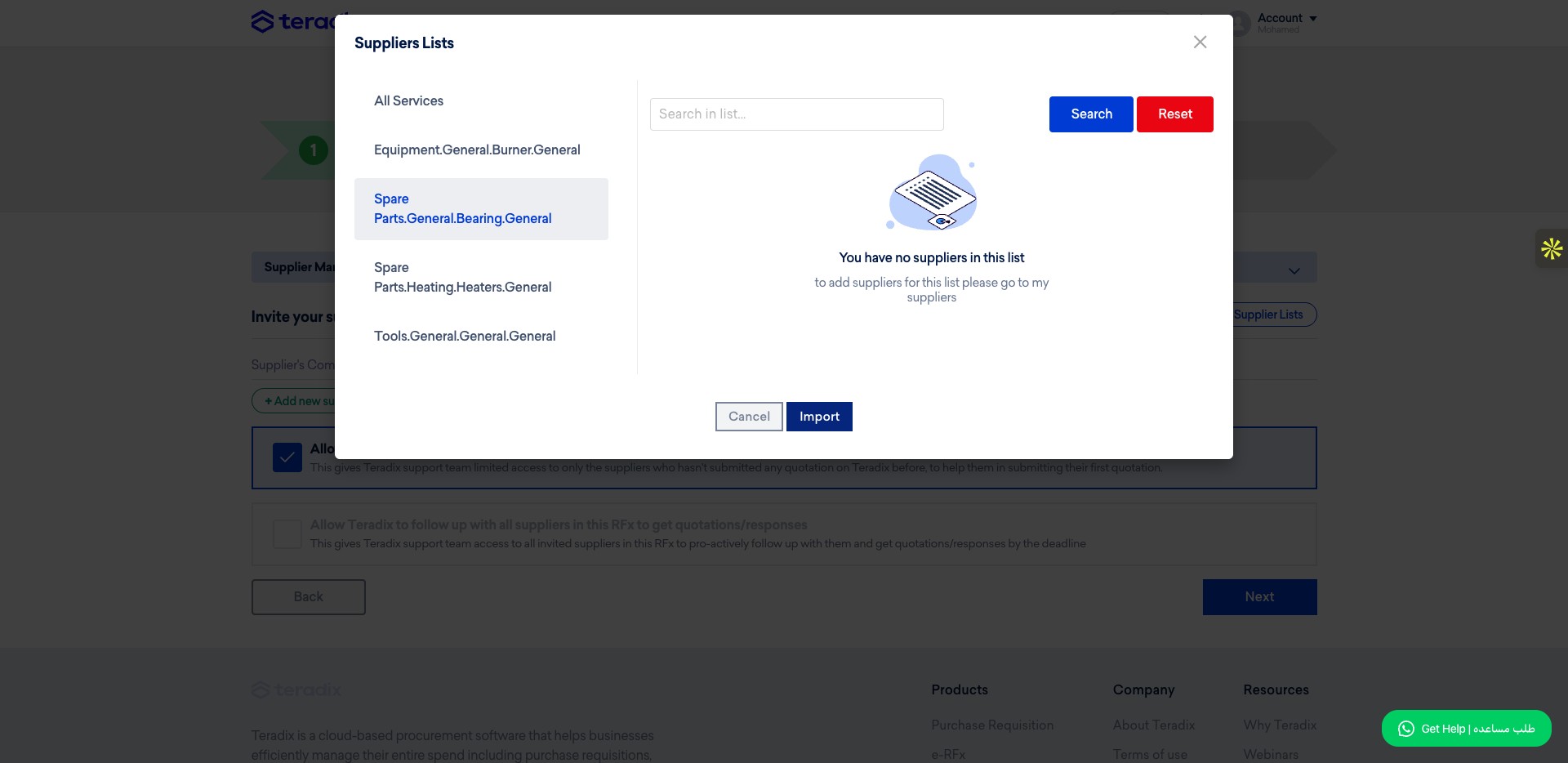
Click on "Equipment.General.Burner.General" for example
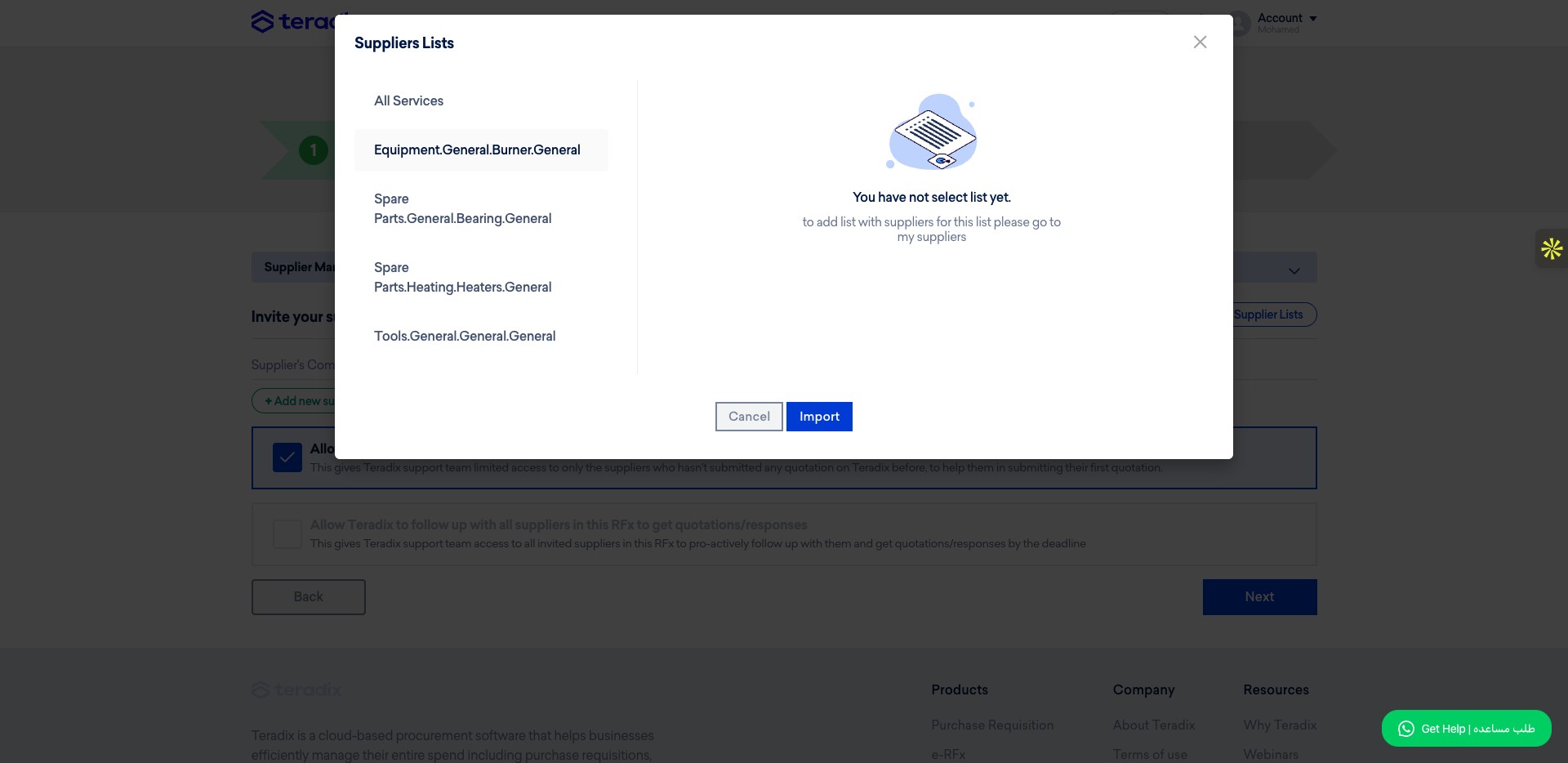
Click on "Import"
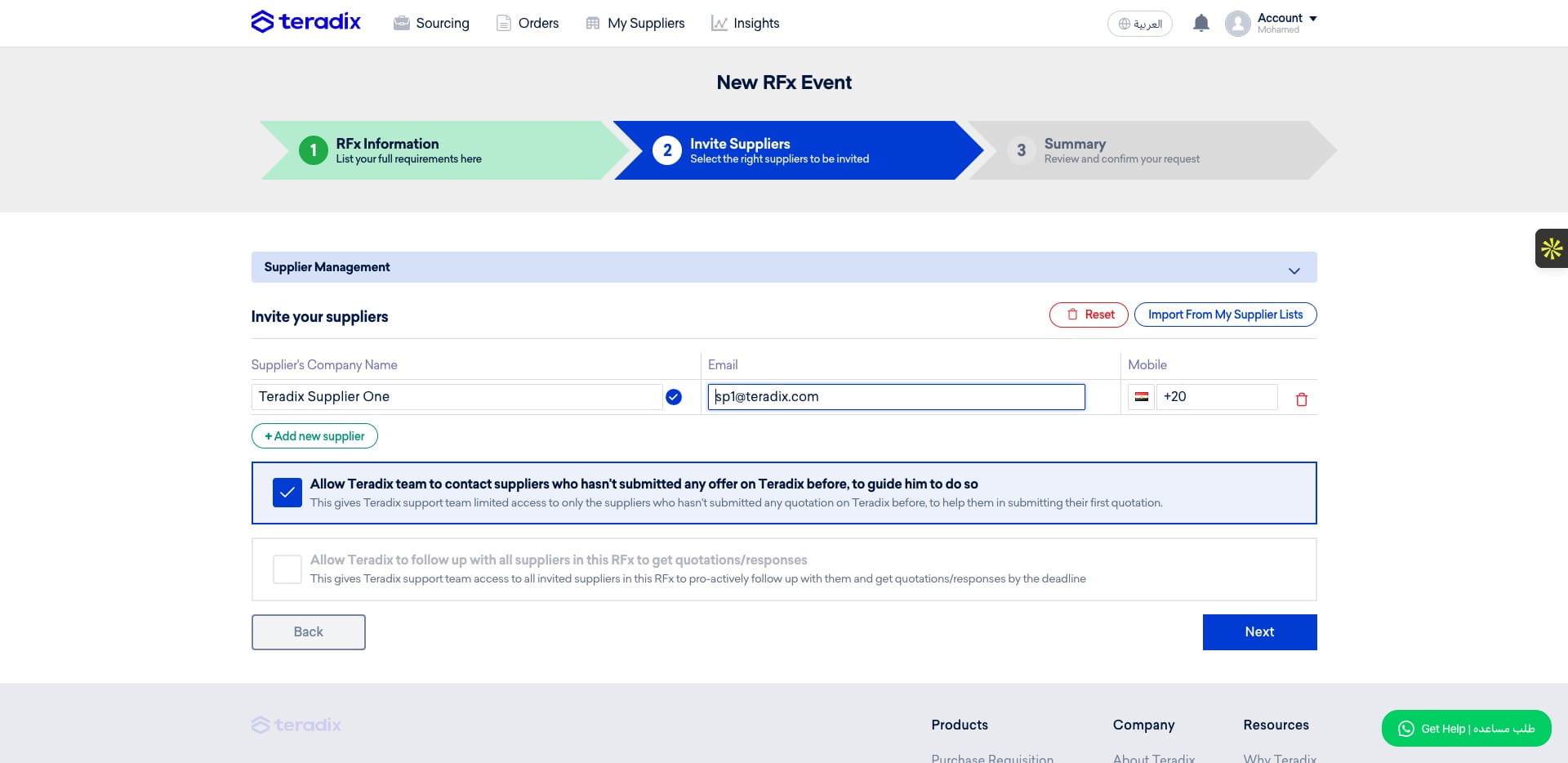
You can add a new supplier (not in your supplier lists), by adding their name, their mobile and email.
You can add other suppliers to this RFQ
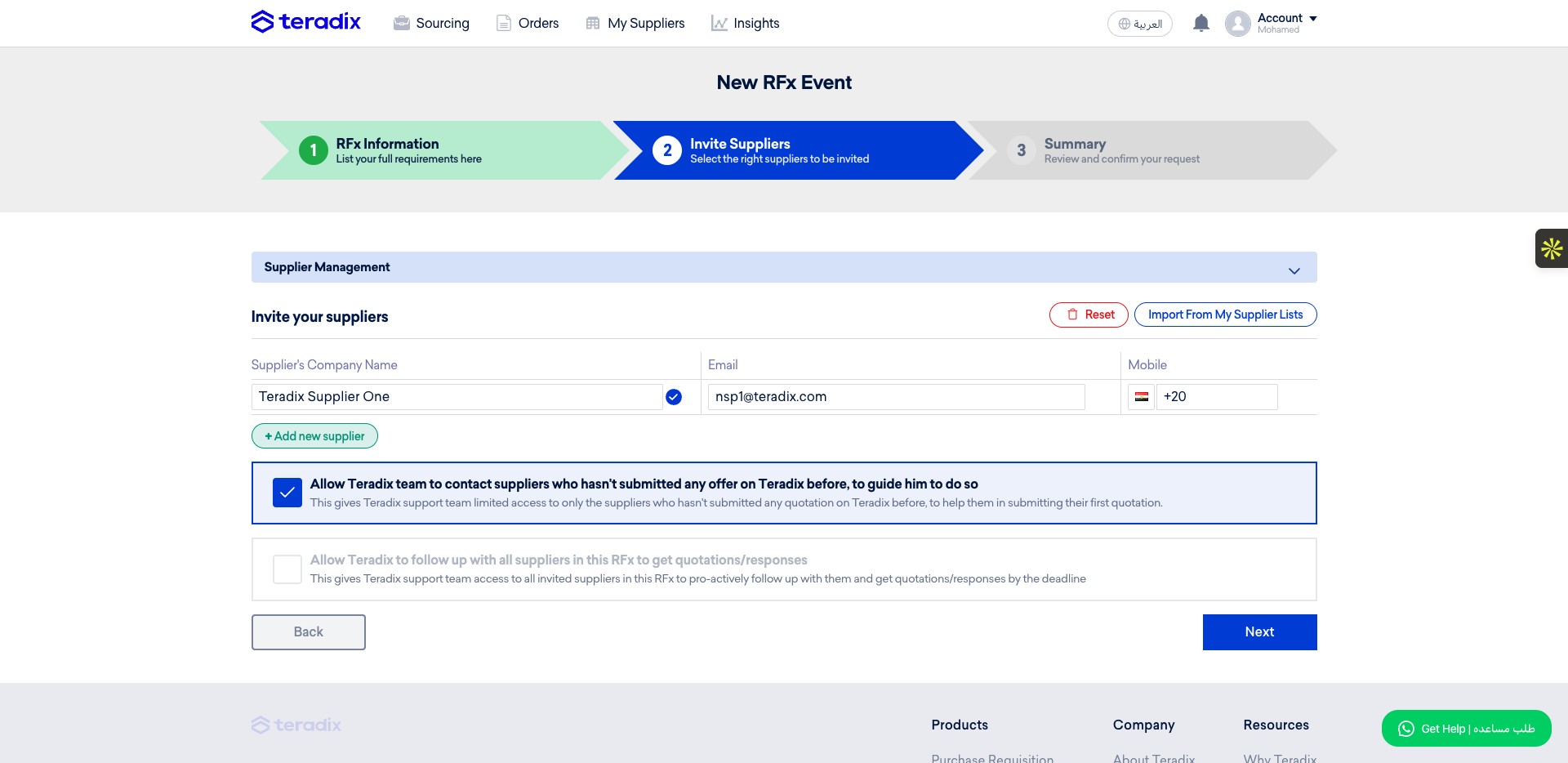
Click on "Supplier Management"
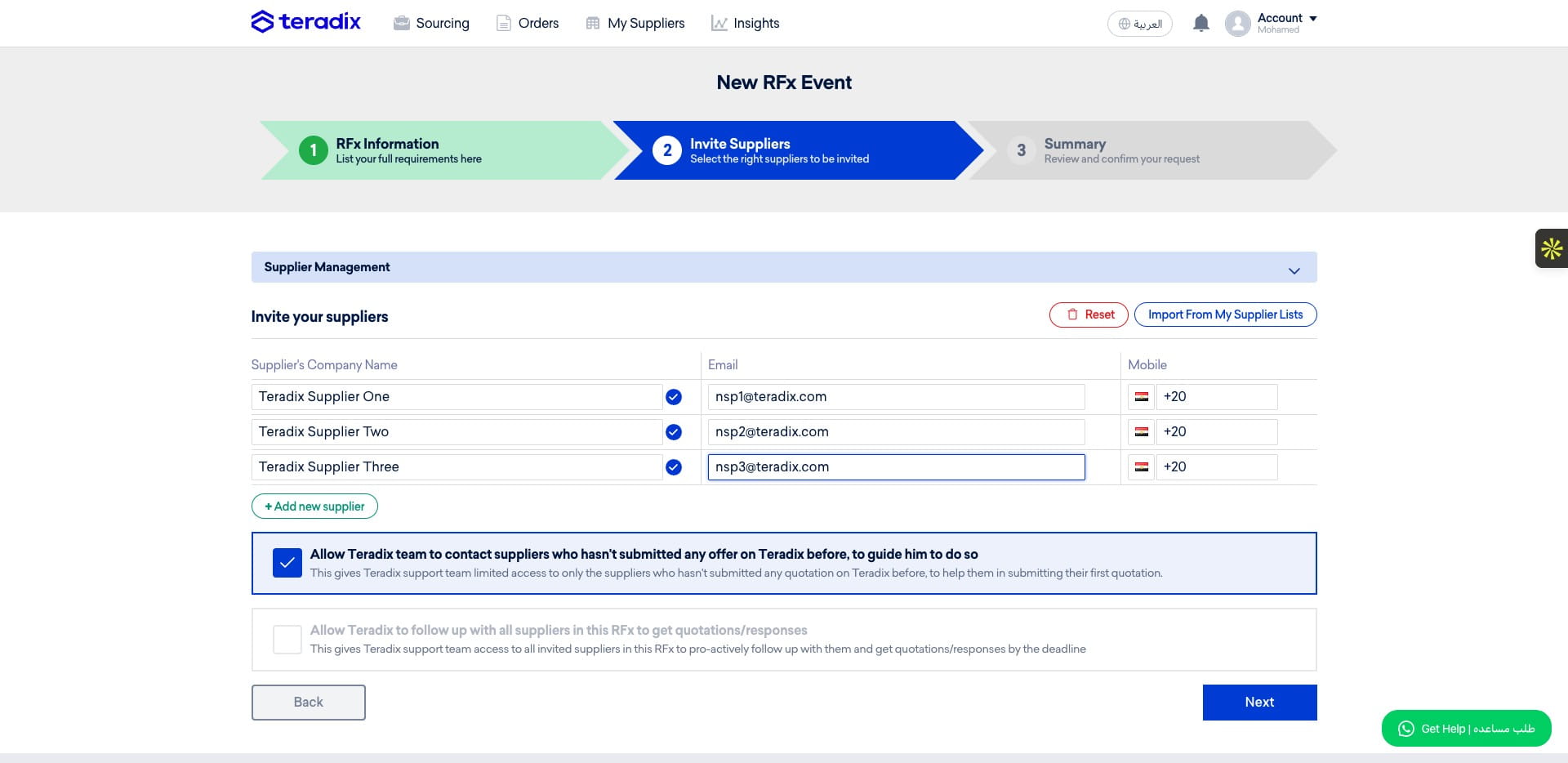
Click on "Next"
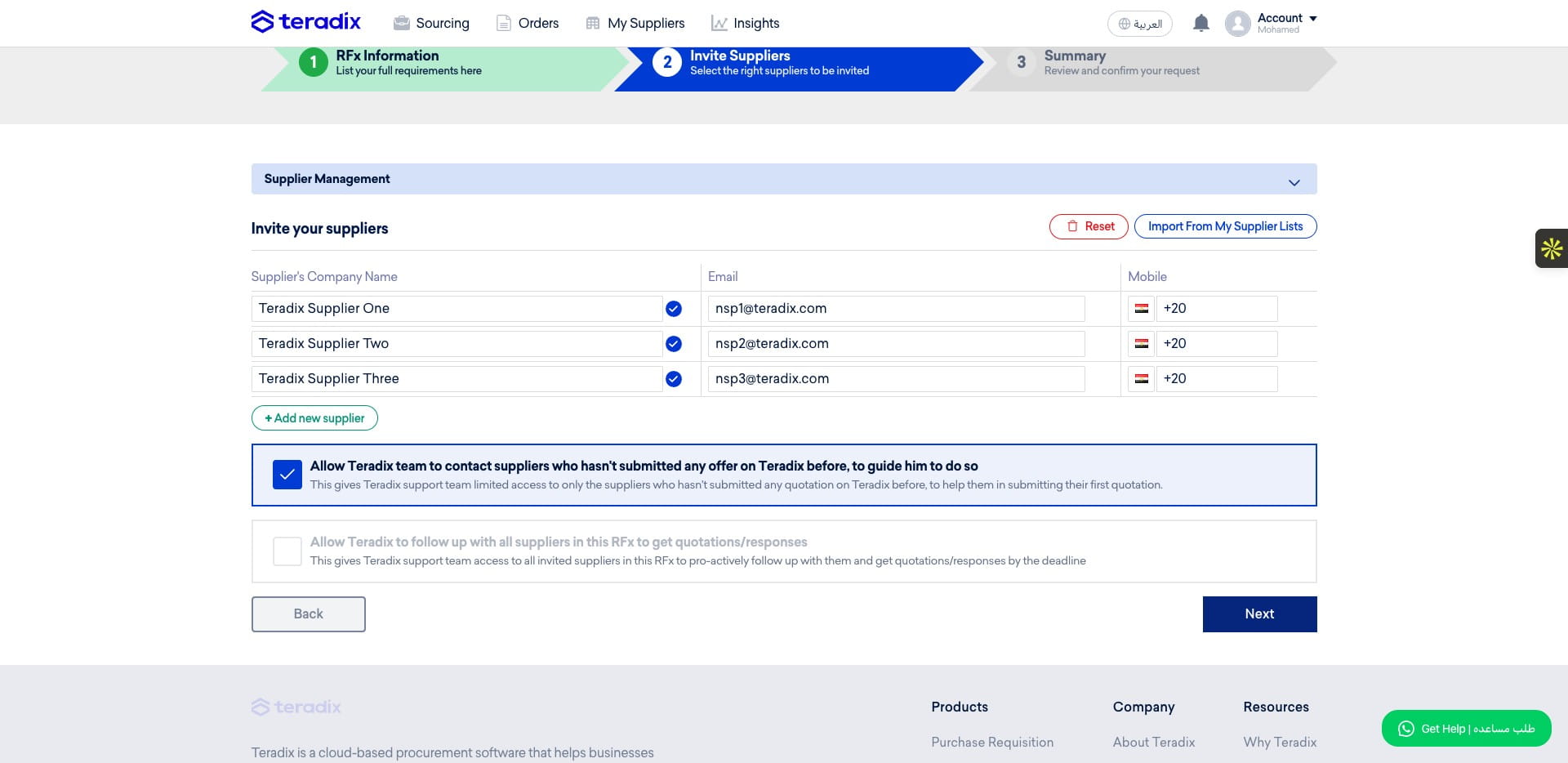
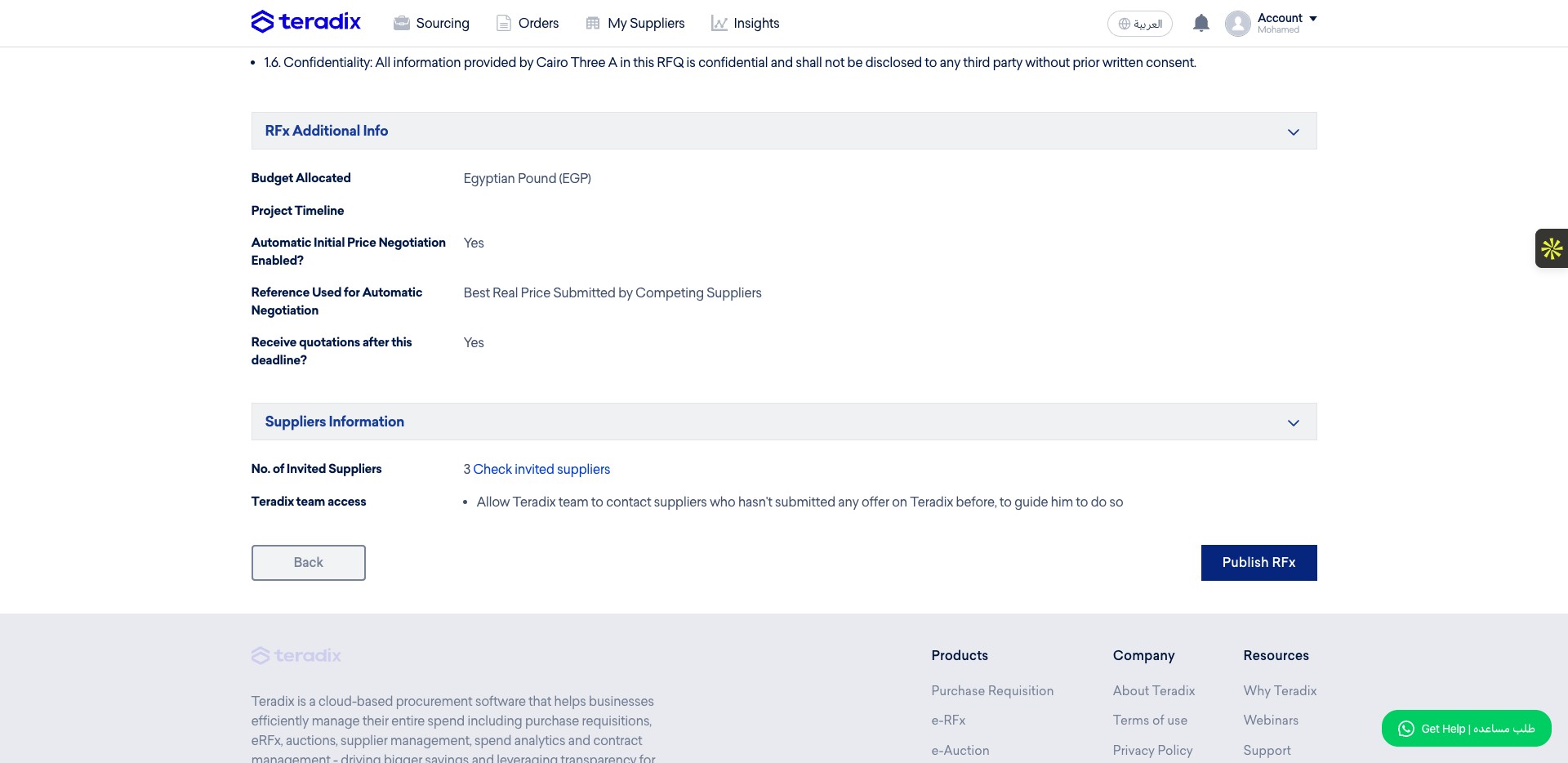
The last step, review all the information of the RFQ then Click on "Publish RFx"
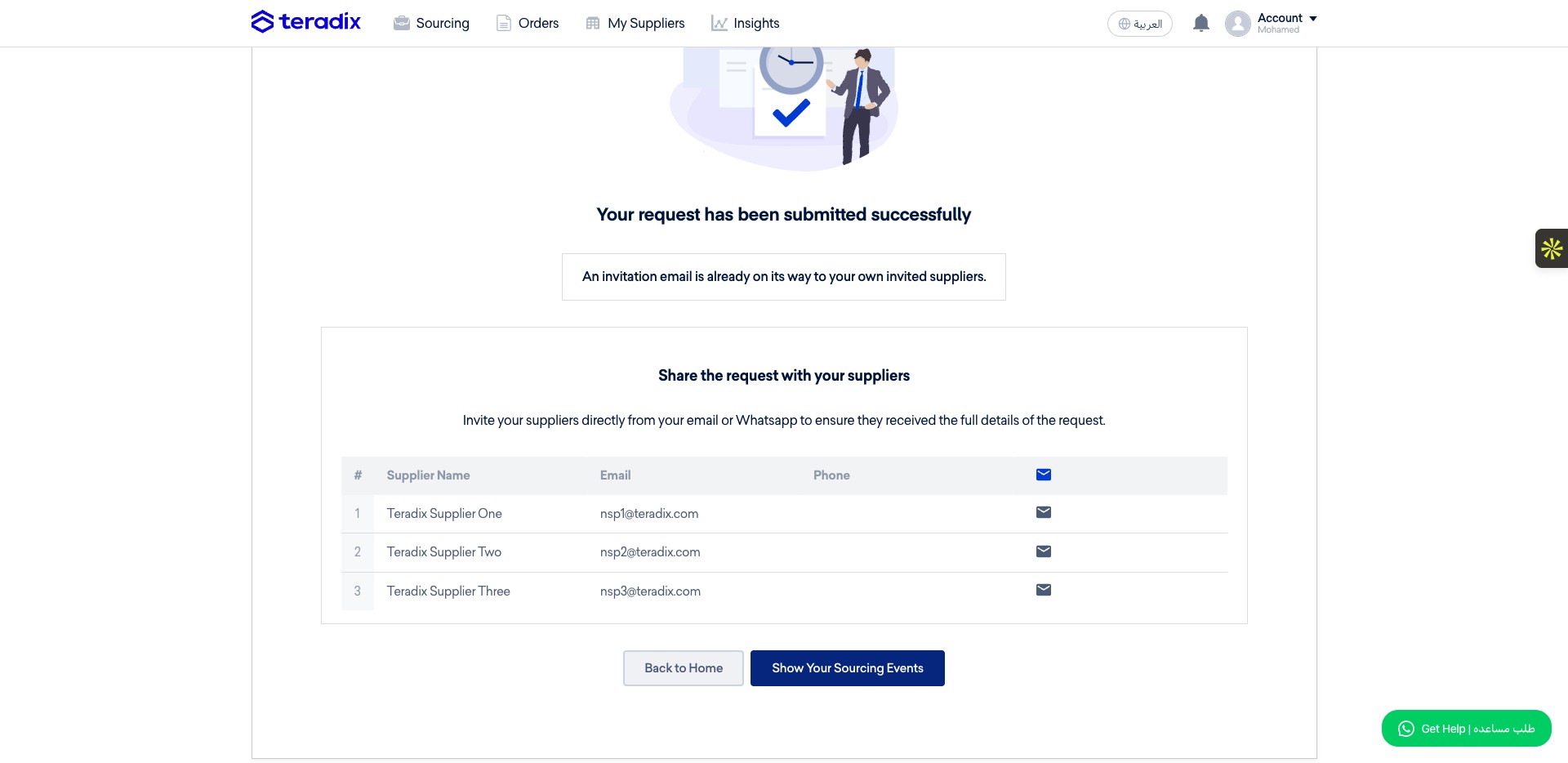
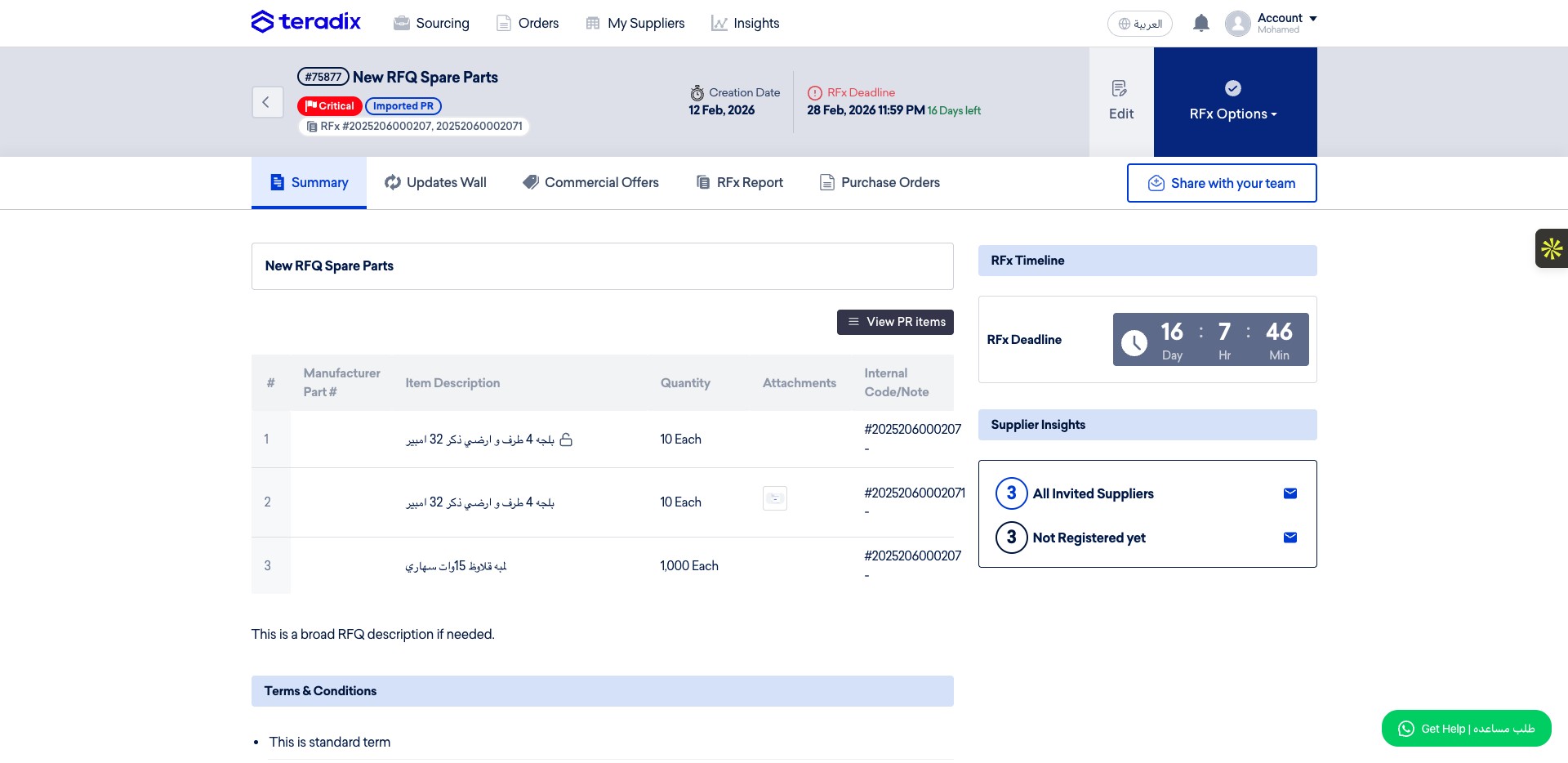
Your RFQ published and shared with the added suppliers, to check the details of the ongoing RFQ click on "Show Your Sourcing Events"
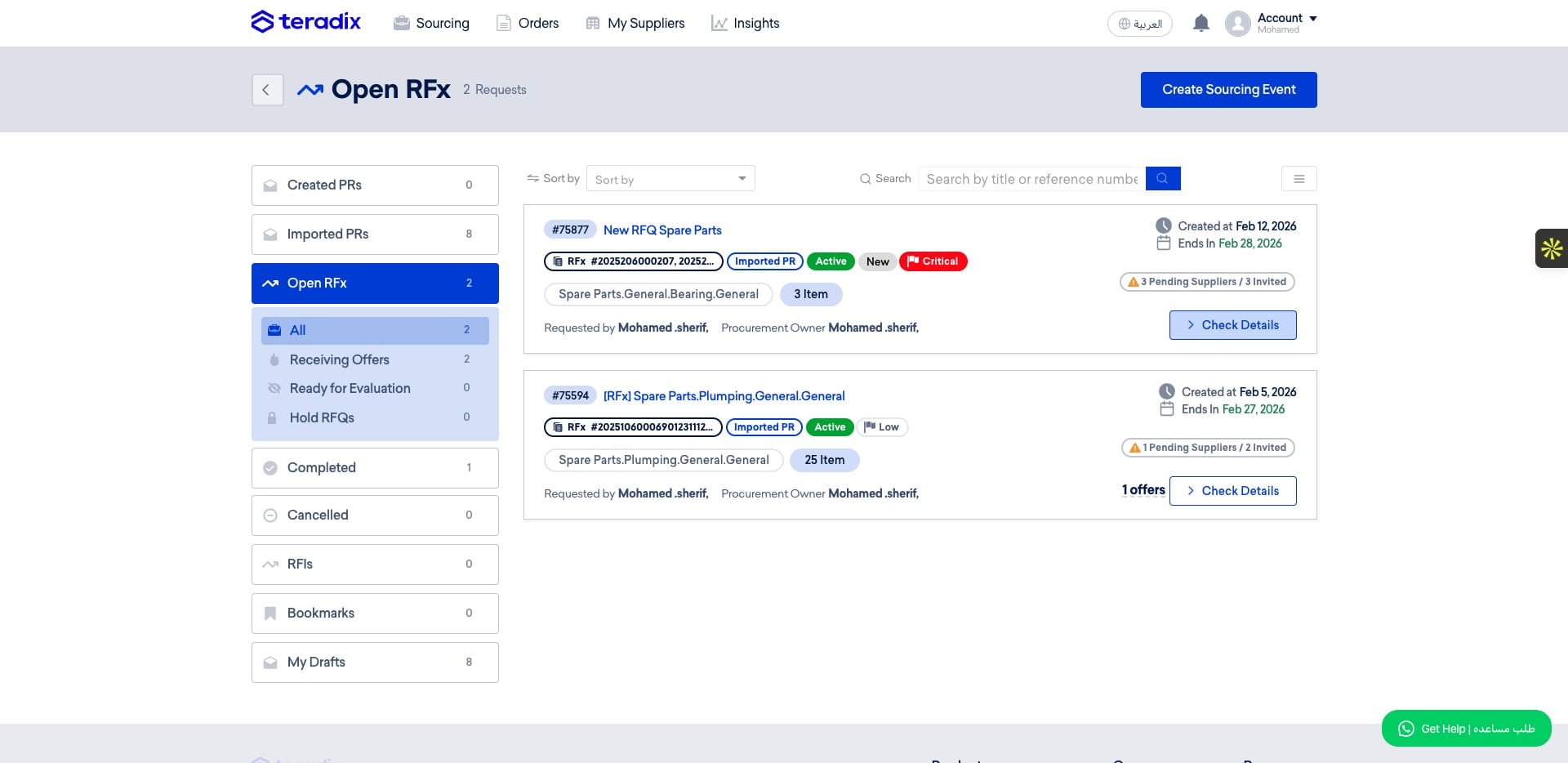
Select the RFQ, then click "Check Details"
Done 🚀
Frequently Asked Questions
- How do I find and open a drafted RFQ to edit and publish?
Go to https://app.teradix.com/customer/projects/importedPRs and open the Drafted RFx tab. Find the draft you want to review, then click the "Edit & Publish" button to start editing.
- How do I set the RFQ deadline, time, priority and allow late submissions?
When editing the RFx, pick the deadline date and define the exact time to stop receiving quotations/offers. Set the RFQ priority (Low, Medium, Important, Critical). If you need to allow receiving quotations after the specified deadline, select "Yes" to enable that option.
- How do I add suppliers to the RFQ or add a new supplier not in my lists?
In step 2 click "Import From My Supplier Lists", navigate to the desired supplier list (for example "Equipment.General.Burner.General") and click "Import". To add a supplier not in your lists, enter their name, mobile and email to add them directly. You can also use "Supplier Management" to add or manage suppliers.
- How do I handle multiple currencies and ensure comparison uses my main currency?
Click "+" Add More Currencies, select the currency from the dropdown and define its exchange rate to your main currency. When multiple currencies are selected, Teradix will use the exchange rates you defined to unify the RFQ comparison view into your main currency without removing or overriding the original submitted quotations/offers.
- How do I enable automated negotiation and how does the engine determine the comparing price?
Enable the Automated Negotiation Engine by selecting "Yes". Once enabled, suppliers who submit an offer will receive price feedback to encourage better prices (feedback types are set in company settings). During automatic negotiation, you can choose how the engine determines the comparing price: either a target price per item (which you can add earlier in the items table) or versus another competing supplier's submitted offer.