
Supplier Offer Submission by the Buyer
A concise overview of reviewing and submitting an RFx in Teradix, including accessing the project, configuring currency and VAT, selecting delivery times, agreeing to terms, submitting and reviewing the offer, and finalizing language.
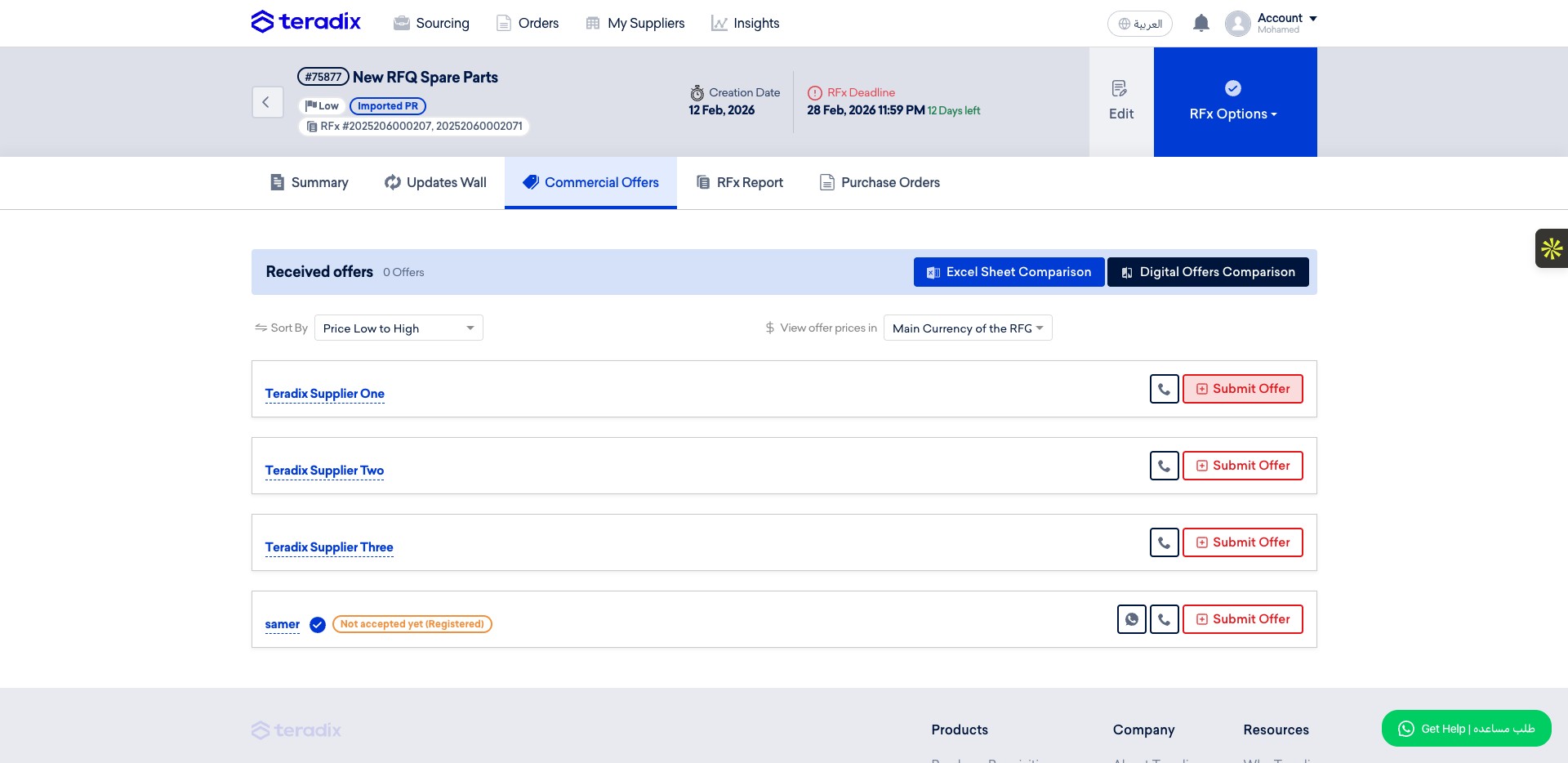 0
0Frequently Asked Questions
- How do I start submitting an offer on behalf of a supplier?
Go to https://app.teradix.com/project/698ddfcb968566001c7051aa. In the Commercial offers tab, click the 'Submit Offer' button next to the supplier name to begin.
- What do I do if multiple currencies are allowed in the RFx?
If multiple currencies are allowed, you will be prompted to choose the currency in which you want to submit your offer. After choosing the currency, click "Proceed."
- How are taxes applied to items and can I change them per item?
Use the button to select the applicable taxes; the same taxes will be applied to all items initially. You may later change the taxes for specific items if they have different taxes. For delivery fees, select the applicable taxes from the list where prompted.
- How do I set delivery times for items, including different times per item?
Select either one delivery time or multiple delivery times per items. If you select multiple delivery times, you will be prompted to go to the items table and click on "in the table above." A new column will appear next to each item, allowing you to select the delivery item and the delivery time for each item. Choose your preferred delivery time from there.
- What should I do before final submission and is any documentation recommended?
Because you are submitting the offer in the supplier's name (which carries high liability), the guide strongly recommends uploading any document that serves as proof the supplier sent you the quotation. When the offer is ready, click "Submit Offer." A pop-up will show all offer details for final review — click "Submit Offer" again to confirm. After submission you may click "Show offer" to review the submitted details (the offer will be highlighted in orange to indicate it was submitted by the buyer) and there is an option to download the offer as a PDF (click on "English").