
Managing Offer Comparison on RFQ
Click on the 'Digital Offers Comparison' to open it and review all submitted quotations or offers.
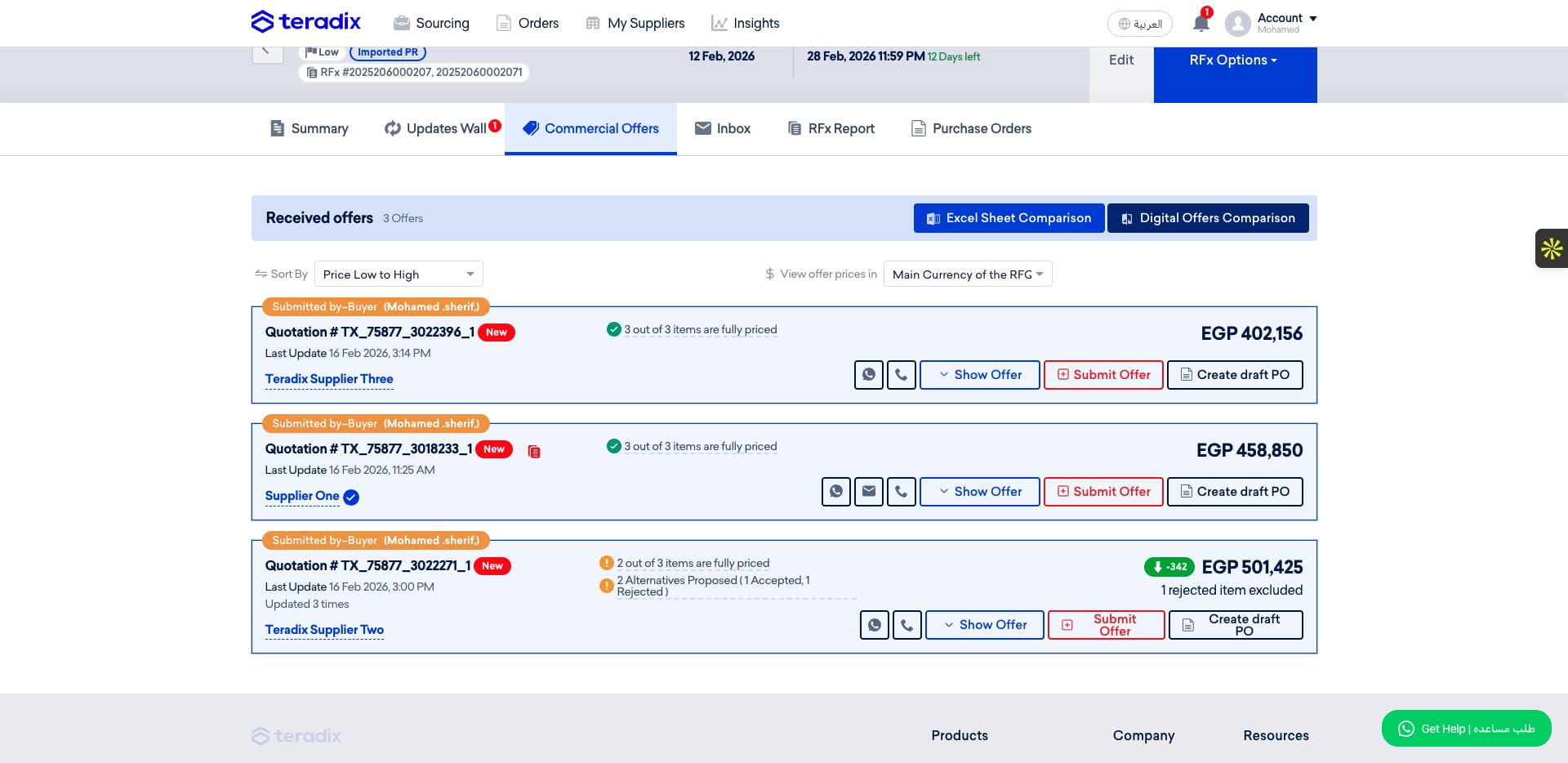
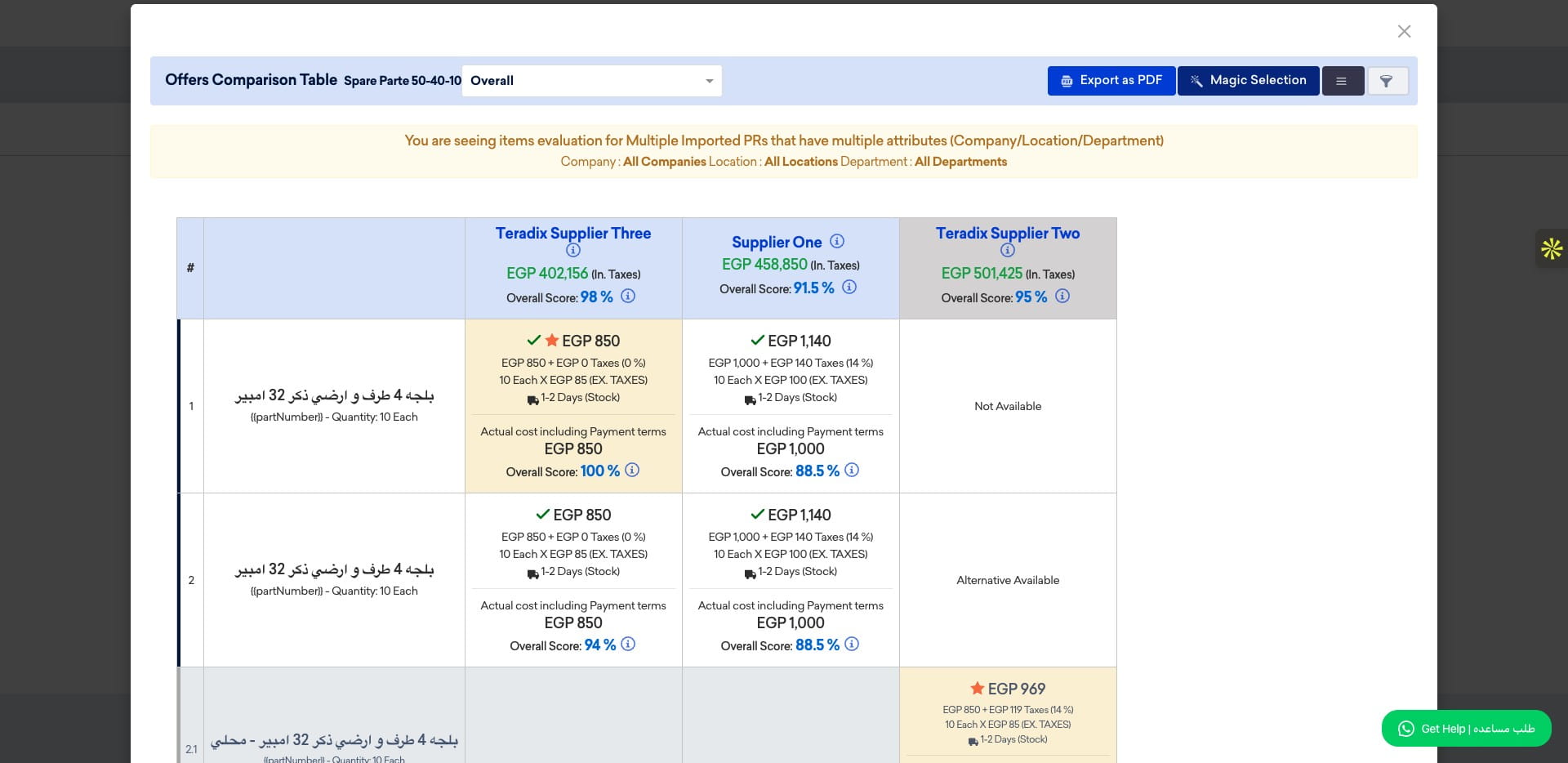
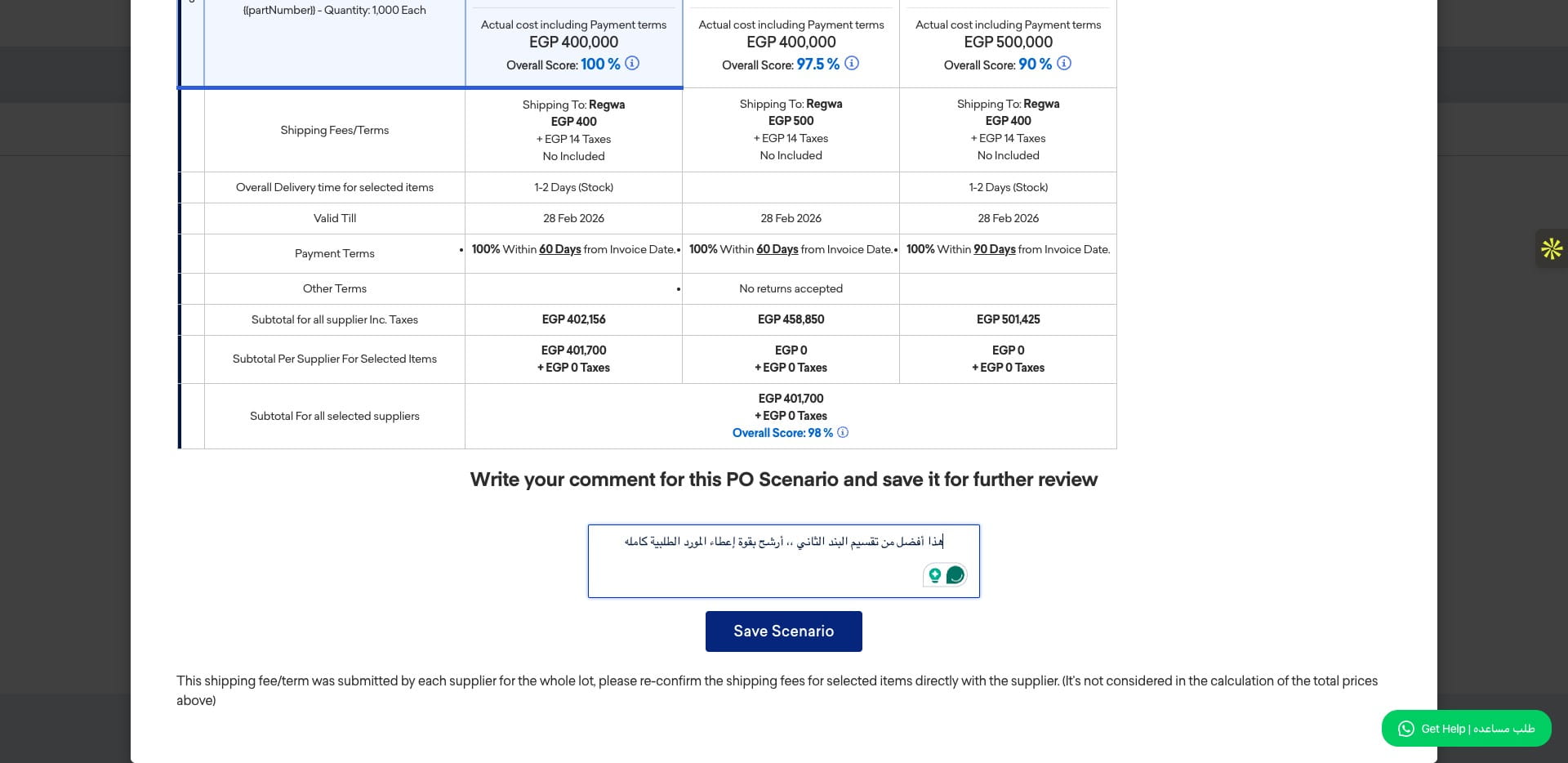
The comparison compiles all current offers from every supplier for all items, listing terms, shipping details, and fees at the bottom. It shows overall prices and overall evaluations for each supplier, while the item-level view provides detailed information (prices, taxes, delivery times, and the item's technical scores from that supplier). If a supplier has submitted an alternative, it is shown with a gray background. A star next to any item's price indicates the lowest price across all suppliers. If a supplier did not propose any item, it will appear as 'Not Available'. The done sign beside the price indicates that this item has been evaluated by the first chosen technical evaluator and confirmed by the second technical evaluator.
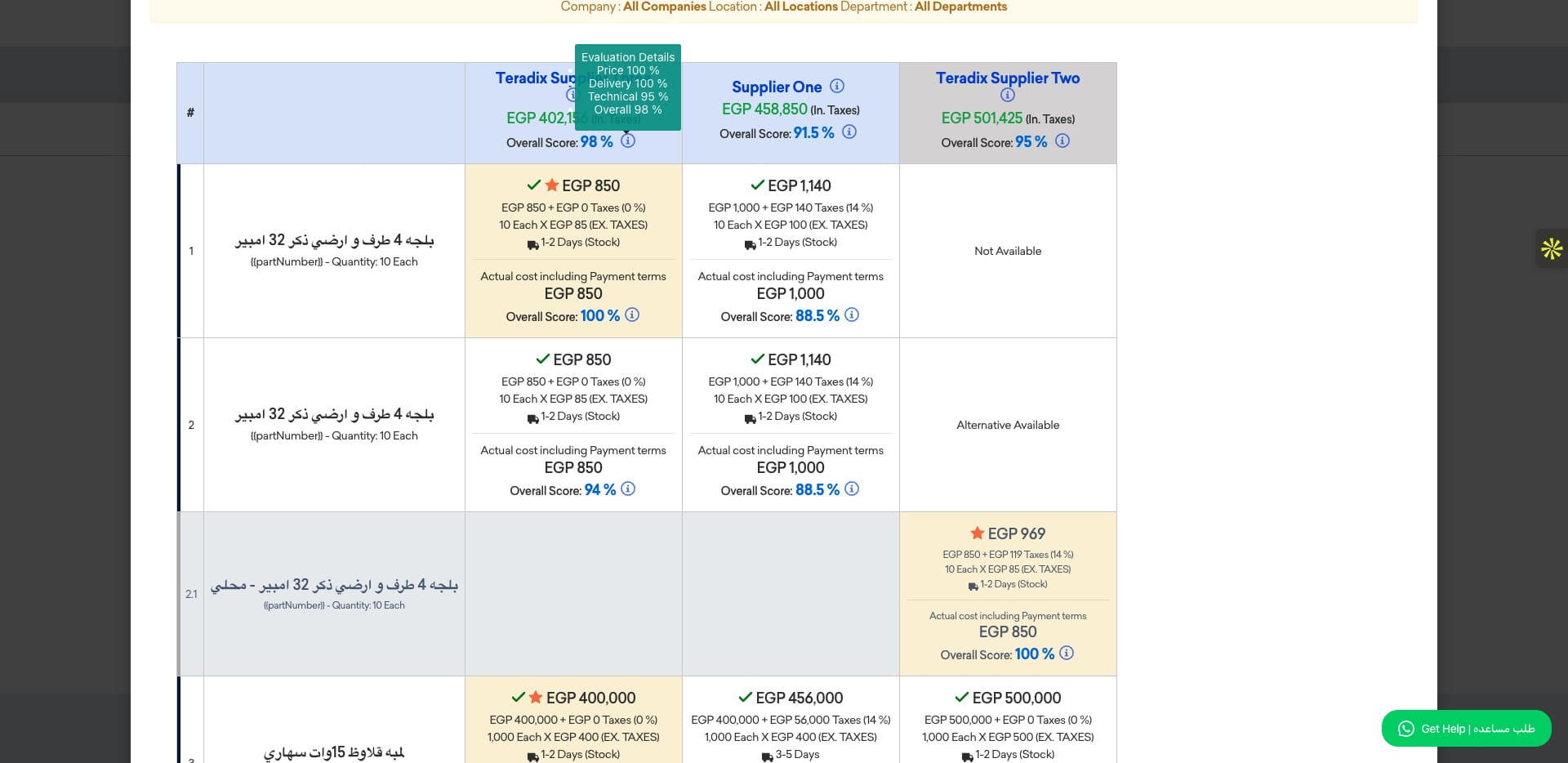
Click the 'i' icon to view all evaluation scores based on the selected evaluation criteria for this RFx.
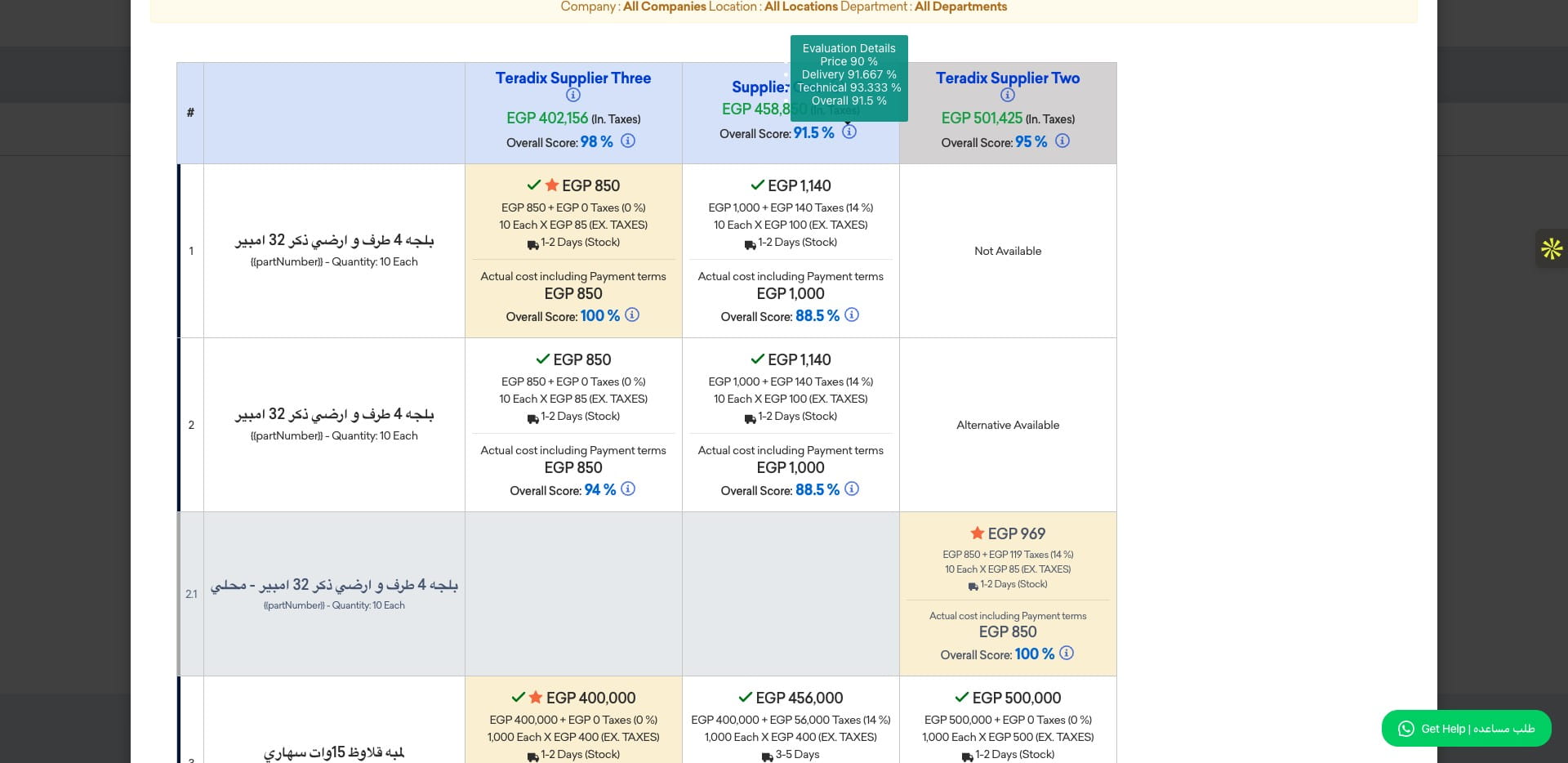
You can see the other supplier's detailed scoring calculation.
To decide which item to buy from which suppliers based on price, click 'Magic selection'; the lowest price per item will be selected and highlighted in yellow.
You can override the magic selection by clicking on a different item to use it in your final decision.
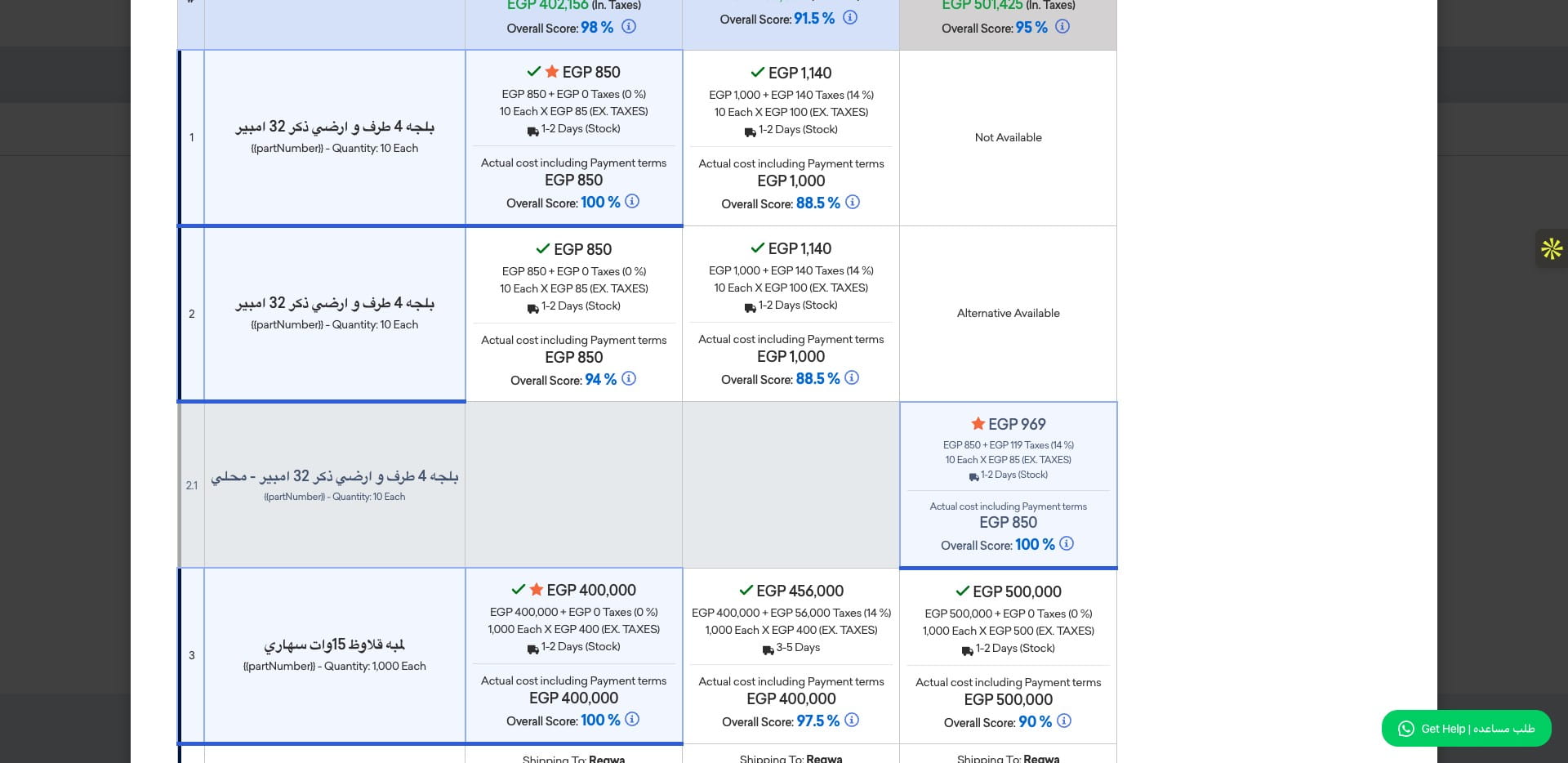
Displaying the 2nd technical evaluator confirmation.
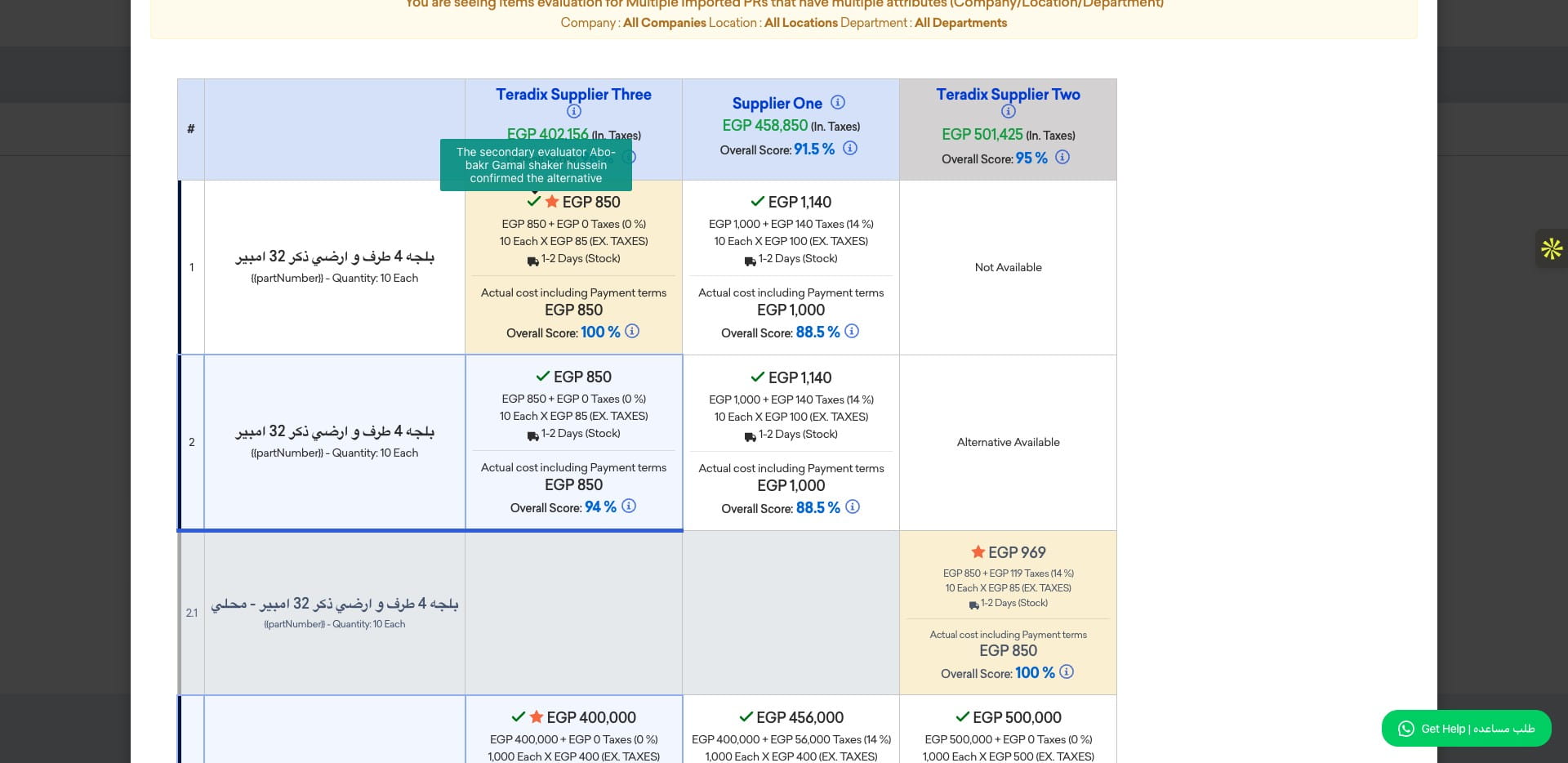
Reviewing all evaluation scores have been calculated for an item by hovering on "i" icon.
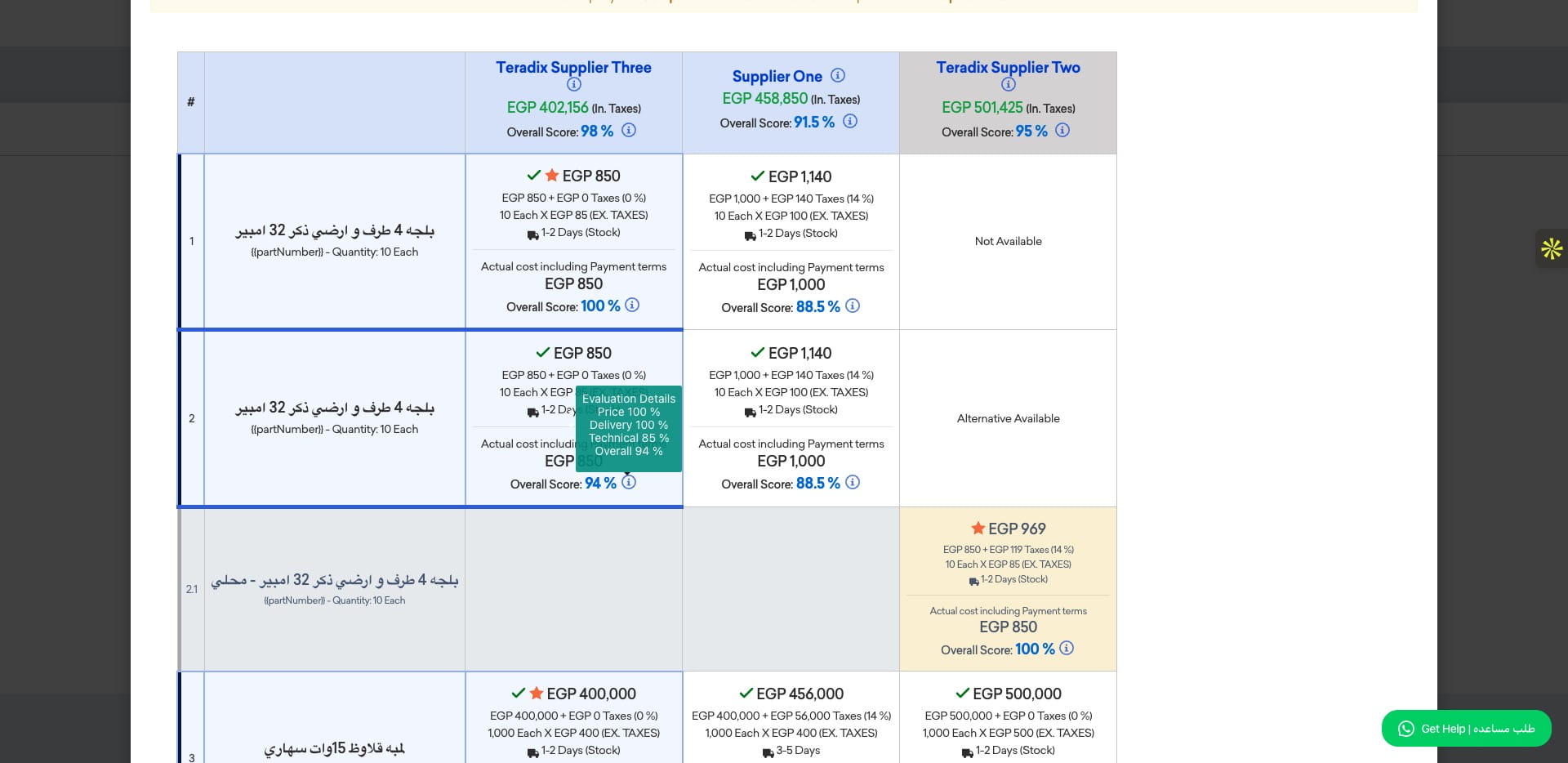
You can simplify the view of the comaprison, by hiding a lot of the fields showen:
- View Unit Price
- View Quantity
- View Item Total without VAT
- View Delivery duration
- View tax
- View Item Recommendation
- View Item Evaluation
- View Amount with Payment terms impact
Include any notes about the reasoning behind your selection.
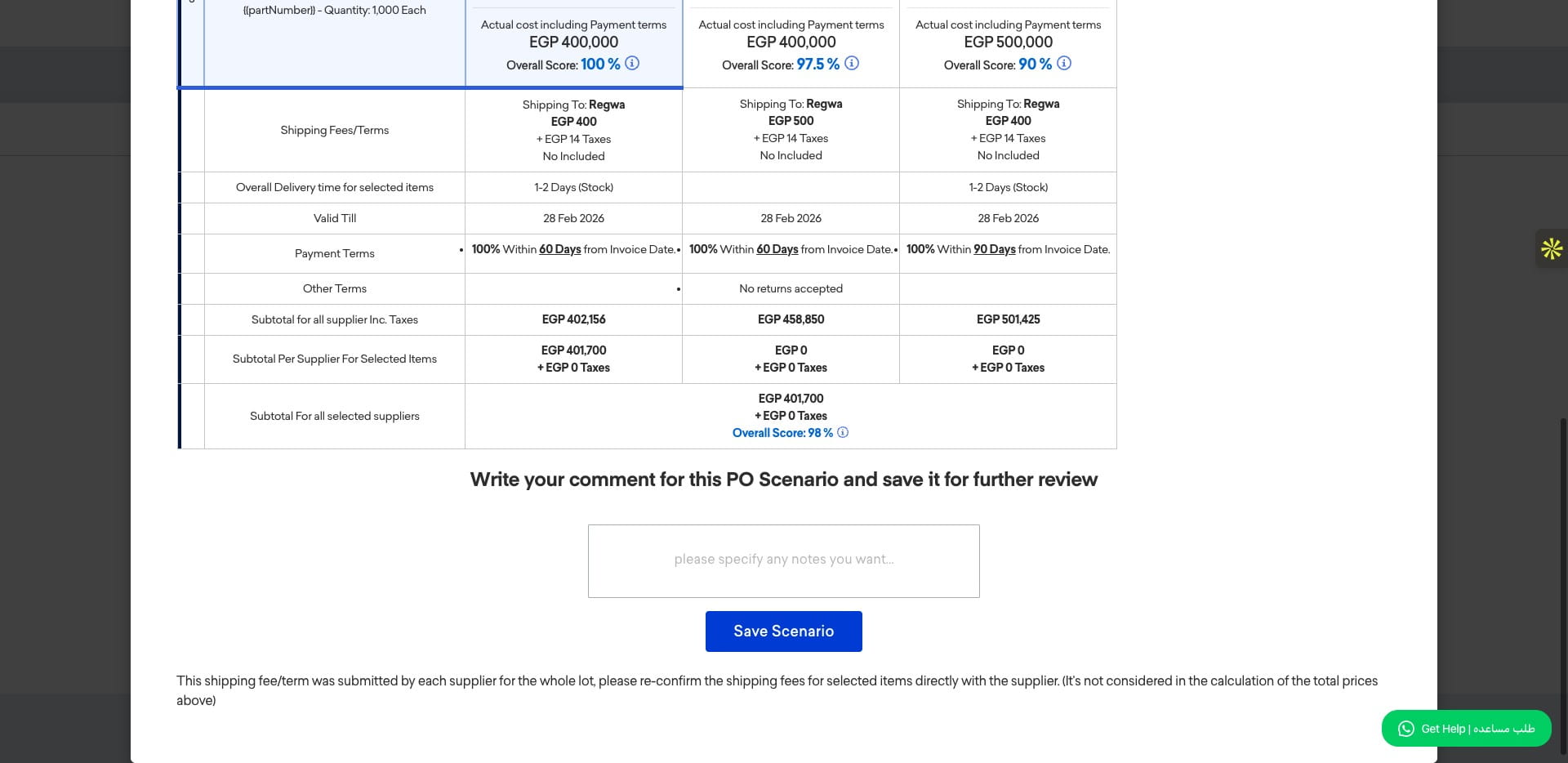
Click on "Save Scenario" to save this selection as a draft PO.
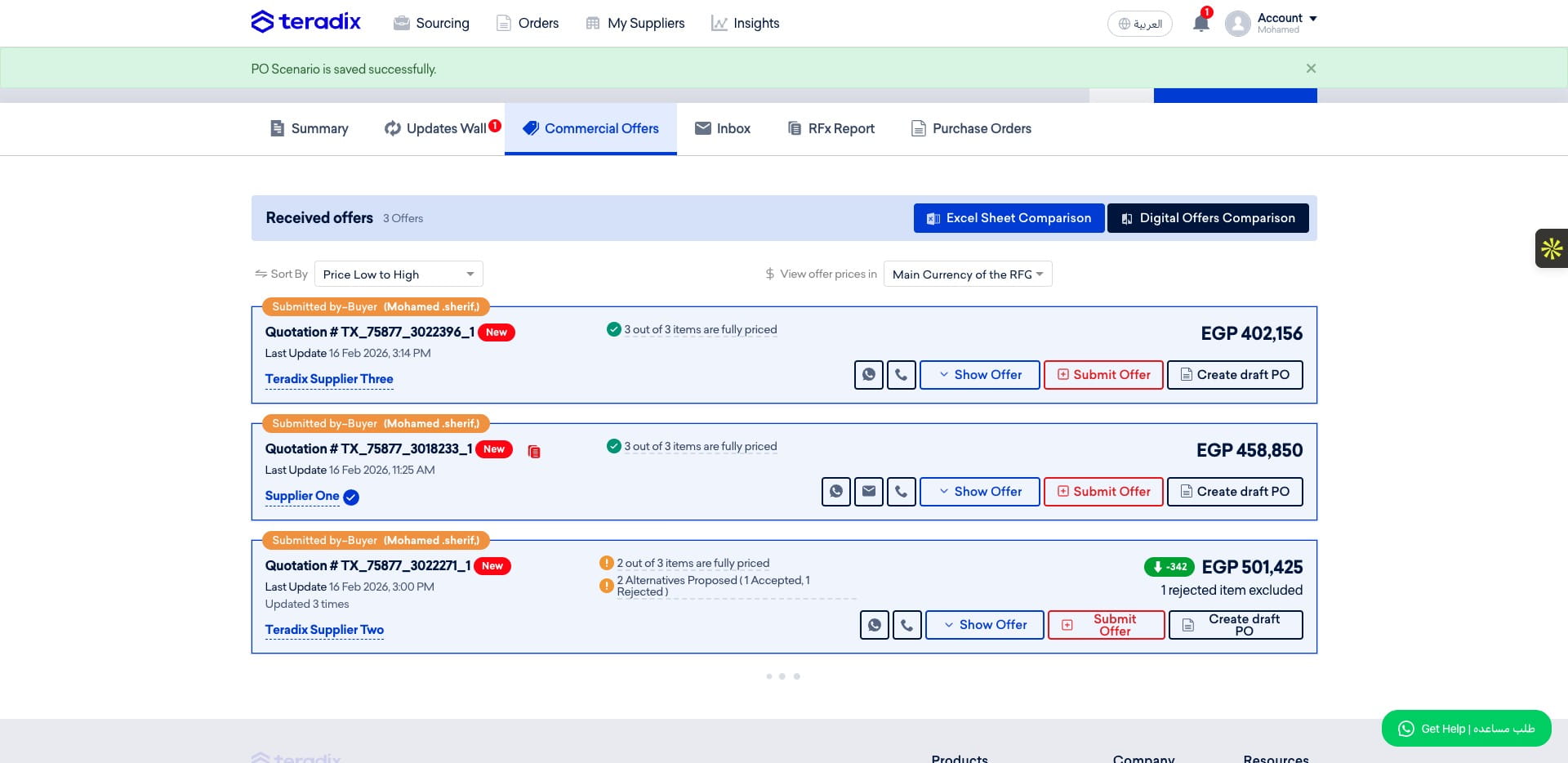
Back to Commercial Offers tab
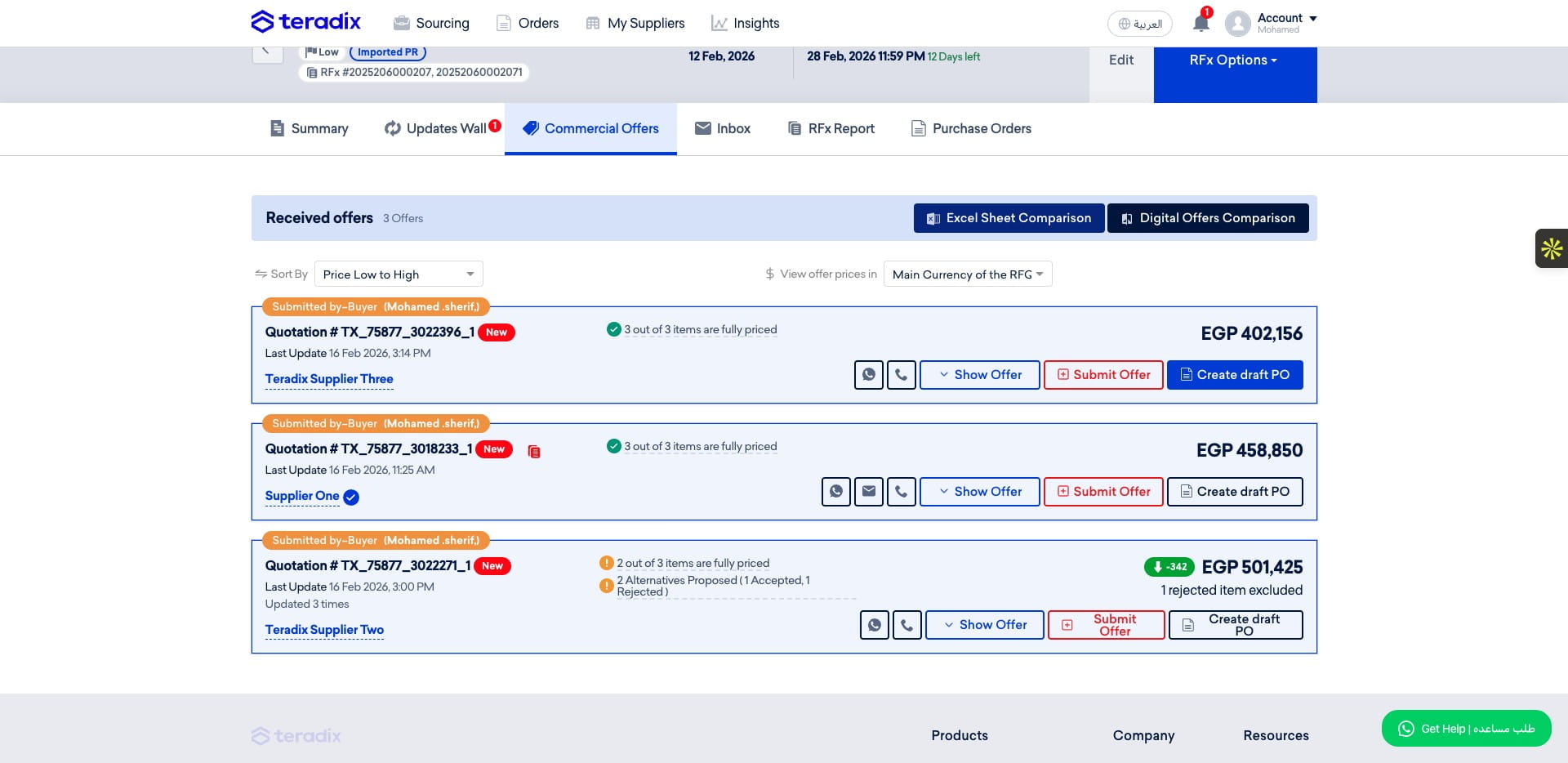
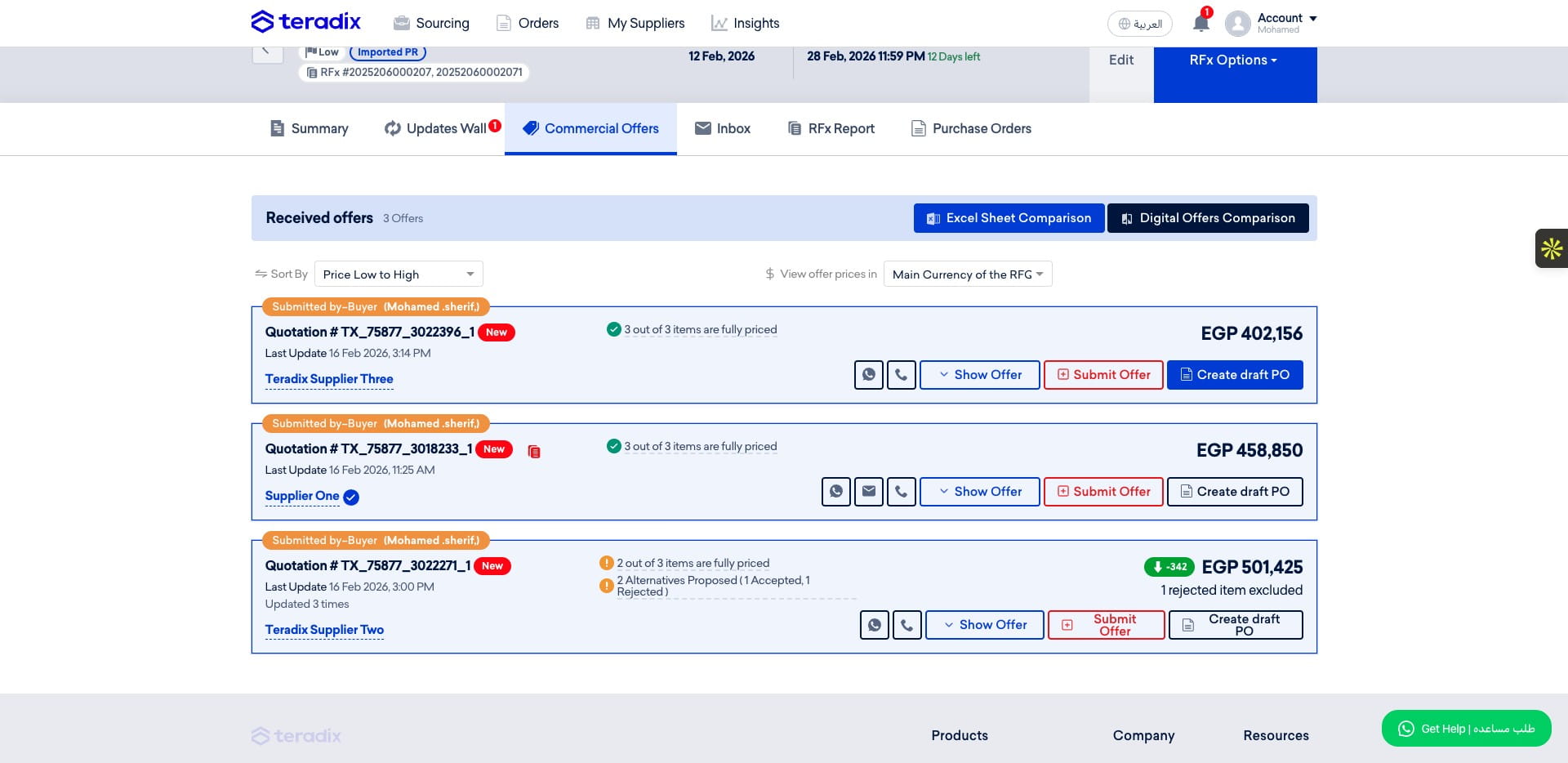
You can export the comparison to an Excel sheet by clicking on 'Excel sheet Comparison'.
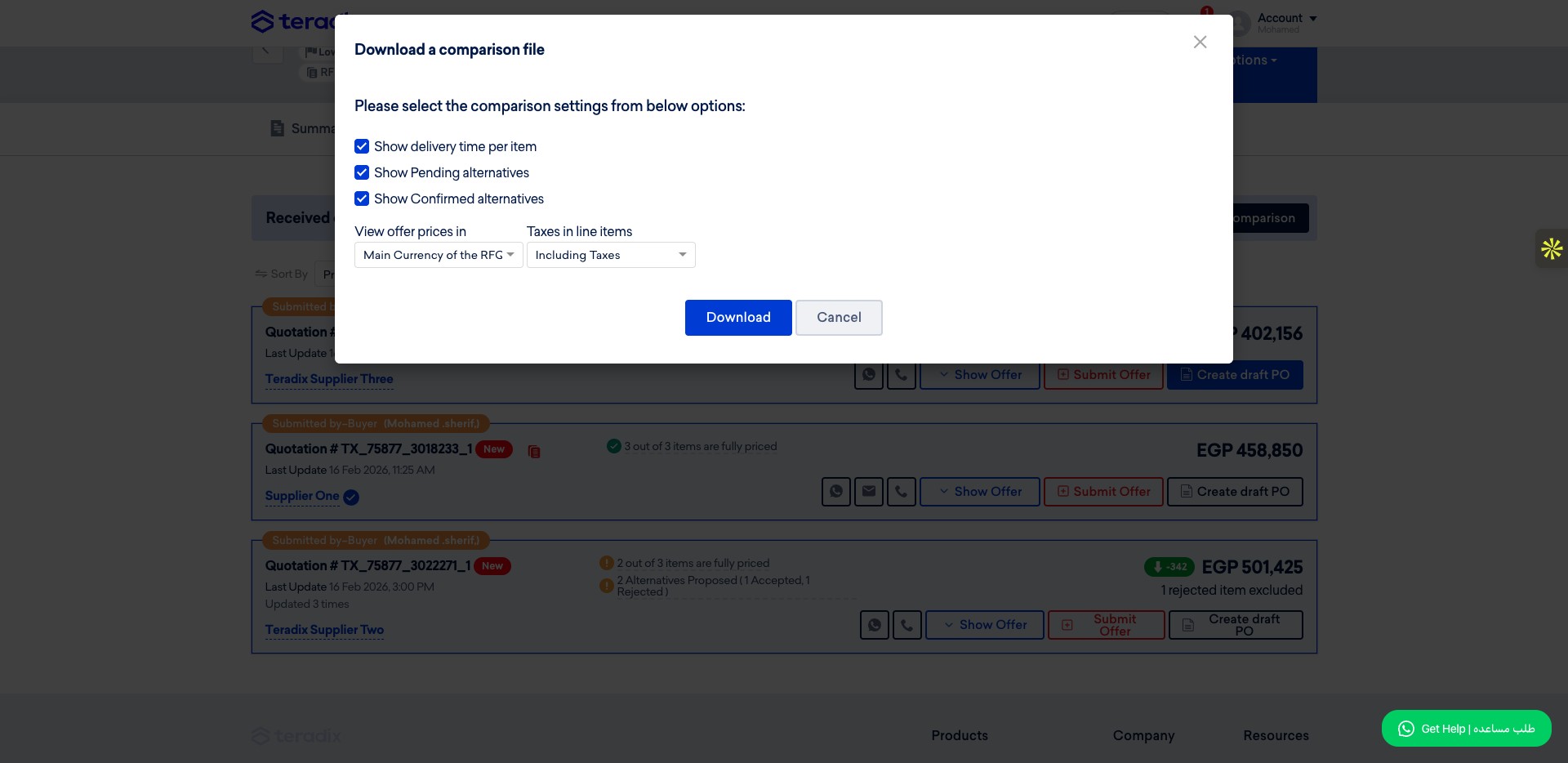
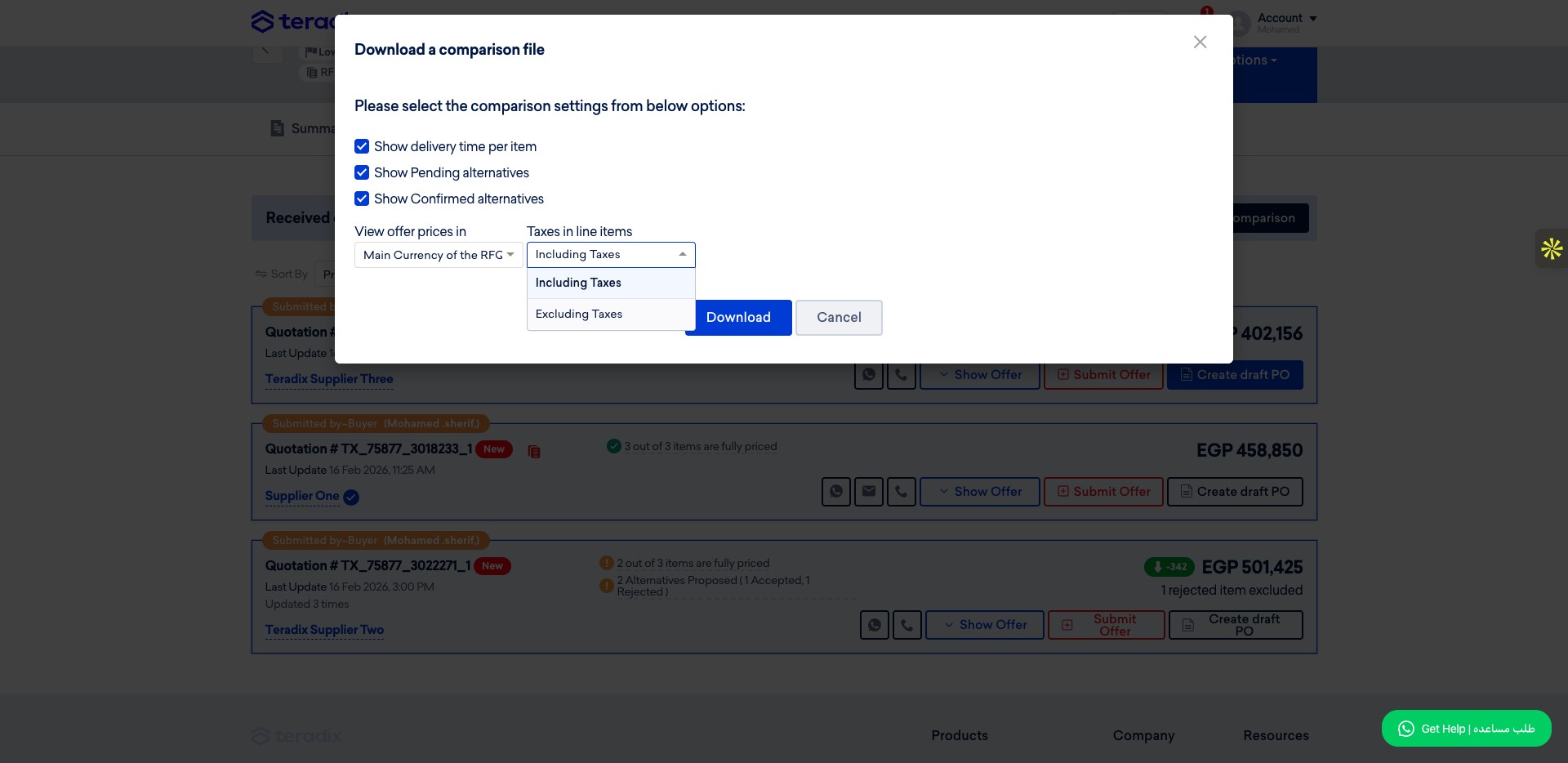
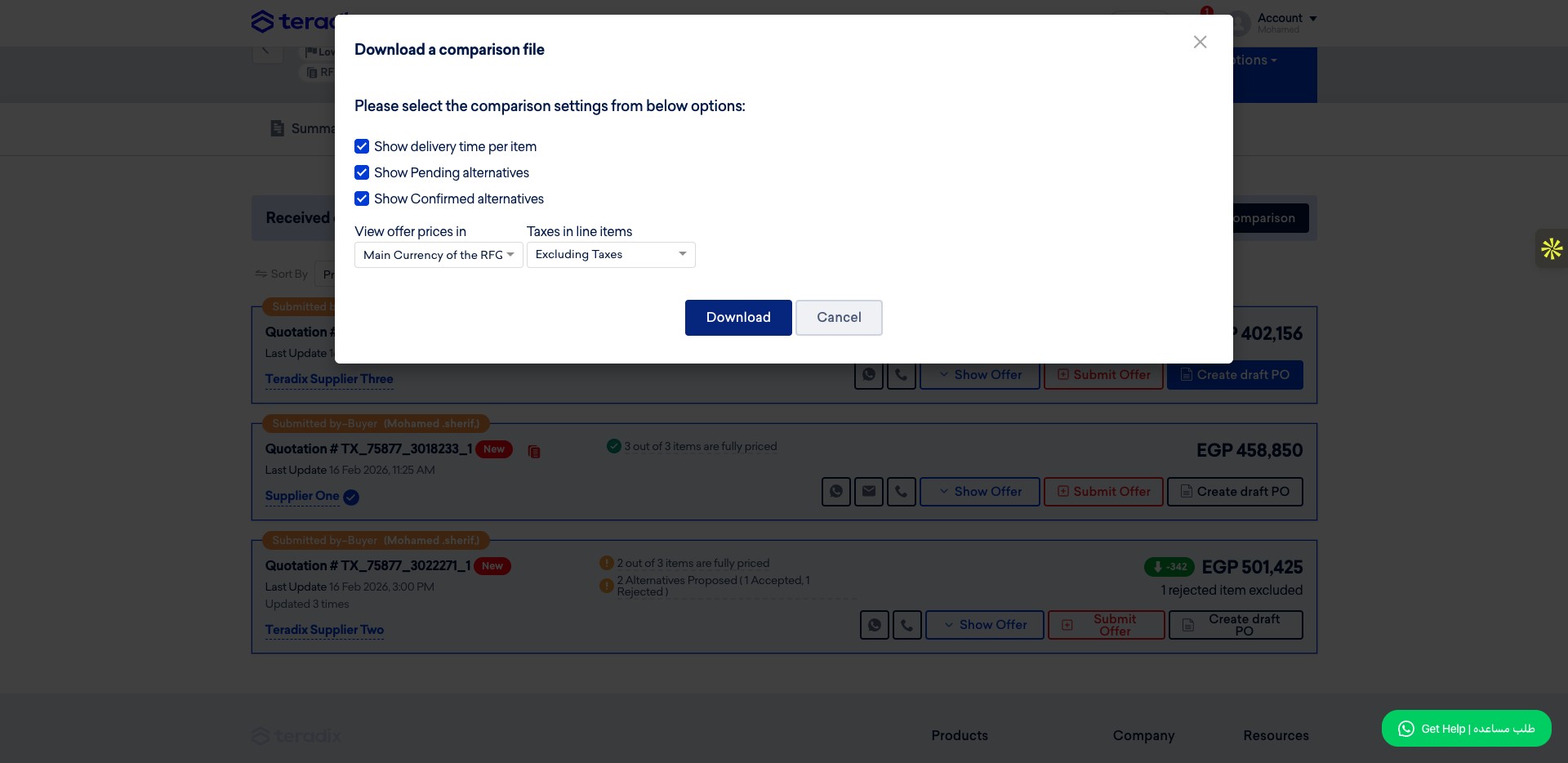
You can hide certain fields (delivery time per item, alternatives pending or confirmed), select the currency, and choose whether to include taxes.
Click on "Excluding Taxes" for examples
Click on "Download"
Done 🚀
Frequently Asked Questions
- What does the star, gray background and "Not Available" label mean in the comparison view?
A star next to an item's price indicates the lowest price across all suppliers. A gray background shows an alternative submitted by a supplier. If a supplier did not propose an item it will appear as "Not Available."
- How do I see why an item received its evaluation scores and who confirmed them?
Click the 'i' icon to view all evaluation scores based on the selected evaluation criteria for this RFx. You can also hover on the 'i' icon to review how all evaluation scores were calculated for an item. The guide also shows the 2nd technical evaluator confirmation and notes that the "done" sign beside the price means the item has been evaluated by the first chosen technical evaluator and confirmed by the second technical evaluator.
- What is "Magic selection" and can I change its result?
Clicking 'Magic selection' chooses the lowest price per item across suppliers and highlights those selections in yellow. You can override the magic selection by clicking on a different item to use it in your final decision.
- How do I save my selected items and export the comparison to Excel with or without taxes?
Click "Save Scenario" to save your selection as a draft PO. To export, click 'Excel sheet Comparison.' Before downloading you can hide certain fields (for example delivery time per item or alternatives), select the currency, and choose whether to include taxes. The guide shows clicking on "Excluding Taxes" for examples, then click "Download."
- What fields can I hide to simplify the comparison view?
You can hide many fields to simplify the view, including: View Unit Price, View Quantity, View Item Total without VAT, View Delivery duration, View tax, View Item Recommendation, View Item Evaluation, and View Amount with Payment terms impact.