Managing Supplier Details on Teradix
Overview of how to manage supplier records in Teradix, including locating supplier profiles, updating details and categories, handling contracts and documents, and reviewing change history to keep supplier information current.
Navigate to https://app.teradix.com/customer-dashboard
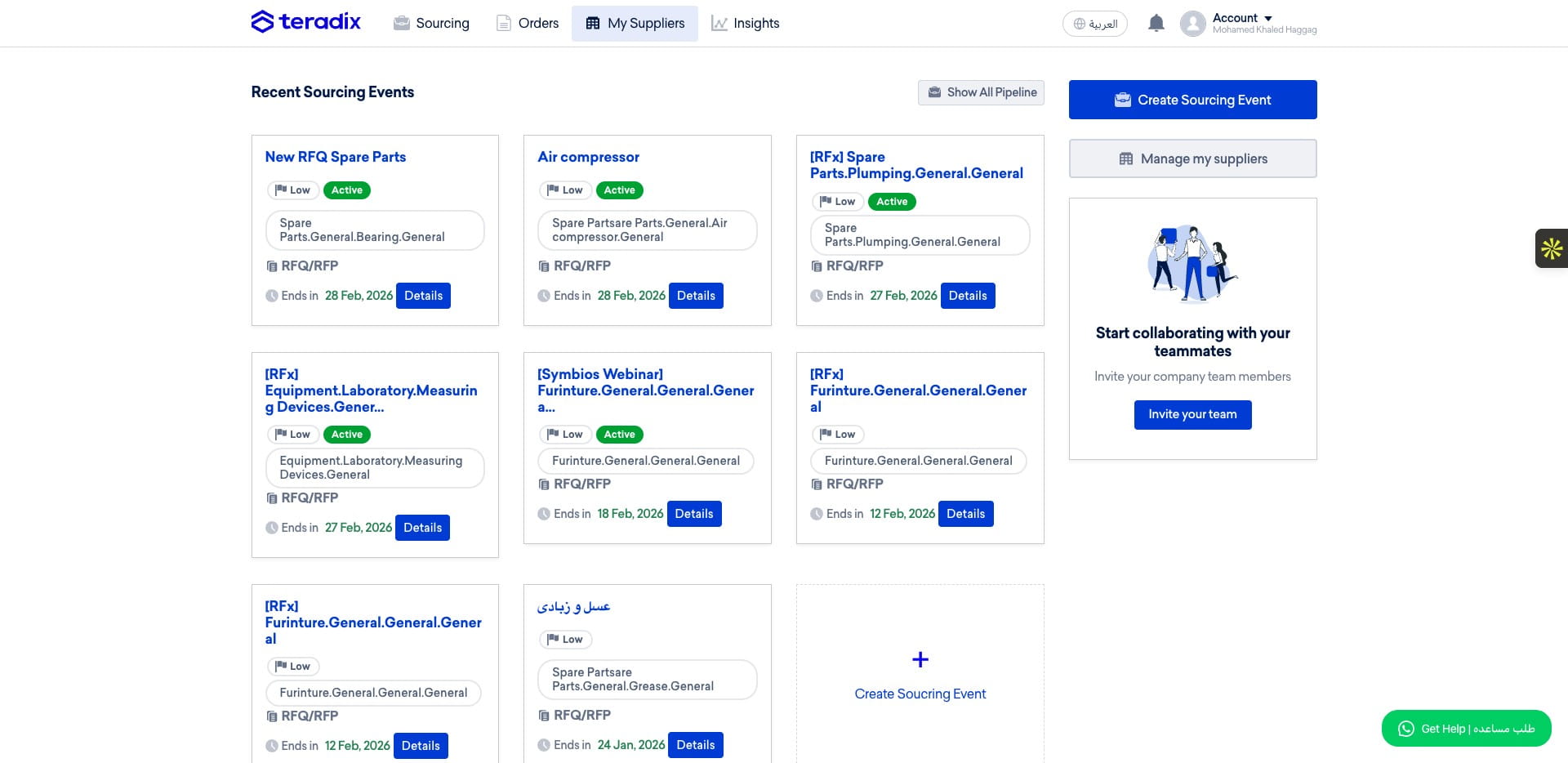
Click on "My Suppliers" button on the main menu to access the supplier management module
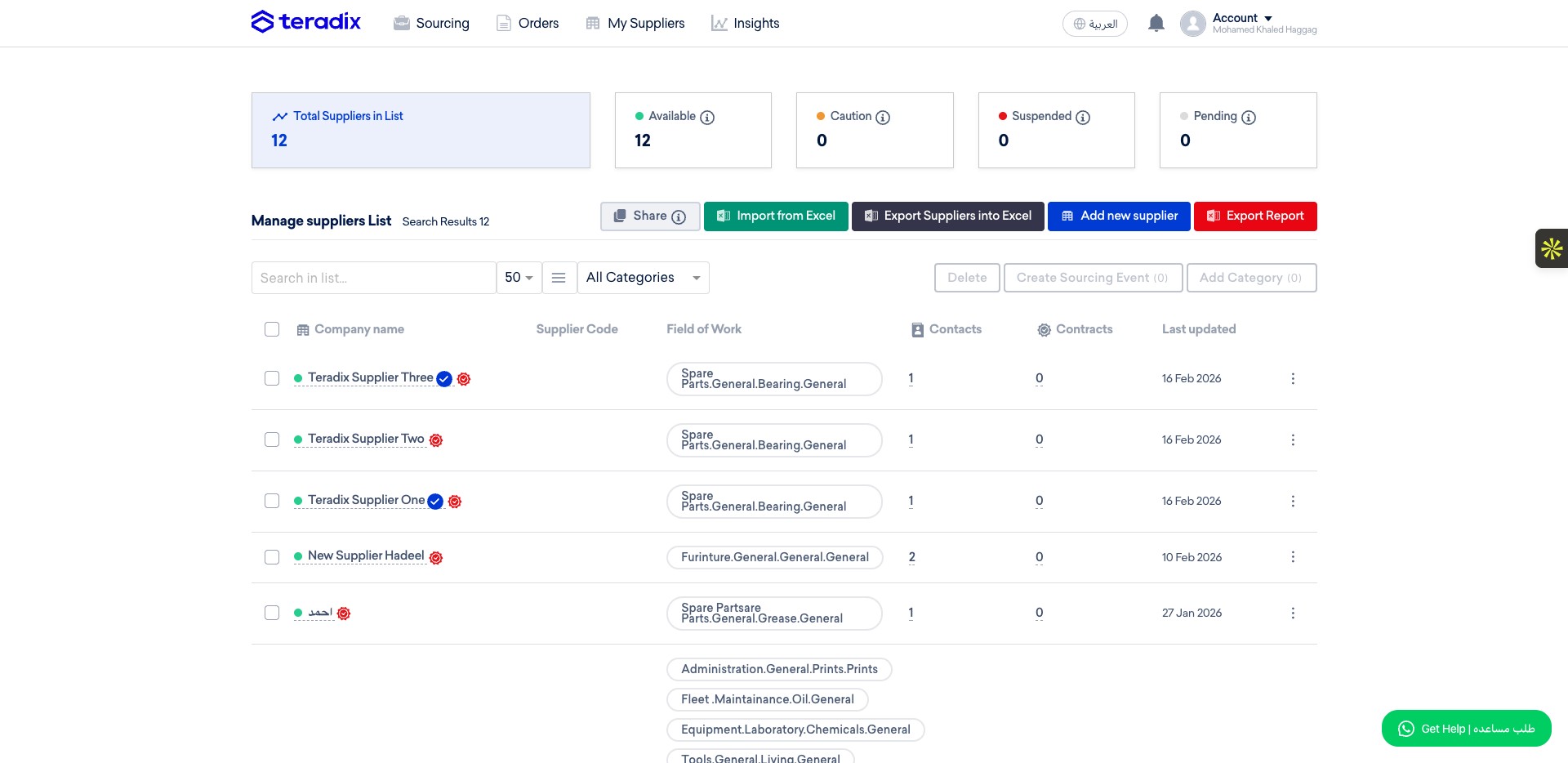
You can find a detailed list of the total suppliers available on your list
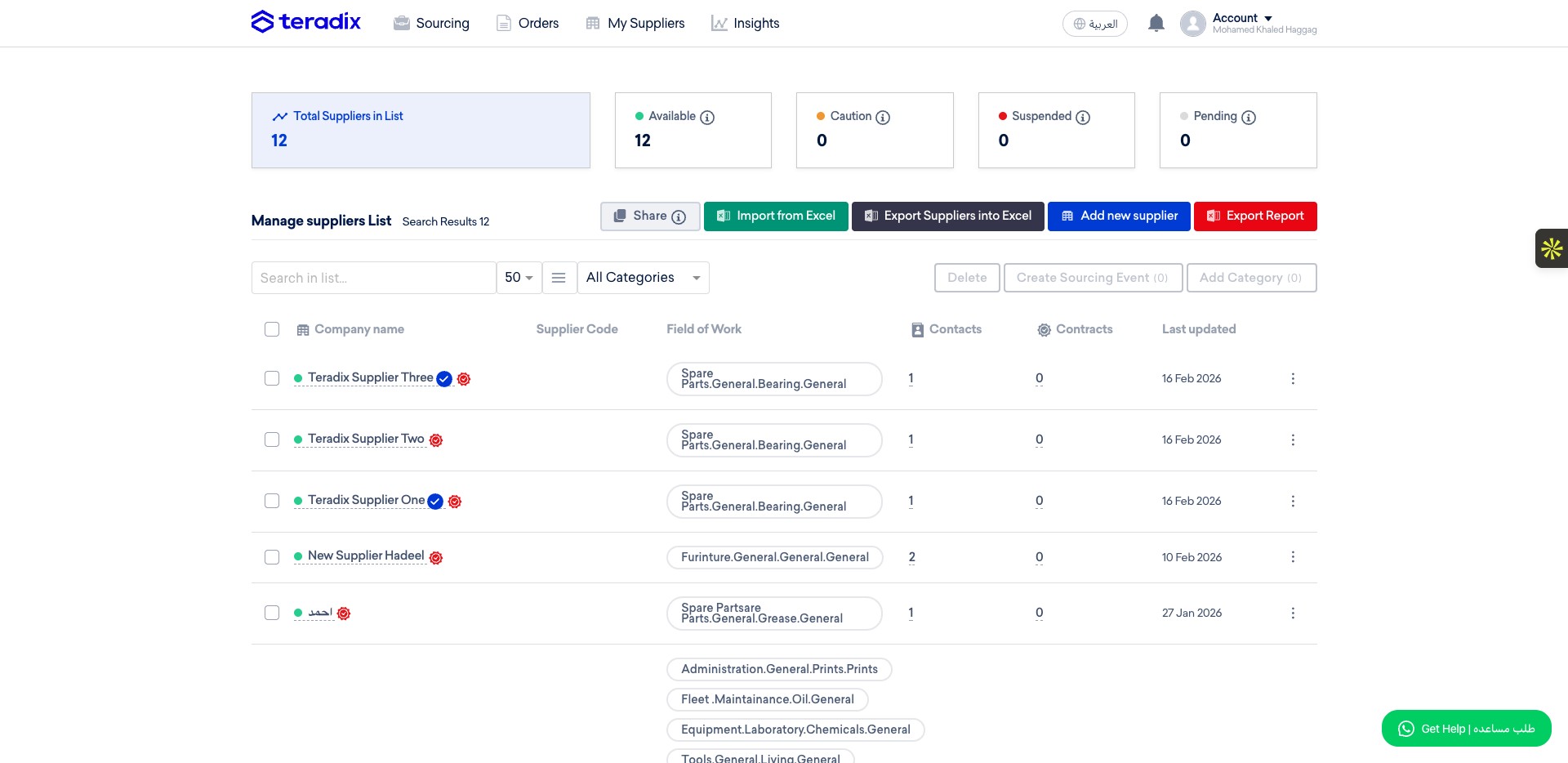
You can click on "Available" to filter the supplier list by the approved suppliers only
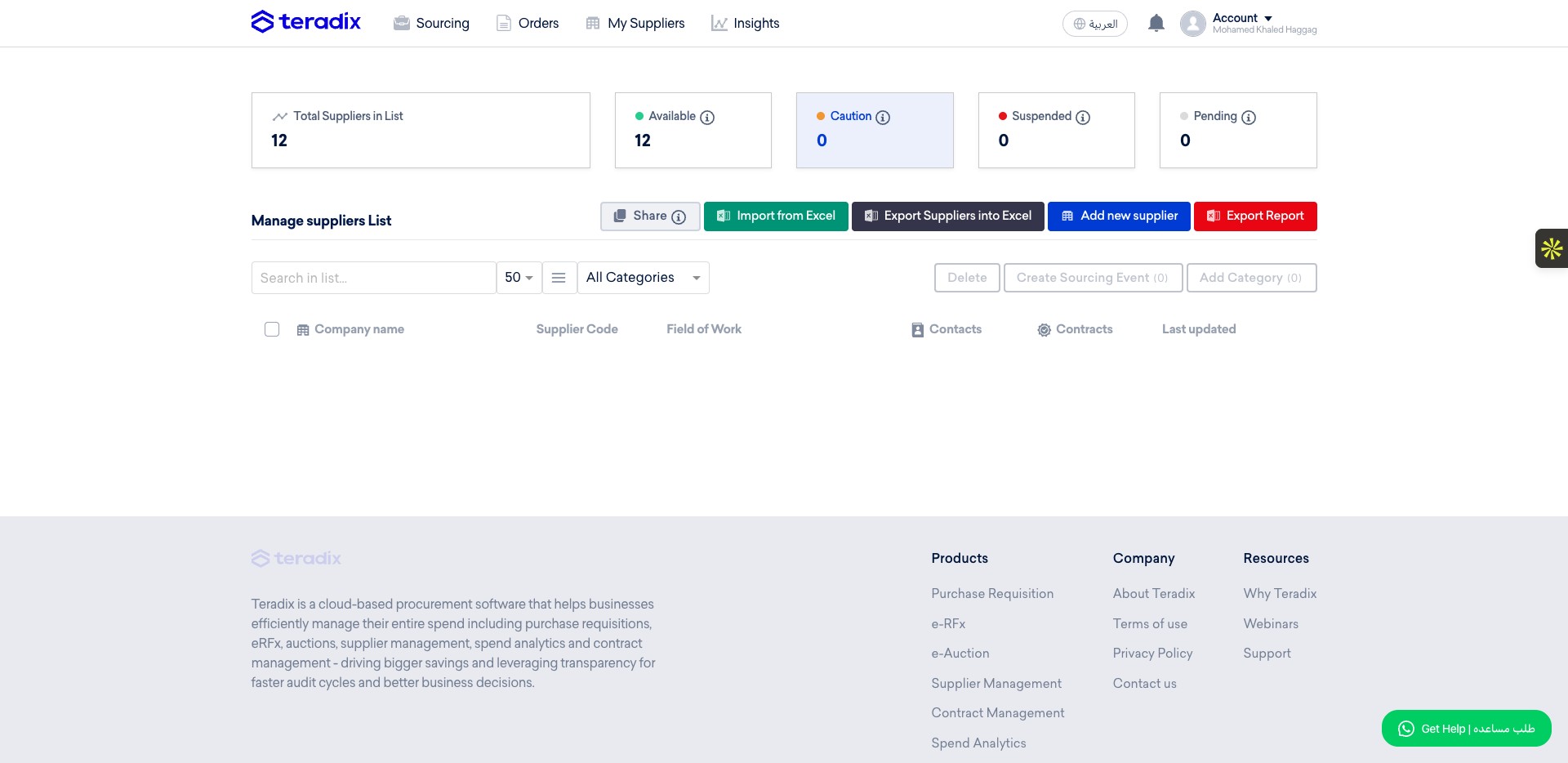
You can click on "Caution" to filter the supplier list to deal with caution with the new suppliers
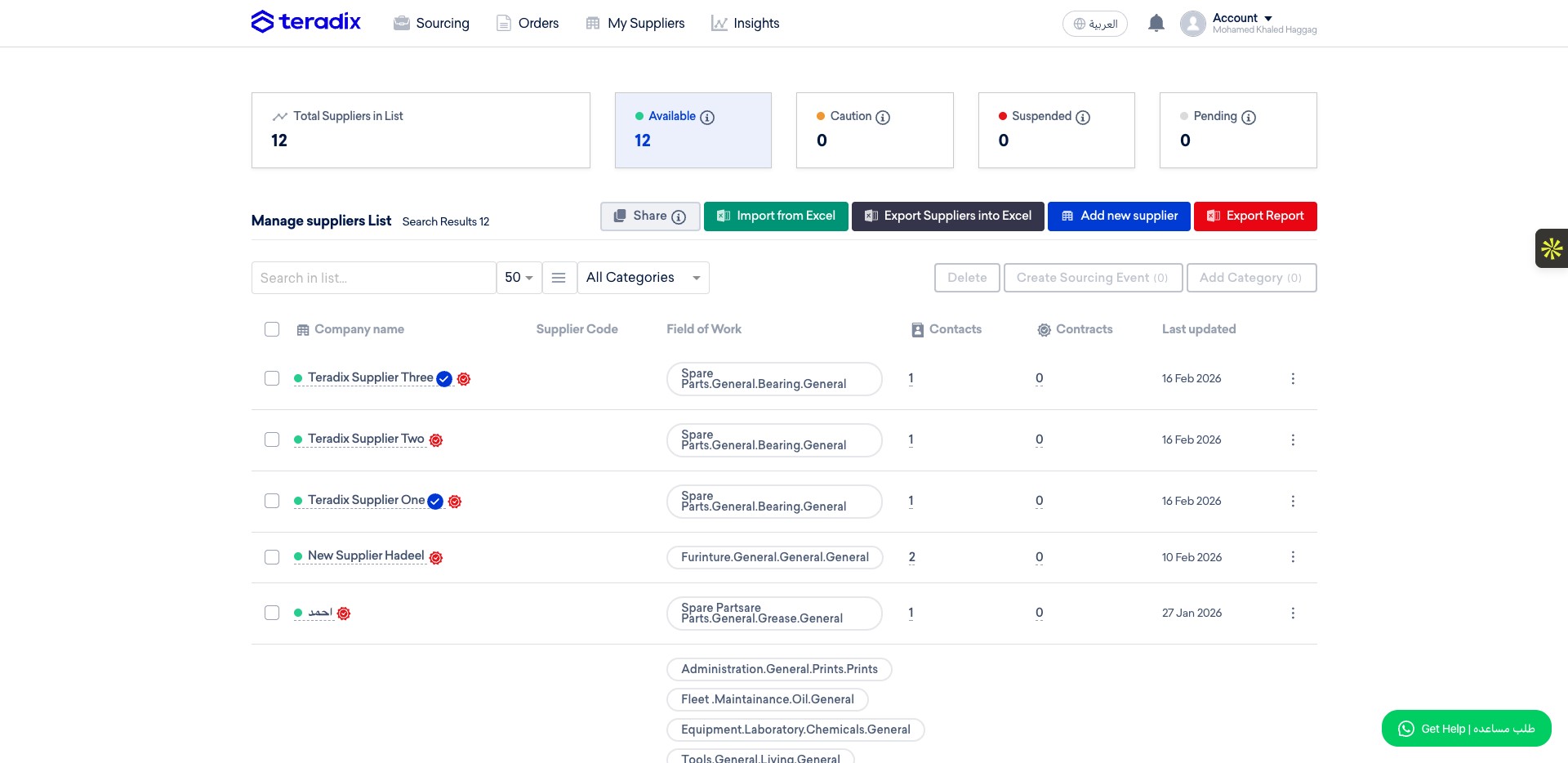
You can click on "Suspended" to filter the fully suspended suppliers, for which the system will not send any communications.
You can click on "Pending" to filter the newly registered suppliers who registered from your public link and are ready for your review and approvals.
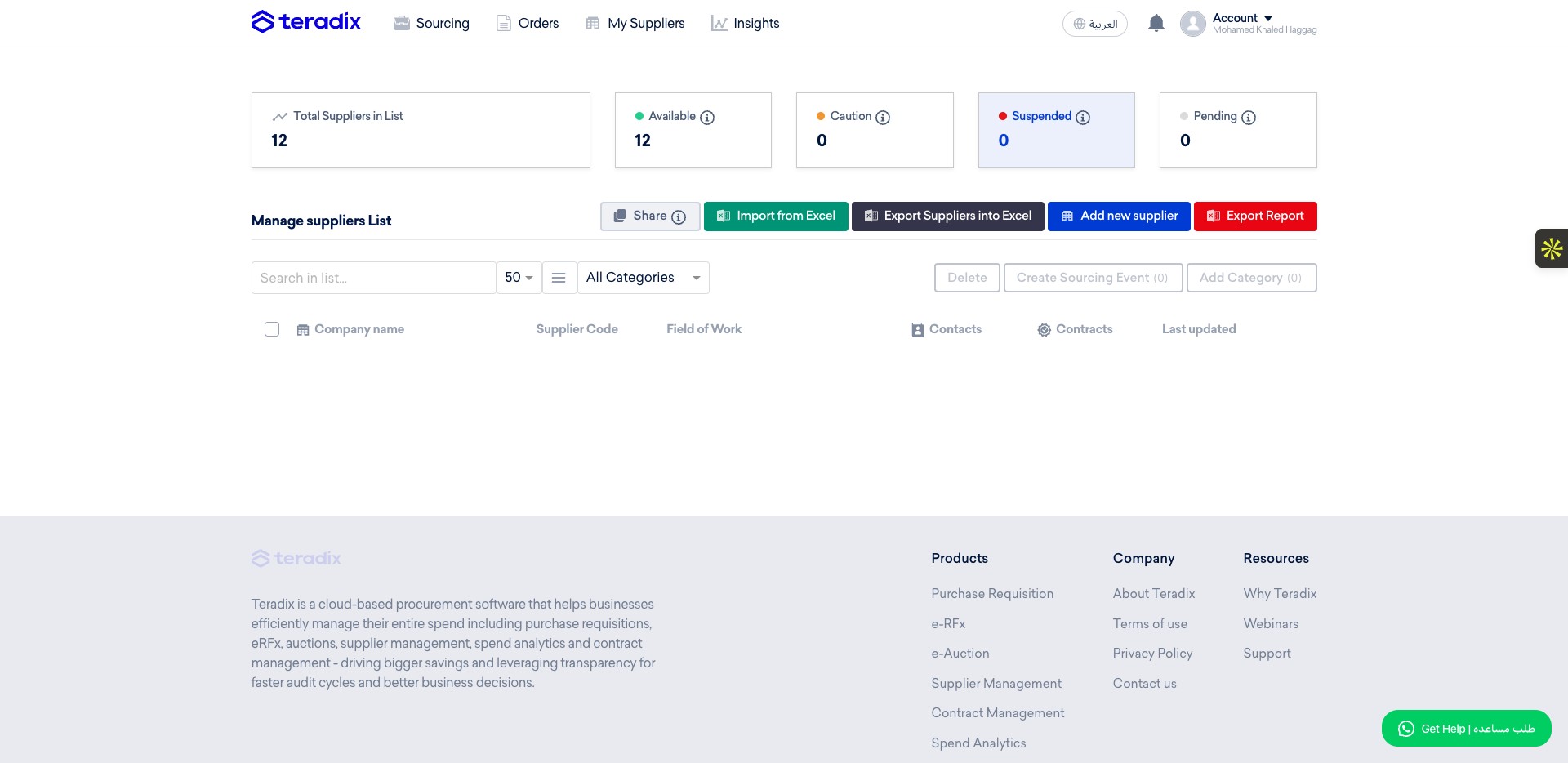
Click on the "Share" button to copy your company's unique supplier registration link that you can share with your suppliers to self-register and add their company details
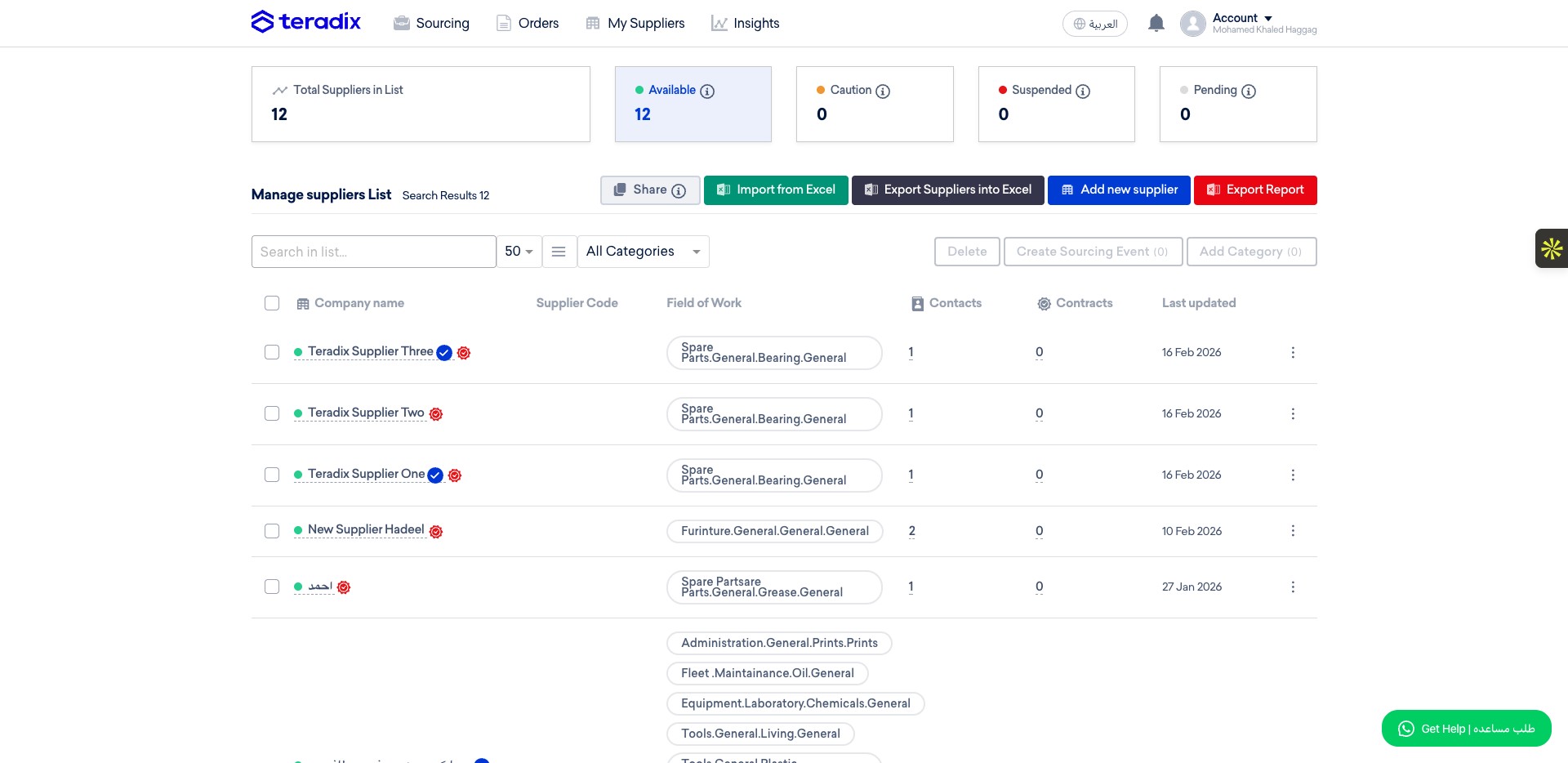
Click on the "Import from Excel" button to easily upload an excel sheet with all of your suppliers' details at once.
Click on the "Export Suppliers into Excel" button to easily export your suppliers' contact details in an Excel sheet with all of your suppliers' details at once.
Click on the "Add new supplier" button to easily add the supplier details manually one by one.
[Owner Access Only] Click on the "Export Report" button to easily export all suppliers' transactions and detailed analytics in detail.
You can easily search by Supplier Name or Supplier/ERP Code to easily find them
Additionally, you can easily filter by Material Group or Spend Category so you can have a deeper view of your category performance.
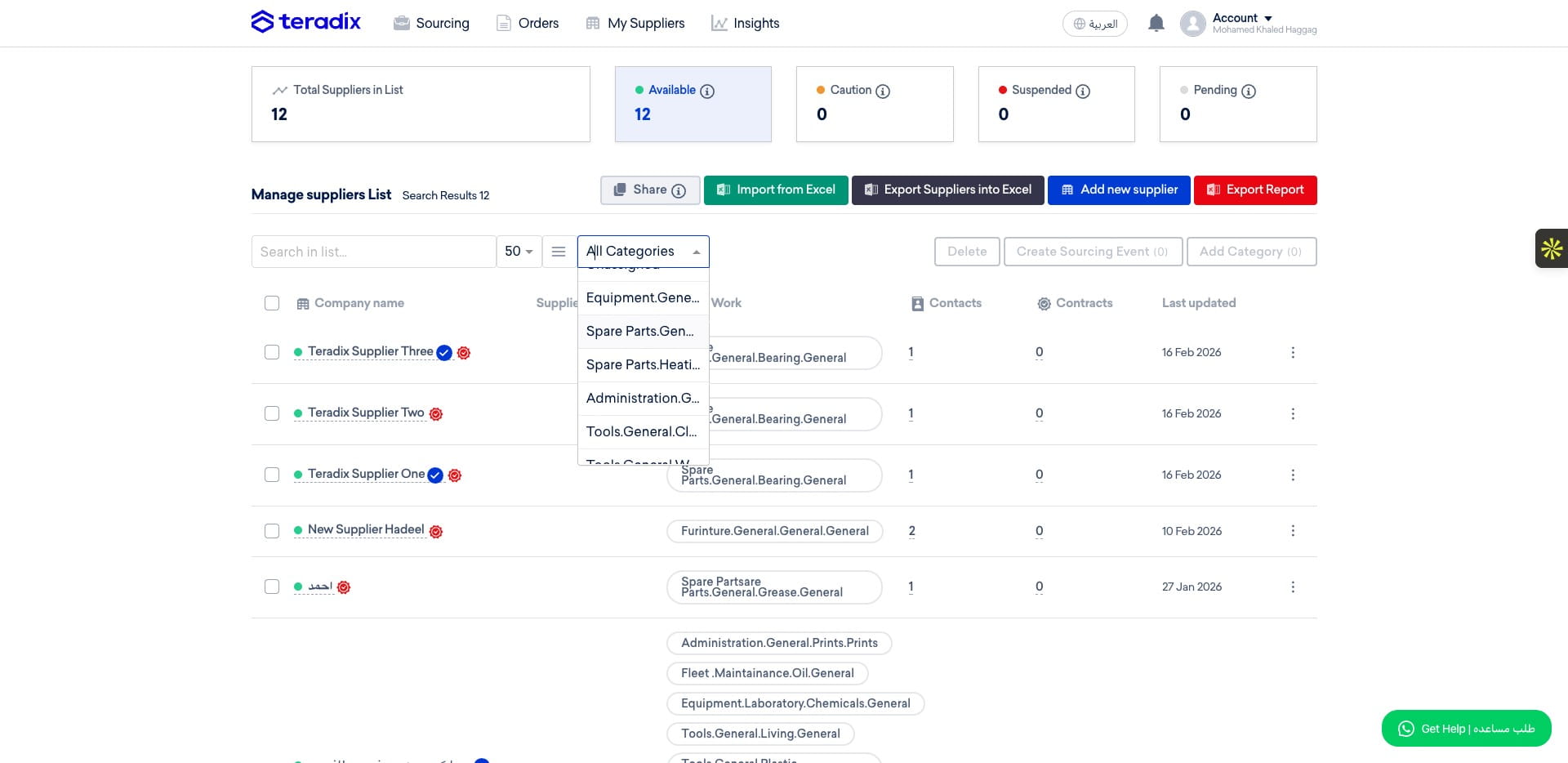
To view the supplier profile, click on his name to access his unique supplier profile and access a detailed view of his performance.
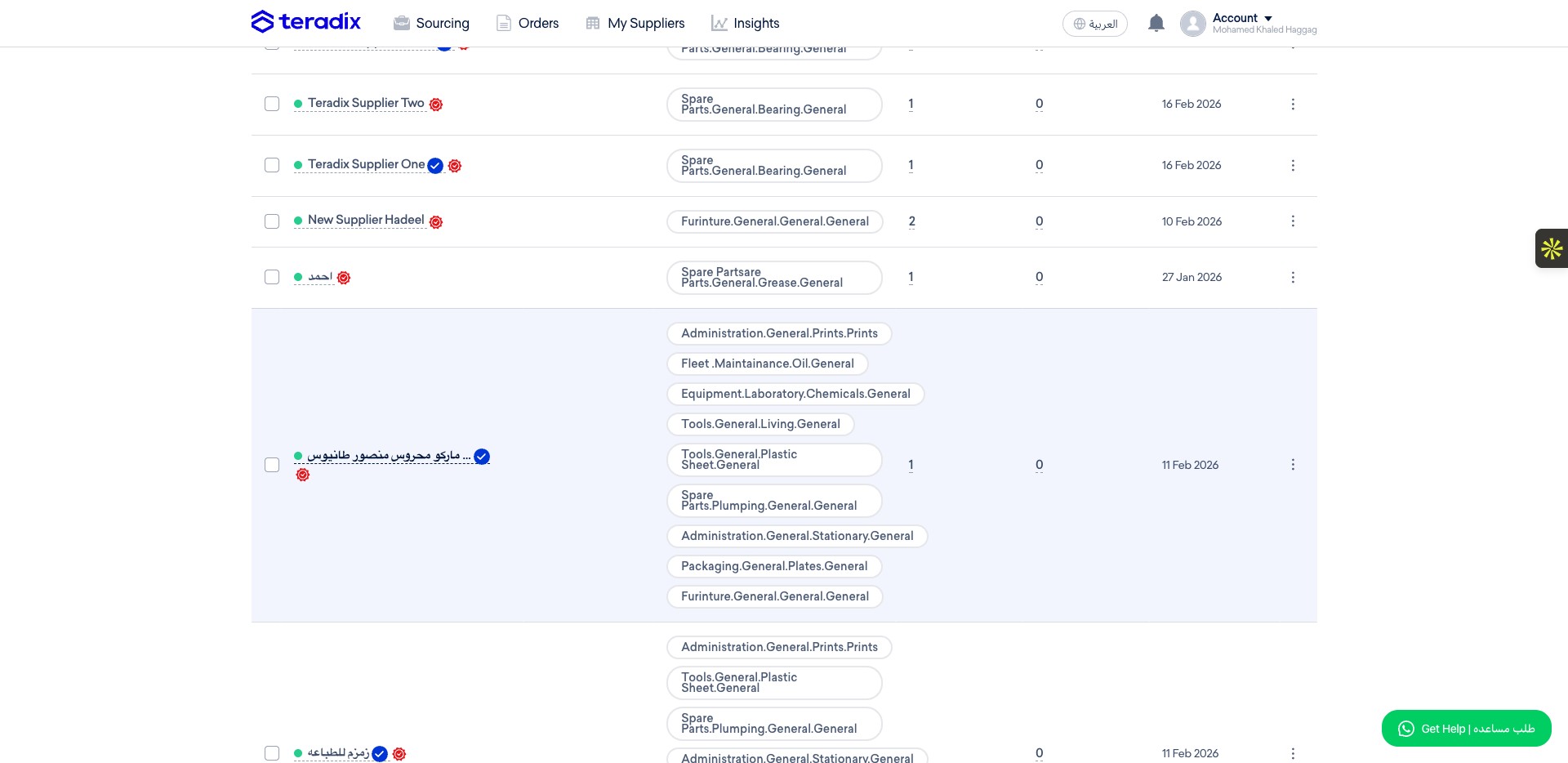
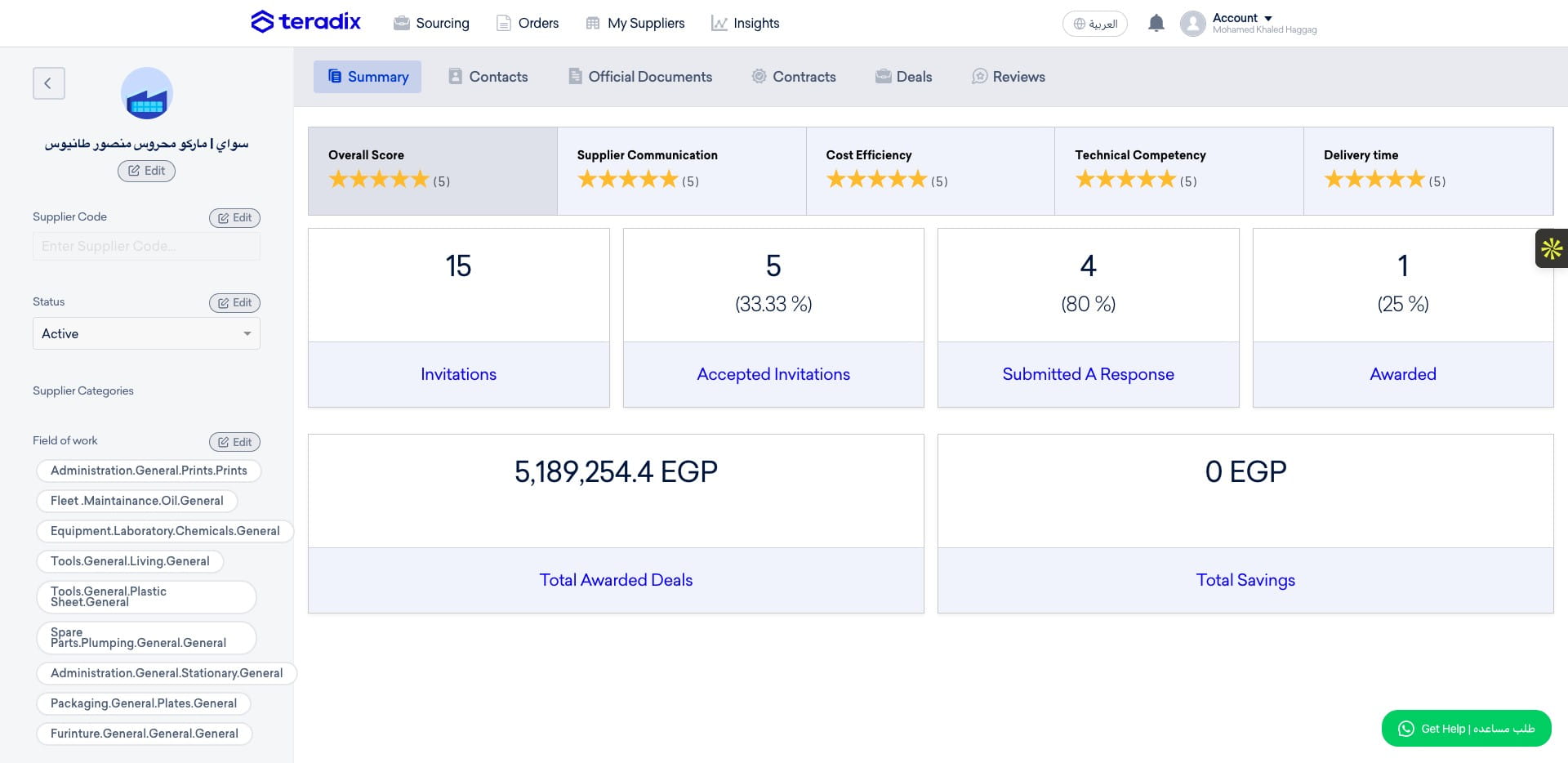
You can edit the supplier's name by clicking on "Edit"
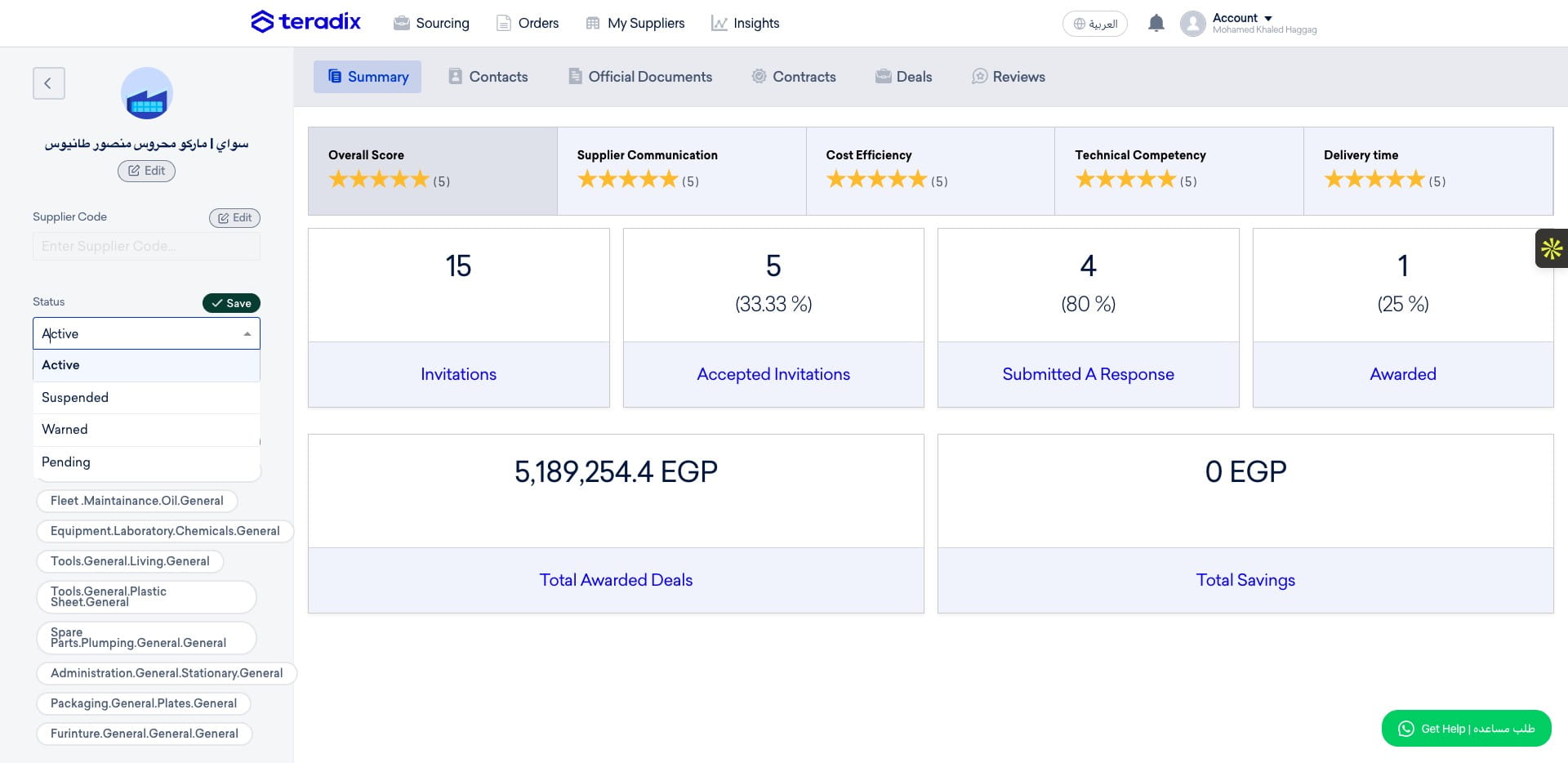
You can edit the supplier's status by clicking on "Edit" and change it to one of the following:
- Active
- Caution
- Suspended
- Pending
You can edit the supplier's category by clicking on "Edit" and changing it to one of the predefined categories on your settings.
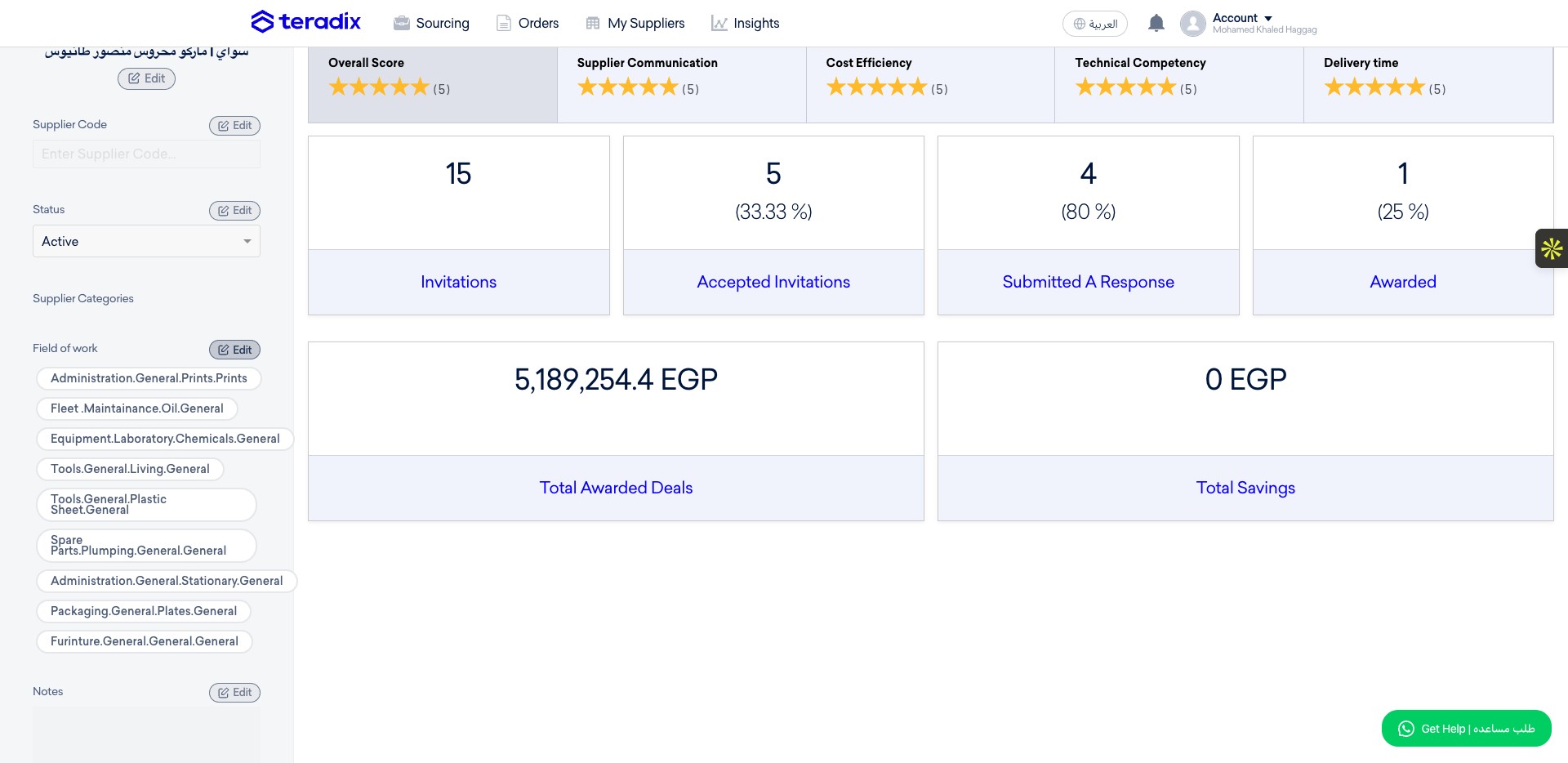
You can add more than one category per supplier. Based on the category and sub-category, the system will be able to automatically match the RFQ/RFI/RFP with the right suppliers.
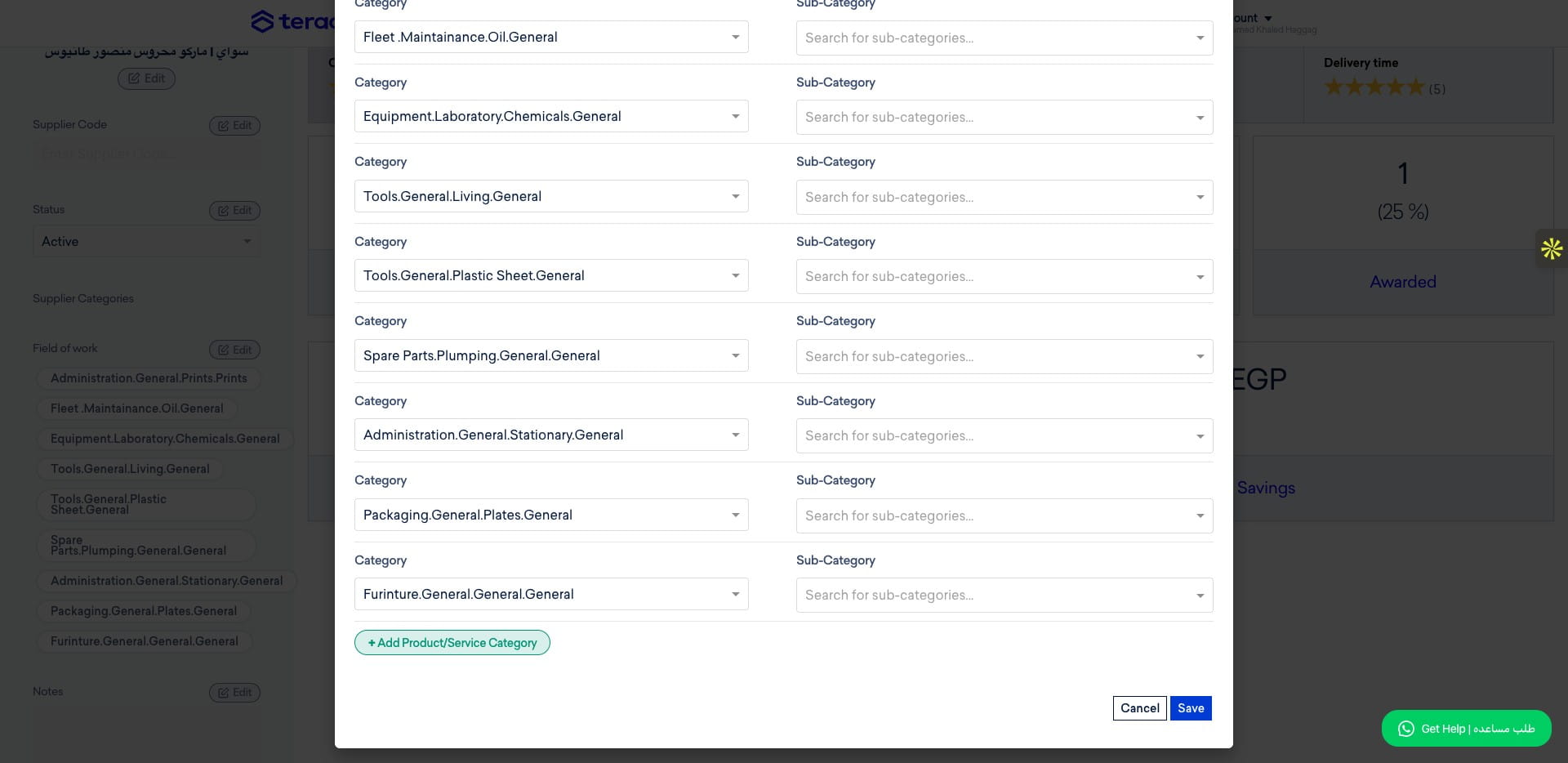
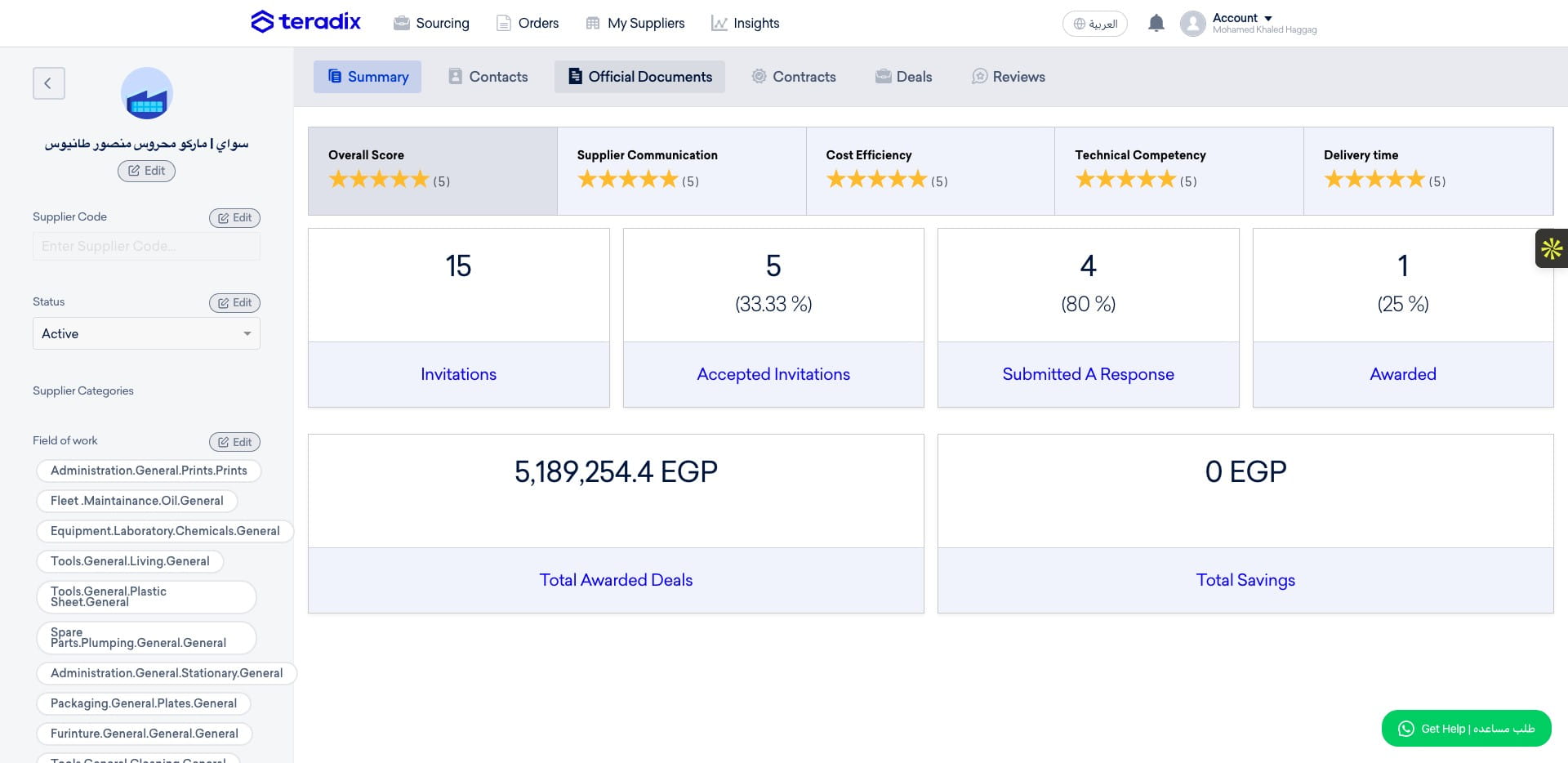
This is a brief "Summary" about the supplier transactions and overall score on Teradix.
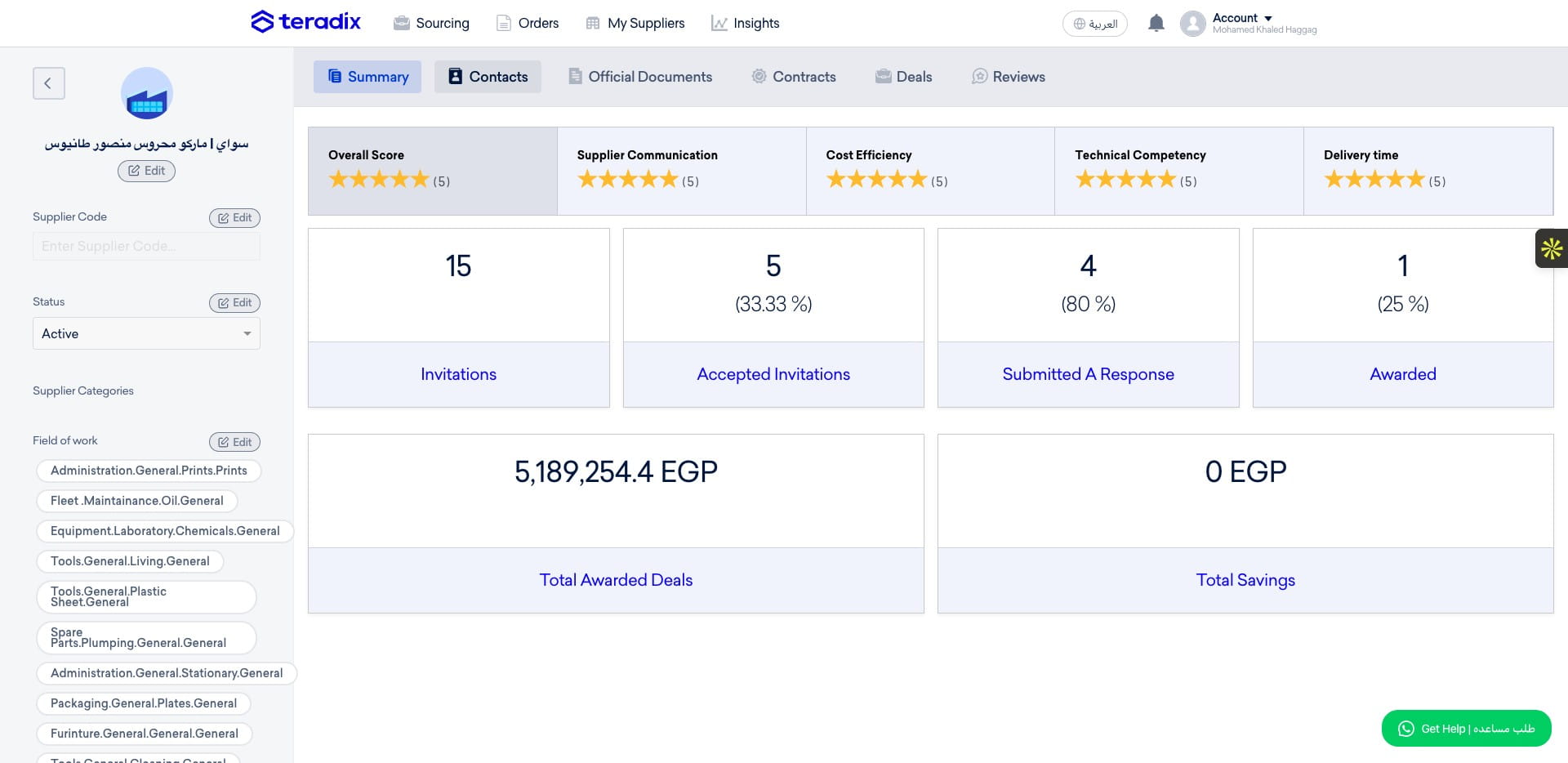
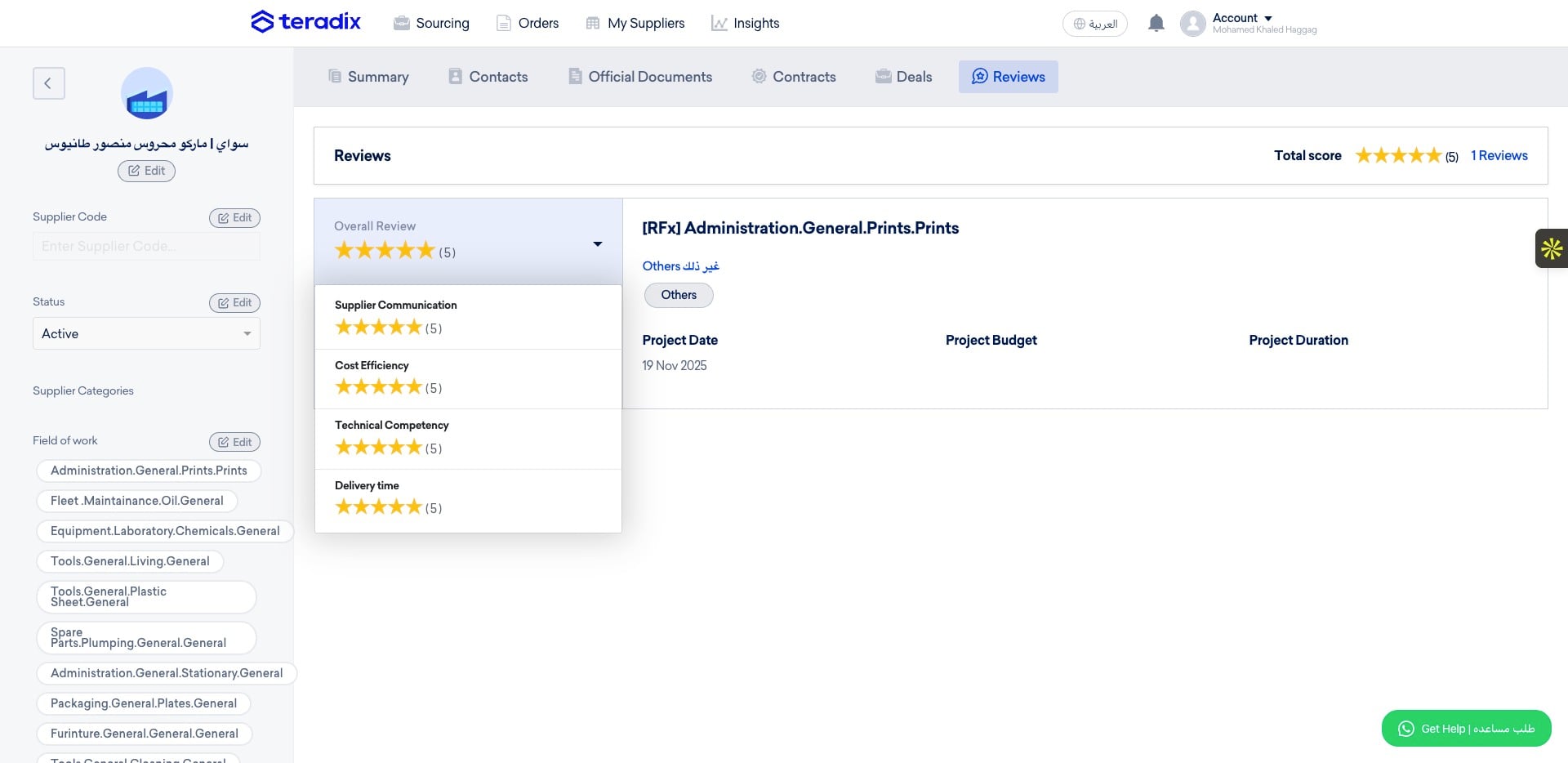
This is an "Overall Score" about the suppliers that's calculated based on the average of all reviews across all sourcing events. This will help you to have an overview about the supplier performance. The other score includes:
- Supplier Communication
- Cost Efficiency
- Technical Performance
- Delivery Time
This is the total number of invited sourcing events for this supplier. This will help you to understand how frequently you are engaging this supplier in sourcing events.
This is the number of 'Accepted Invitations', indicating that the supplier has accepted your invitation and is willing to submit a quote.
This is the number of 'Submitted Quotation', indicating that the supplier has submitted an official quotation/response to your invitation.
This is the number of 'Awarded Deals', indicating that the supplier has won the deal. This will be an indication of how competitive this supplier is.
This is the total amount of the Awarded Deals, indicating how big your transactions with this supplier are.
This is the total amount of Achieved Savings from this supplier, indicating how effective your negotiation is with this supplier. The saving is calculated based on the lowest initial offer submitted and the closed PO with the supplier; if there's a difference, the system will calculate this as an achieved savings.
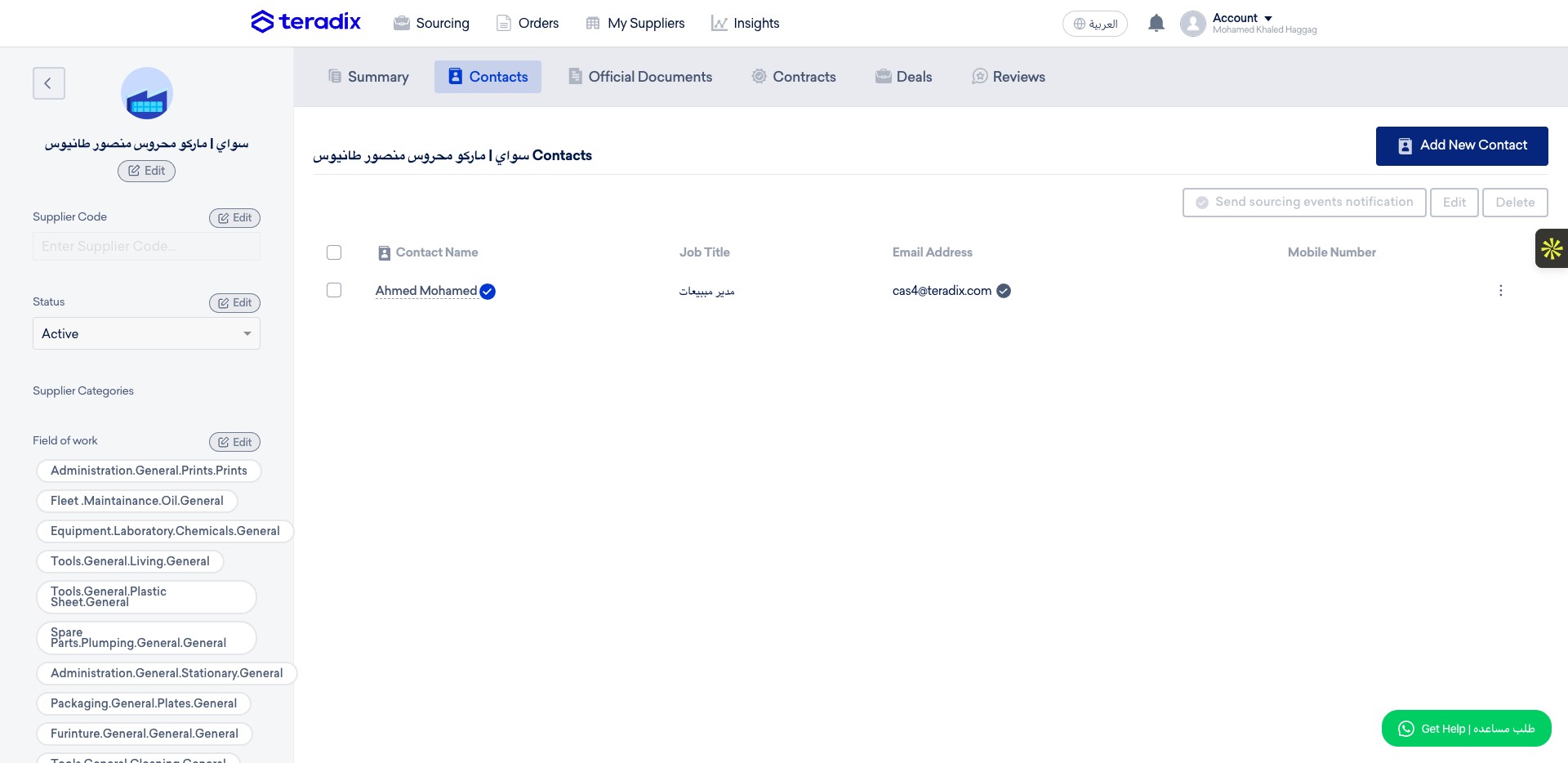
To access all listed contacts on this supplier, click on "Contacts"
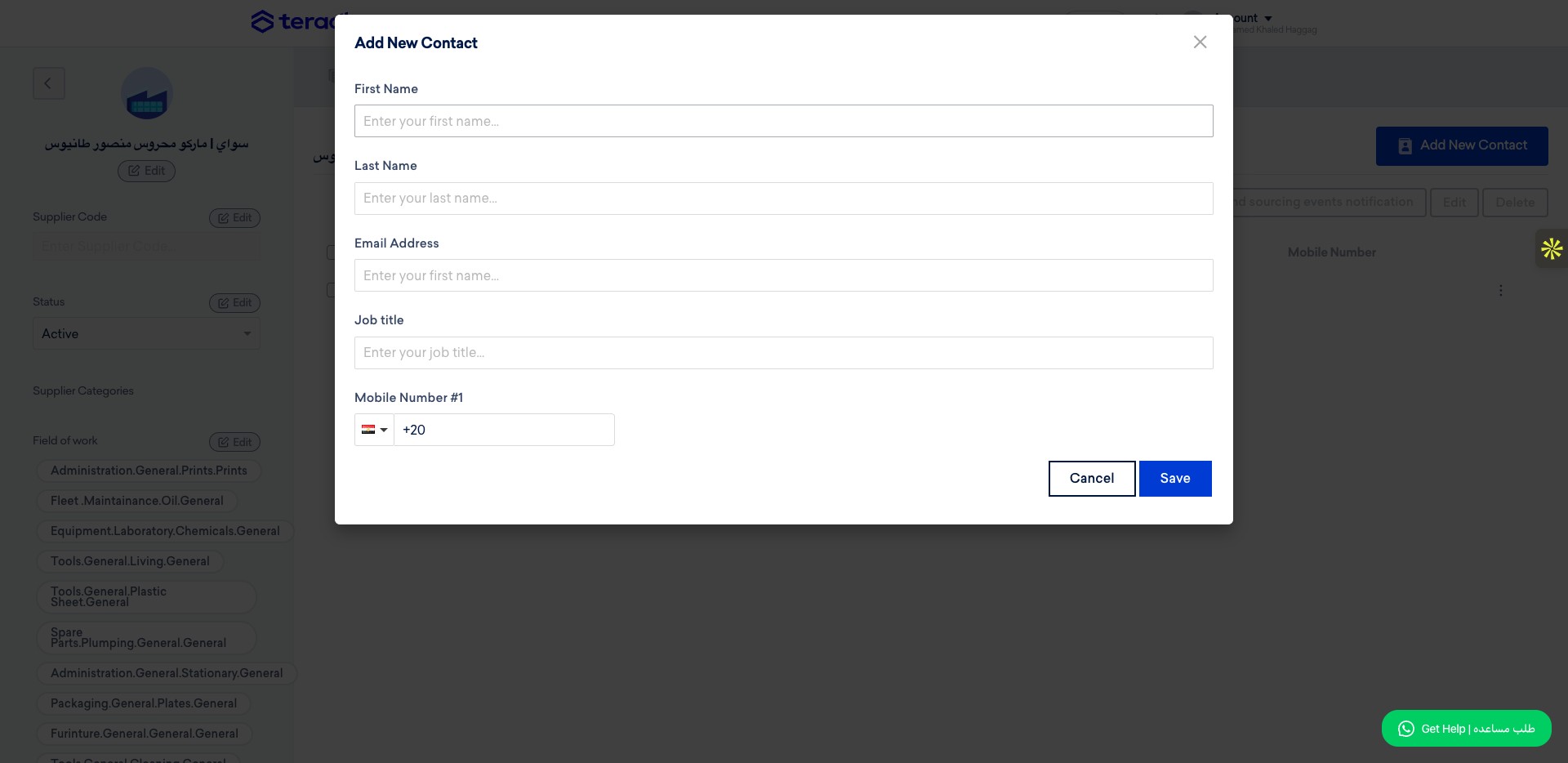
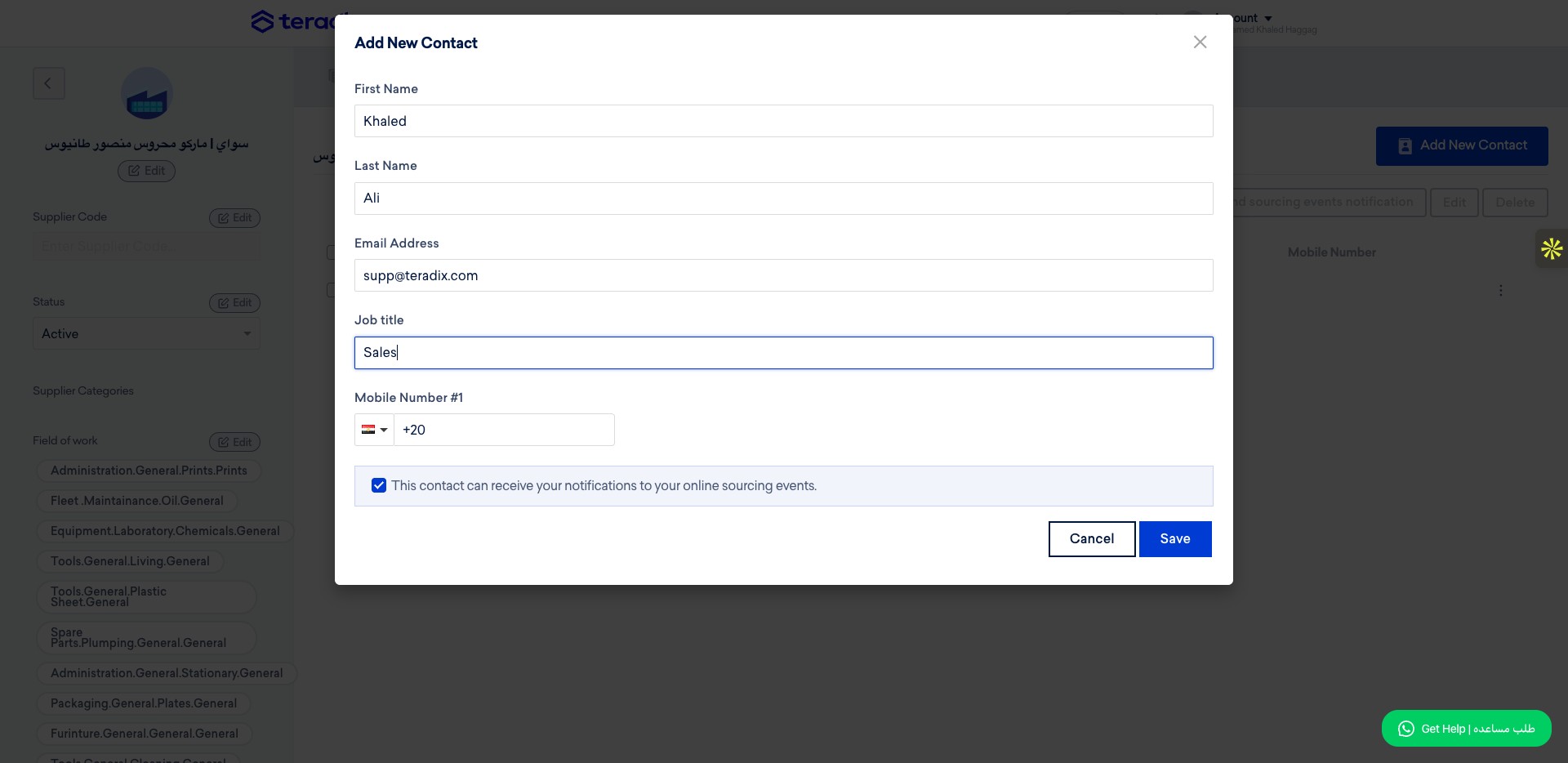
You can easily add another contact to this supplier by clicking on the "Add New Contact" button
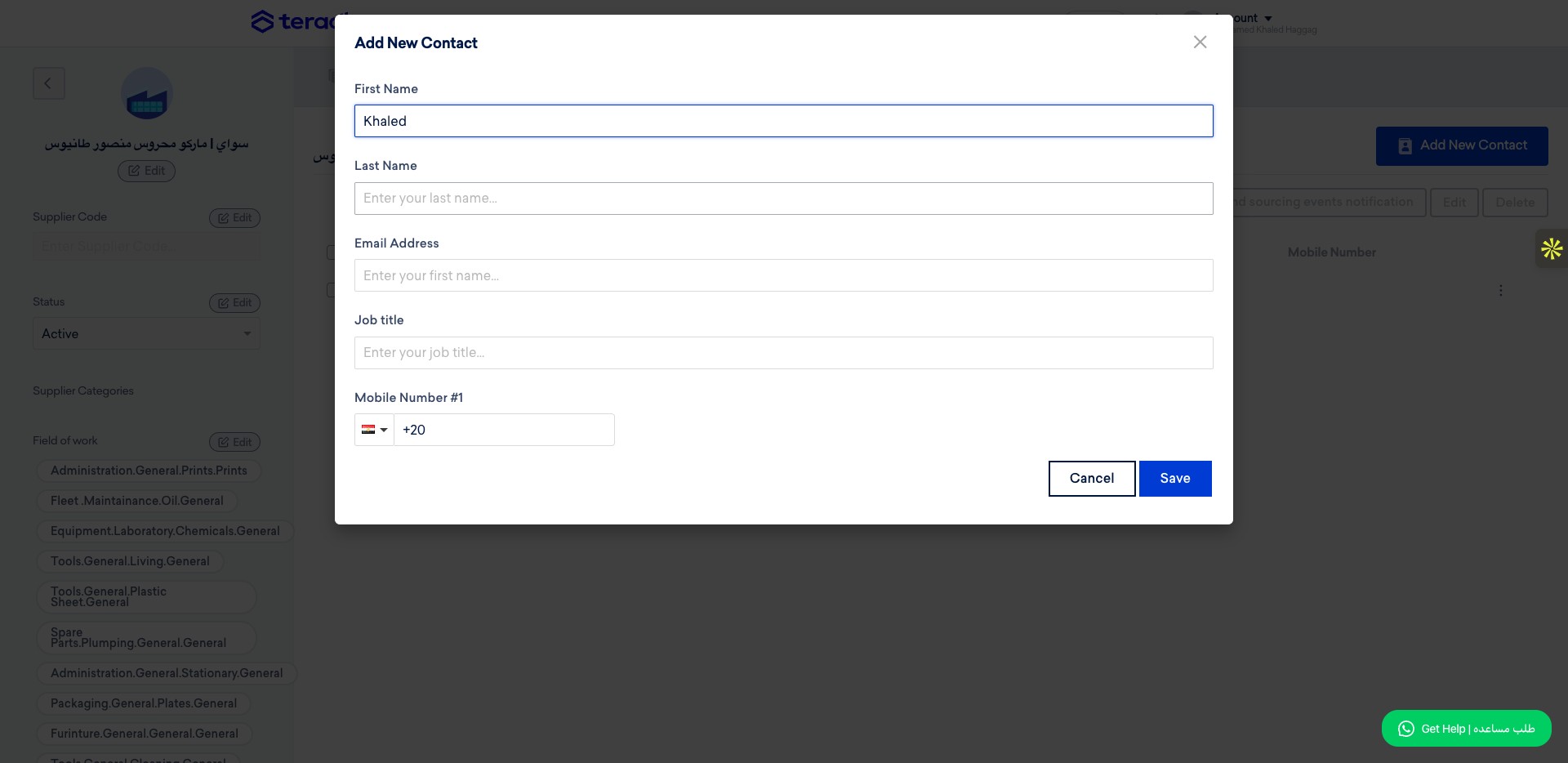
Add First Name
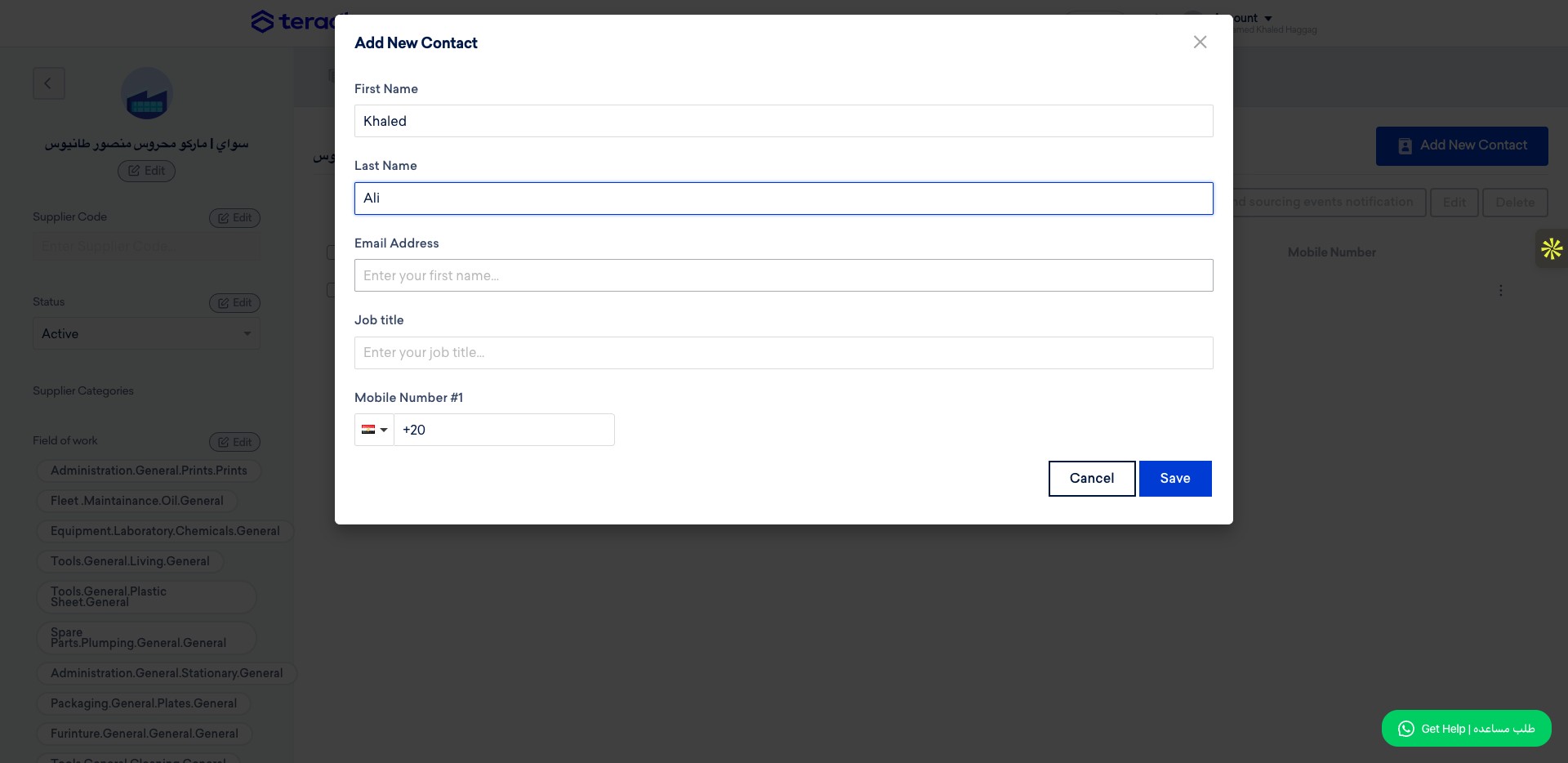
Add Last Name
Add Active Email Address
Add Job Title
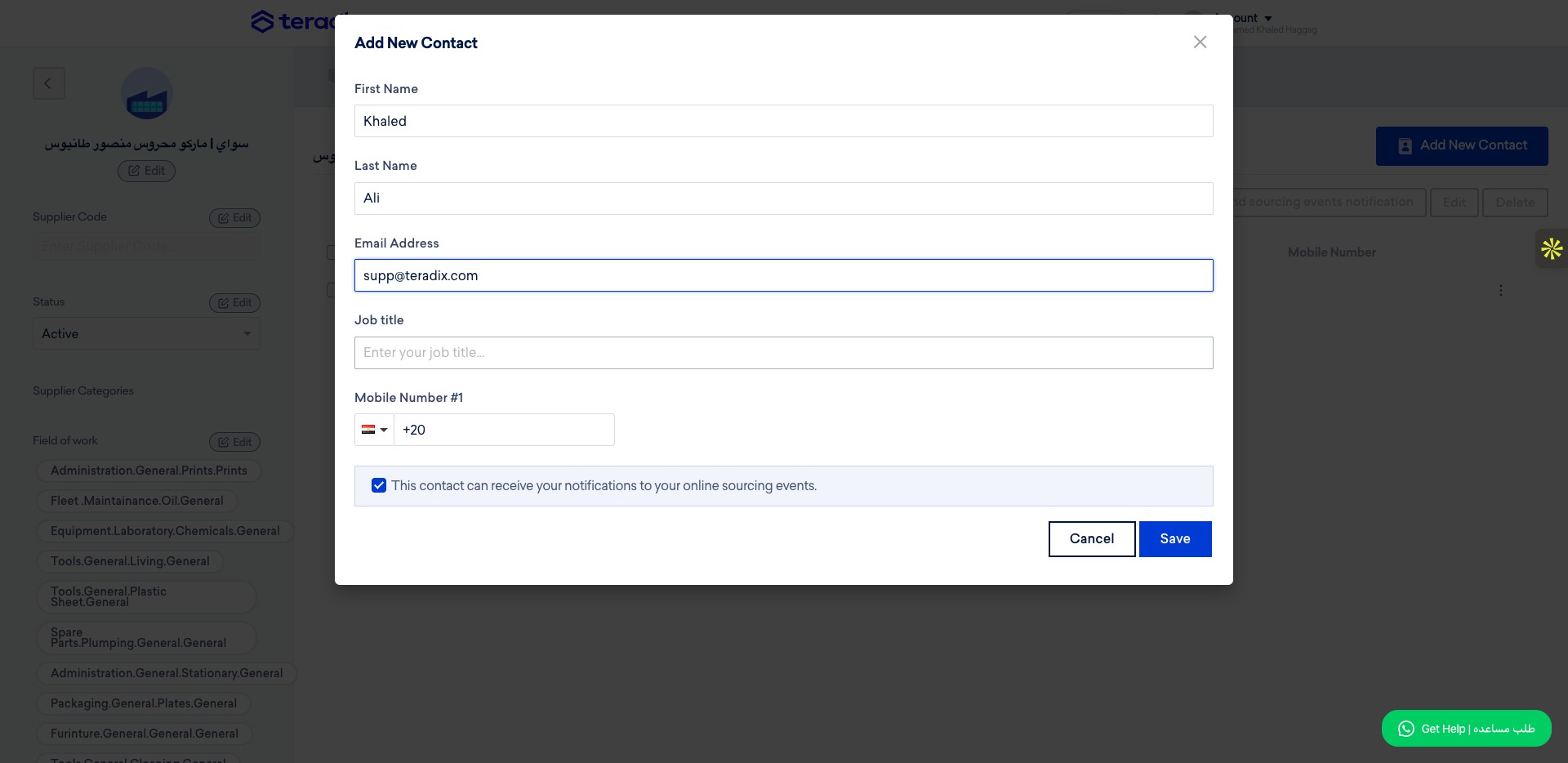
Add the **Active Mobile Number **>> Preferably if it's a WhatsApp Number
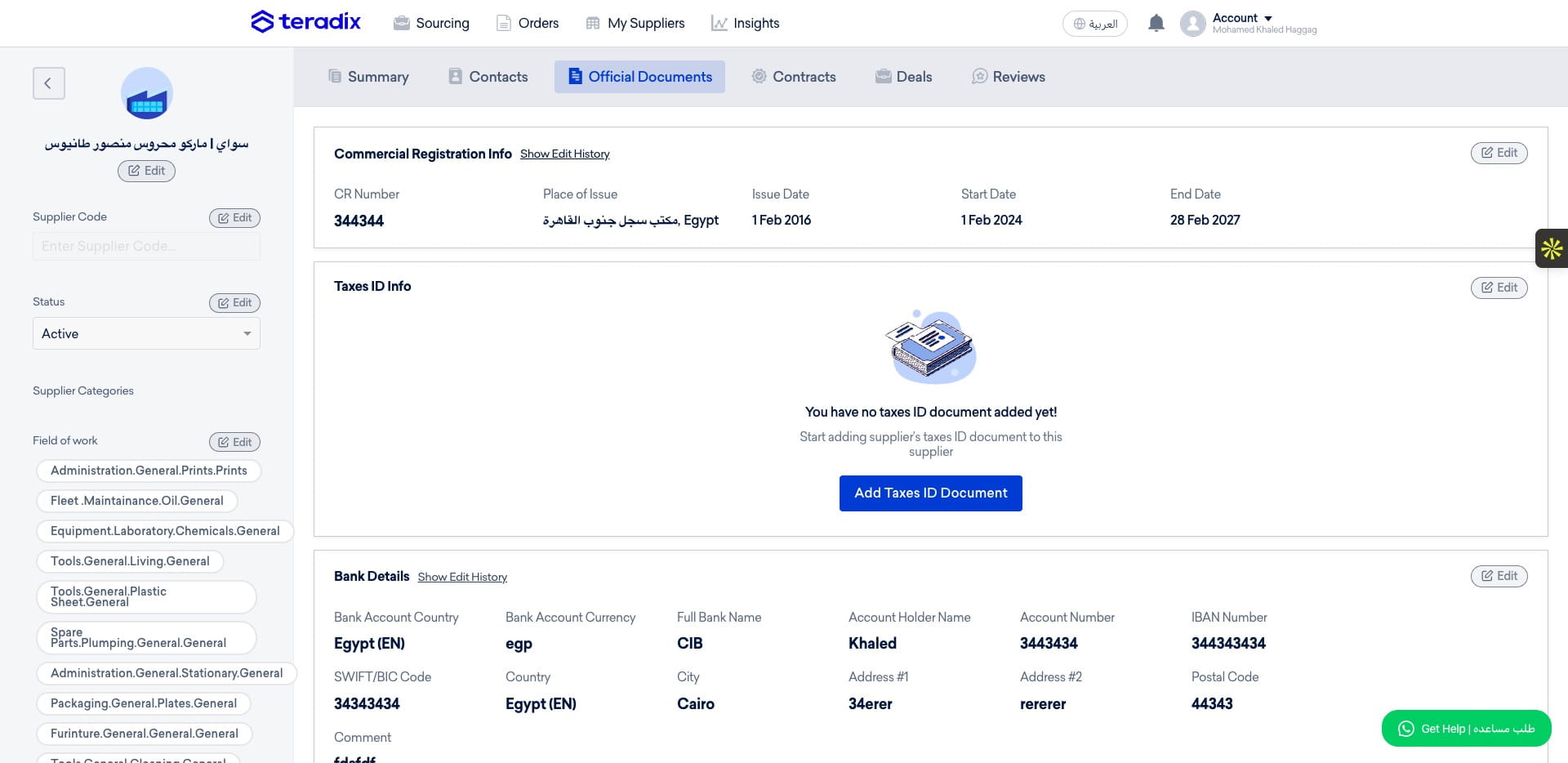
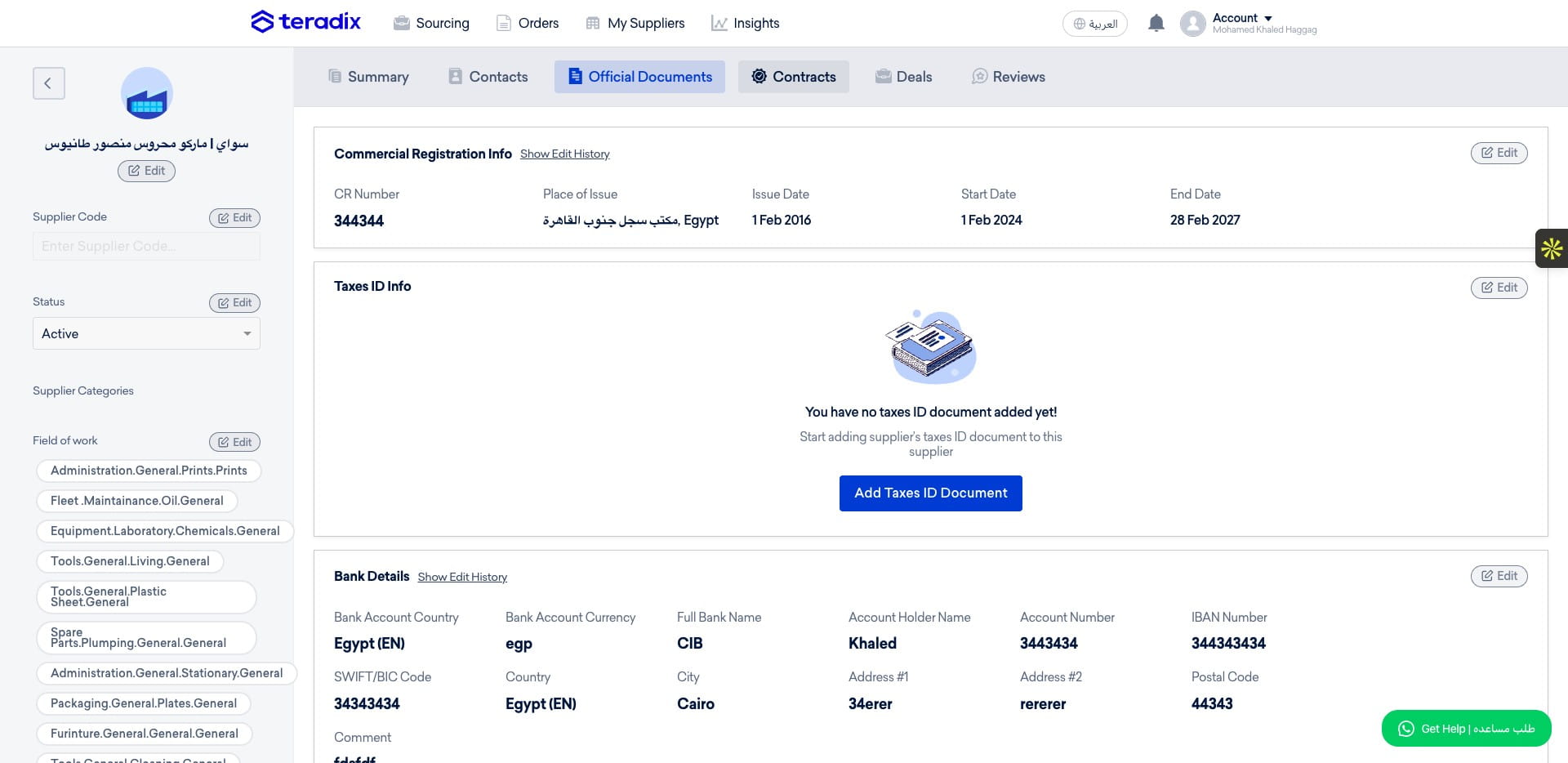
Click on "Official Documents"
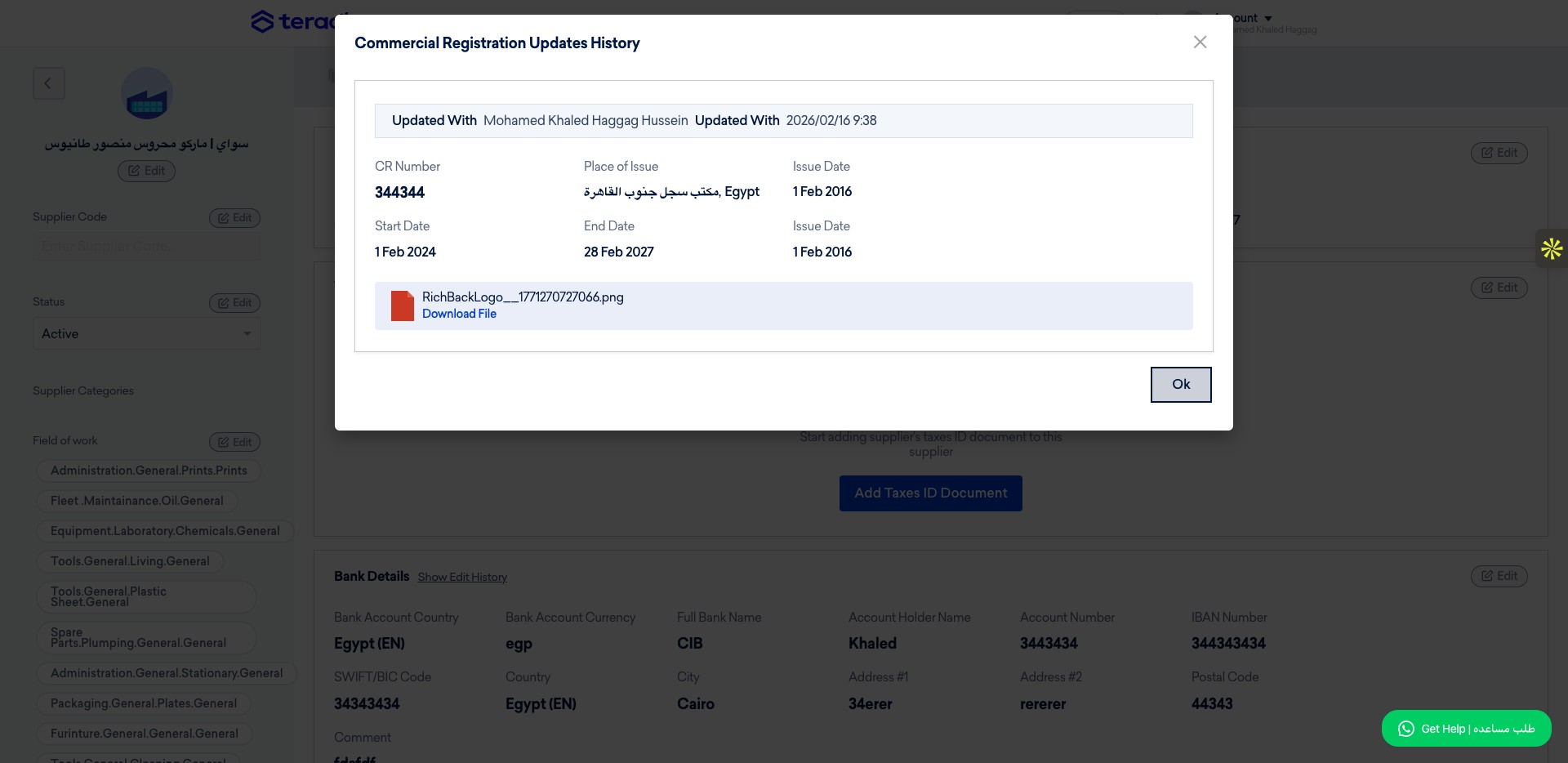
Click on "Show Edit History"
Click on "Updated With"
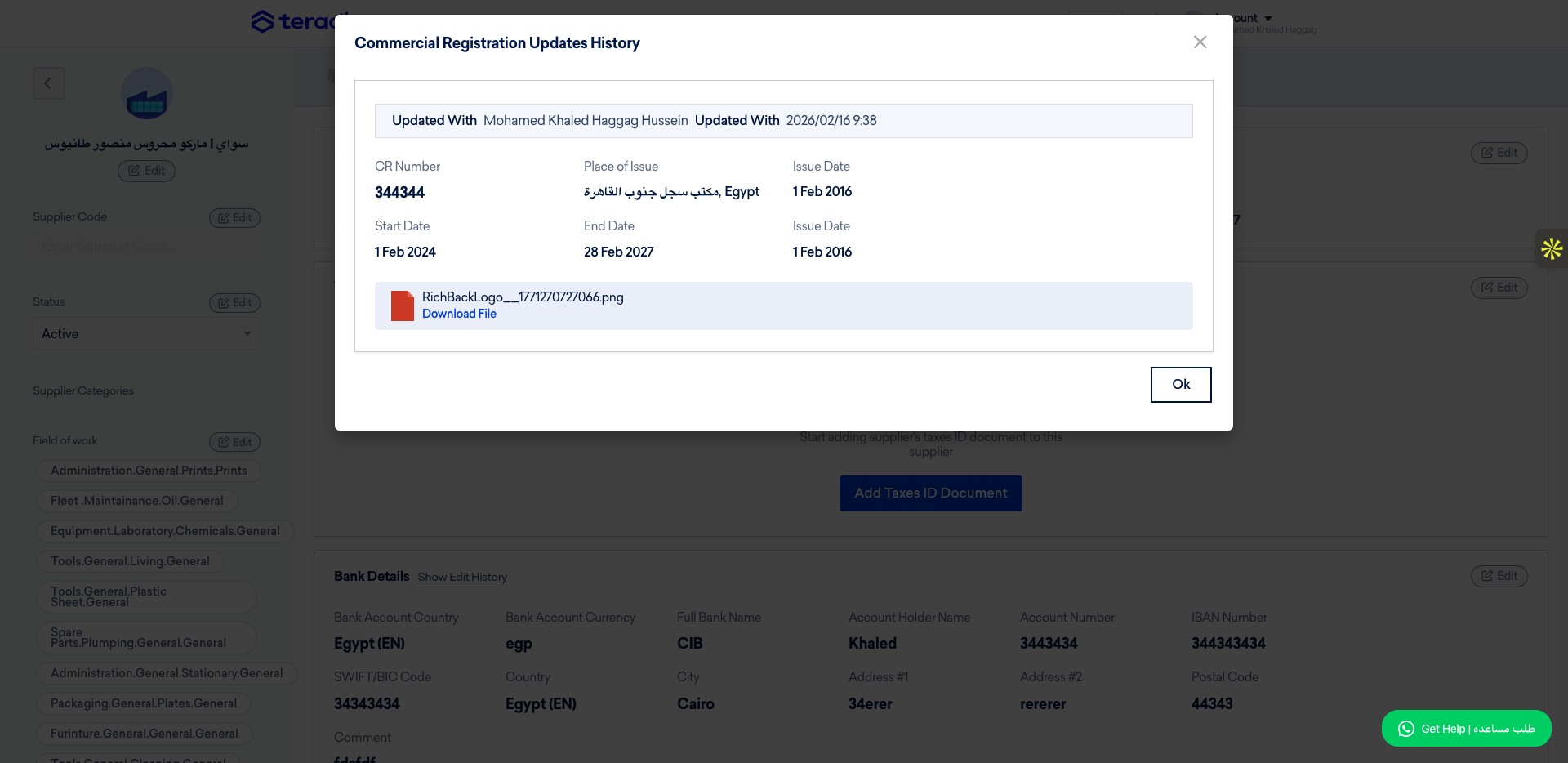
Click on "Ok"
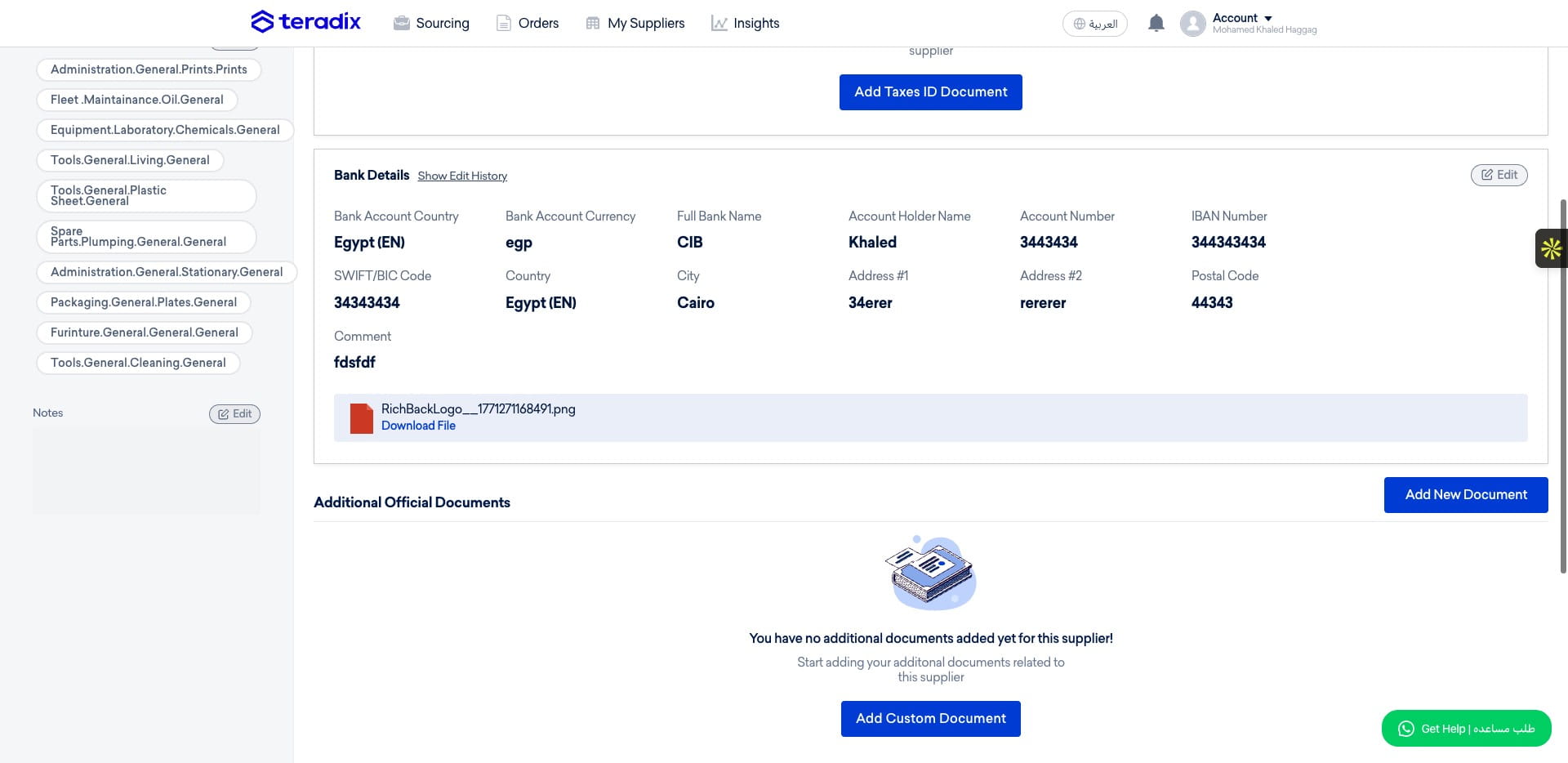
Click on "34erer"
Click on "Contracts"
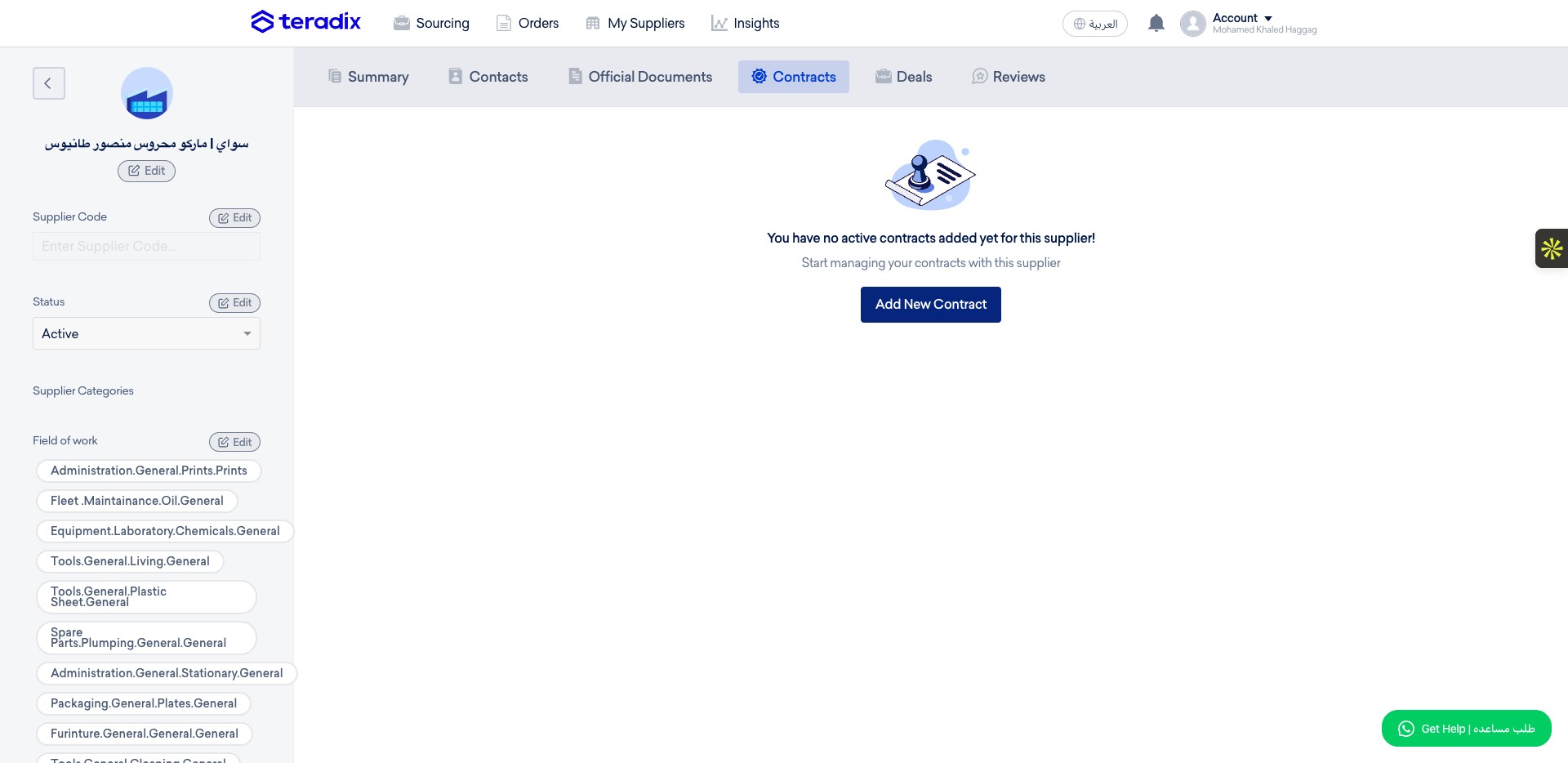
Click on "Add New Contract"
Click here
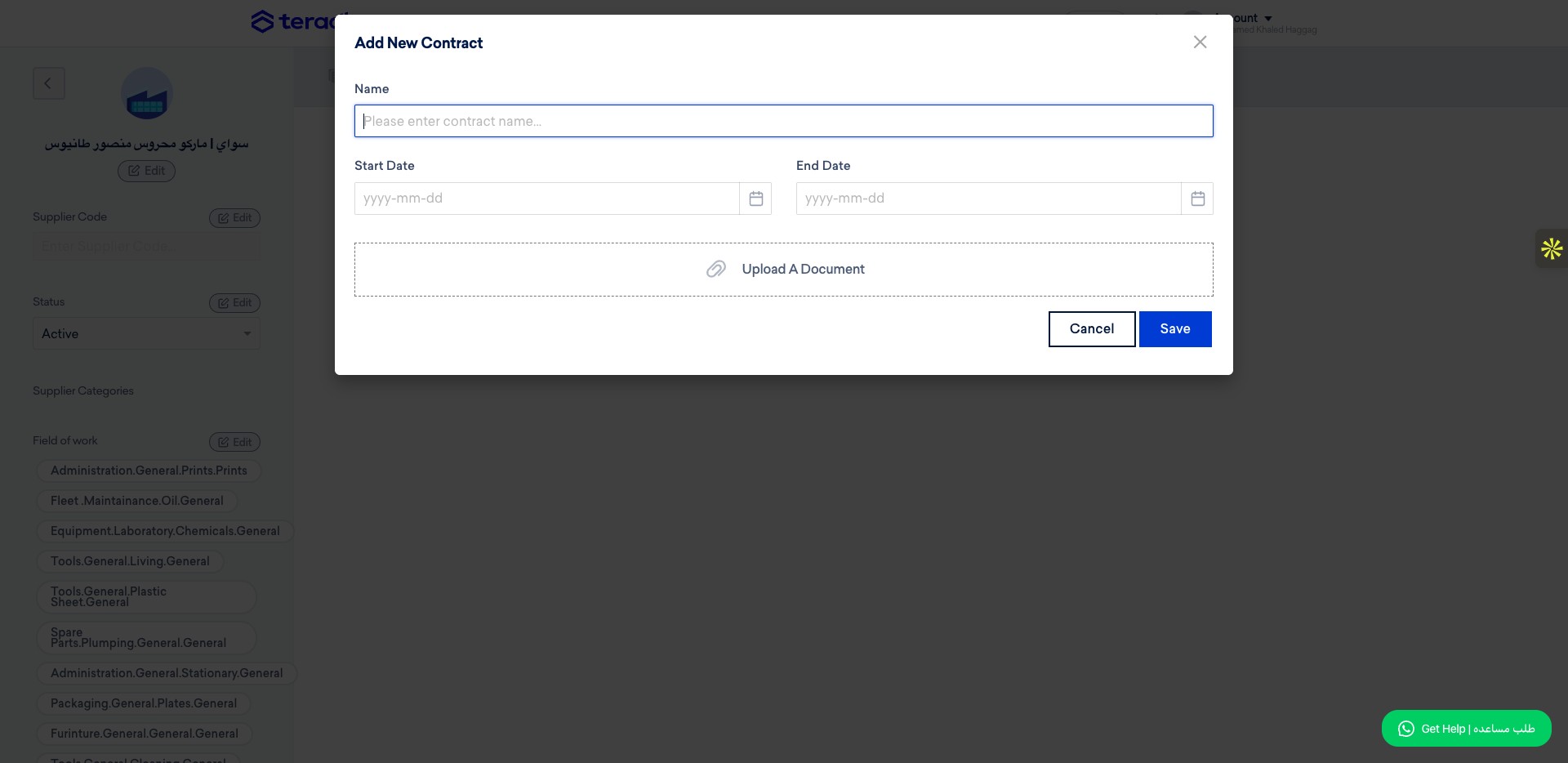
Click here
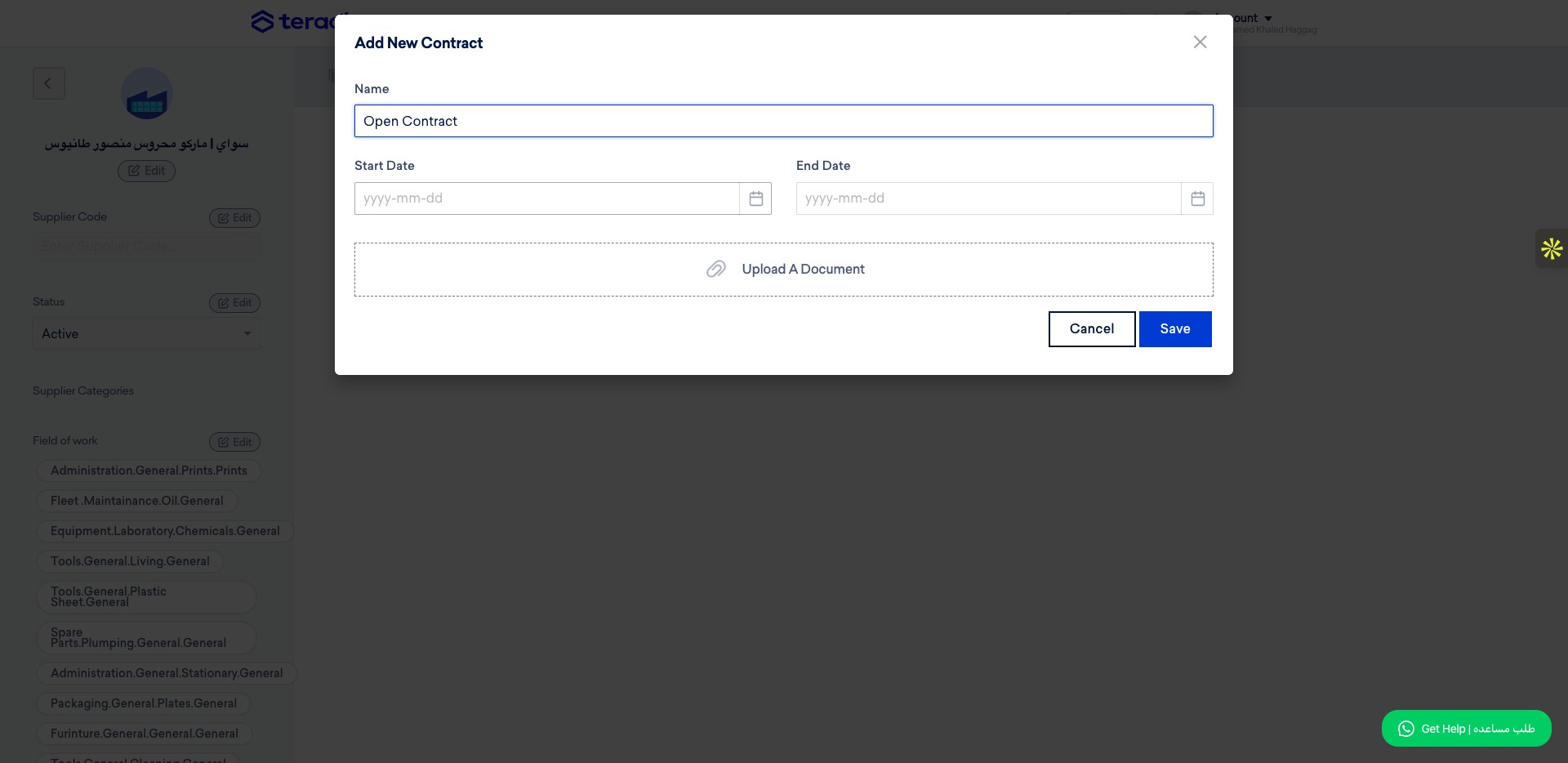
Click on "1"
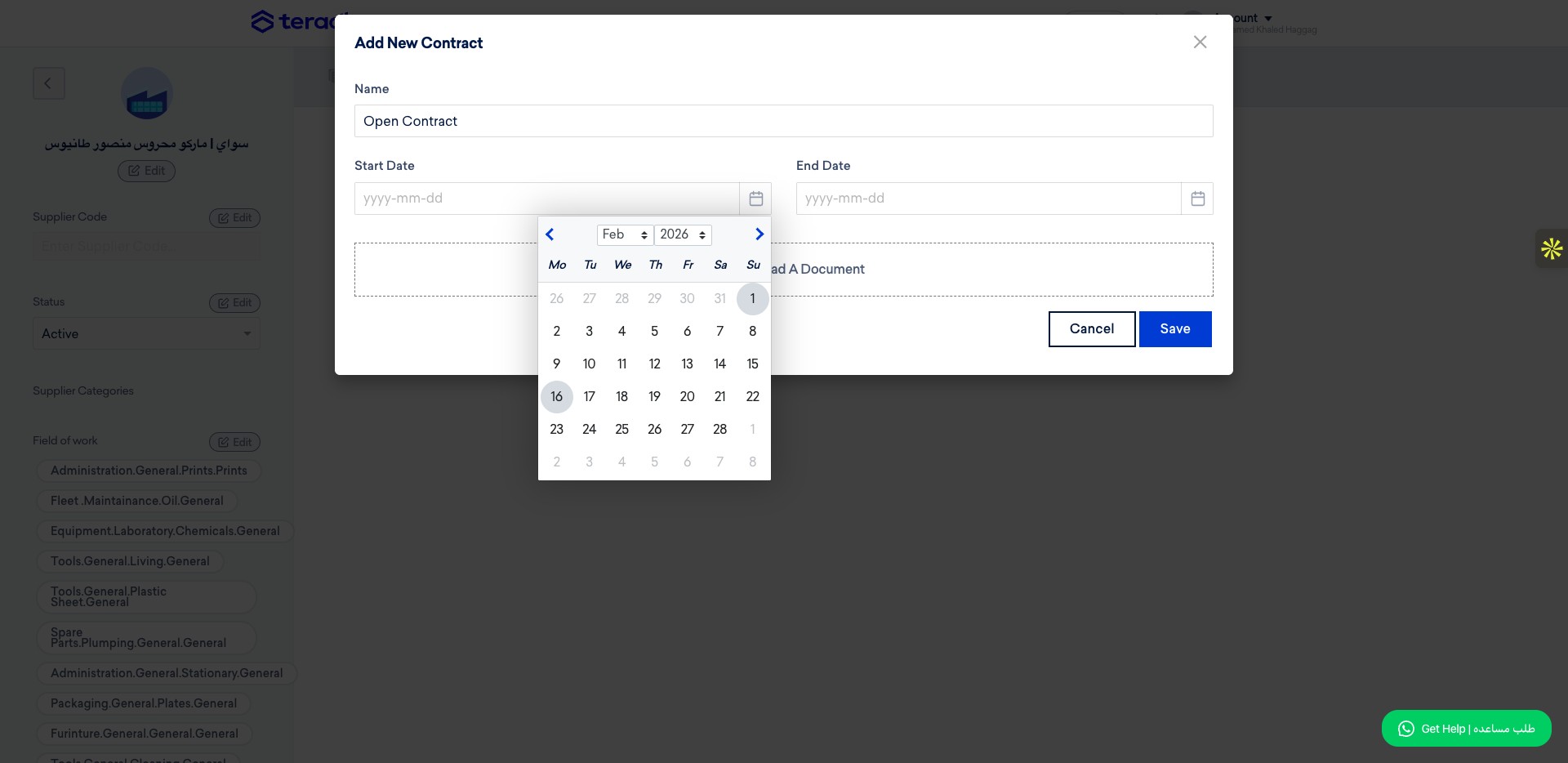
Click this icon
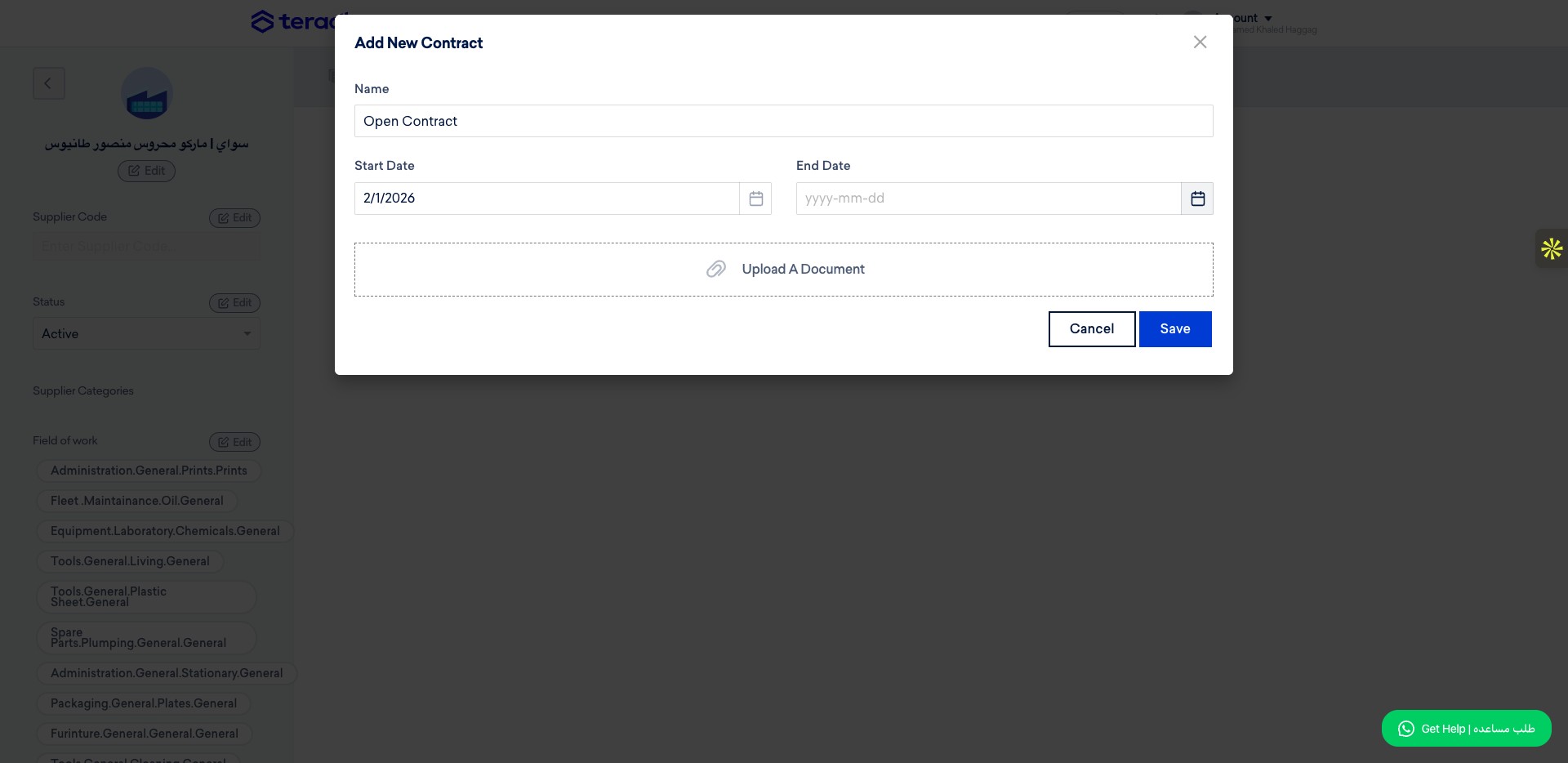
Click on "2026"
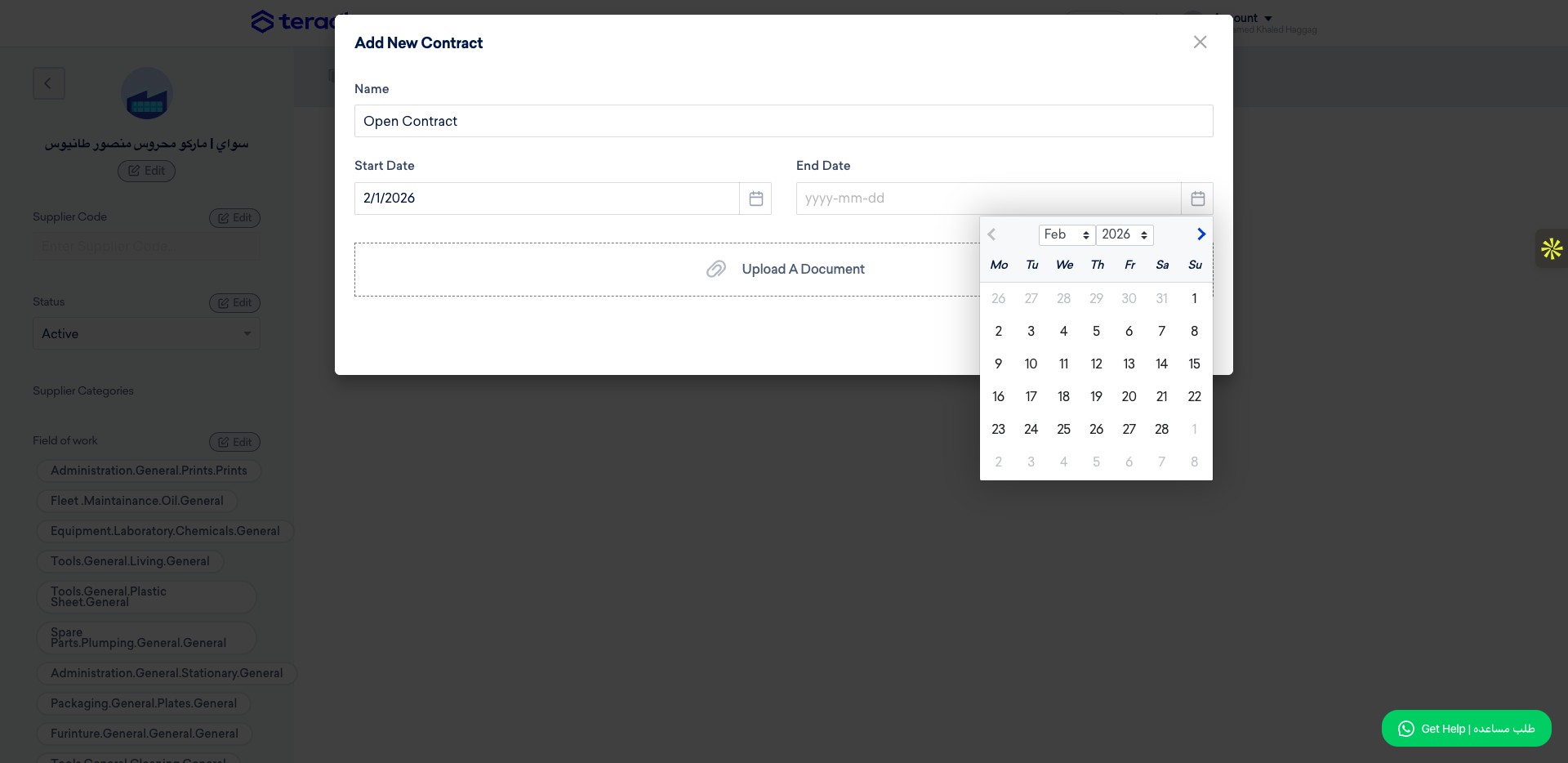
Click on "1"
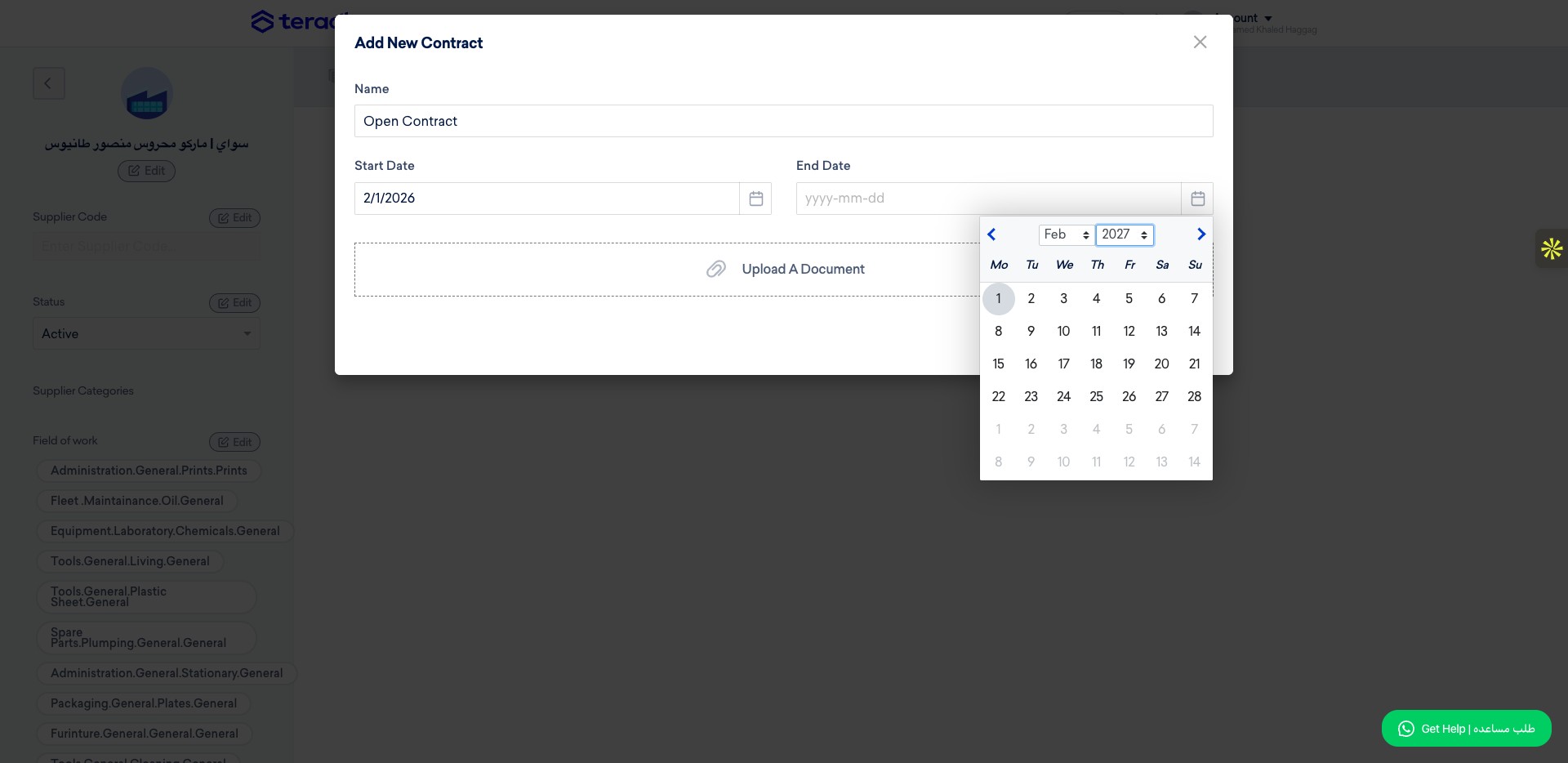
Click on "Upload A Document"
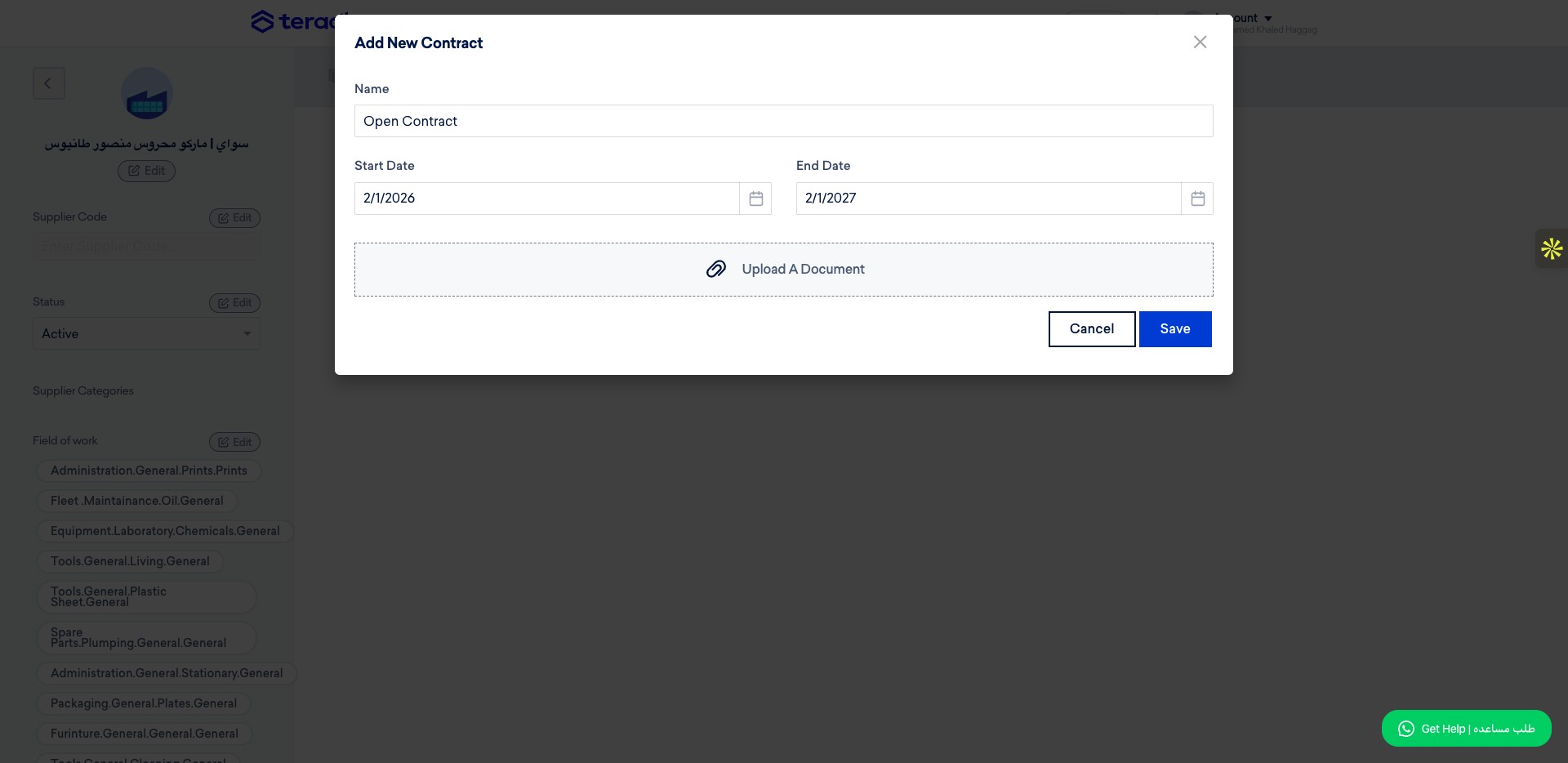
Click on "Save"
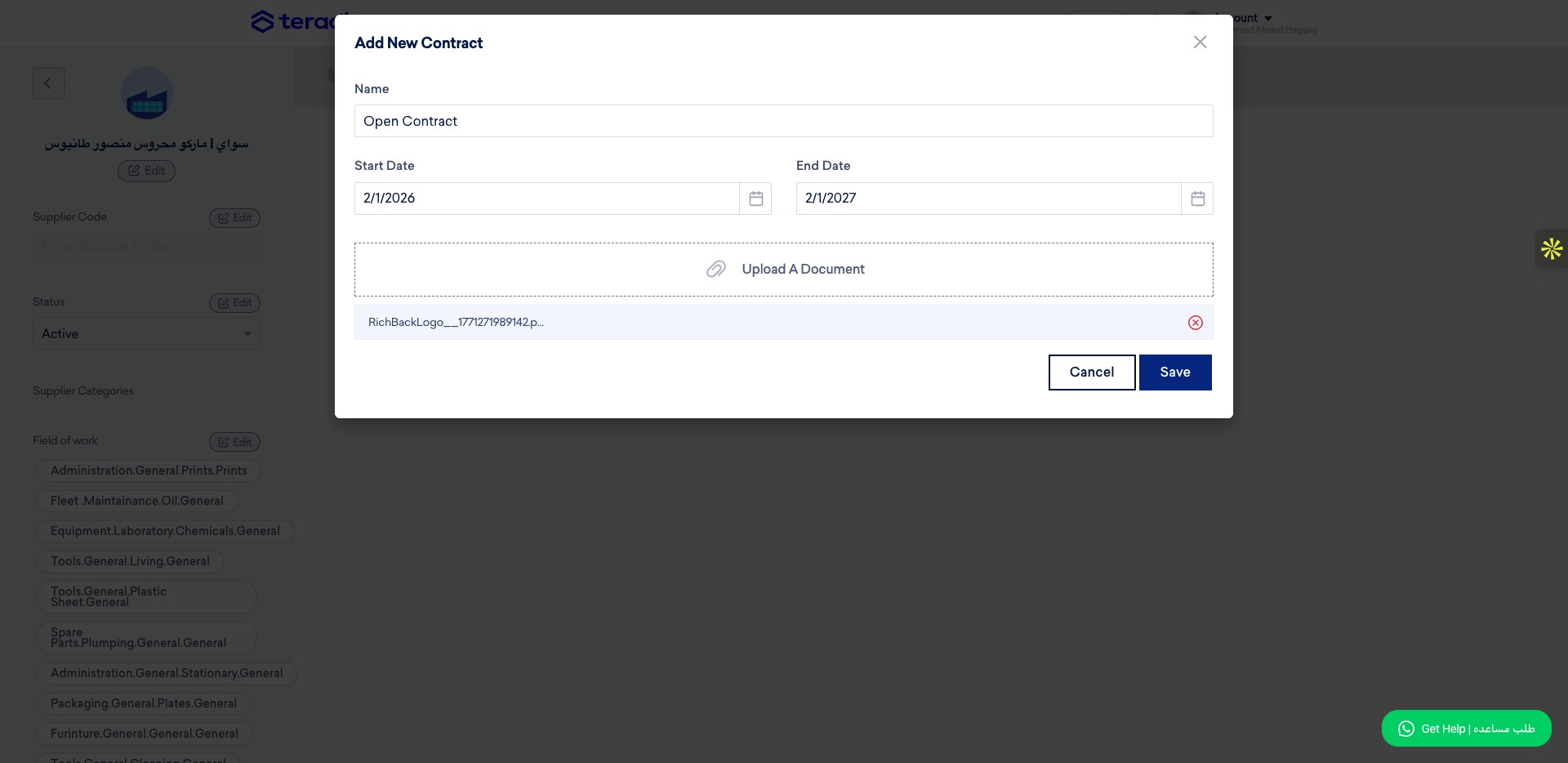
Click on "Deals"
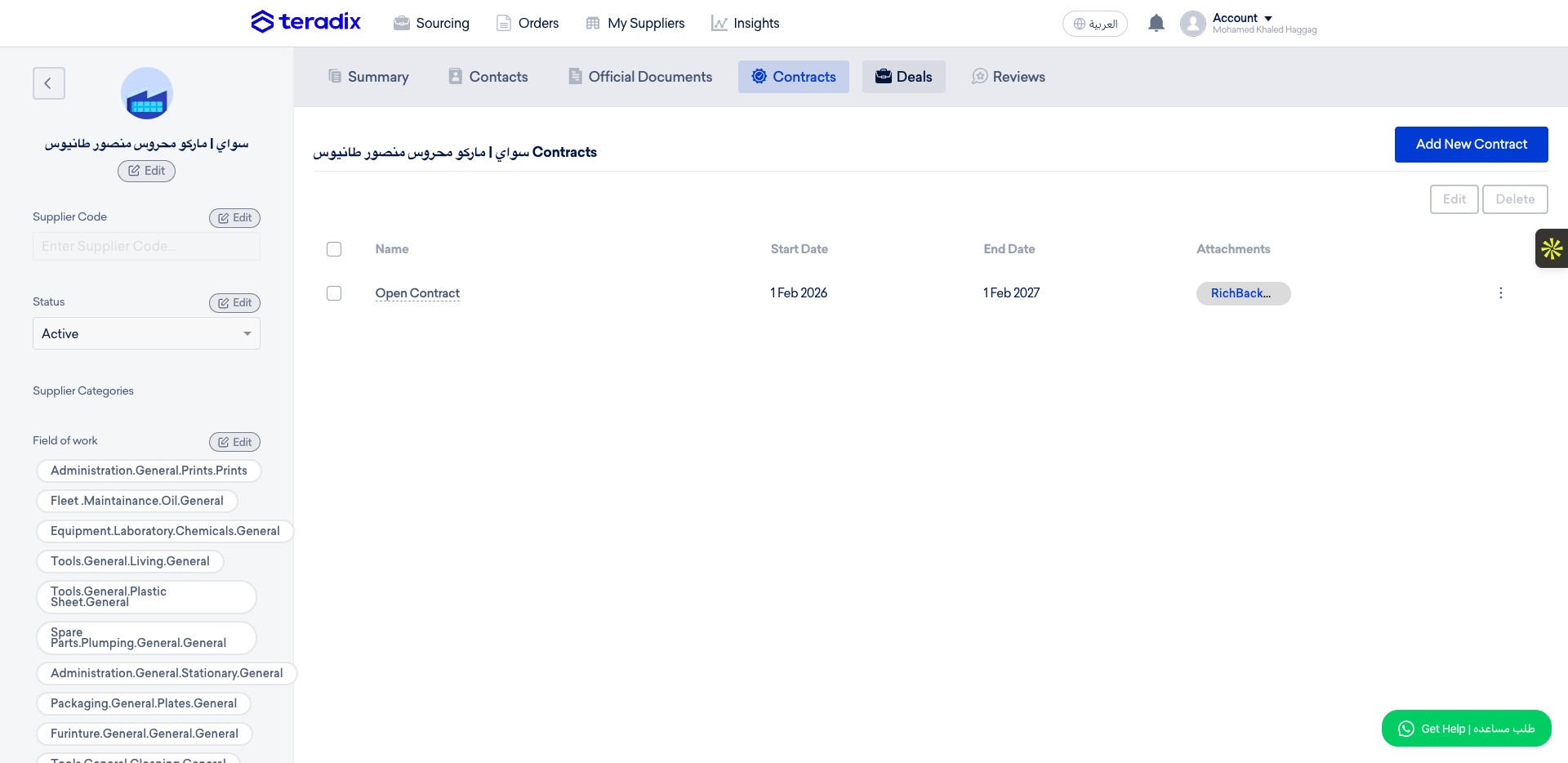
Click this icon
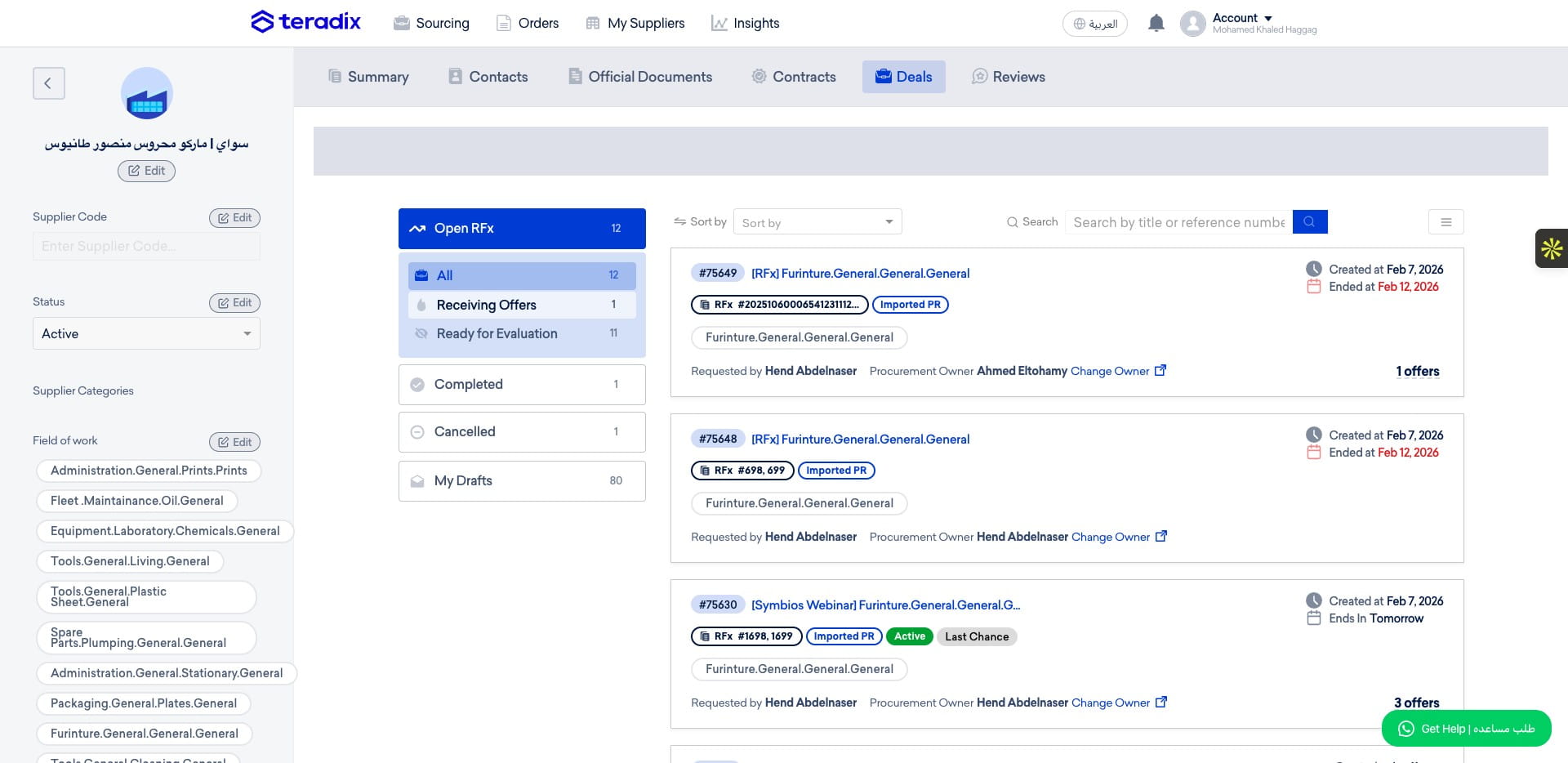
Click this icon
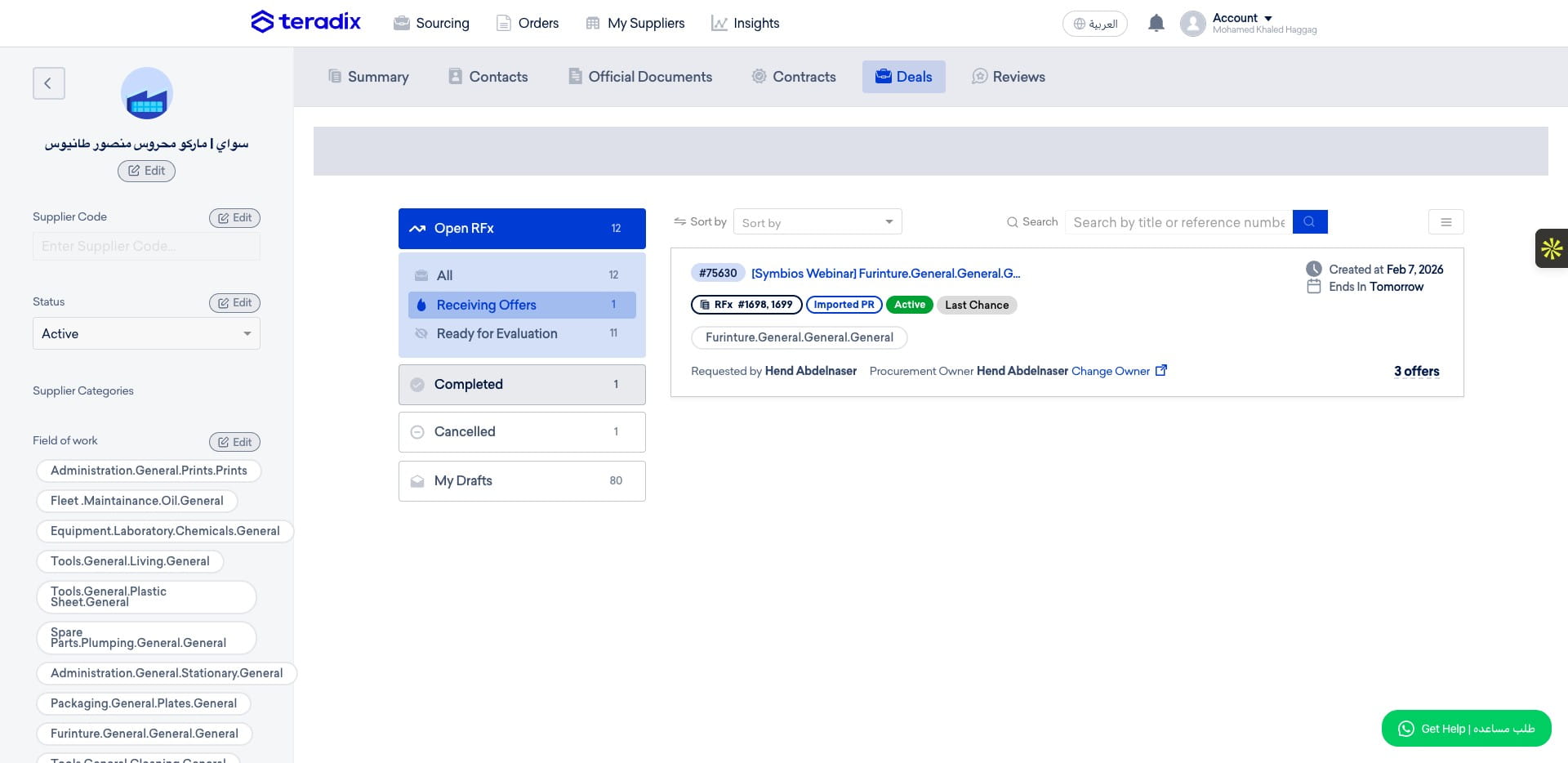
Click this icon
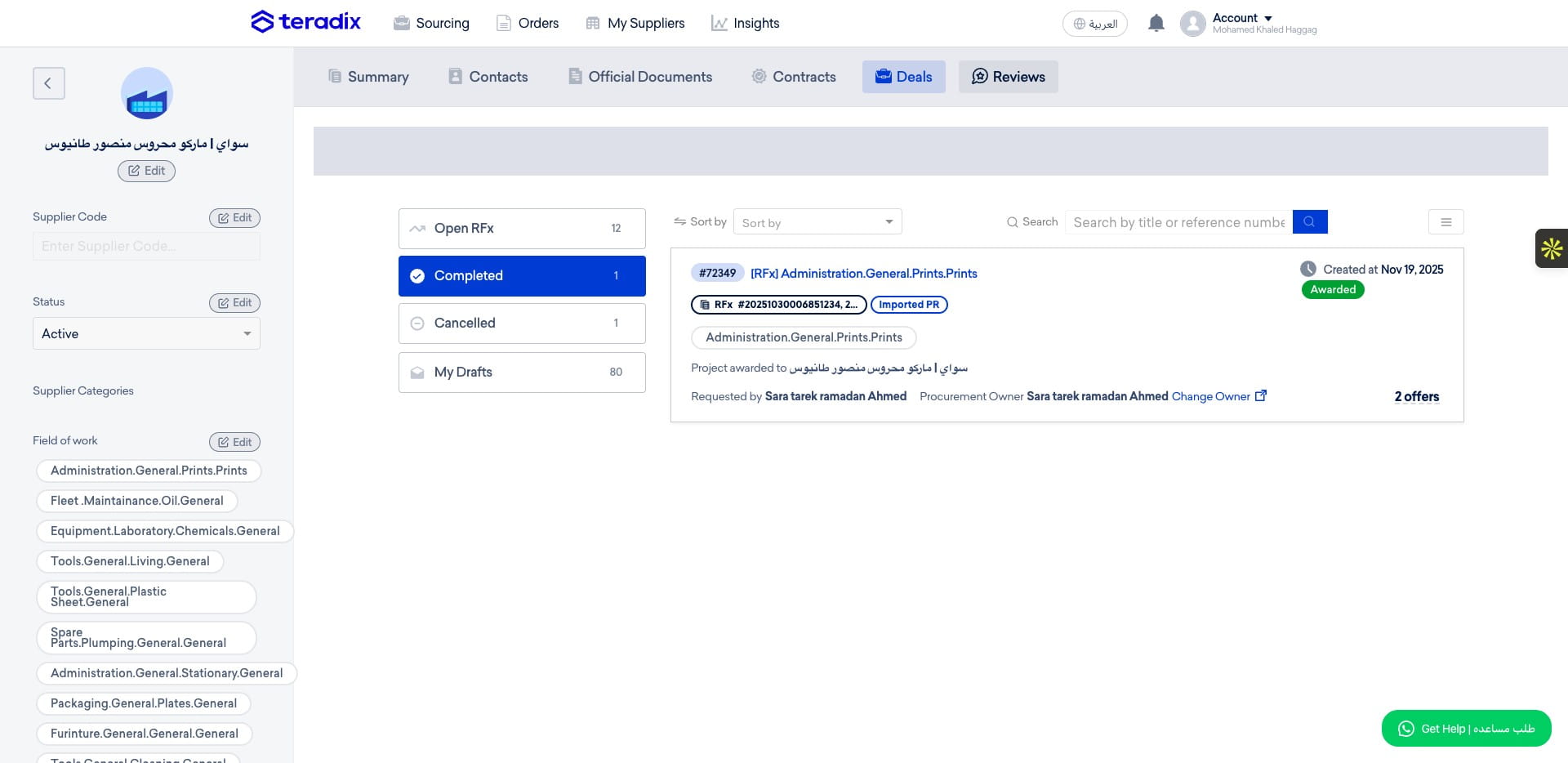
Click on "(*)"
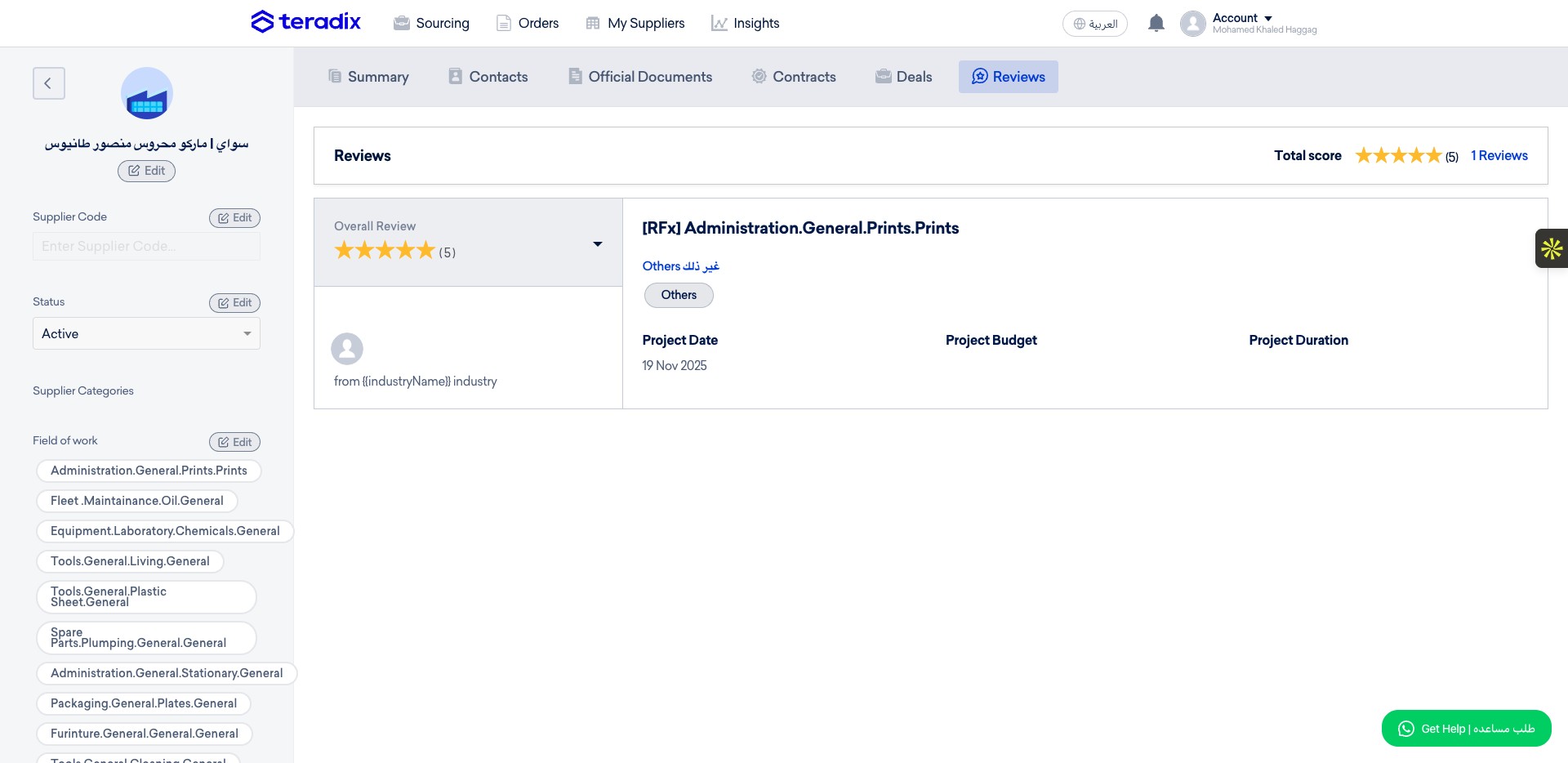
Click on "(*)"