
Managing Draft Purchase Order (PO) from Comparison
Click on "Create draft PO"
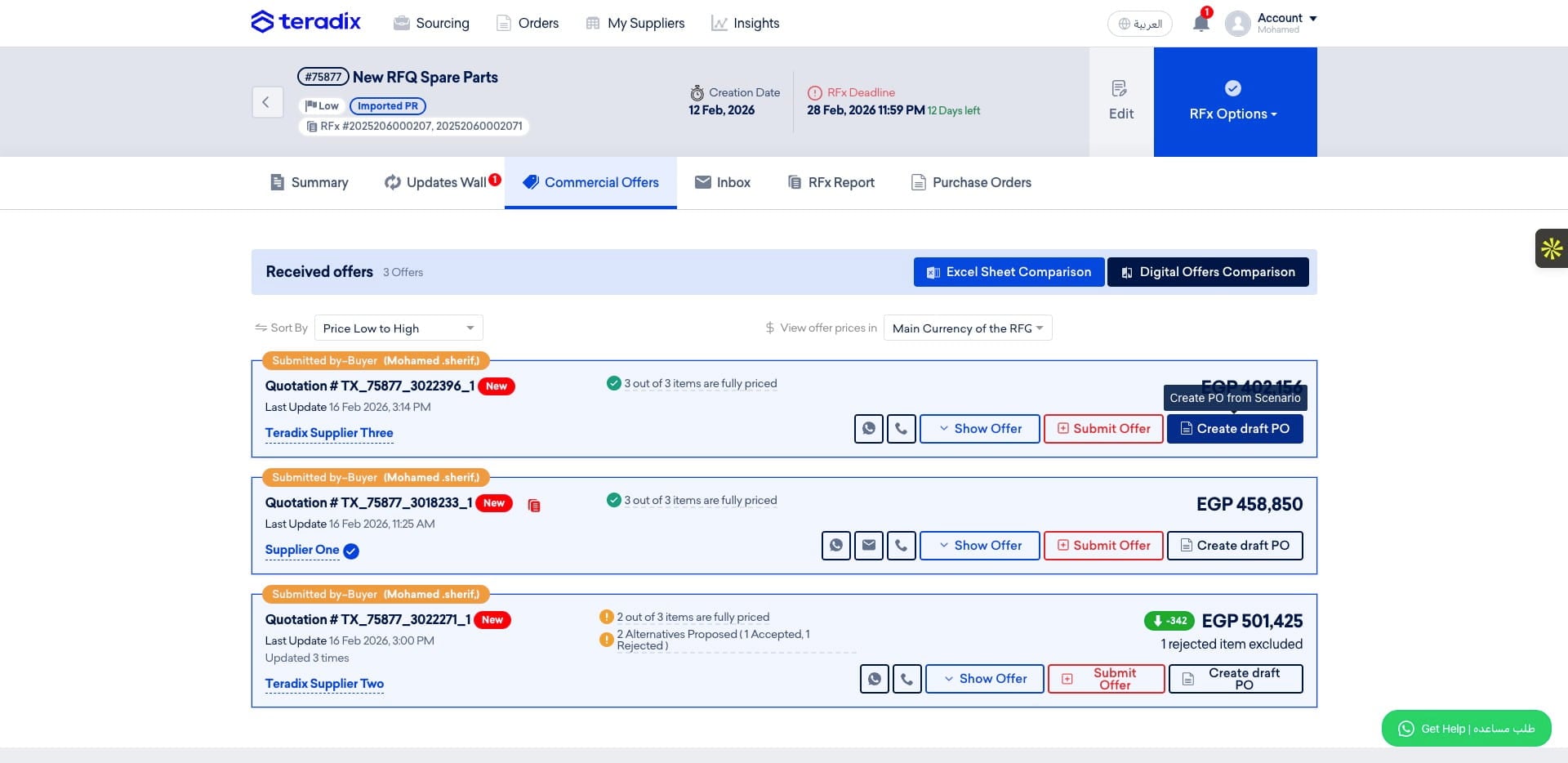
Choose the company and its location.
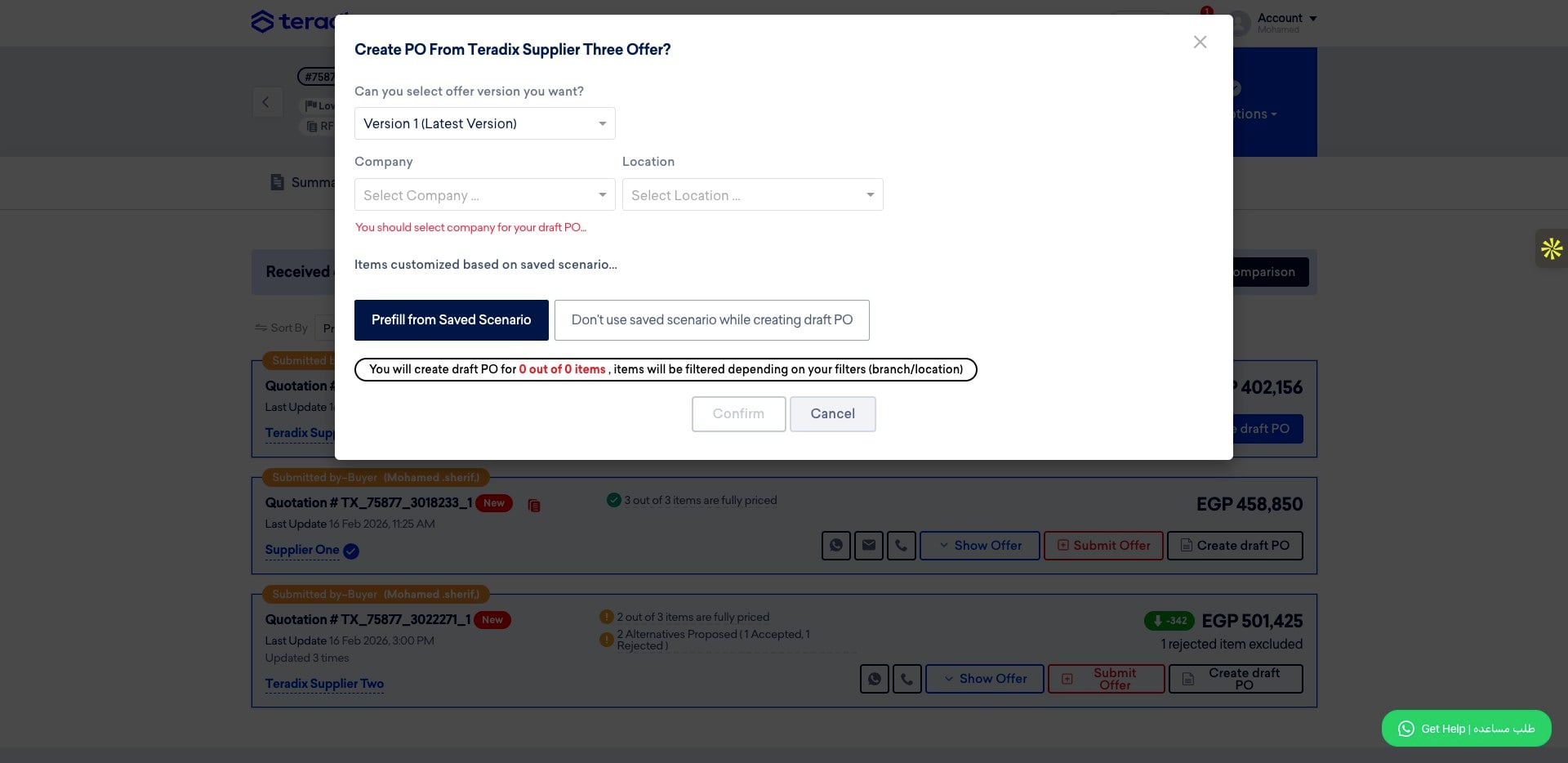
Click on "Breeder-Alahram" for example
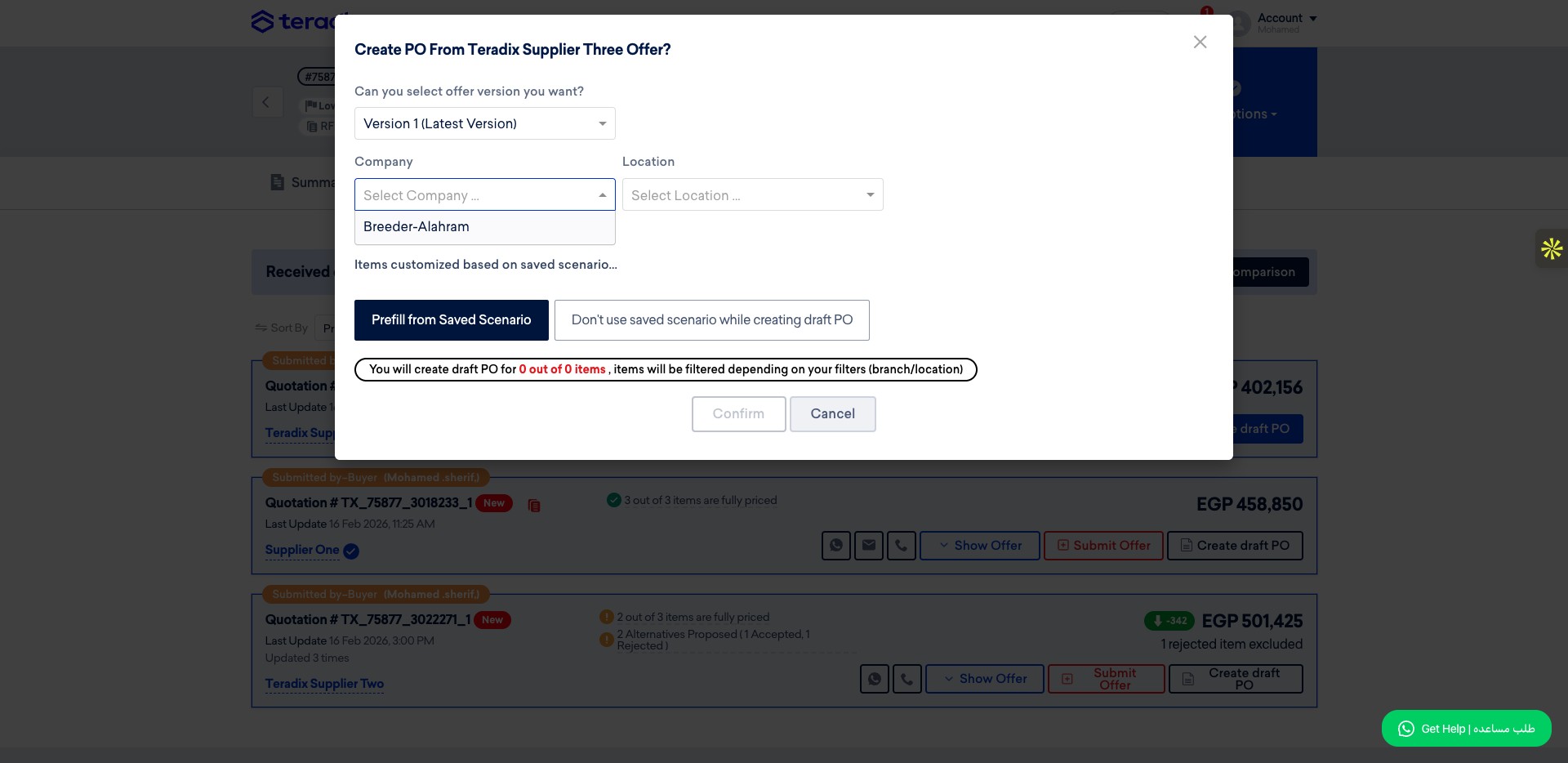
Click on "Regwa" for example
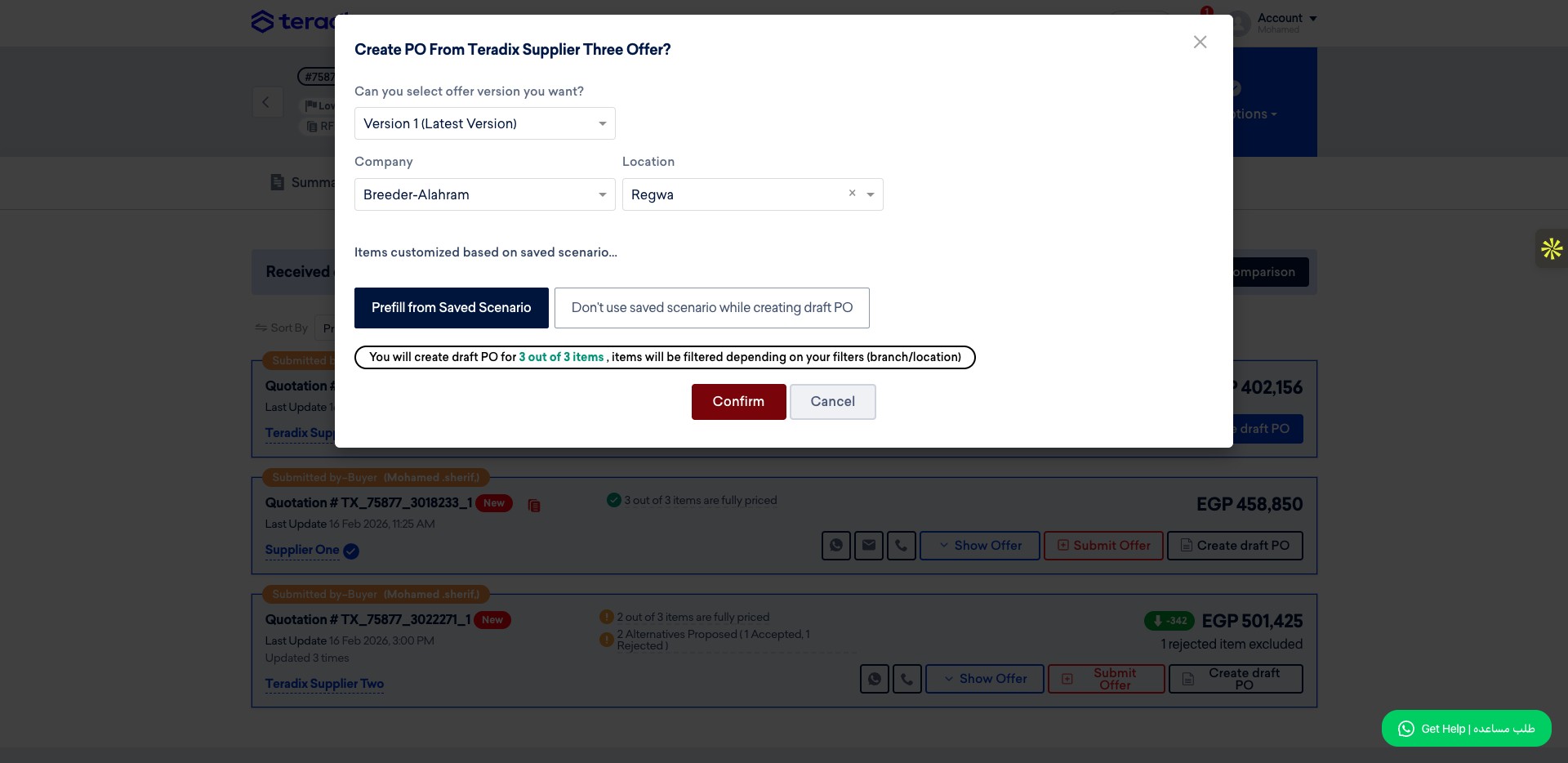
You can select a predefined option from the saved scenario for this supplier.
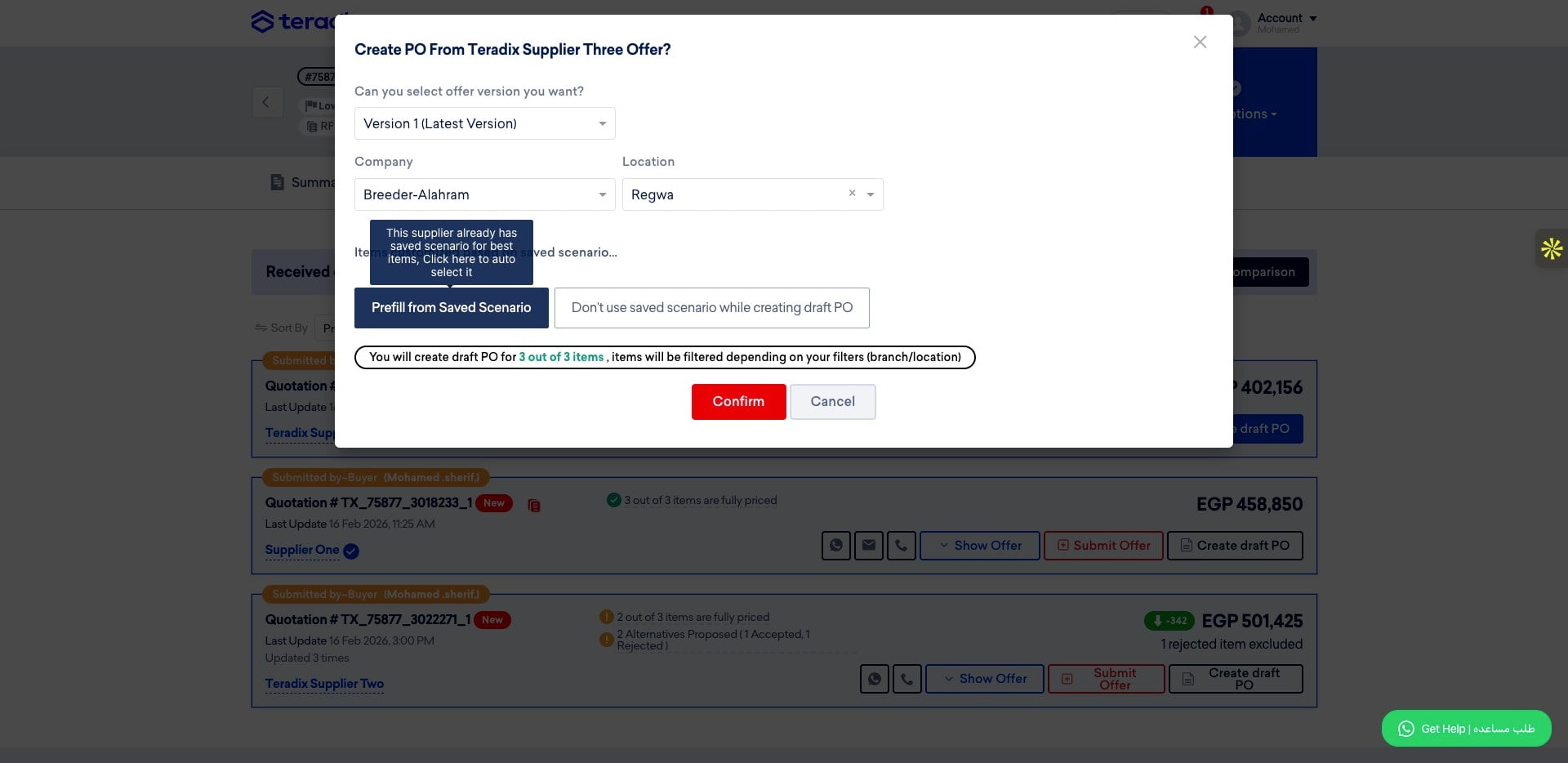
Click on "Confirm"
You can add an internal PO number.
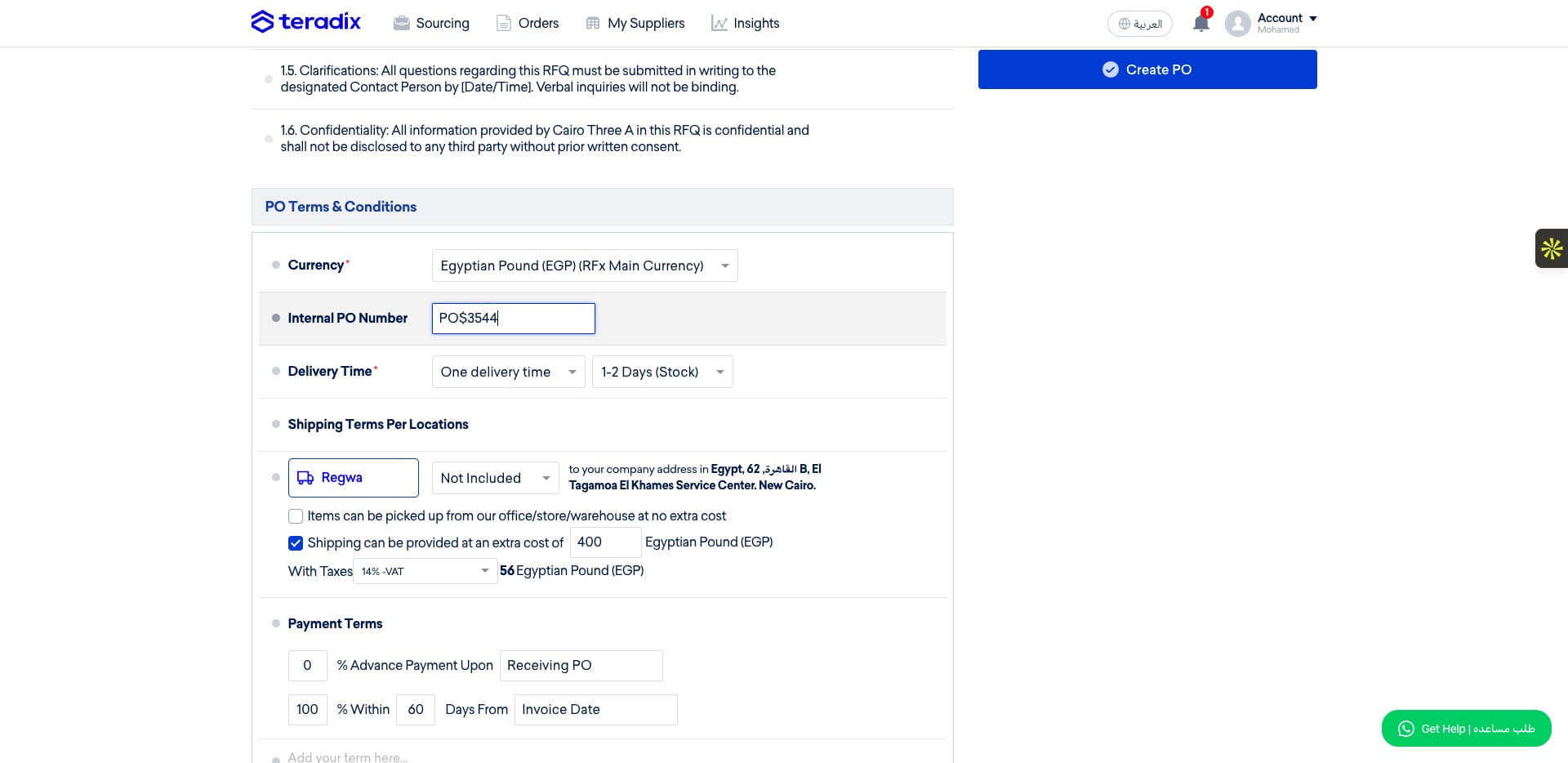
After reviewing all PO details, click 'Create PO'.
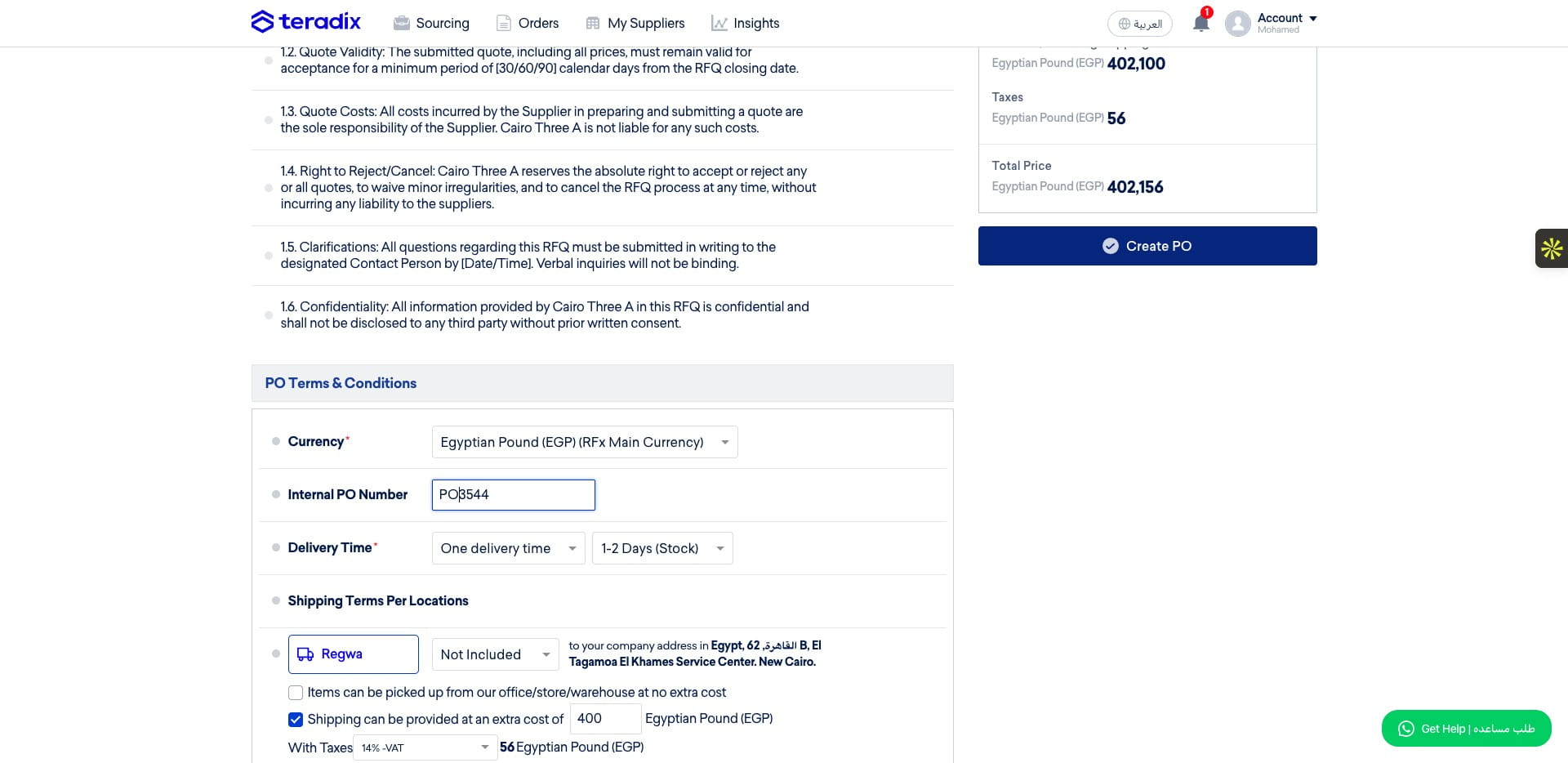
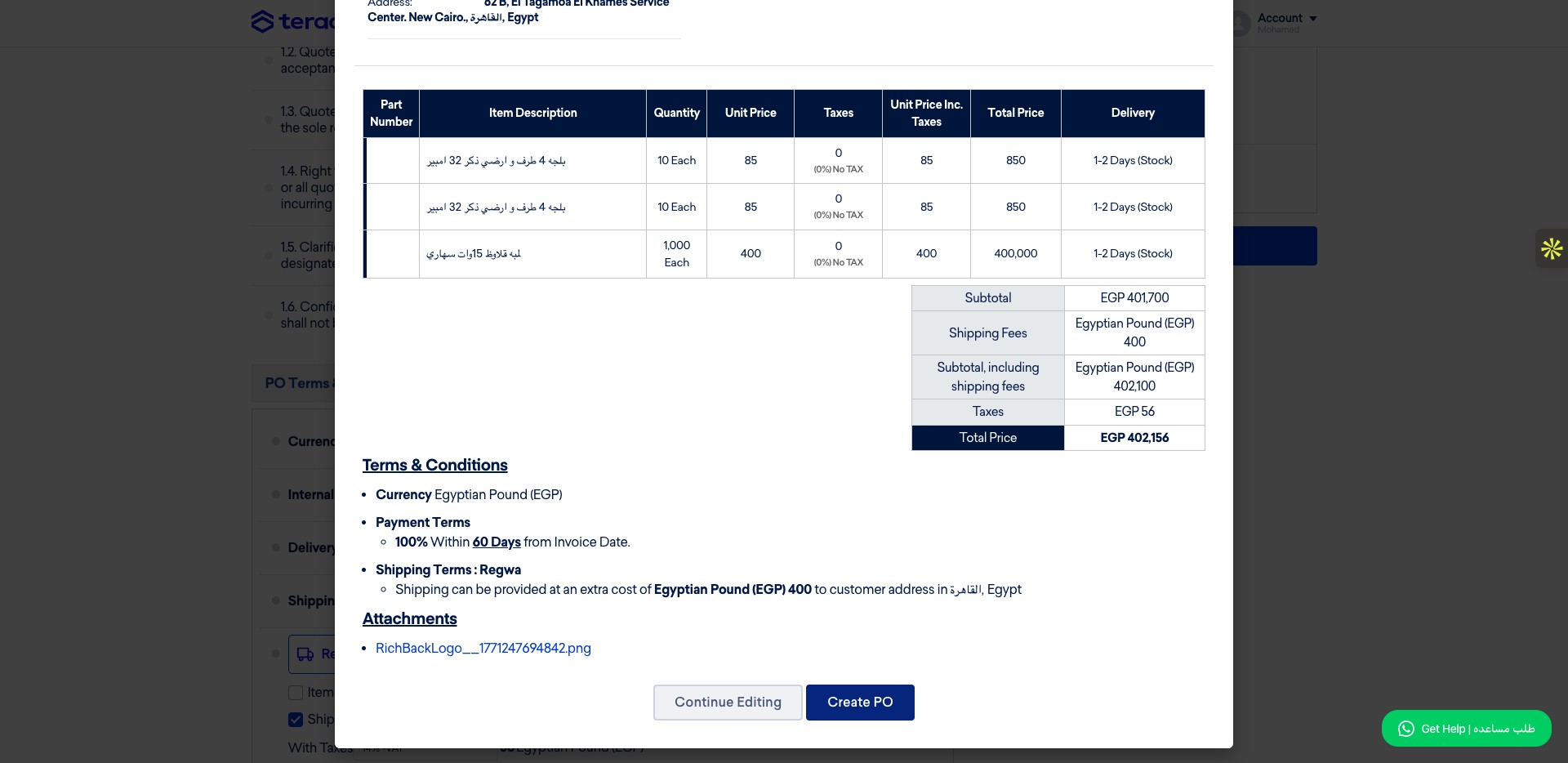
Review the Purchase Order generated by Teradix, including the items, terms, taxes, company details, logo, and total prices, and click "Create PO".
Frequently Asked Questions
- Where do I start to manage a draft PO from comparison?
Navigate to https://app.teradix.com/project/698ddfcb968566001c7051aa/buyer-offers and begin by clicking the "Create draft PO" button.
- How do I choose the company and location for the draft PO?
Choose the company and its location from the selection screen — for example, click "Breeder-Alahram" and then "Regwa" as shown in the guide.
- What is a "saved scenario" and how do I use it?
A saved scenario is a predefined option for the selected supplier. You can select a predefined option from the saved scenario for that supplier before confirming.
- Can I add an internal PO number and when should I do that?
Yes — you can add an internal PO number during the draft creation flow. After confirming supplier and scenario selections, add the internal PO number before reviewing all PO details and clicking "Create PO."
- Why do I click "Create PO" more than once and what should I review before finalizing?
The guide shows two review/confirmation stages: first, after entering selections and (optionally) the internal PO number you click "Create PO"; then Teradix generates the Purchase Order for a final review. On that generated PO review the items, terms, taxes, company details, logo, and total prices, and click "Create PO" again to finalize.